
Using your policies in the builder
Exercises are more useful when they teach your procedures: how your organization wants a suspicious email reported, who approves a change of bank details, which password manager to use. You can upload your security policies so the exercise builder follows them, and so does Brand Mode tailoring of RansomLeak’s catalog exercises. Nothing from a document is used until an admin confirms it.
Policy documents are available when your organization has the exercise builder or Brand Mode. Managing them needs Use the Exercise Builder or Manage Settings.
Upload a document
Section titled “Upload a document”Go to Exercise builder → Policies and click Upload a document. The Manage policy documents link under Policies to follow in a brief opens the same tab. If your organization has Brand Mode but not the exercise builder, policy documents are under Administration → Tenant Settings → Branding, below Brand Mode.
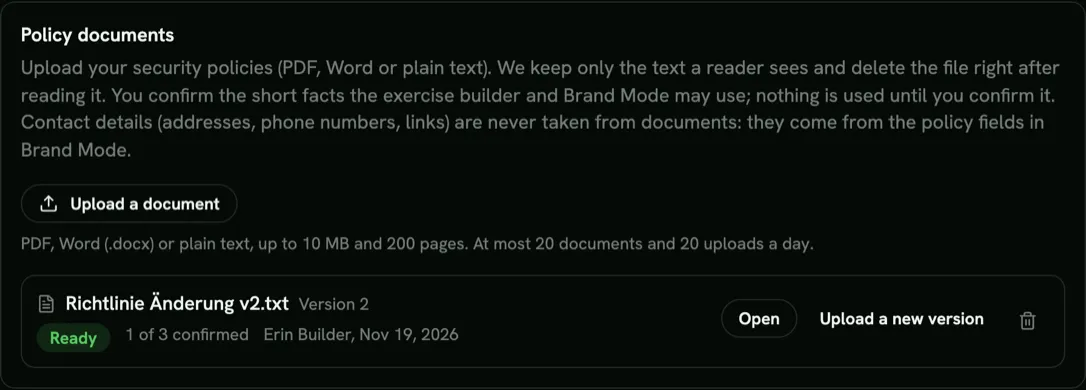
- Accepted: PDF, Word (.docx) and plain text (.txt, UTF-8). The type is checked from the file’s content, not its name.
- Up to 10 MB and 200 pages per document (pages are counted when the document is read; a longer one fails then); at most 20 documents, and 20 uploads a day. A refused file still counts toward the day’s uploads.
- Refused: password-protected or encrypted files, Word files with macros (.docm, .dotm, even when renamed .docx), and files that don’t look like a normal document.
To replace a policy that changed, use Upload a new version on its row. The new version is read and its facts start unconfirmed; the previous version’s confirmed facts stay in use until you confirm a fact of the new one, and then the previous version is deleted. A version that is still waiting for confirmation can’t be replaced: confirm one of its facts, or delete it, before uploading a newer one.
What we keep and what we delete
Section titled “What we keep and what we delete”- The file is read in an isolated environment that has no access to your data and no internet access (it can’t even look up a web address), and only the text a reader sees is kept: hidden text, comments, tracked deletions, embedded files, scripts and metadata are left out. Invisible characters are removed, and at most 120,000 characters are kept.
- The original file is deleted right after it is read, whether reading worked or not. A backstop removes any original left behind within 2 days. It is never shown back to anyone.
- Open shows the extracted text, read-only: it is everything the builder can see from your document.
- Deleting a document deletes its text and facts. Exercises already built keep their content.
- The text is processed in the region your organization is hosted in. On the EU stack, documents are processed within the EU.
Confirm the facts
Section titled “Confirm the facts”After reading a document, the builder lists the procedures it found as short facts (one sentence each, with a topic such as Reporting or Payments). Each fact is:
- Unconfirmed until you confirm it. Only confirmed facts are ever used.
- Rejected when it breaks a rule. Rejected facts are shown greyed out with the reason and can never be confirmed:
- it contains an email address, phone number, website or link, also when spelled out (“name at company dot com”, “five five five, one two three four”) or split up (more than six digits in all; an amount with a currency, or a percentage, doesn’t count while it reads as money — up to six significant digits, and six in all across the fact’s amounts);
- it names a remote-access or support tool (AnyDesk, TeamViewer, Quick Assist and similar) (also misspelled or spaced out) or tells people to install, run, open, allow, permit or agree to remote access;
- a word mixes alphabets, such as Latin with Cyrillic or Greek look-alike letters (text written wholly in one alphabet, Ukrainian for example, is fine);
- it contains markup or code;
- it talks to an AI or about prompts, instructions, rules or exercises.
- Flagged when it may be unsafe advice, for example approving a sign-in you didn’t start, sharing a code with the helpdesk, or installing software because someone asked. Facts say what your document says, even where that looks unsafe or wrong: the builder never corrects or reverses a rule, it flags it so you can see your policy needs fixing. A flagged fact can only be confirmed on its own, after reading the warning. A rejected fact you edit until it passes the rules comes back flagged, so you confirm it on its own too.
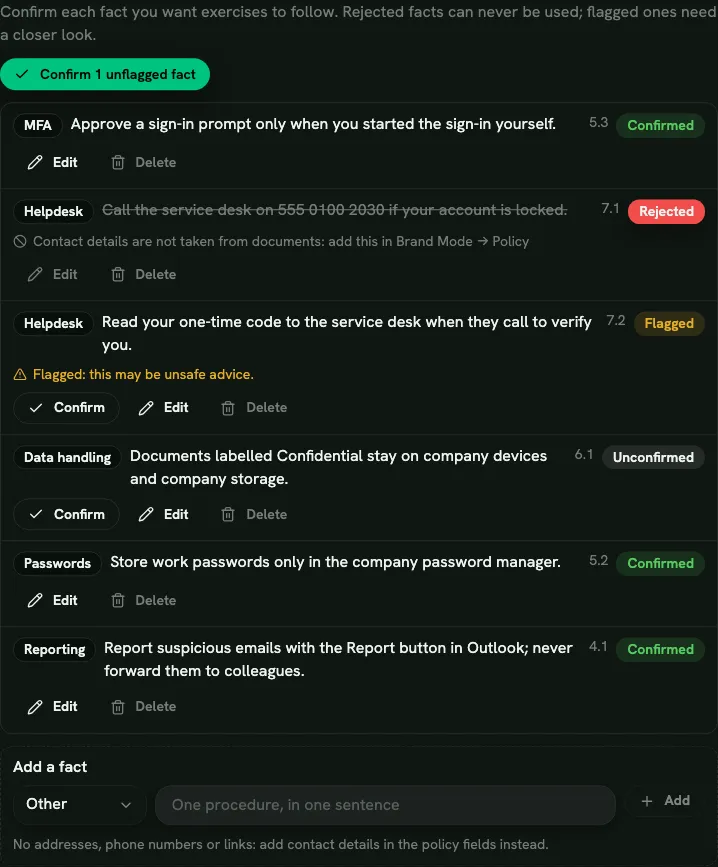
Confirm confirms one fact. Confirm all confirms every unconfirmed fact that is neither flagged nor rejected. You can also Edit, Delete or Add a fact; edited and added facts go through the same rules and need confirming again.
Why contact details never come from documents
Section titled “Why contact details never come from documents”Whom learners report to or call is the most valuable thing an attacker could change. So addresses, phone numbers, links and the names of tools to install or run come only from the policy fields you type yourself in Brand Mode → Our policies, never from an uploaded document. A fact that contains one is rejected with the hint to add it there.
Use in exercises
Section titled “Use in exercises”In the builder’s brief, Policies to follow lists the documents with confirmed facts, all ticked. The run takes a snapshot of their confirmed facts together with your Brand Mode policy fields, and each step of the outline shows the Facts used. Below the steps, the outline lists every fact of the snapshot, with the ones the outline relies on highlighted, so you see everything the exercise may use. Brand Mode tailoring of catalog exercises uses your confirmed facts and policy fields; a builder exercise is tailored only with the facts its run used.