
Certificates
You get a certificate automatically when you finish:
| What you finish | When the certificate is issued |
|---|---|
| Course | You’ve completed every exercise in the course and, if quizzes are on, passed each one |
| Campaign | You’ve completed everything in the campaign |
| Learning path | You’ve completed every required step. Optional steps don’t count. |
It appears on the Certificates page shortly afterwards.
Finding and downloading
Section titled “Finding and downloading”Open Certificates in the left-hand menu. Use the All, Courses, Campaigns and Learning Paths tabs, the search box or the date range to find one.
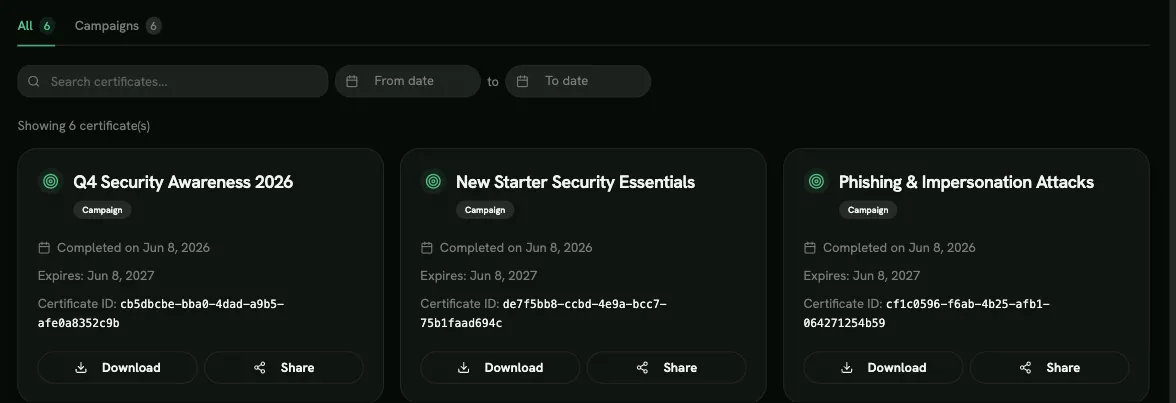
Each certificate shows:
- what it’s for, and Completed on with the date;
- Expires: one year after the completion date;
- the Certificate ID.
Click Download to get the PDF. It shows your name, what you completed, the completion date, your organization’s name or logo, and the start of the certificate ID. It’s in your own language (see Your profile and settings).
Completing it again
Section titled “Completing it again”You have one certificate per course, campaign and learning path. If you complete the same one again, for example when a yearly learning path starts a new cycle, the certificate is re-issued with the new completion date and a new expiry date one year later.
A new campaign, such as next year’s refresher, is a separate campaign, so it gives you a separate certificate.
Sharing on LinkedIn
Section titled “Sharing on LinkedIn”If your organization has turned on sharing, each certificate has a Share button:
- Share on LinkedIn opens a window with your certificate’s verification link. Click Open LinkedIn to add the certification to your LinkedIn profile; the link is included.
- Copy verification link copies the link so you can send it to someone directly.
The verification link is created the first time you share that certificate. It’s public: anyone with the link can open the verification page, without signing in.
If you don’t see Share, your organization has turned sharing off.
Stopping sharing
Section titled “Stopping sharing”To withdraw a link, click Share on the certificate, then Stop sharing and confirm. Stop sharing only appears once the certificate has been shared.
The verification link stops working straight away, including anywhere you’ve already posted it, such as your LinkedIn profile. Anyone who opens it sees Certificate Not Found. Remove or update the LinkedIn entry yourself if you no longer want it there.
If you share the certificate again later, it gets a new link. The old one never works again.
If your organization turns off LinkedIn Certificate Sharing, every verification link stops working and the Share button disappears. If it’s turned back on, links that weren’t stopped work again.
Verifying a certificate
Section titled “Verifying a certificate”Someone who needs to check a certificate, such as an auditor or a new employer, should ask for its verification link. The page it opens says:
- Verified Certificate: the certificate is genuine and hasn’t expired;
- Expired Certificate: it’s genuine, but more than a year has passed since completion;
- Certificate Not Found: the link is wrong, the certificate doesn’t exist, its owner stopped sharing it, or the organization has turned sharing off.
A PDF on its own can’t be checked this way. For audits of your whole organization, administrators can export evidence from the platform instead. See Compliance reporting.