
Slack, Microsoft Teams and Webex
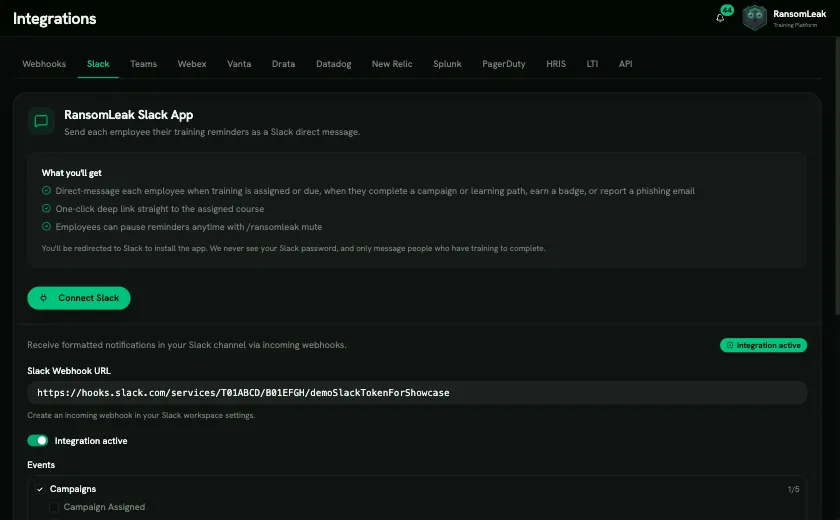
Connect a chat app under Integrations (you need Manage Integrations) and RansomLeak messages each employee directly:
| When | Message |
|---|---|
| Training or a learning path is assigned | New training assigned / New learning path assigned |
| 15, 5 and 1 day before a deadline | Training due soon, Deadline approaching, Deadline tomorrow |
| A campaign or learning path is completed | Training complete / Learning path complete |
| A badge is earned | Badge earned |
| A simulated phish is reported | Nice catch |
Messages are in your organization’s language and include a button that opens the training. Employees are matched by email address.
The button signs the employee in without a password: they see a short page with a Continue as (first name) button, and one click takes them to the training. Each link is personal, works once and expires after 7 days. If a link was already used or has expired, the employee signs in normally and then lands on the same training. If they’re already signed in, the link just opens the training. The password-free sign-in is skipped in these cases:
- Your organization requires single sign-on: the employee goes through your identity provider first.
- Your organization requires two-factor authentication, or the employee has turned it on: the employee signs in normally.
- The employee has an admin or custom role with any permissions, or manages people or a team: they sign in normally.
- The account is temporarily locked after failed sign-in attempts: the employee signs in normally once the lock ends.
- Someone else is signed in on that browser: the employee is asked to sign in, so nobody’s session is swapped.
- An IP allowlist is on and the employee isn’t on an allowed network: the link is refused.
Connect
Section titled “Connect”- Slack: on the Slack tab, click Connect Slack and approve the app for your workspace.
- Microsoft Teams: on the Teams tab, click Connect Teams. Microsoft first asks for admin consent for your organization, then asks you to sign in once more so RansomLeak can confirm which Microsoft 365 organization you are connecting. The person connecting must be a Microsoft 365 admin with the Global Administrator, Privileged Role Administrator, Application Administrator or Cloud Application Administrator role. Then make the app available to employees with Add to Teams (Teams Store). Use Send test nudge to check it works.
- Start from your RansomLeak address (
yourcompany.ransomleak.com). If you use a custom domain, the Teams tab shows a link to that address instead of the Connect button. - A Microsoft 365 organization can be connected to one RansomLeak organization at a time. If it is already connected in another region, the page tells you so: disconnect it there first.
- If a connection fails, the Teams tab says why (for example, the person connecting isn’t a Microsoft 365 admin) so you can ask the right admin to try again.
- Start from your RansomLeak address (
- Webex: on the Webex tab, click Connect Webex to authorize your organization. Nothing needs installing for employees. Use Send test nudge to check.
Muting
Section titled “Muting”Employees can turn off reminders themselves:
- Slack: the Mute / Unmute switch on the app’s Home tab, the Mute reminders button on a reminder, or
/ransomleak mute(andunmute,status). - Teams and Webex: send mute or unmute to the bot, or use the button on a message.
In Slack, muting skips optional training only; required chat learning programs still arrive and can be snoozed instead.
Message checks
Section titled “Message checks”Employees can ask the app whether a link or a message looks suspicious. In Slack they send /ransomleak check followed by the link or the text (what they see). The answer is private: Looks dangerous, Suspicious or No known red flags, never “safe”, with buttons to Report to Security and to get a short lesson. The verdict comes from rules: known malicious sites, newly registered domains, lookalikes of your domains and of well-known brands, shortened links, and pressure, payment or sign-in requests in the text. Nothing is opened or fetched, and no AI is involved.
- On or off: Let people check links and messages under Integrations, Slack, Chat learning settings, Message checks. It is on by default.
- What is stored: the verdict, the domain (for example
example.com, never the full link), the reasons and the time. The checked text is kept for 30 minutes so it can be reported, then deleted. It is never written to the database or to logs. - Limits: 30 checks per person per hour and 2,000 per organization per day.
- Reports: Report to Security on an answer goes where your other chat reports go. A check of a message with a link or a red flag counts toward the person’s Human Risk Score, at most once every 30 days.

Monthly security digest
Section titled “Monthly security digest”Once a month, RansomLeak can send your security team a summary of the month before. The digest is optional and off by default: nothing is built, posted or emailed until you turn it on.
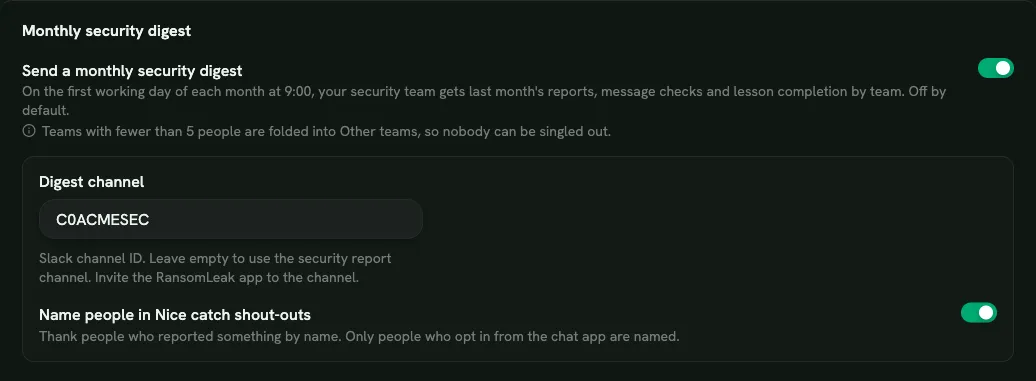
- Turn it on: under Integrations, Slack, Chat learning settings, Monthly security digest, switch on Send a monthly security digest and save (you need Manage Integrations).
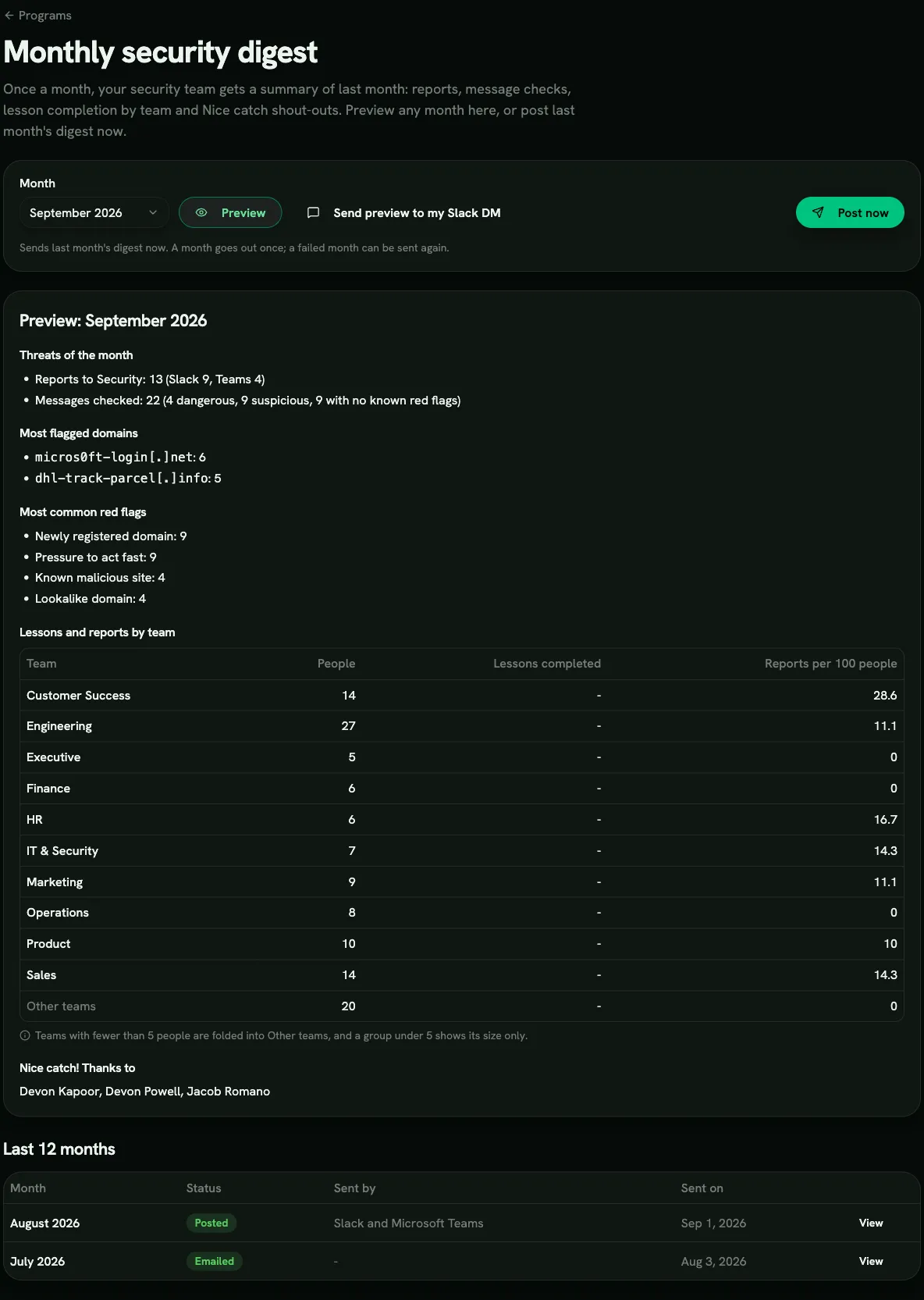
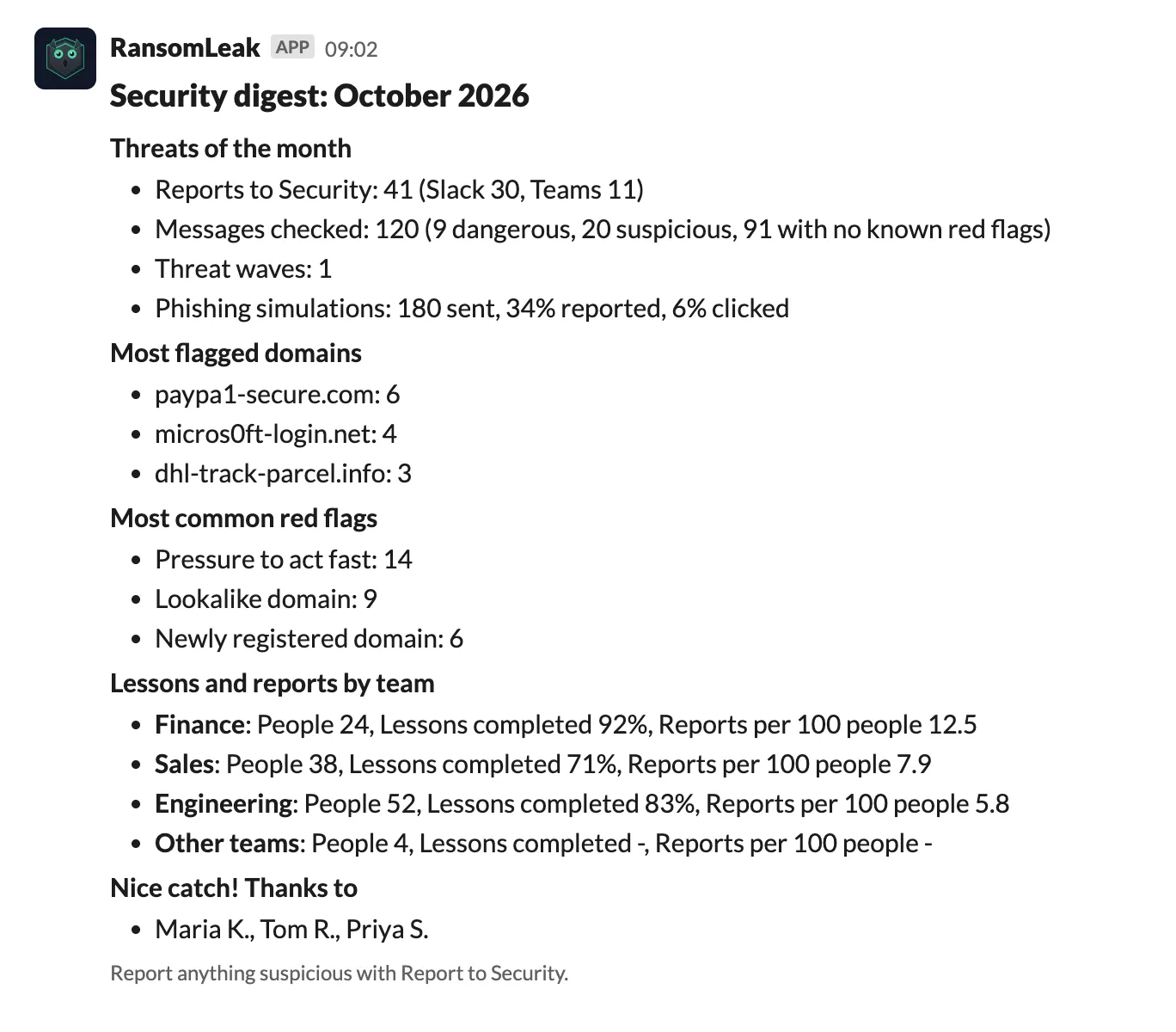
- What it shows: reports to security (Slack and Teams), message checks by verdict, the most flagged domains (only ones flagged at least twice, shown so they can’t be clicked), the most common red flags, threat waves, phishing simulation report and click rates when you ran simulations, and per team the share of chat lessons completed and reports per 100 people. Sections with nothing in them are left out. It never shows message text, senders, links, scores per person or who checked what.
- Small teams are folded together: only teams with at least 5 active people get their own row. Smaller teams and people without a team are combined into Other teams, and if that group has fewer than 5 people only its size is shown.
- Nice catch shout-outs: to thank people by name, also switch on Name people in Nice catch shout-outs. A person is named only if they opt in themselves: the thank-you after their first report of a message asks once, and they can change their answer on the app’s Home tab (what they see). Both are needed, your setting and each person’s opt-in. At most 10 names, in alphabetical order, without counts.
- When: on the first working day of each month (your organization’s work week), between 9:00 and 10:00 in your default timezone, covering the previous month.
- Where: in Slack, in the Digest channel (a Slack channel ID; leave it empty to use the security report channel, and invite the RansomLeak app there). If Slack isn’t connected, no channel is set, or the post fails (for example because the app isn’t in the channel), it goes by email to the security report email address instead. Organizations on Microsoft Teams get it by email.
- Digest page: on the Chat learning page, Monthly digest lists the last 12 months and their status. Preview shows any month without sending it, also while the digest is off. Send preview to my Slack DM sends that preview to you alone in Slack; it shows when Slack is connected and your Slack account is matched to you. Post now sends last month’s digest if it hasn’t gone out (a month that failed can be sent again). You need the permission to manage chat learning.
Channel digests (Slack and Teams)
Section titled “Channel digests (Slack and Teams)”Separately from direct messages, you can post events to a channel with an incoming webhook. Paste the webhook URL, choose the events, click Connect, then Send Test. Disconnecting the app doesn’t remove the channel webhook.