
Building a drill
You need the Manage permission for that drill type, for example Manage Phishing Drills.
Ready-made drills
Section titled “Ready-made drills”Each drill page comes with several ready-made drills written by RansomLeak, for example a CEO wire-transfer request, a Microsoft 365 password expiry or a missed parcel delivery. You can use them as they are, edit them or delete them.
Create a drill
Section titled “Create a drill”- Open Content Management → Microlearning, select the drill type’s tab and click Create Drill.
- Enter a Drill Name and Choose Template. Each type offers several realistic scenarios plus Custom.
- Customise the scenario. The editor shows a live preview next to the form. What you can change depends on the type, for example:
- Phishing: sender name and address, reply-to, subject, body, button, attachment and signature, plus the email client (Outlook, Gmail or Generic).
- Smishing, MFA, QR Phishing: the messages and screens, and the phone (iPhone or Android).
- Chat: the attacker’s name and title, and the wording of each message and reply option, in Teams, Slack, WhatsApp or LinkedIn.
- Vishing: the caller’s name, number and voice (male, female or neutral). The audio is generated after you save.
- Fake Login, OAuth Consent: the page’s URL, branding and requested permissions, and the browser (Chrome or Edge).
- Social Media: the posts and connection requests in the feed, on LinkedIn or X.
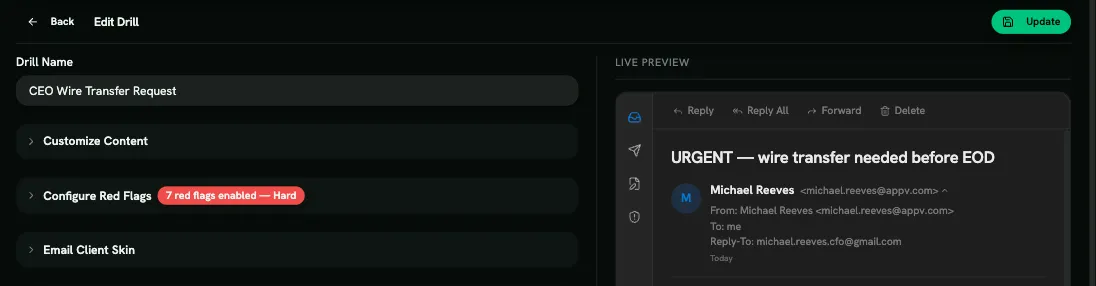
For conversation-style drills (Chat, MFA, Vishing, AI Chat, Attack Chain), you can reword the script, but the branching structure comes from the template. 4. Configure Red Flags: choose which red flags the learner must find. The more flags, the harder the drill: Easy, Medium or Hard. 5. Quiz Questions: keep the suggested questions, pick more from the Question Bank, or Add Custom Question (single or multiple answers). 6. Save.
Use tokens such as {{first_name}} and {{company_name}} to personalise the content for each learner.
Preview
Section titled “Preview”Click Preview on any drill to play it exactly as a learner would. Preview runs are never recorded.
Languages
Section titled “Languages”The drill interface (buttons, instructions, the reveal) appears in each learner’s language: English, German, French, Italian, Dutch or Ukrainian. The content you write is shown as written. Ready-made drills include translations where available.
Editing and deleting
Section titled “Editing and deleting”Edit or delete drills from their list. Before deleting a drill, remove it from any learning paths and campaigns that use it. There’s no copy function: to make a variation, create a new drill from the same template.