
Creating and building a path
You need the Manage Learning Paths permission.
1. Create the path
Section titled “1. Create the path”-
Go to Administration → Content Management → Learning Paths.
-
Click Create Learning Path.
-
Enter a Name and, optionally, a Description.
-
Choose the Content type: SAT or AppSec.
-
Choose a Difficulty and click Create.
The builder opens. New paths start as a Draft.
2. Fill in the details
Section titled “2. Fill in the details”On the Content tab, under Path Details:
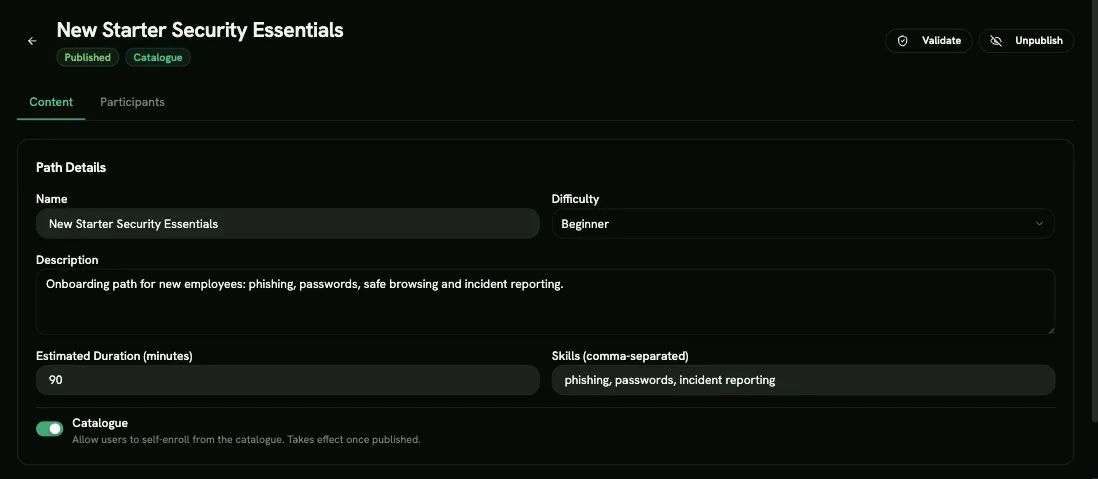
- Name, Difficulty and Description
- Estimated Duration (minutes): shown to learners so they can plan.
- Skills (comma-separated): tags such as phishing, passwords.
- Catalogue: when on, learners can find the path and enrol themselves once it’s published. See Self-enrollment.
Click Save to keep your changes. The button appears only when something has changed.
3. Add steps
Section titled “3. Add steps”- Under Steps, click Add First Step (or Add Step).
- Pick the step type: Exercise, Course, a drill type, or Custom Content.
- Choose the item. The list only shows content that matches the path’s content type.
- Optionally, mark it Optional step (not required for completion) and choose its Prerequisites.
Rules to keep in mind:
- Each exercise, course or custom content item can appear only once per path.
- Custom content must have finished processing before you can add it. Upload it first under Content Management → Custom Content.
To change a step, use its edit button (Edit Step: name, sort order, optional). Drag the handle on a step to reorder the list.
A step’s name is filled in from the exercise or course you pick. Left as it is, it follows each learner’s language like the exercise itself. If you type your own name, learners see exactly what you typed, in every language.
4. Control the order with prerequisites
Section titled “4. Control the order with prerequisites”The order of the steps in the list is only the order learners see them in. It doesn’t force anything. To make learners go in order, use prerequisites:
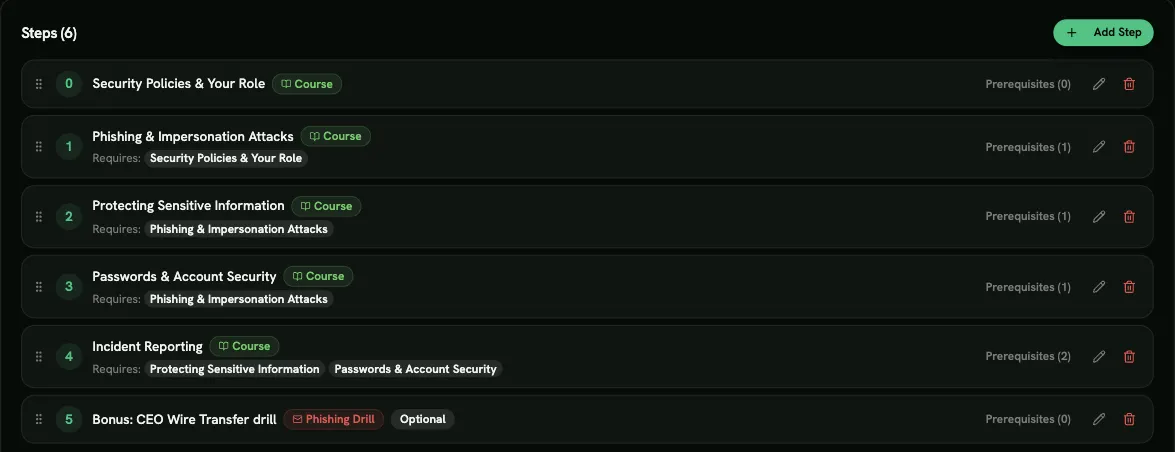
- A step with no prerequisites is available straight away.
- A step with prerequisites is locked (greyed out, with a lock icon) until all of them are complete.
- Optional steps never block anything, even when listed as a prerequisite.
| You want | Set up |
|---|---|
| Any order | No prerequisites on any step |
| Strictly one after another | Each step has the previous step as its prerequisite |
| An introduction first, then anything | Every other step has the introduction as its prerequisite |
| A final assessment at the end | The last step has all the other steps as prerequisites |
5. Validate and publish
Section titled “5. Validate and publish”Click Validate to check the path, then Publish. A path can be published only if:
- it has at least one step;
- no exercise, course or custom content appears twice;
- the prerequisites don’t form a loop (A needs B, B needs A);
- every step can be reached, so none depends on a step that can never unlock.
Once it’s published you can enrol learners.
Changing a published path
Section titled “Changing a published path”You can keep editing a published path. Changes apply to learners enrolled directly (not through a campaign).
- Paths inside a campaign are different. A campaign keeps a frozen copy of the path’s structure from the moment it was added, so later edits don’t reach that campaign. To update it, remove the path from the campaign and add it again. You can do this only while no participant has started.
- Unpublish hides the path from new assignments and turns off Catalogue. You can’t unpublish a path that’s used in an active campaign.
- Delete is possible only when the path isn’t used in any active campaign and nobody is assigned to it. Unassign all users first.