
Administer the extension
Select Human Risk → Browser extension in the sidebar. There are tabs for Settings, Coverage, Requests, Reports, Activity and AI tools. You need the browser extension management permission, which administrators have by default.
Wherever a person’s name appears on these tabs, select it to open their personal page. Besides their training progress, it shows their extension devices, their recent extension events and the sites or apps they asked you to allow.
Settings
Section titled “Settings”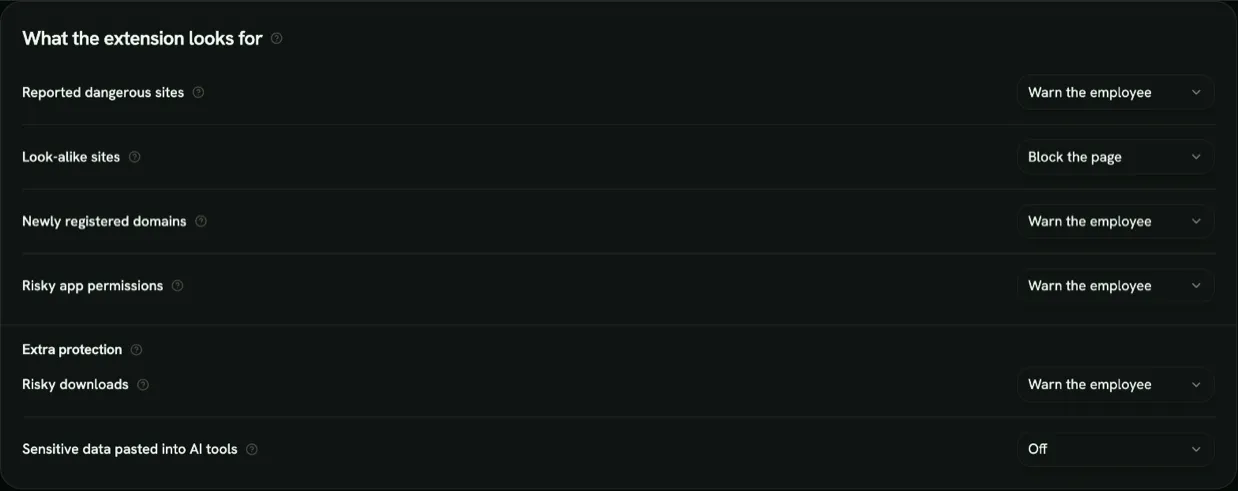
What the extension looks for
Section titled “What the extension looks for”Choose what happens for each detector:
| Detector | Catches |
|---|---|
| Look-alike sites | Sites that imitate a well-known brand or your own domains, like paypa1.com |
| Newly registered domains | Domains registered in the last 30 days, which phishing sites often use |
| Risky app permissions | Screens that ask an employee to give a third-party app access to their account |
For each one you can pick Warn the employee, Block the page, Log only (no warning), or Off. With Block the page, employees cannot continue and can send an access request instead. Newly registered domains alone never warn; they matter when the site also looks like an imitation or is known to be unsafe.
Two more detectors watch what happens on a page. They can Warn the employee, Log only (no warning), or be Off, but never block:
| Detector | Catches |
|---|---|
| Risky downloads | Someone downloads a risky file type: a program, a script, an Office file with macros, an archive or a disk image. Only the site and the file category are sent, never the file name or contents. |
One more detector looks at what people paste into AI tools. It is Off by default; you can set it to Warn the employee or Block the paste:
| Detector | Catches |
|---|---|
| Sensitive data pasted into AI tools | Someone pastes text into an AI tool (ChatGPT, Claude, Gemini, Copilot and the other tools on the AI tools tab) that looks like a password, API key or access token, a payment card number, a list of five or more email addresses, or a very large block of text (over 2,000 characters). |
The check runs only on AI tool pages, on the employee’s device. The pasted text is never stored or sent: the event holds only the AI tool’s domain, the kind of data (password or key, card number, email addresses, or large paste) and what the employee did. With Warn the employee, the paste is held back and the employee chooses Don’t paste or Paste anyway. With Block the paste, the paste does not go through. The same tool and kind of data is reported at most once a day per person and choice. Older extension versions (before 1.1) ignore this setting.
These three need extra protection: each employee turns it on in the extension, which asks the browser for one more permission. Employees who have not turned it on are not checked by these detectors. Continuing past any of these warnings counts in the risk score like continuing past any other warning; a blocked paste counts a little.
Allowed domains
Section titled “Allowed domains”Sites the extension never warns about, for example a partner site it mistakes for a look-alike. Enter a domain such as partner.example.com and select Add.
Approved apps
Section titled “Approved apps”App IDs your organization has approved. The extension will not flag the consent screen of these apps. Enter the application (client) ID, optionally an App name so the list is easier to read, and select Add. Each entry shows the app name with its ID underneath; entries without a name show the ID only. When you approve an app from a request, you can give it a name in the approval dialog; it starts with the name from the app’s consent screen, which the app chooses itself, so check it against the ID. Names are only visible to admins.
Recommended training
Section titled “Recommended training”When the extension catches a risky moment, the employee is offered a short piece of training. For each situation (Look-alike site, Risky new domain, Risky app permission, App granted account access, Work password reused), pick a drill or an exercise from one of your courses, or leave it on Default to let RansomLeak choose a drill. The list is grouped into Drills and Course exercises (shown with their course name) and you can search it.
- Drills must be shown in Microlearning. The employee lands on that drill in their Microlearning tab.
- Course exercises must be enabled, in an enabled course. The employee lands on that course’s page and opens the exercise from there.
Let employees turn on training reminders
Section titled “Let employees turn on training reminders”Off by default. When on, the extension popup offers employees Turn on reminders. Each person decides for themselves: the browser asks them for permission to show notifications. With reminders on, they get a desktop notification when new training is assigned to them and one reminder when a training is due within a day. The To do list in the popup and the count on the extension icon work without this setting. They show the person’s open campaigns (active or overdue, not yet finished) and learning paths not yet completed. Draft, paused, cancelled and finished campaigns never appear. A learning path that is part of an open campaign the person is in is shown once, as the campaign.
Alert admins about reported sites
Section titled “Alert admins about reported sites”On by default. When employees report suspicious sites from the extension, everyone whose role can manage the browser extension gets a notification in RansomLeak and an email listing the new sites and how many people reported each, with a link to the Reports tab. Reports are collected for an hour, so you get at most one notification and one email an hour. Reporting the same site again does not alert you again. The email is not sent while emails are turned off for your workspace. Turn this off to check the Reports tab yourself instead.
Allow employees to install it themselves
Section titled “Allow employees to install it themselves”Turn this off to allow managed installs only. See Deploy the extension.
Changes apply when you select Save changes. Browsers pick them up within about 30 minutes.
Recommendations in Microlearning
Section titled “Recommendations in Microlearning”When a warning fires, the extension’s Learn why (60 s) button opens the matching training, and the extension’s popup shows it as a recommendation. For a drill, RansomLeak also adds it to the employee’s Microlearning tab, marked Recommended for you with a one-line reason. Each training is recommended to a person at most once every 30 days, and the employee can hide a recommendation. If the training isn’t available to your workspace, the warning still explains the risk in a few lines and no recommendation is added.
Coverage
Section titled “Coverage”The Coverage tab shows:
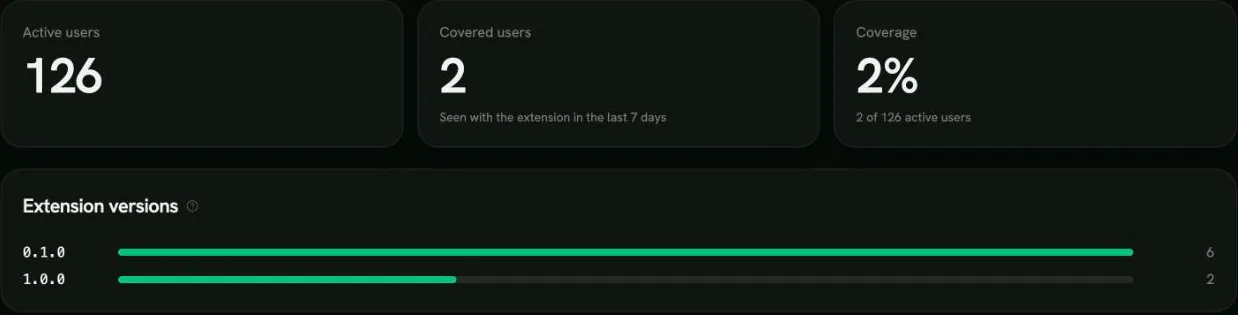
- Active users, Covered users (seen with the extension in the last 7 days) and the coverage percentage
- Extension versions: the number of devices on each version
- Users: every active user with their status, browsers, last check-in and extension version. Filter by status or search by name or email:
- Protected: the extension checked in during the last 7 days
- Silent: last seen 7 to 30 days ago. The employee may have removed or disabled the extension
- Not protected: no extension seen in the last 30 days, or never installed
Select Devices next to a person to see their browsers, whether each is Managed or Self-installed, and when it was last seen. Revoke disconnects a device until it enrolls again. Devices are also revoked automatically when a user is disabled or deleted.
After a revoke, the extension signs out on that browser and clears the policy and data it had stored. Its popup tells the employee that their organization disconnected this browser and that protection is off. The extension notices when the popup is opened, when the browser starts, or within about 30 minutes otherwise. The employee can select Sign in again to reconnect the browser, unless their account is disabled.
Requests
Section titled “Requests”When a detector is set to block, employees can select Request access on the warning page. Requests appear on the Requests tab, grouped as Pending, Approved and Rejected, with the person, whether it is a Website or an App, and the site or app. App requests show the app’s ID, with the name from its consent screen underneath as a reported, unverified name when the extension could read it. Any app can call itself anything on its consent screen, so decide by the ID.
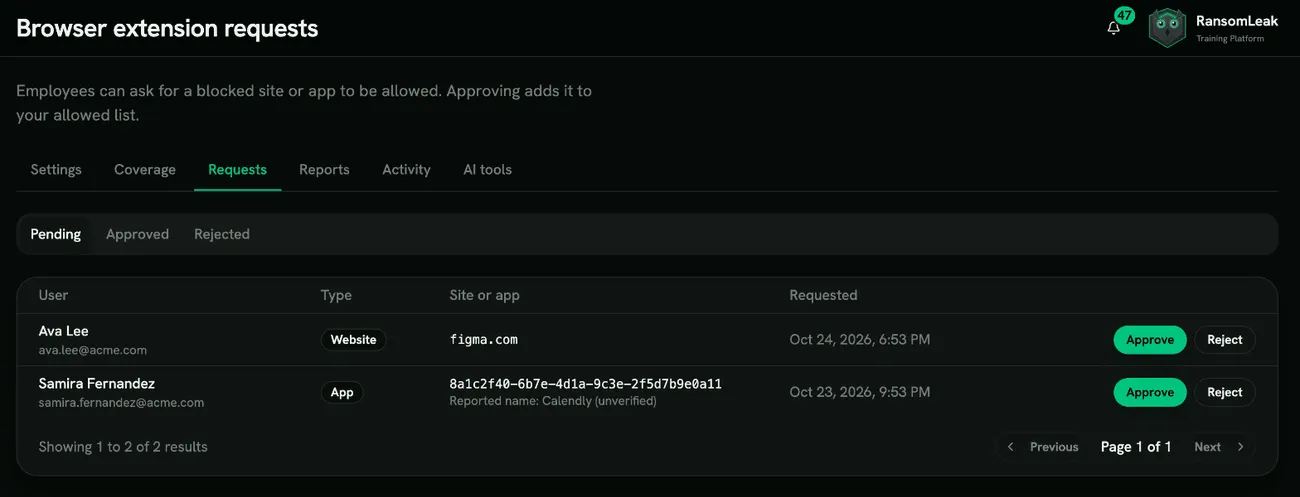
- Approve adds a website to your allowed domains, or an app to your approved apps. It applies to everyone in your workspace, and the popup shows the request as “Approved”.
- Reject keeps the site blocked and the popup shows the request as “Rejected”.
A decision covers the site or app for everyone: when several people ask for the same site, approving or rejecting one request decides them all. Asking again for the same site does not create a second request while one is pending or the site is allowed.
You can change a decision later. On the Approved tab, Reject removes the site or app from the allowed list again; on the Rejected tab, Approve adds it. The extension picks up the change the next time it refreshes its settings, within about 30 minutes.
Administrators also get a daily digest email of new requests.
Reports
Section titled “Reports”Employees can report a site that looks suspicious from the extension popup, with an optional note. Reports appear on the Reports tab, grouped as Pending, Confirmed and Dismissed, with the person, the site, the note, how many people reported the same site, and the date.
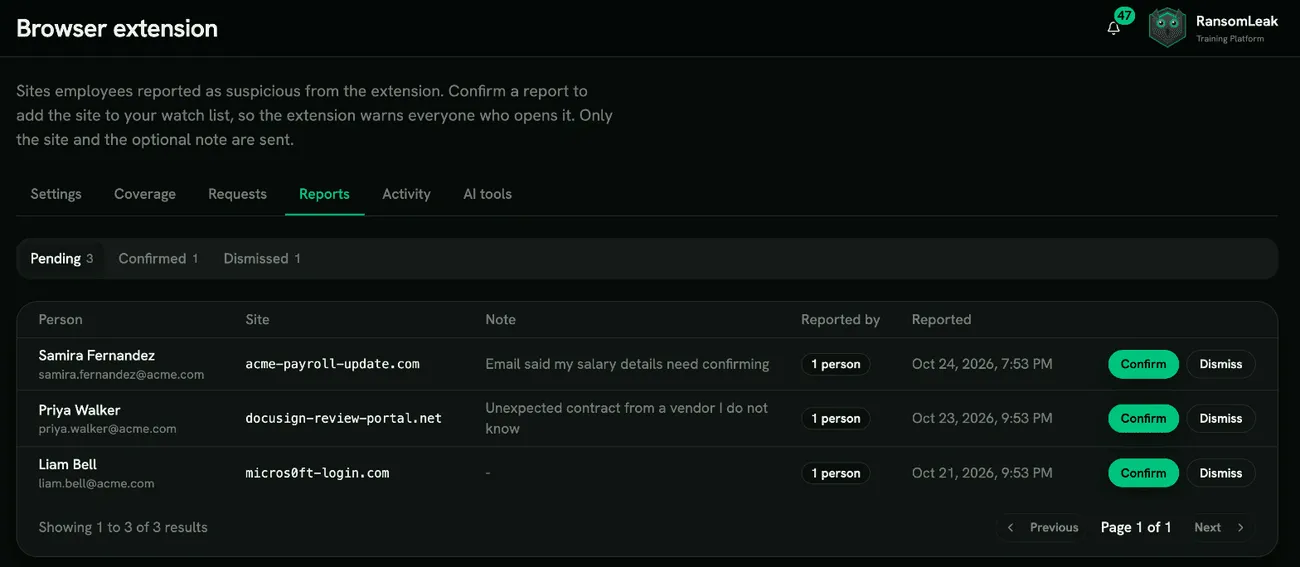
- Confirm adds the site to your watch list (the same list as Brand watch), so the extension warns everyone who opens it.
- Dismiss leaves the site off the list.
A decision covers the site for everyone: confirming or dismissing one report decides every report of that site. You can change a decision later; dismissing a confirmed site takes it off the watch list again. A person can have one open report per site and up to 20 new reports a day; after a dismissal they can report the site again.
- Alerts: new reports reach your admins through Alert admins about reported sites in Settings.
- The reporter sees the outcome: the extension popup lists each person’s own reports from the last 90 days, as Pending, Confirmed (the site now warns or is blocked for everyone) or Reviewed, no action.
- Risk credit: confirming a site credits everyone whose report of it was still pending with Reported a suspicious site (confirmed) in their Human Risk Score. It lowers their risk like reporting a phishing simulation does, counts at most once every 30 days per person, and appears on the Activity tab as Reported site confirmed. Dismissing a confirmed site takes the credit back. Like every signal, it counts only where your workspace uses the Human Risk Score, and you can switch it off in the risk score settings.
AI tools
Section titled “AI tools”The AI tools tab shows which AI tools people in your workspace open in their browser (ChatGPT, Claude, Gemini, Copilot, Perplexity and about 20 more) over the last 7, 30 or 90 days. For each tool you see how many people used it, on how many days, and when it was last used.
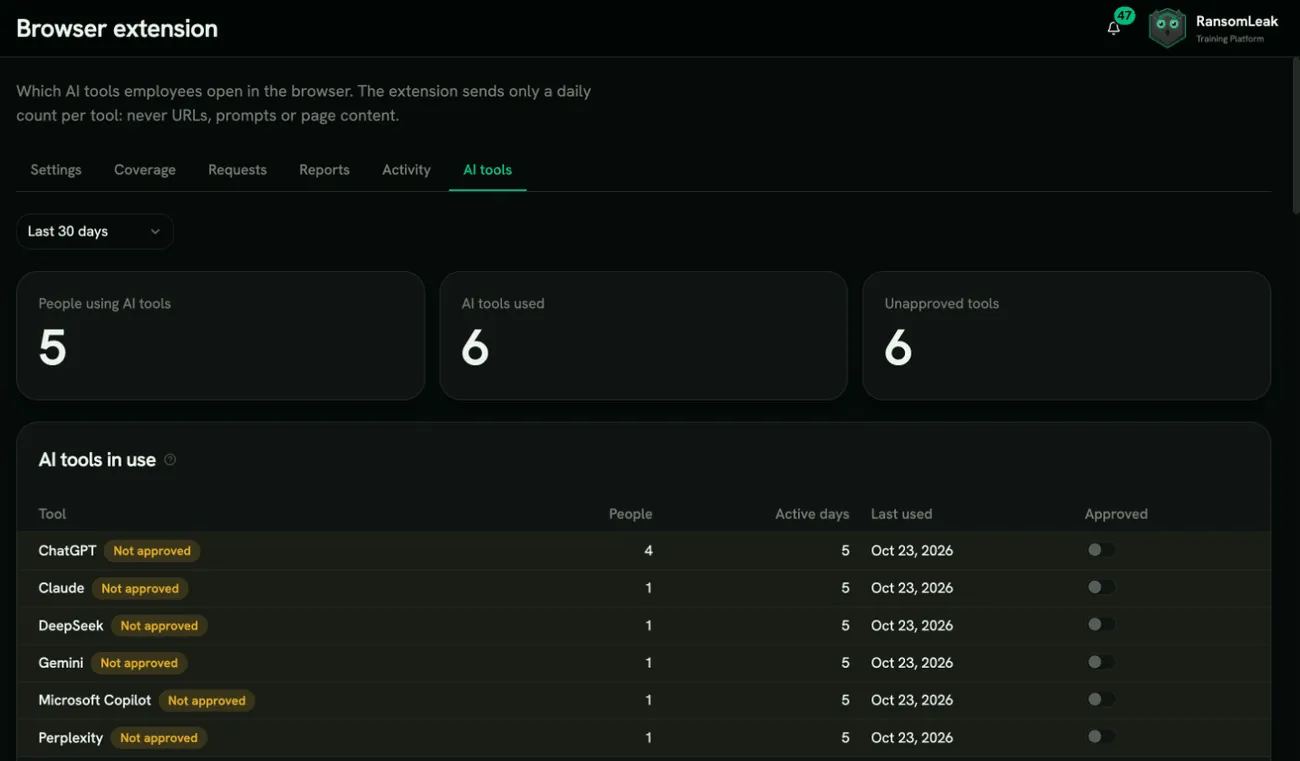
The extension sends only a daily count per tool. It never sends addresses, prompts, pasted text or page content, and a page reload does not count twice. Today’s counts update about every 30 minutes while the browser is open.
- Approved: switch it on for the tools your organisation allows. Tools that are not approved are highlighted and listed first.
- Who uses unapproved tools: lists people only for tools you have not approved, so you can follow up; who uses an approved tool is never shown. Shown only when Per-person attribution is on in Settings and your role can also view individual risk data. It is off by default. Employees see in the extension whether it is on, and when it is, they can see their own list of tools. While it is off, counts are stored without user ids (people counts are then approximate: distinct devices). Per person, only usage from the day after you turn it on (UTC) is shown and stored; turning it off and on again starts a new window. Every change is recorded in the audit log.
To stop counting, turn off Count AI tool usage under Settings > AI tool usage.
Activity
Section titled “Activity”The Activity tab shows what the extension caught across your workspace over the last 7, 30 or 90 days:
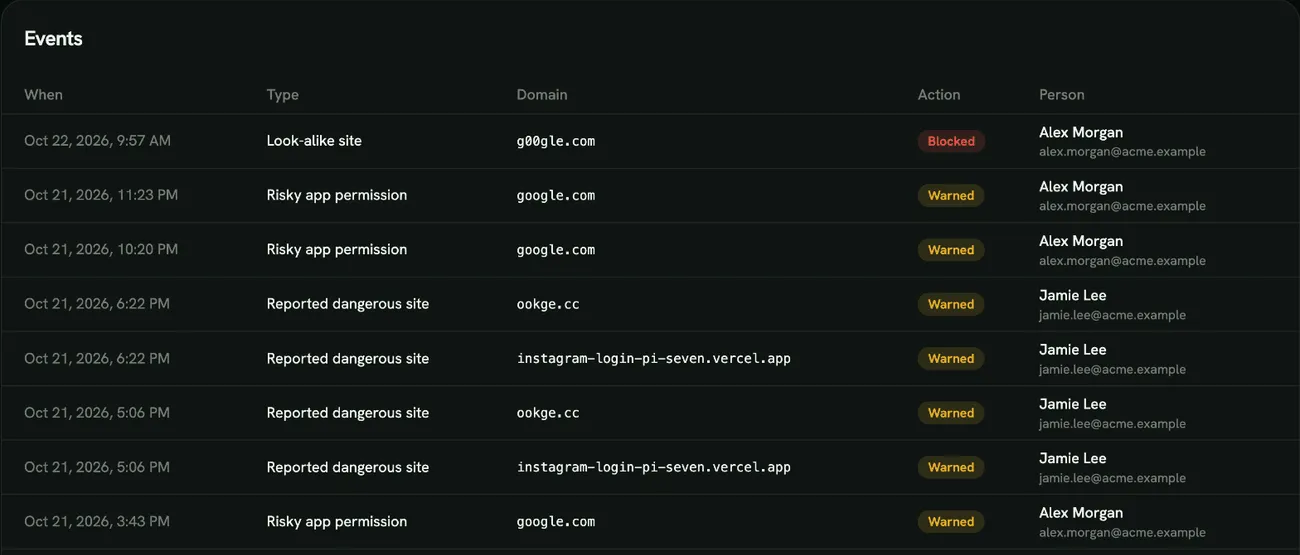
- Warnings, Blocked, Continued anyway (someone clicked past a warning) and Reported dangerous sites (visits to sites on threat-intelligence lists)
- Daily activity: a chart of events per day
- Top domains: the 10 sites that triggered the most events (warnings, blocks, logged visits and continued-anyway clicks), how many events each had, and when each was last seen. The count is events, not people
- Events: every event, newest first. Filter by type (Look-alike site, Risky new domain, Risky app permission, Continued anyway, Sensitive paste into an AI tool and the others) and by action (Warned, Blocked, Continued anyway, Went back, Logged). A risky new domain that is on a threat list appears as Reported dangerous site
- Sensitive pastes into AI tools: each event shows the AI tool’s domain and the kind of data, such as Pasted a password or key into an AI tool or Large paste into an AI tool, with Continued anyway (pasted anyway), Went back (did not paste) or Blocked. What was pasted is never sent.
- Who continued past app-permission warnings: one click shows everyone who was warned that an app was asking for risky access to their Google, Microsoft or Slack account and chose Continue anyway. These events read Continued past app-permission warning. The extension never sends the name of the app, only the sign-in provider and the page it happened on.
Names and email addresses, and the Top people table (most warnings and continued-anyway clicks), appear only to administrators whose role can also view individual risk data. Everyone else with access to the browser extension sees the same counts without names.
Brand watch
Section titled “Brand watch”Brand watch looks for newly registered websites that imitate your organisation’s name, such as acme-login.com or acrne.com for acme.com. Every day it checks public certificate transparency logs, where every new HTTPS certificate is published, for certificates issued in the last 14 days that contain your brand. Your brand names come from your email domains and your custom domain; very short or generic names are skipped. Domains you own and widely used sites are never listed.
The extension warns employees who open a listed site. New findings appear under Brand watch on the Activity tab, and administrators get at most one email a day when new ones are found.
If a listed domain belongs to you or a partner, select Dismiss: the extension stops warning about it. Restore brings it back.
Browser & identity signals
Section titled “Browser & identity signals”The Browser & identity signals card on the Settings tab pulls signals from Microsoft and Google once an hour, so RansomLeak can see risk your employees’ browsers do not report themselves. Each source has its own switch, and a switched-off source makes no calls to the vendor. Each source shows its state: Not connected, OK, Licence missing, Missing permission, Reconnect required (Google only) or Error, with the time of the last sync.
Signals are matched to people by email address (Microsoft sign-in name, Google primary email). Events for people who are not users in your workspace are dropped; only how many were dropped is kept, never their addresses.
| Source | What it provides | Licence you need |
|---|---|---|
| Entra consent | When someone grants an app access to their account (identity.oauth_consent_granted, higher weight when the app asks for risky permissions) |
Any Entra ID. The audit log keeps 7 days on Free and 30 days on P1/P2 |
| Entra risk | Risky sign-ins and leaked credentials | Entra ID P2 (P1 gives limited detections) |
| Defender | Edge password reuse and risky extensions | Defender for Endpoint P2 or Microsoft 365 E5 |
| Chrome reports | Password reuse on non-company sites and unsafe-site visits | Chrome Enterprise Core (free) with browsers enrolled and event reporting on |
| Chrome inventory | Risky installed extensions and outdated browsers | Chrome Enterprise Core (free) with browsers enrolled |
A source whose licence is missing shows Licence missing; the other sources keep syncing. The first sync looks back at most 7 days, so connecting does not produce a burst that moves everyone’s score.
Connect Microsoft
Section titled “Connect Microsoft”Microsoft uses a separate RansomLeak Signals app. It is not the app used for phishing simulations, so connecting it changes nothing for those.
- On the card, select Connect Microsoft.
- Sign in as a Global Administrator or Privileged Role Administrator of your Microsoft tenant and approve. Other roles cannot grant these permissions.
- Finish in the same browser you started in. The connection is bound to that browser, so a link opened elsewhere is rejected.
- You sign in once to confirm which organisation you are connecting. RansomLeak checks that the approval really covers the permissions each source needs; a source whose permission is missing shows Missing permission.
If your workspace uses a custom domain, start from <your-subdomain>.<base domain> (the standard RansomLeak address of your workspace), not the custom domain.
Select Disconnect to stop all Microsoft sources. Signals already collected stay until normal retention removes them.
Connect Google
Section titled “Connect Google”Google uses a normal sign-in: a Google Workspace super admin approves read-only access for your organisation. Nothing is installed in the Google Admin console and employees are never asked for anything.
- On the card, select Connect Google.
- Sign in as a Google Workspace super admin and approve every permission Google lists. These are the read-only permissions for security reports, Chrome inventory and your customer record.
- Finish in the same browser you started in. The connection is bound to that browser, so a link opened elsewhere is rejected.
- RansomLeak confirms the account is an admin of the Workspace organisation it is connecting, and that this organisation is not already connected to another RansomLeak workspace. Otherwise the connection is refused.
The card then shows who connected and for which domain. If your workspace uses a custom domain, start from <your-subdomain>.<base domain> (the standard RansomLeak address of your workspace), not the custom domain.
If the connecting admin leaves or loses admin rights, or someone revokes RansomLeak’s access in their Google account, the Google sources show Reconnect required. A Workspace super admin selects Reconnect and approves again. If Google did not grant every permission, the card lists the missing ones with a Reconnect button; tick all of them when Google asks. A source whose permission is missing shows Missing permission.
Select Disconnect to stop all Google sources and delete the stored access. Signals already collected stay until normal retention removes them.
Chrome inventory needs Google to report which user a browser profile belongs to. Where Google does not, you see tenant-level counts only and no per-person events.
What each signal means
Section titled “What each signal means”- Password reuse (
browser.password_reuse): a work password was typed on a site that is not a company sign-in page. High weight. - Unsafe site visit (
browser.unsafe_site_visit): the browser flagged a visited site as dangerous. - Risky extension (
browser.risky_extension): one entry per person, showing their riskiest installed extension and how many risky ones they have. - Outdated browser (
browser.outdated): a state that adds to risk while the browser is behind, and clears when it is updated. - Leaked credentials (
identity.leaked_credentials) and risky sign-in (identity.risky_signin): from Entra ID Protection. - OAuth consent granted (
identity.oauth_consent_granted): admin consent for a whole organisation is credited to the admin who granted it, not to every user.
What these records contain is listed in What the extension collects.
Browser events in risk reporting
Section titled “Browser events in risk reporting”Events appear in each person’s risk timeline. They count toward the Human Risk Score only where your workspace already uses it. You can disable or reweight the browser signals in the risk score settings.