
Attachment drills
An Attachment drill (shown in the app as Malicious Attachment Drills) shows a routine-looking email with a dangerous file: a program disguised as a document (Invoice.pdf.exe), a macro-enabled document (.docm, .xlsm), or a fake “secured document” that asks the learner to click Enable Content. They inspect the email and the opened file. Nothing runs: it’s a simulation.
Attachment drills are on the Attachment Drills tab under Content Management → Microlearning. You need Manage Malicious Attachment Drills.
What learners experience
Section titled “What learners experience”- Scene: a short setup explains how the attachment arrived.
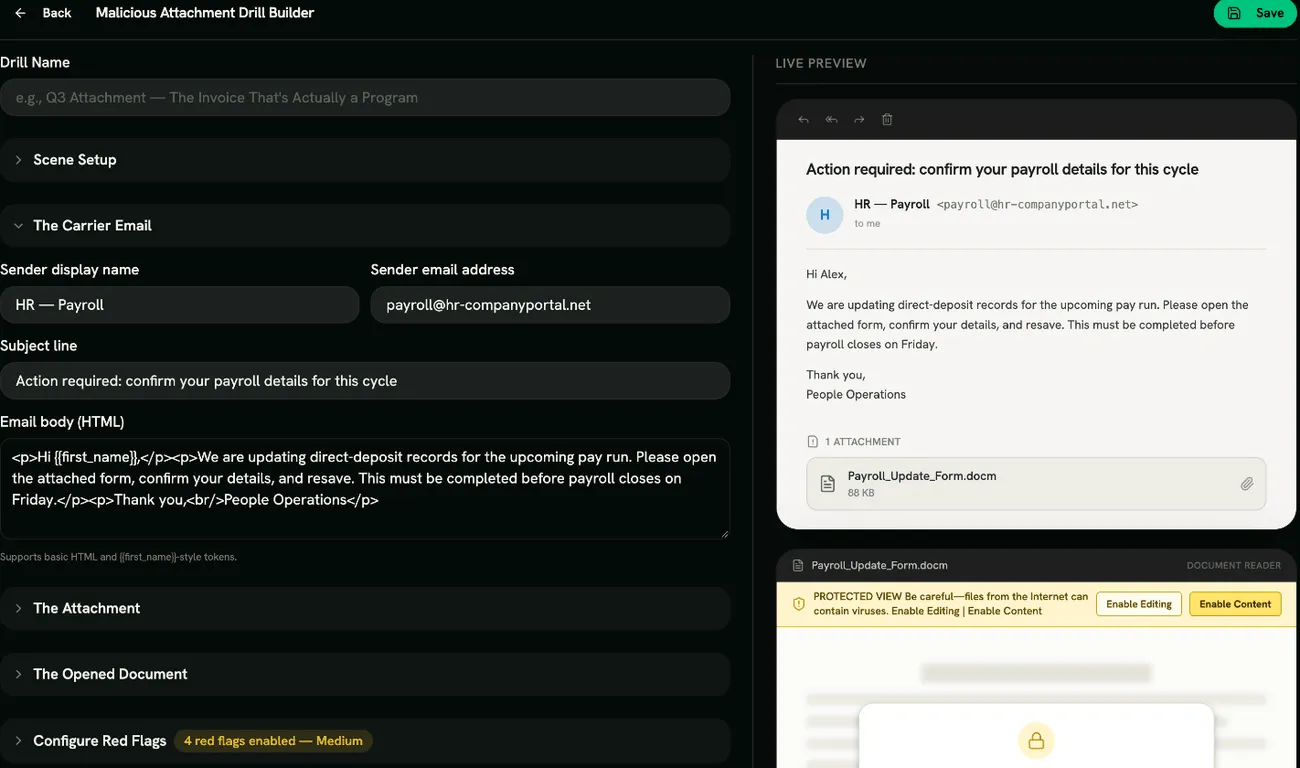
- Inspection: they see the email and, after opening the attachment, the document viewer. They tap anything suspicious: the sender, the file name, the yellow Enable Content banner, the document itself.
- Reveal: red flags found and missed, with explanations.
- Response: don’t enable it, report it, and why “scan it, then enable” is still a trap.
- Quiz.
Building an Attachment drill
Section titled “Building an Attachment drill”Click Create Drill and pick a template: Unpaid Invoice (.pdf.exe), Payroll Update (.docm macro), Résumé to HR (.docm macro), Shared “Scanned Document” or Custom Template. Then fill in:
- Scene Setup: Drill Name, Scene Title and Scene Description.
- The Carrier Email: Sender display name, Sender email address, Subject line and Email body (HTML).
<style>blocks are removed when you save; inline styles are kept. - The Attachment: the Displayed filename (the misleading name on the attachment), the Real filename (with the true extension) and the File size (display).
- The Opened Document: Document title, and Protected View. With Protected View on, you can set the Enable-Content banner text and the Secured-document overlay text shown over the blurred page.
- Email Client: Outlook, Gmail or Generic.
Red flags
Section titled “Red flags”Under Configure Red Flags, choose from Double Extension, Macro-Enabled File Type, Unexpected File, “Enable Content” Coercion, Fake Secured Document and Sender Display / Domain Mismatch. The banner and overlay flags need Protected View turned on.
Scoring
Section titled “Scoring”Each red flag found, the correct response and each correct quiz answer earns a point. Marking something harmless counts against the score. The drill is passed when the score reaches your Quiz Completion Threshold.
- Base the scenario on the file types your teams really receive: invoices for finance, CVs for HR.
- Remind learners that a file from a known name can still be malicious if that mailbox was compromised.