
Phishing drills
A phishing drill opens a simulated inbox inside RansomLeak. The learner finds the phishing email among normal ones, then inspects it for red flags. Nothing is sent to a real mailbox. To send simulated emails to real inboxes, use phishing simulations instead.
Phishing drills are on the Phishing Drills tab under Content Management → Microlearning. You need Manage Phishing Drills to create or edit them.
What learners experience
Section titled “What learners experience”- Inbox: they scan 4 to 6 emails and pick the phishing one.
- Inspection: they click parts of the email (sender, links, attachment, body) and mark what looks suspicious.
- Reveal: they see which red flags they found, missed or marked wrongly, with an explanation for each.
- What Would You Do?: they choose the right response, for example report it or check through another channel. Drills created from a template include this step.
- Knowledge Check: the quiz questions you chose.
Create a phishing drill
Section titled “Create a phishing drill”Click Create Drill, enter a Drill Name and Choose Template:
- CEO Impersonation, IT Password Reset, HR Benefits Update, Invoice Payment Request, Package Delivery Notification, Cloud Service Alert, Compliance Training Notice
- Custom Template to start from a blank email
The template fills in the email and suggests red flags. Everything can be changed. A Live Preview next to the form updates as you type.
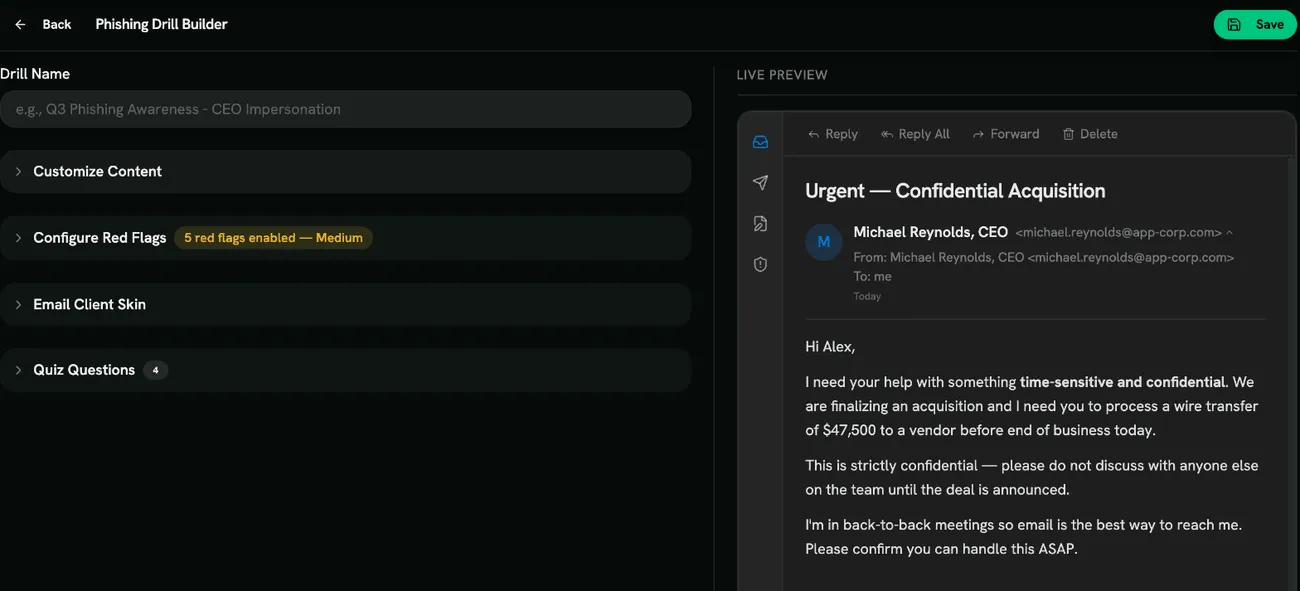
Customize Content
Section titled “Customize Content”- Sender: Sender Display Name, Sender Email, Reply-To Address and CC Recipients.
- Email Subject and Email Body (HTML).
<style>blocks are removed when you save; inline styles are kept. - CTA Button: CTA Button Text and CTA Button URL.
- Include Attachment: the Displayed Filename, the Actual Filename and the File Size Display. Showing a different name from the real one lets you train on hidden file extensions.
- Signature: Signature Name, Signature Title and Signature Phone.
- Show Email Footer, with a Company Address and Include Unsubscribe Link.
Use Insert Personalization Token to add the learner’s First Name, Last Name, Job Title, Company Name, Department or Manager Name.
Configure Red Flags
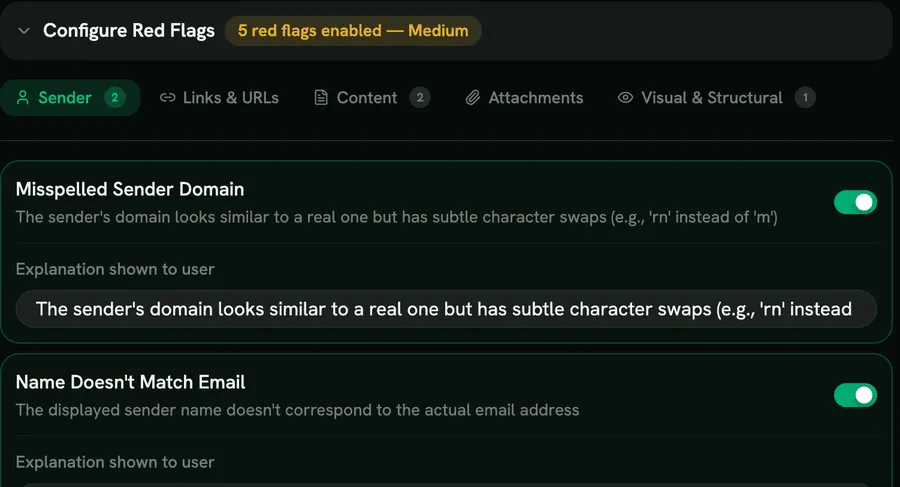
Section titled “Configure Red Flags”Red flags are grouped into Sender, Links & URLs, Content, Attachments and Visual & Structural. Examples: Misspelled Sender Domain, Hidden Reply Address, Link Goes Somewhere Else, Lookalike Domain, Pressure to Act Now, Dangerous File Type, Incomplete Signature, Missing Email Footer.
Turn each flag on or off and edit the Explanation shown to user. Some flags need content first, for example attachment flags need Include Attachment, and link flags need a CTA Button URL. The builder shows an Estimated Difficulty (Easy, Medium or Hard) based on how many flags are on.
Email Client Skin
Section titled “Email Client Skin”Choose how the inbox looks: Outlook, Gmail or Generic.
Quiz Questions
Section titled “Quiz Questions”Pick questions from the Question Bank (filter by tags such as CEO Fraud, URLs & Links or Passwords), or Add Custom Question with a Single answer or Multiple answers.
Click Preview Full Drill to play it as a learner, then Save.
Scoring
Section titled “Scoring”Every red flag found, the correct response and each correct quiz answer earns a point. Marking something harmless as a red flag counts against the score. See Scoring for the pass mark.
- Match the template to what your people really receive. Invoice fraud suits finance; password resets suit everyone.
- Start with a few obvious flags, then build harder drills with subtle ones like Misspelled Sender Domain.