
Campaigns
Most of the time you’ll be on the platform because a campaign has been assigned to you.
Campaigns are time-limited sets of exercises used for compliance and refresher training. They have a due date and will expire once it passes, so they’re the most important thing to keep an eye on.
You’ll know a campaign is waiting for you when:
- You receive an email notification that a campaign has been assigned, or
- You see a notification badge on the Campaigns item in the left-hand menu
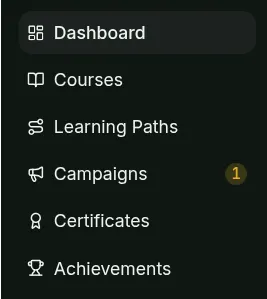
Finding your campaigns
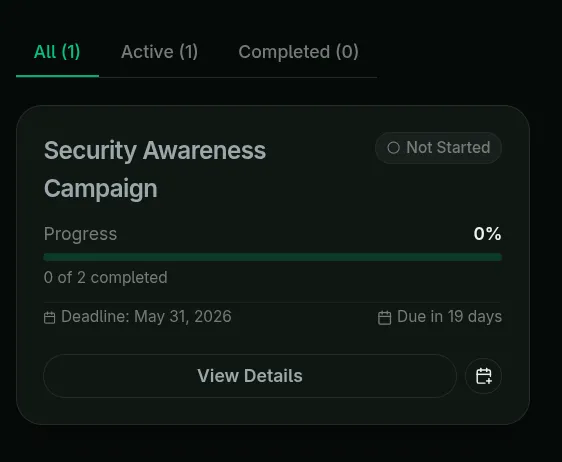
Section titled “Finding your campaigns”Open the Campaigns tab to see every campaign assigned to you, ordered by deadline. The Active and Completed tabs filter the list by status.
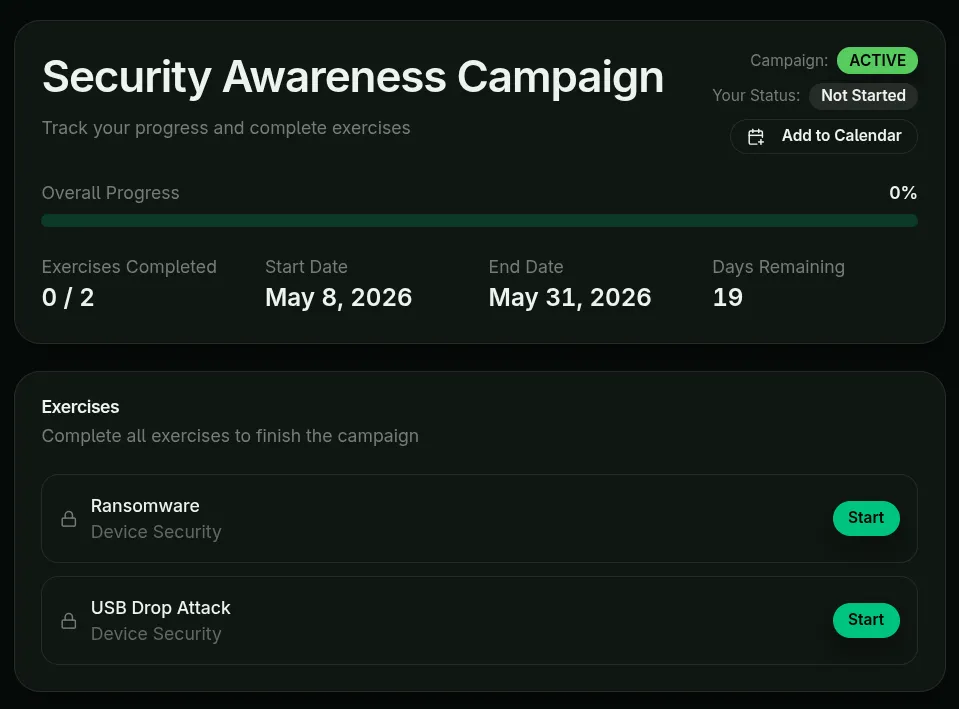
Open any campaign to see its details and the courses or exercises it contains. Click Start next to an exercise to launch it.
Optional exercises
Section titled “Optional exercises”Some campaigns include optional exercises, marked with an Optional badge. They’re there for extra learning and don’t count toward your progress: once you finish every required exercise, the campaign shows 100% and is complete, even if optional ones are left.
Optional exercises appear as a separate Bonus exercises count under the progress bar. Finish them all and the campaign notes that you went above and beyond.
Watch the deadline
Section titled “Watch the deadline”- Active — work in progress; you have time left.
- Overdue — past the deadline but inside the grace period; you can (and should) still complete it. A warning banner is shown.
- Completed / locked — if the campaign ended before you finished, the remaining exercises become read-only. Contact your administrator if you need access.