
Using RansomLeak in your LMS
If your organization already uses a learning management system (LMS), you can run RansomLeak exercises inside it. Results flow back to your LMS. There are two ways:
| SCORM packages | LTI 1.3 | |
|---|---|---|
| Works with | Almost any LMS | Canvas, Moodle, Blackboard, D2L Brightspace, Sakai and other LTI 1.3 platforms |
| Setup | Upload a zip file per package | Connect once; instructors add content from a picker |
| Learner accounts | Anonymous, identified by the LMS | Linked to the learner’s LMS identity |
| Content | Exercises and courses | Exercises, courses and learning paths |
Drills can’t be delivered through either method; they run only on the RansomLeak platform.
SCORM packages
Section titled “SCORM packages”You need the Manage SCORM Packages permission. Go to Content Management → SCORM Packages.
Create a package
Section titled “Create a package”- Generate from Course: all exercises in a course. Choose One package (one zip for the whole course) or One per exercise (a download containing one zip per exercise).
- Generate from Exercise: a single exercise.
- Create Custom Package: pick any exercises and give the package a name.
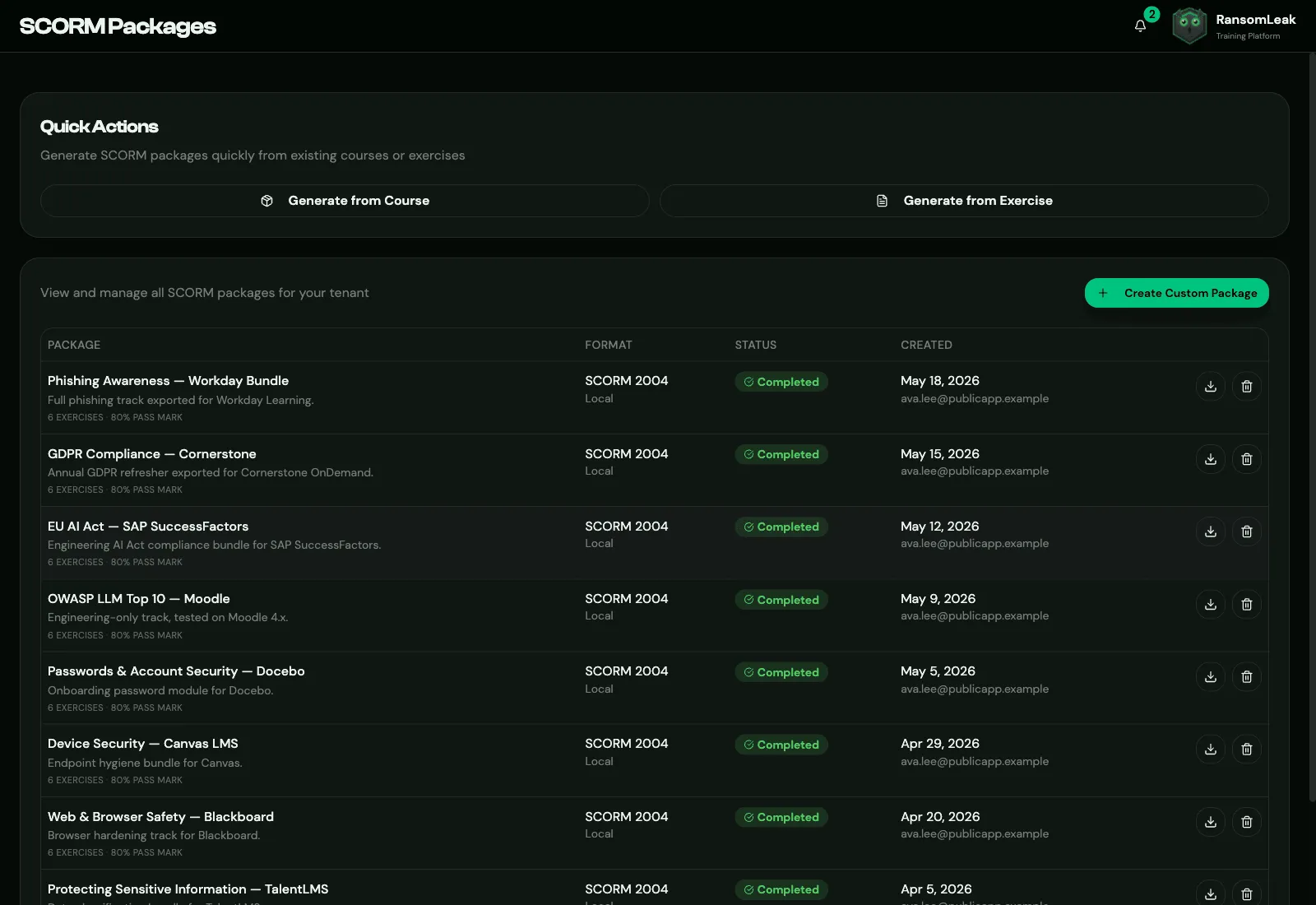
For each, choose:
- SCORM Version: SCORM 2004 (default) or SCORM 1.2. Use what your LMS supports best.
- Quiz Score Threshold (%): the score needed to pass. It defaults to your organization’s Quiz Completion Threshold.
When the status is Completed, click Download and upload the zip to your LMS as a SCORM course.
How it works
Section titled “How it works”The package is a lightweight launcher: the exercise is streamed from RansomLeak each time a learner opens it. Improvements to the exercises reach your LMS automatically, and there’s nothing to allow-list on your side. The list of exercises in a package is fixed; to change it, create a new package.
Results reported to your LMS:
| Result | SCORM 2004 | SCORM 1.2 |
|---|---|---|
| Passed | completed + passed | passed |
| Failed | completed + failed | failed |
The score is reported too.
Licences and learner accounts
Section titled “Licences and learner accounts”The first time someone launches a package from your LMS, RansomLeak creates an anonymous account for them, identified by their LMS learner ID, and assigns it a licence. These accounts can’t sign in to RansomLeak directly. They’re listed under User Management → SCORM Users.
Messages learners might see
Section titled “Messages learners might see”| Message | What to do |
|---|---|
| License Required | You’ve run out of licences. Add seats or disable unused accounts. |
| Account Inactive | This learner’s account was disabled. Re-enable it under SCORM Users. |
| Package Not Found | The package was deleted in RansomLeak. Upload a new one. |
| Invalid Launch Link | Your LMS didn’t send learner details. Launch the course from the LMS, not a direct link. |
| Package Not Launchable | You uploaded a “one per exercise” bundle. Upload the inner packages instead. |
| Could Not Start | A network problem. Try again. |
LTI 1.3
Section titled “LTI 1.3”Go to Integrations → LTI (you need Manage Integrations).
Quick setup (dynamic registration), for Canvas, D2L Brightspace, Moodle and Sakai:
- Click Generate registration URL.
- Paste it into your LMS’s dynamic registration field. The link works once and expires.
Moodle plugin: install the free RansomLeak plugin from the Moodle Marketplace, then enter your RansomLeak address under Site administration → Plugins → Local plugins → RansomLeak security awareness (LTI). It creates the tool in Moodle for you. Then click Add platform here and enter the values from the tool’s View configuration details in Moodle.
Manual setup, for other LMSs including Blackboard:
- Copy the values under Tool configuration (OIDC Login URL, LTI Launch URL, JWK Set URL, Key ID, Public JWK) into your LMS.
- Click Add platform and enter your LMS’s Issuer, Client ID, Deployment IDs, Platform auth login URL, Platform token URL and Platform JWK Set URL.
Instructors then use Add training to your course in the LMS to pick exercises, courses or learning paths.
Learners: the first launch creates a RansomLeak account linked to the learner’s LMS identity, with your default role and a licence. If someone with the same email already has a RansomLeak account, the launch is linked to it only if that account has never set a password, isn’t disabled and has the default role. Otherwise the launch is refused, to protect existing accounts.
Grades: exercise and course scores are sent to the LMS gradebook. A completed learning path is reported as 100.