
Compliance evidence
Analytics → Compliance shows training evidence by compliance framework and by learning path. It’s designed for audits: each learner’s enrollment in a path counts once, and every number can be downloaded as a CSV roster.
Evidence comes from system learning paths, which RansomLeak tags with frameworks such as SOC 2, ISO 27001, HIPAA, PCI DSS, GDPR, NIS2 and DORA.
By framework
Section titled “By framework”One tile per framework, showing the % complete and how many learners are Enrolled, Done and Overdue.
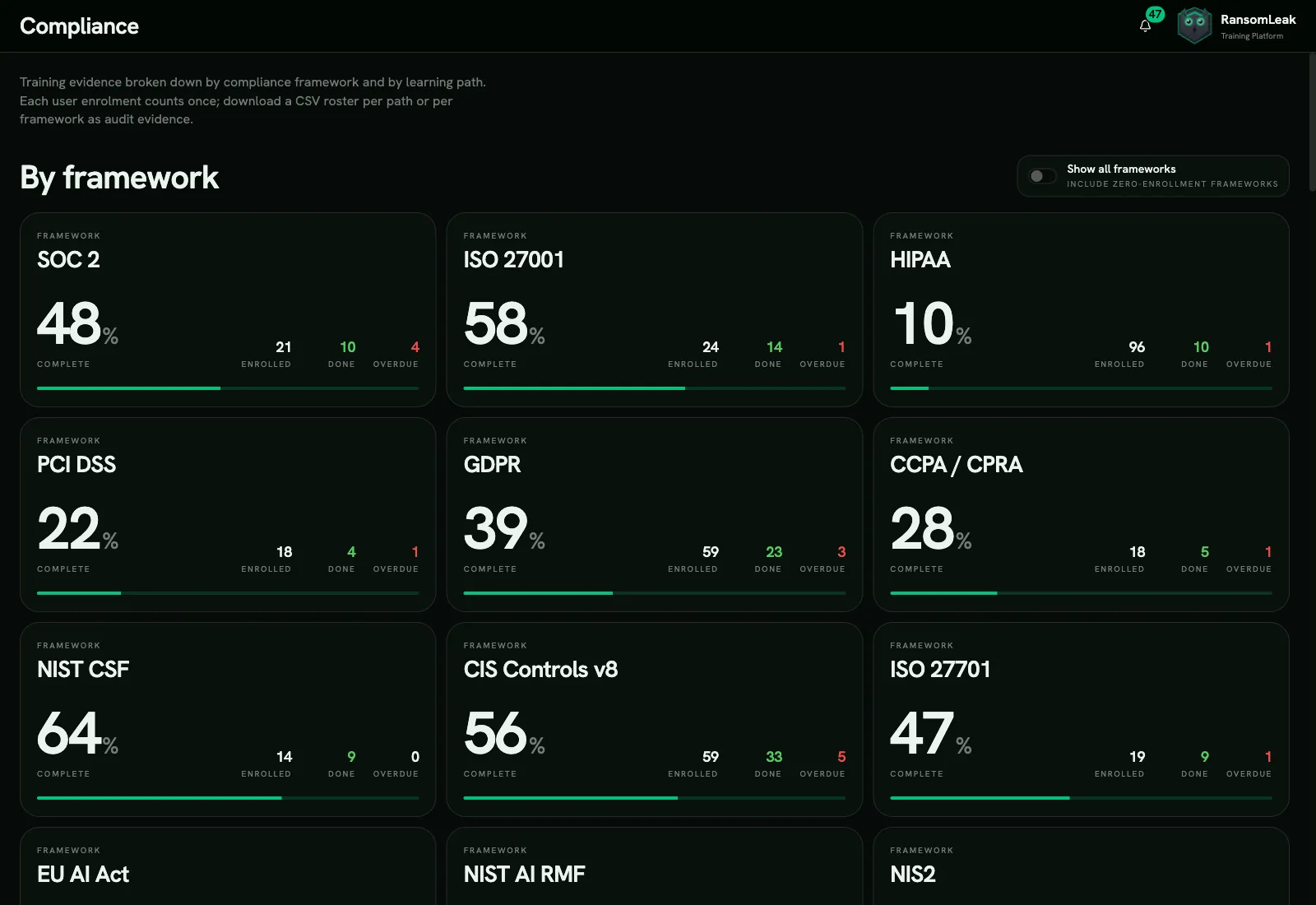
- Click a tile to filter the learning path table to that framework, and to get a Roster CSV for the whole framework.
- Show all frameworks also lists frameworks with no enrollments yet.
By learning path
Section titled “By learning path”A table of paths with Enrolled, Done, Overdue, Completion and a Roster CSV link for each.
By default only system paths are listed. Turn on Include non-system paths to add your own. Keep in mind that your own paths carry no framework tags.
What’s in a roster CSV
Section titled “What’s in a roster CSV”One row per learner per path, including:
- name, email, role, team and external ID;
- the path, whether it’s a system path, and its frameworks;
- status, assignment date and who assigned it;
- the current cycle’s start and due dates, and the completion date.
Browser protection
Section titled “Browser protection”If your organization uses the RansomLeak browser extension, the page also shows a Browser protection section: the share of active people with a device that checked in during the last 7 days, the number of enrolled devices, extension versions, which detectors are on and in what mode, and the date of the last policy change. Download CSV exports the same figures. The section also appears in the tenant report (PDF and CSV). It is hidden until a device is enrolled or the extension settings are saved.
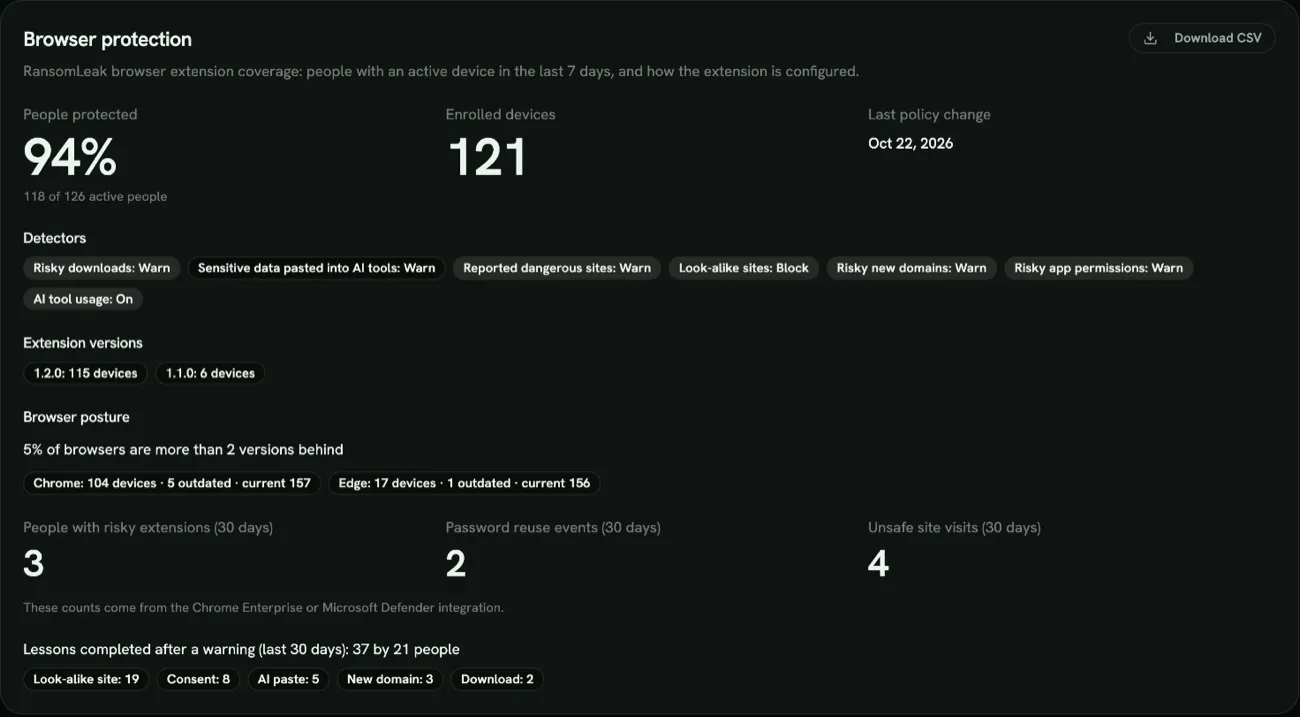
The section also has a Browser posture block that answers whether people’s browsers are kept up to date:
- Outdated browsers: the share of browsers that are more than 2 major versions behind the current stable release. A browser is judged from the version its extension reports, for Chrome and Edge. Current versions come from Google’s and Microsoft’s public version feeds and are refreshed every 12 hours; if a feed can’t be reached, the last known version is used, and if there is none the share shows as unknown. A per-browser row lists devices, outdated devices and the current version. Brave, Opera and other Chromium-based browsers report as Chrome.
- Risky extensions, password reuse and unsafe site visits for the last 30 days. Each count needs the integration that collects it: risky extensions come from Chrome Enterprise’s inventory, unsafe site visits from Chrome Enterprise’s reports, and password reuse from Chrome Enterprise or Microsoft Defender. A count whose source isn’t connected and healthy shows Not connected rather than zero.
The posture figures are also included in the CSV and the tenant report.
The section also shows lessons completed after a warning for the last 30 days: how many in-browser lessons people finished and how many people finished them, with a breakdown by lesson type. These come from the extension itself, so zero means no lessons were completed, not that the data is missing. They are included in the CSV and the tenant report too.
Program effectiveness
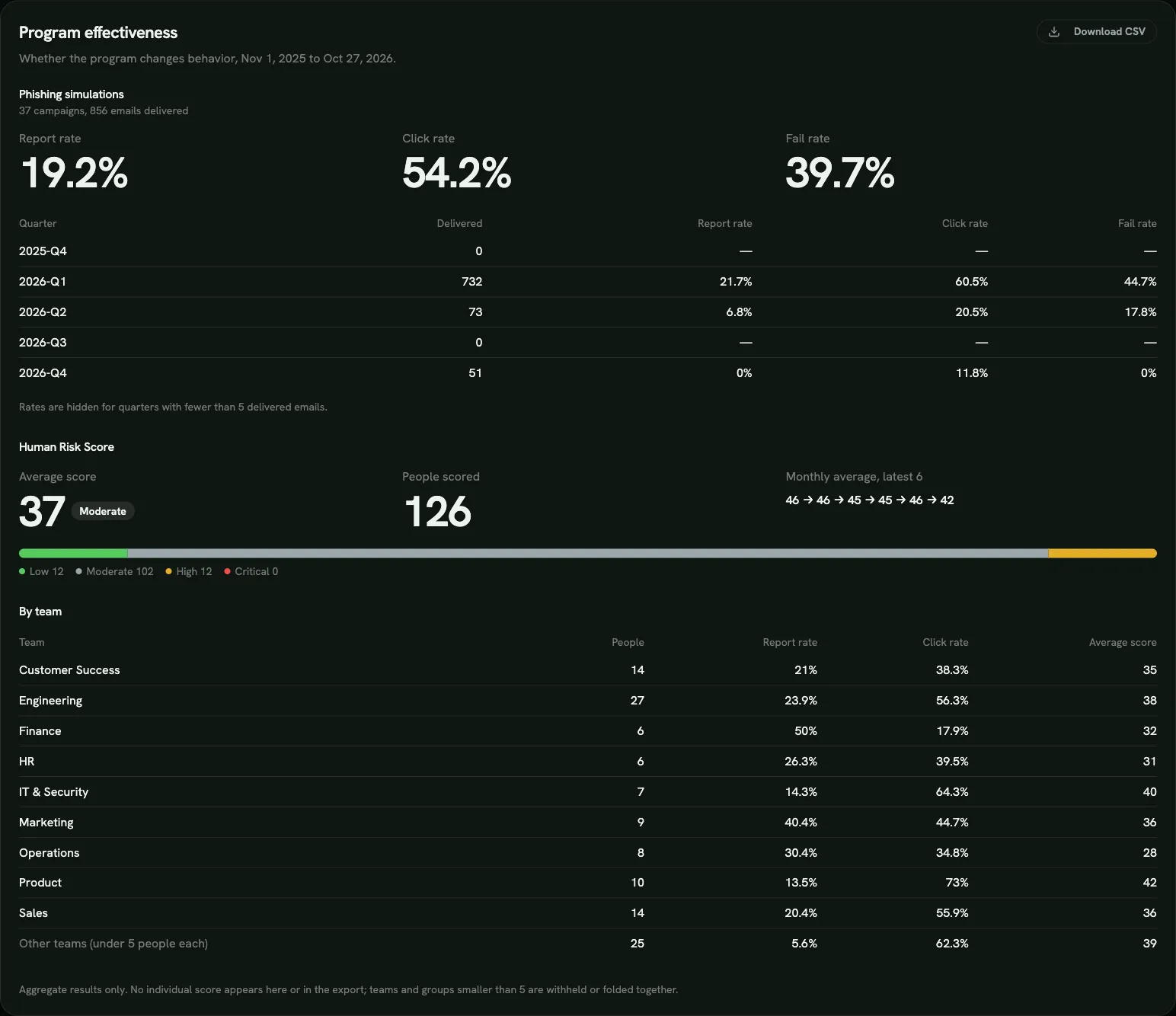
Section titled “Program effectiveness”Auditors often ask whether training changes behavior, not only whether people finished it. The Program effectiveness section answers that for the last 12 months:
- Phishing simulations: report, click and fail rates for the whole period, and a table by quarter. A quarter with fewer than 5 delivered emails shows no rates.
- Human Risk Score: the current average score and band, how many people are scored, how many sit in each band, and the average for each recent month. A month with fewer than 5 people scored shows no average.
- By team: each team’s report and click rates and average score. A team is listed only when it has at least 5 active people, 5 people who received simulations and 5 people with a score; every other team, and people without a team, are combined into Other teams. If Other teams would itself fall under 5, the smallest listed teams are moved into it, so no row describes fewer than 5 people and the rows always add up to the totals above.
Phishing figures count people who are active today (synthetic and disabled accounts are left out), so they can differ slightly from the Phishing analytics page. The section shows aggregate results only: no individual score appears on the page or in the export. You see the phishing part only if your role can view phishing reports, and the risk part only if it can view the Human Risk Score. Download CSV exports the same figures. The section is hidden when there isn’t enough data.
You can add the section to a company-wide tenant report by ticking Include program effectiveness. The report then covers its own date range, carries only the parts the person who generates it may see, and is listed and downloadable only for people who hold the same permissions.
Ongoing awareness
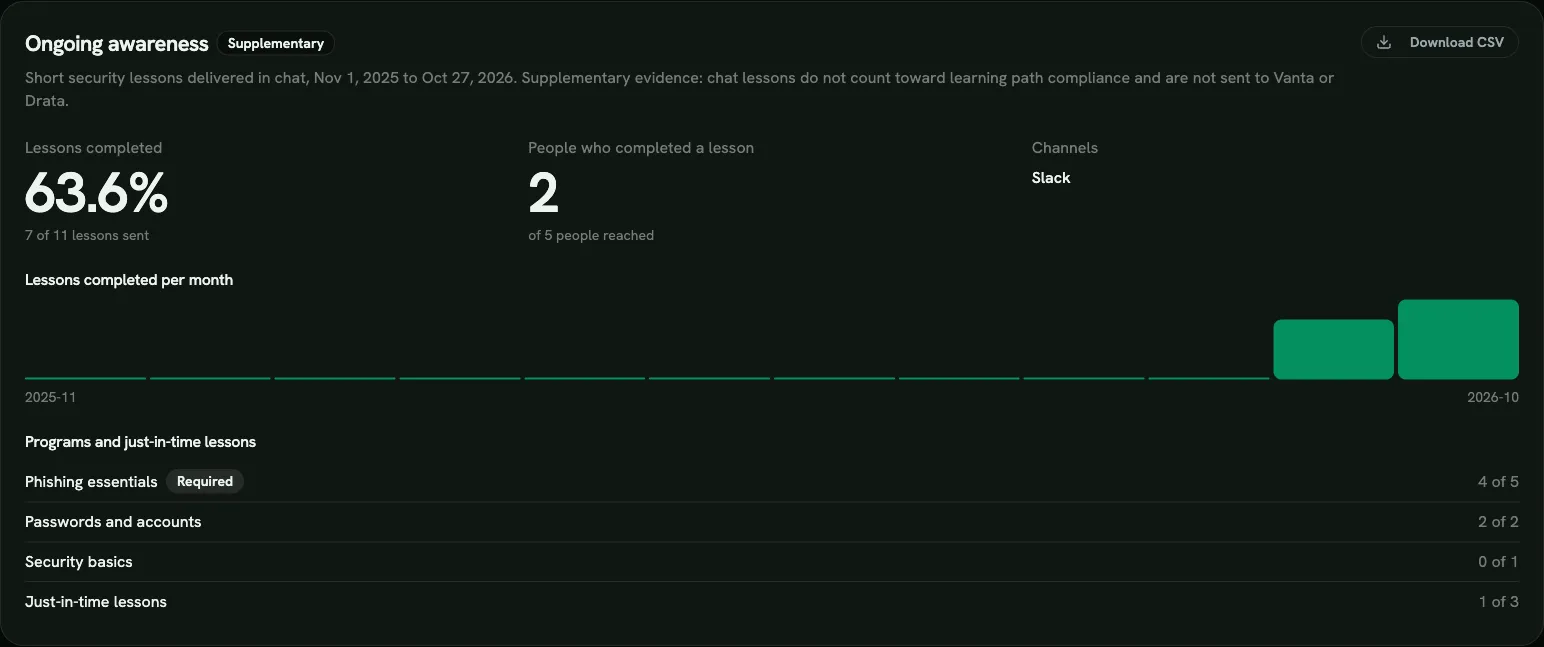
Section titled “Ongoing awareness”If you run chat learning, the Ongoing awareness section shows the last 12 months of chat lessons: the share of lessons completed, how many people completed at least one, each program’s completed and sent lessons, just-in-time lessons, and lessons completed per month. Download CSV exports the same figures, and the section also appears in the tenant report (PDF and CSV). Each person’s own chat lessons also appear on their attestation PDF (see below).
This section is marked Supplementary. Chat lessons show that awareness continues between annual courses, but they don’t count toward learning path completion, the framework tiles or the rosters, and they are never sent to Vanta or Drata.
Evidence for one person
Section titled “Evidence for one person”In User Management → Users, click a person’s email to open their dashboard. Under Compliance evidence, each of their learning paths shows Complete, Overdue or Incomplete, with a Download attestation button for a PDF certificate of completion. If the person completed chat lessons in the last 12 months, the same tab lists them under Chat lessons, marked Supplementary (the 5 most recent, with Show all), and each attestation lists them in a separate Ongoing awareness (supplementary) table after the learning path’s evidence. They never change a path’s status.
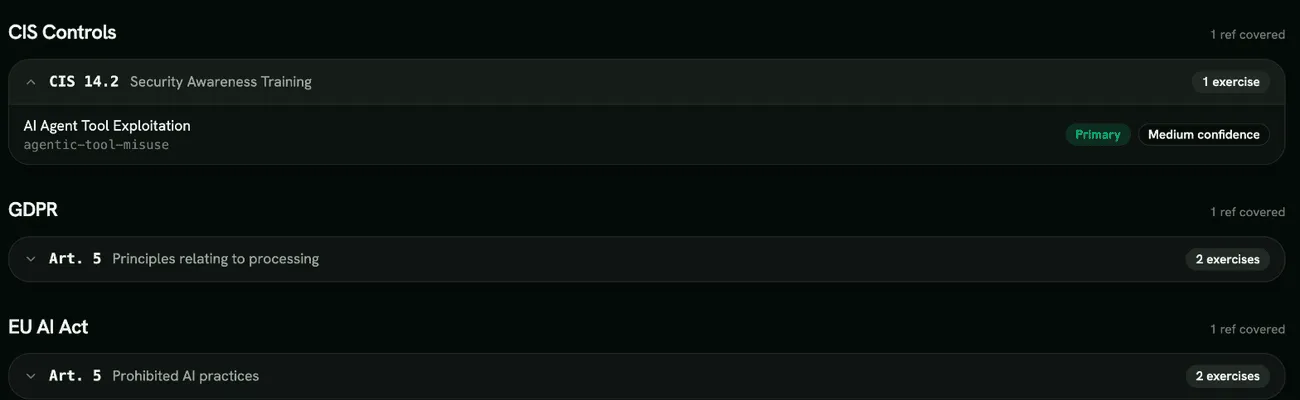
Framework Coverage
Section titled “Framework Coverage”Content Management → Framework Coverage works the other way round: for each framework control, it lists the exercises that cover it. Control IDs and titles are shown exactly as the standards publish them. The page lists only controls that at least one exercise covers.
Controls are grouped by framework, with a count such as “12 refs covered”. Click a control to see its exercises. Each exercise is marked Primary or Secondary for that control, and disabled exercises show Disabled. Use it to answer an auditor’s “which training covers this control?”.
Seeing this page needs Manage SCORM Packages.
Automating evidence
Section titled “Automating evidence”If you use Vanta, completion evidence is sent automatically every hour. See Vanta. For Drata, see Security and compliance tools.