
What are drills?
A drill is a short interactive exercise, usually a few minutes long, that trains people to recognise one specific kind of attack. Each drill recreates the attack in a realistic setting (an inbox, a phone, a chat app, a browser) and asks the learner to spot what’s wrong.
Drills are managed under Content Management → Microlearning, with one tab per drill type.
The drill types
Section titled “The drill types”| Drill | What the learner does |
|---|---|
| Phishing | Finds the phishing email in a simulated inbox and marks its red flags |
| Smishing | Picks out the malicious text message on a simulated phone |
| Chat | Talks with an attacker in Microsoft Teams, Slack, WhatsApp or LinkedIn and chooses how to reply |
| MFA | Approves or denies a flood of push notifications (MFA fatigue). One approval ends the run. |
| Vishing | Answers a phone call from a synthetic voice and picks spoken replies |
| QR Phishing | Scans a QR code on a sticker or poster and inspects where it leads |
| Fake Login | Inspects a fake sign-in page: URL, certificate, form and footer |
| AI Chat | Decides what is safe to paste into a public AI assistant |
| Attack Chain | Handles an email, a text and a call from the same attacker, one after another |
| OAuth Consent | Reviews an “app wants access” consent screen before allowing it |
| Attachment | Inspects a malicious attachment and a document asking to “Enable Content” |
| Social Media | Reviews their own social feed for details an attacker could use |
| Deepfake | Watches or listens to an AI-generated message from a familiar executive |
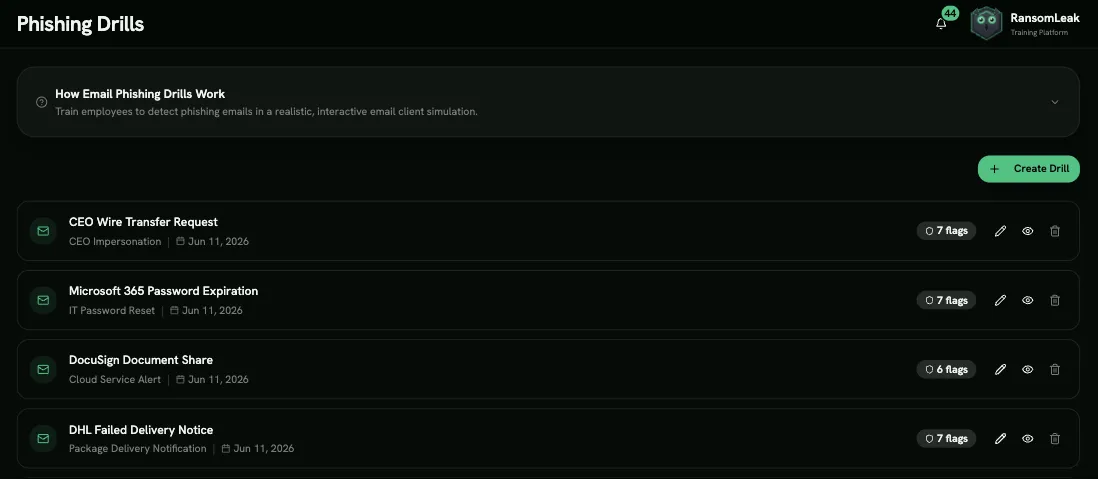
Everything happens inside the simulation. No real emails, texts or calls are sent, and nothing the learner clicks is real.
How a drill works
Section titled “How a drill works”Most drills follow the same steps:
- The scenario: the learner reacts to the attack (picks the suspicious message, chooses replies, approves or denies).
- Red flags: they mark everything suspicious: a spoofed sender, a lookalike URL, pressure to act quickly.
- The reveal: they see every red flag they found and missed, with explanations.
- The response: some drills ask what they should do next, for example report it or verify through another channel.
- Knowledge check: a short quiz.
Scoring
Section titled “Scoring”Each correct decision, each red flag found, the correct response and each correct quiz answer earns a point. Marking something harmless as a red flag counts against the score. The final score is a percentage.
A drill counts as passed when the score reaches your organization’s Quiz Completion Threshold (Tenant Settings → Learning & Assessment, 100% by default). While Enable Quiz Functionality is off, there’s no pass mark: finishing the drill is enough, and learners see their score without a pass/fail verdict. Each attempt keeps the verdict it got when it was finished, so turning the setting on or off later doesn’t change earlier results.
Giving drills to learners
Section titled “Giving drills to learners”Drills aren’t in the course catalogue. Deliver them by:
- adding them as a step in a learning path, or
- assigning them to a campaign with Assign Individual Exercises.
Drills can’t be included in SCORM packages for external LMSs.
Results
Section titled “Results”A drill is recorded like any other exercise: its score and pass/fail appear in campaign and learning path progress, analytics and reports. Failed drills also feed the Human Risk Score.