
Security Check-ins (Assessment)
The Assessment finds out what people already know with a few short questions a week, so training goes where it is needed and nobody sits through what they have already mastered. It is not a performance review, and there is no pass or fail.
What is measured
Section titled “What is measured”Questions cover 8 topics: phishing and social engineering, payment fraud, passwords and accounts, multi-factor authentication, devices and remote work, data handling, AI tools, and incident reporting. There are three kinds of question:
- Knowledge: what a person knows about a topic. This decides whether a topic is a gap.
- Role (exposure): short questions about their role (for example, whether they approve payments). They decide which extra training is relevant.
- Self-reported habits: things like using a password manager. Habits are shown only as group trends and never affect scores or automation.
How a check-in works
Section titled “How a check-in works”- Each person gets their own baseline: about 4 check-ins over about 4 weeks, starting from their first check-in. New joiners get their own window.
- A check-in has at most 5 questions and takes about 2 minutes. Questions are adaptive: topics a person has clearly shown they know are not asked again, and every question has an I’m not sure option.
- The first check-in starts with up to 3 role questions. Later check-ins ask at most 1 until all of them are answered, so most of each check-in is about knowledge.
- After the baseline, a short monthly re-check keeps results current and confirms whether training worked.
- A topic stays Not measured until a person has answered enough questions about it. Not measured is never treated as a gap.
- One wrong answer never makes a topic a gap. A topic becomes a gap after repeated wrong answers, for example two in a row a week apart.
Where check-ins arrive
Section titled “Where check-ins arrive”- People you can reach in Slack get a direct message. Anyone found in Slack gets Slack.
- Everyone else gets a weekly email with a one-click sign-in link. The link asks them to confirm with Continue as …, and works once, for 7 days. When someone becomes reachable in Slack, the next check-in goes there.
- Admins, managers and anyone using MFA or SSO sign in normally: the link takes them to the sign-in page, then to the check-in.
Setting it up
Section titled “Setting it up”Open Setup and choose the audience, the weekly day and time (Slack check-ins use each person’s own time zone; email check-ins use the tenant’s default time zone), the baseline length, the grace period and the re-check frequency. The assessment starts as a draft.
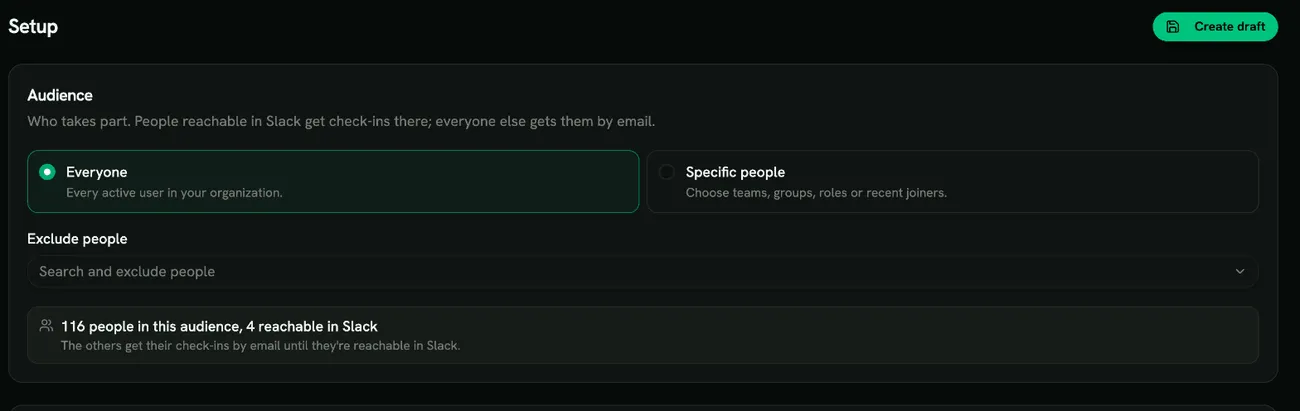
- Send me a preview sends you a sample check-in. A preview records nothing: no answers, no results, no effect on reports.
- Activate starts check-ins at each person’s next weekly slot. Activating never enrolls anyone in training by itself.
- Pause stops new questions. A check-in that was already sent waits and can be finished after you resume. Existing gaps can still be assigned training.
- End stops new check-ins and new training assignments. Results stay available.
Settings can be changed while the assessment is a draft or paused.
Reading the results
Section titled “Reading the results”- Coverage: how many people have finished their baseline, are in progress or haven’t started, per team, and which channel reaches them (Slack, email or not reached).
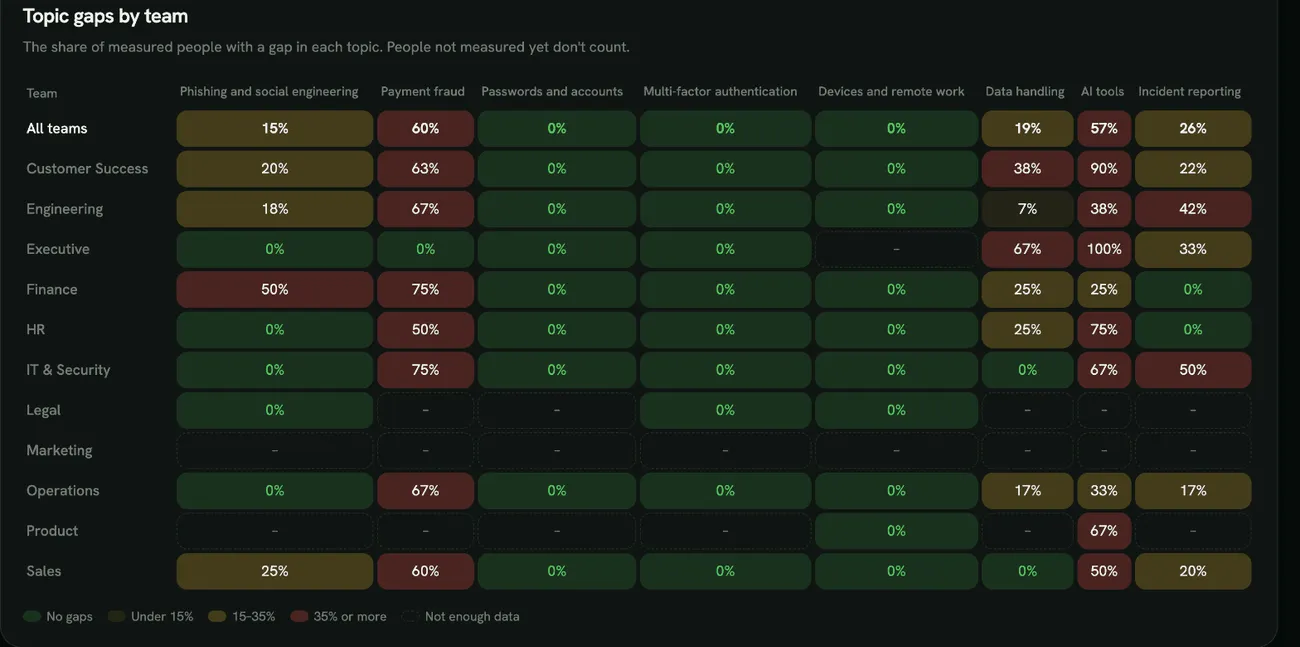
- Heatmap: the share of measured people with a gap, by team and topic. Teams with fewer than 3 measured people show “not enough data”, and small groups are hidden, together with neighbouring small groups where needed, so nobody can be singled out.
- Trend: average proficiency per topic by completed week. A point backed by too few people repeats the last value rather than showing a new one.
- Habits: a self-reported panel, clearly labelled as such.
- Question bank: switch individual questions off if they don’t fit your organization. A topic with every question switched off stays Not measured and never leads to training.
- People: each person’s topics and answers, visible only with the View individual risk permission. Managers see only the training assigned to their direct reports, never scores or answers.
Automatic training
Section titled “Automatic training”Topic gaps use the existing Risk automation, in its mode of Off, Dry run or Live. The first time you activate an assessment, an Assessment: train topic gaps rule is created.
- Each gap leads to one enrollment per topic in that topic’s training path. Role-based extras are added where relevant (for example, a payment-fraud gap for someone who approves payments).
- Topic gaps have their own safety cap, separate from the cap for score-based rules.
- A topic with no available training shows No training available, and nobody is enrolled for it.
- Use Preview who would be enrolled to see the effect before going live. The Training tab lets you switch the training for a topic off.
- Answered topics are re-checked later. A gap is trained again only when the person answers that topic after their last enrollment and the gap is still there, and only once the cooldown has passed.
- Nobody is enrolled in a training path they have already completed. The action log shows Skipped (already completed) instead.
- Each person gets one email for all the training assigned to them in a run, listing every path with its due date. It explains that the training comes from their check-ins and is not a mark against them.
- Dry run simulations never hold back live enrollments. When you switch to Live, cooldowns and limits count only real enrollments.
- People who already hold a security awareness seat are enrolled even when no free seats are left. Someone without a seat is enrolled only while a free seat is available.
Deadline training
Section titled “Deadline training”Train topics still unknown after the grace period is on by default. It applies only to topics a person never answered, and only for people who were actually sent check-ins. People who were never reached are never enrolled. It only happens while the assessment is active, and each topic is enrolled once. Pausing never penalizes non-response.
Effect on the Human Risk Score
Section titled “Effect on the Human Risk Score”The Risk Score gets a knowledge sub-score, with an adjustable weight (default 0.3). It counts only when a person has assessed topics. See Human Risk Score.
Privacy
Section titled “Privacy”- Results are shown for groups. Individual results need the View individual risk permission.
- Small groups are protected, but one caveat remains: if a published group has exactly 3 measured people and the result is 0% or 100%, everyone in that group has the same state. Keep this in mind when sharing a screenshot of a very small team.
- The Assessment is not a performance review and not compliance evidence for annual security awareness training. Use the Compliance reports for that.
- Habit answers are self-reported and are never used for scoring.
Webhooks
Section titled “Webhooks”Two events are available: assessment.topic_gap_detected and assessment.baseline_completed. Their payloads include the person’s name and email and their topic results, so subscribing an endpoint to them needs the View individual risk permission. Send them only to endpoints you trust.