
Your profile and settings
Open the user menu (your name, at the bottom of the left-hand menu) and choose Settings. The tabs you see depend on your role:
| Tab | Who sees it |
|---|---|
| Profile Information | Everyone |
| Security | Everyone |
| Manager Notifications | People who have direct reports |
| Email Reports | People with the View All Reports permission |
| Calendar Feed | Everyone |
Profile Information
Section titled “Profile Information”| Field | Notes |
|---|---|
| First Name, Last Name | Required, up to 50 characters each |
| Phone Number | Optional. Use international format, for example +14155550123. It’s used only if your organization runs SMS-based training. |
| Job Title | Optional, up to 100 characters |
Click Save Changes. The button is active only once you’ve changed something.
Language
Section titled “Language”Language sets the language of the platform, your trainings and the emails RansomLeak sends you. Pick a language, or Use organization default to follow whatever your administrator has chosen for everyone. The change is saved as soon as you pick it.
Code snippet language
Section titled “Code snippet language”Code snippet language is the programming language used for code examples in application security exercises. Again, you can keep the organization default.
Security
Section titled “Security”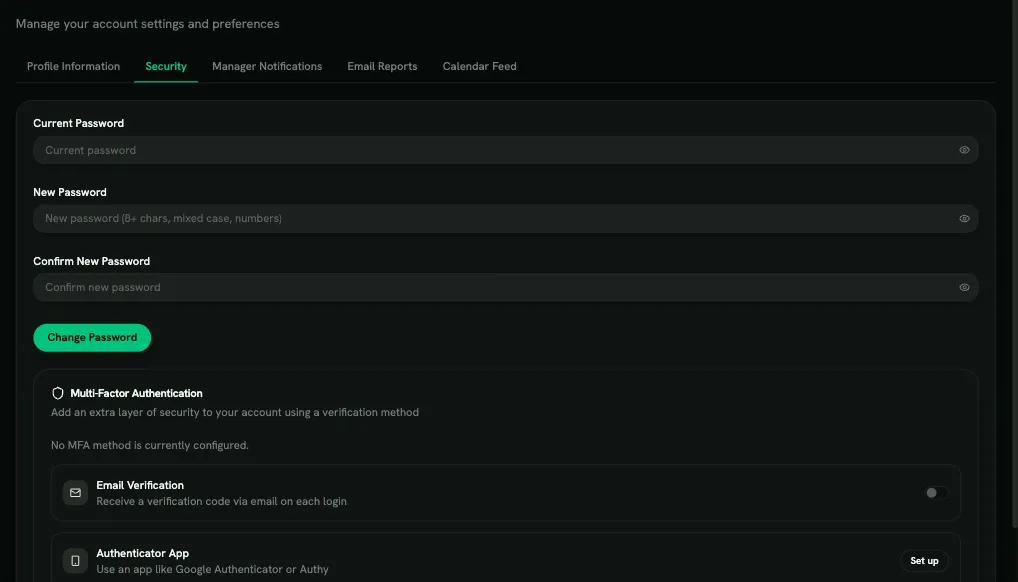
Password
Section titled “Password”Enter your Current Password, then your New Password twice, and click Change Password. The rules:
- At least 8 characters. A long passphrase is a good choice.
- No breached passwords. A password that appears in known data breaches is rejected.
- No reuse of any of your last 12 passwords.
What you see depends on how your organization signs in:
- Single sign-on is required: you see Your organization requires single sign-on. Password sign-in isn’t available for your account. Sign in through your identity provider instead. There’s no password to change.
- You’ve never had a password (for example, you’ve always signed in with single sign-on, and your organization allows passwords too): click Set Password to add one, so you can also sign in with your email and password. No current password is needed.
Forgot your password? Use Forgot password on the sign-in page.
Multi-Factor Authentication
Section titled “Multi-Factor Authentication”MFA asks for a code after your password each time you sign in. There are two methods:
| Method | How it works |
|---|---|
| Email Verification | A code is emailed to you at each sign-in. Turn it on with the switch and confirm with your password. |
| Authenticator App | A 6-digit code from an app such as Google Authenticator or Authy. Faster, and works without email. |
To set up an authenticator app:
- Next to Authenticator App, click Set up.
- Enter your password.
- Scan the QR code with your app. If you can’t scan it, type the key shown under Can’t scan? Enter this key manually. Click I’ve scanned it.
- Enter the 6-digit code from the app and click Verify & Activate, then Done.
The authenticator app then becomes your active method. To stop using it, click Remove and confirm with your password.
MFA applies when you sign in with your email and password. If you sign in through single sign-on, your identity provider handles verification.
Manager Notifications
Section titled “Manager Notifications”If people report to you, choose which campaign emails you get about them, then click Save Preferences:
| Switch | What you get |
|---|---|
| At-Risk Alerts | 15 days before a campaign deadline, who hasn’t finished. 5 days before, who is below 50% complete. |
| Deadline Missed Alerts | Who missed a campaign deadline |
You get one email per campaign for each alert, covering only your direct reports. Your administrator also has to turn on manager alerts for the campaign. See Emails and reminders.
Email Reports
Section titled “Email Reports”For administrators: turn on Weekly Reports (every Monday, covering the previous week) and/or Monthly Reports (on the 1st, covering the previous month), then click Save Preferences. These settings apply to your account only. What the email contains: Scheduled email reports.
Calendar Feed
Section titled “Calendar Feed”Add your campaign deadlines to Google Calendar, Apple Calendar or Outlook:
- Click Generate Calendar Feed URL and copy the link.
- Add it to your calendar app as a subscription:
- Google Calendar: Settings → Add other calendar → From URL
- Apple Calendar: File → New Calendar Subscription
- Outlook: Add calendar → Subscribe from web
Treat the link like a password: anyone who has it can see your deadlines. Regenerate URL creates a new link and stops the old one working (you’ll need to subscribe again). Disable Calendar Feed stops the feed.
Training emails
Section titled “Training emails”Training emails (campaign start, reminders, completion) are controlled by your organization. Your administrator sets which ones go out for each campaign. Because the training is required, there’s no setting to turn these emails or the in-app notifications off. If you get too many or none at all, ask your administrator.