
Simulation campaigns
Templates
Section titled “Templates”Under Templates:
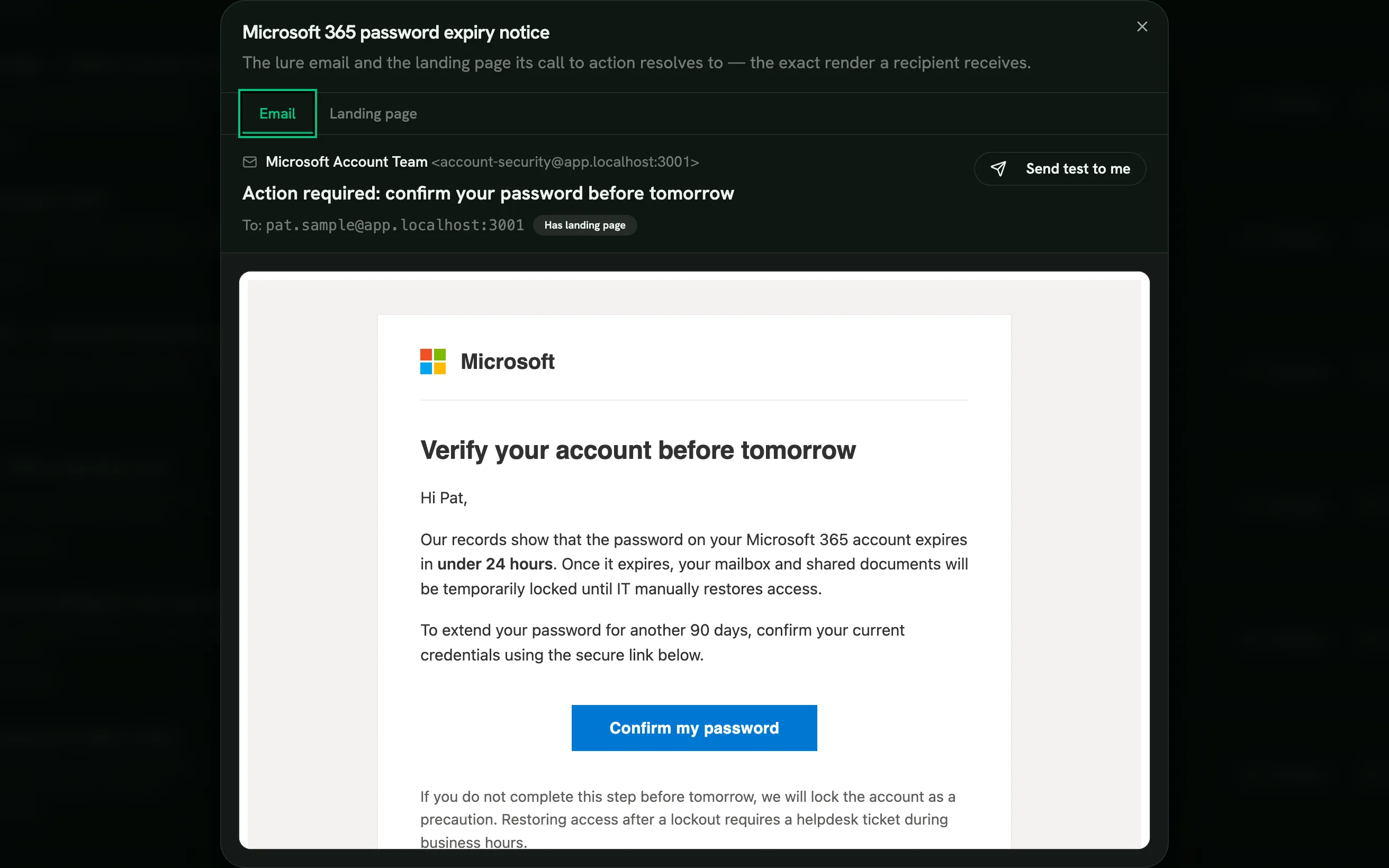
- My Templates: your own, created with New template or by cloning a library template. They’re shared across your organization: every admin who can author templates sees them, and once RansomLeak has reviewed and approved one, anyone creating a campaign can use it. Until you have any, this tab points you to the Library to pick your first one.
- Library: ready-made simulations built and vetted by RansomLeak, each with a realistic email and landing page (for example Microsoft 365, Google, Okta, Slack, Zoom or Dropbox sign-in lookalikes, document viewers and app-permission requests). Use Preview to see both; clicking a link in the previewed email opens its landing page. In a delivered email every link leads into the simulation: the landing page, or for templates without one, a page explaining the red flags. To stop a Library template being used, for example after you’ve made your own version of it, click Hide: it disappears from your Library and from the template choice when creating a campaign (campaigns already using it keep sending). Turn on Show hidden to find it and click Unhide.
Create a campaign
Section titled “Create a campaign”Go to Campaigns and create one:
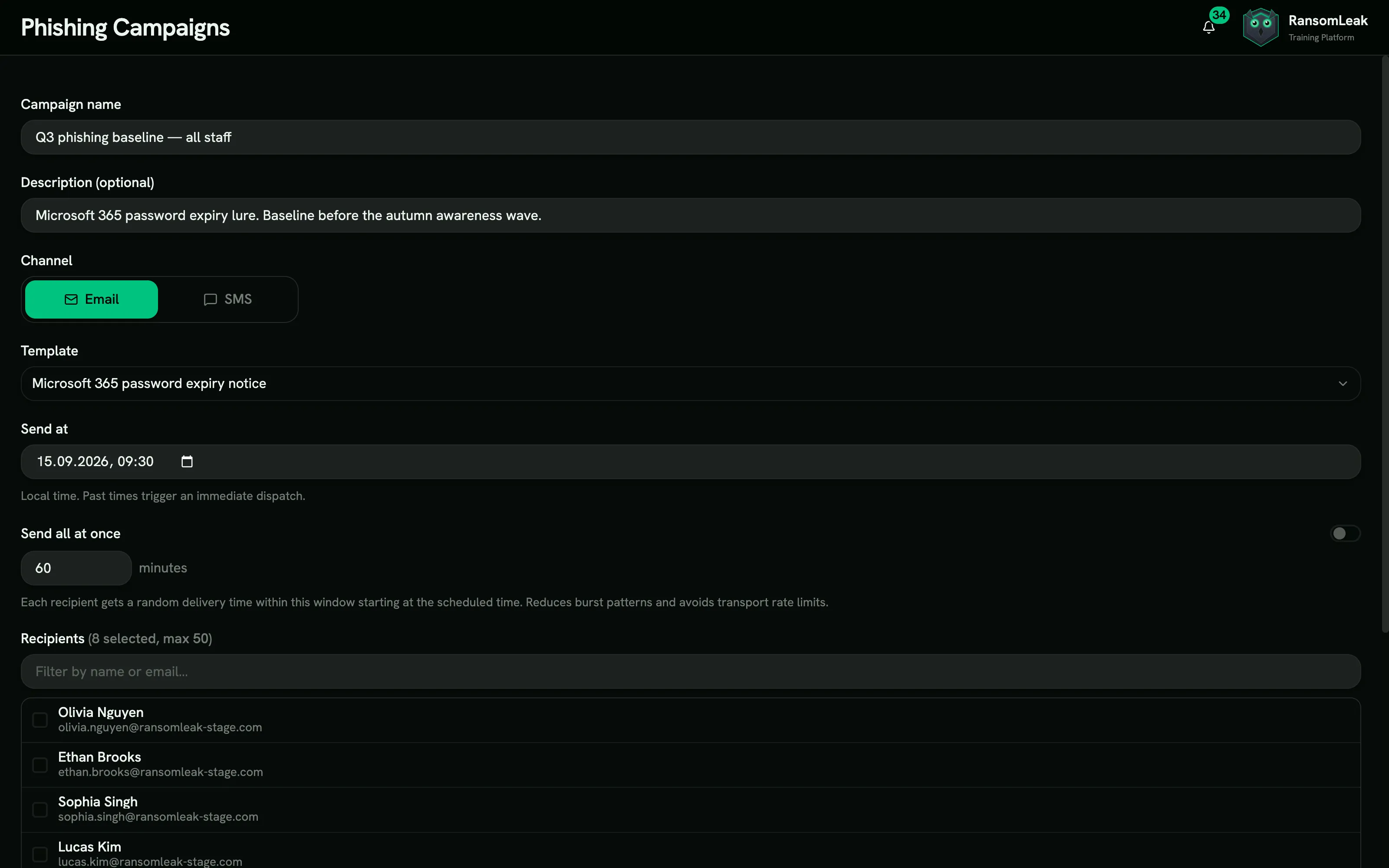
| Field | Notes |
|---|---|
| Campaign name | For you; recipients don’t see it |
| Templates | One or more approved templates (up to 10). Each recipient gets one of them, assigned at random and split evenly, so colleagues don’t all get the same email. If a selected template stops being available, the editor marks it No longer available; untick it before launching. |
| Send at | In your local time. A time in the past sends immediately. |
| Send all at once | When off, emails are spread across a window (60 minutes by default), which makes it harder for colleagues to warn each other. Large campaigns are always spread out enough to stay within email provider limits (about 300 emails a minute); the editor shows the minimum time when that applies. |
| Recipients | Pick people one by one, add a whole team, or select all active users. Disabled accounts aren’t added by the bulk options, and SMS campaigns skip people without a phone number. |
- Click Save draft.
- Review it, then click Launch. Launching can’t be undone once sending starts.
- Cancel campaign / Stop campaign stops emails that haven’t gone out yet. Sent emails can’t be recalled.
Campaigns move through Draft, Scheduled, Launched and Completed (or Cancelled).
What recipients experience
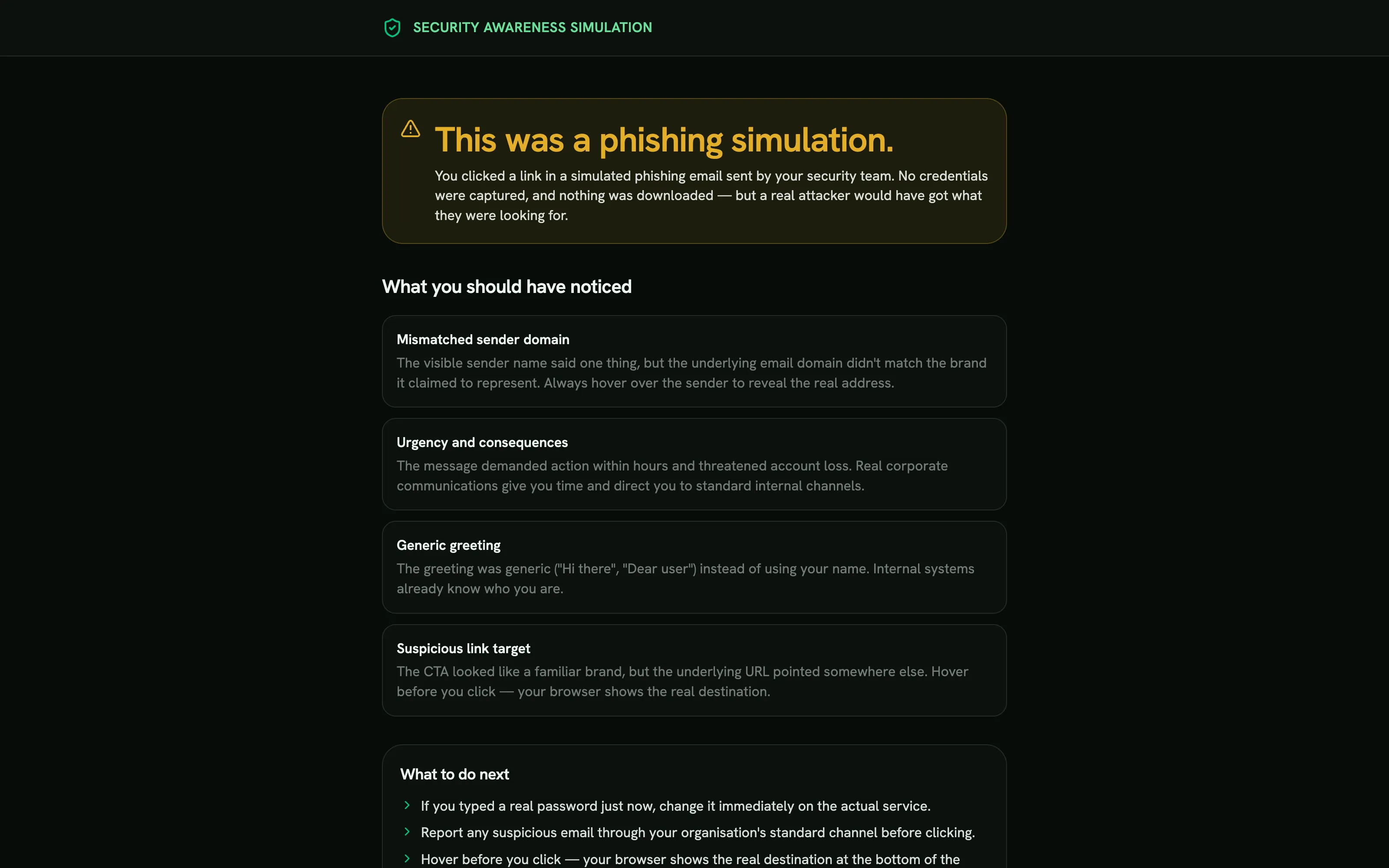
Section titled “What recipients experience”- If they submit credentials: a page tells them you were phished, explains that it was a controlled exercise by your organization, and shows what they should have noticed. Nothing they typed is stored.
- If they report the email: they see good catch. With Slack, Teams or Webex connected, they also get a Nice catch message.
Results
Section titled “Results”A campaign’s page shows how many people Opened, Clicked, Submitted creds, Opened attachment, Granted OAuth, Replied, and Reported, plus per-recipient delivery status. When a campaign uses several templates, a By template table compares them, and each recipient’s row shows which template they got. Recognisable automated security scanners and auto-replies are filtered out so they don’t count as people, and they never trigger remediation.
Reply-based (BEC) simulations
Section titled “Reply-based (BEC) simulations”Some templates test business email compromise: the email asks the recipient to reply, for example to confirm new bank details, rather than click a link. Each recipient’s email carries its own reply address, so a reply is matched to the person who sent it.
- A reply counts as a failure (BEC reply) and shows as Replied on the campaign’s dispatch list, with the sender address.
- Out-of-office and other automatic replies are recognised and excluded, labelled auto-reply.
Automatic follow-up training
Section titled “Automatic follow-up training”In the campaign’s remediation settings:
| Setting | Default |
|---|---|
| Auto-enroll on failure | Off |
| Training learning path | A published learning path |
| Deadline (days) | 14 (from the failure) |
| Grace period (days) | 7 (after the deadline, before it’s marked failed) |
| Include soft fails | Off |
What counts as a failure: submitting credentials, granting an app access, replying to a fraudulent request, or granting push permission. Soft fails (clicking a link, opening an attachment) count only if you include them.
Anyone who reported the email is never enrolled, even if they clicked first.
People enrolled get reminder emails halfway through, in the final 3 days, when overdue, and weekly while failed.
The Remediations page lists every enrollment with its status (In progress, Overdue, Failed, Completed, Completed (late), Dismissed). You can Extend the deadline, Mark complete or Dismiss (with a reason).
Analytics
Section titled “Analytics”Phishing Simulations → Analytics shows:
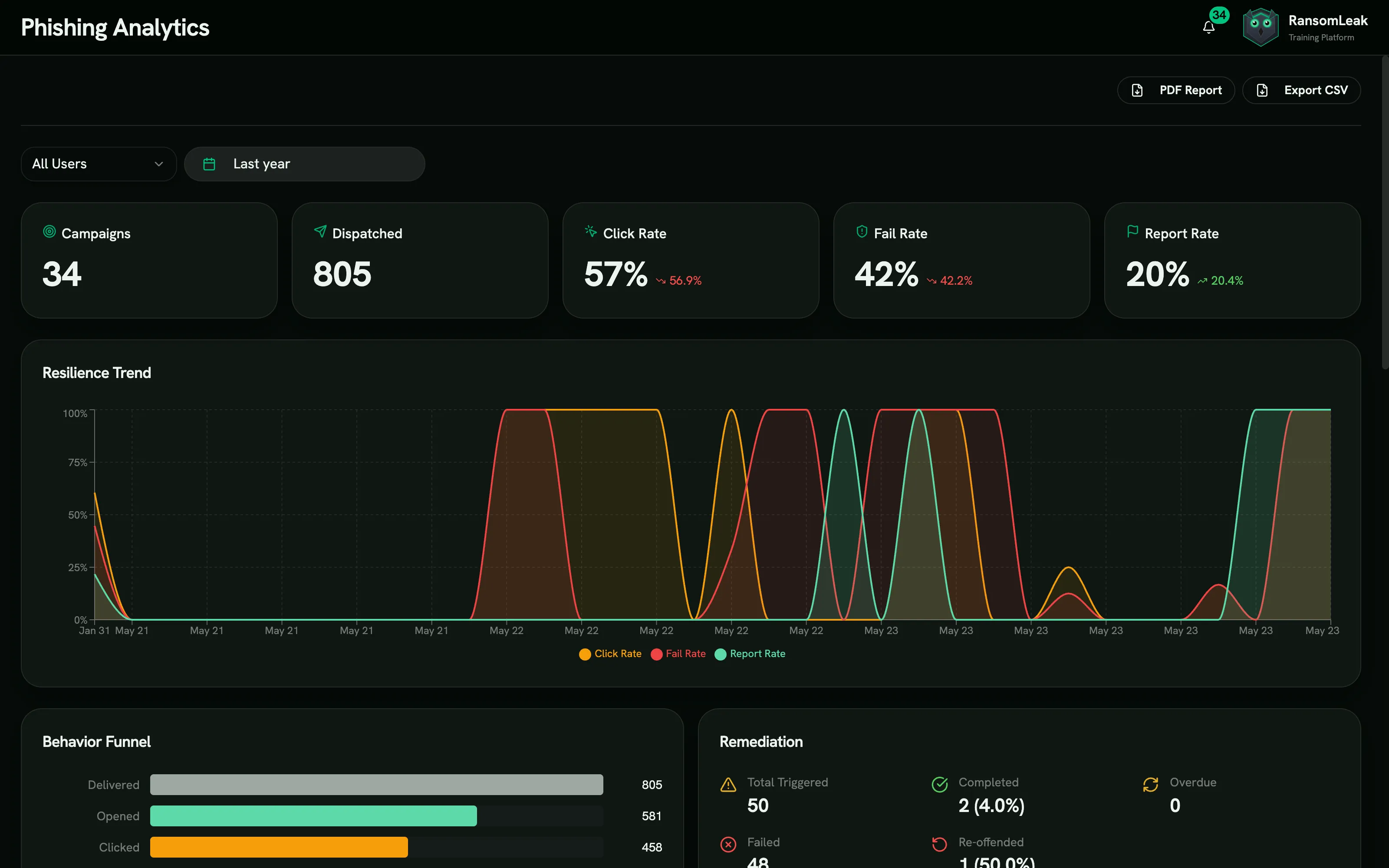
- totals: Campaigns, Dispatched, Click Rate, Fail Rate and Report Rate;
- the Resilience Trend over time and the Behavior Funnel from delivered to failed;
- Template Performance, Team Comparison and Repeat Offenders.
Download it as a PDF Report or Export CSV. The Risk Score tab holds the Human Risk Score.