Learning in Slack
If your organization uses the RansomLeak Slack app, you may receive short lessons as direct messages from the app. Each takes about two minutes (a “spot-it” quiz about 30 seconds) and you complete it right in Slack. You are matched by your email address, so use the same address in Slack and RansomLeak.
What a lesson looks like
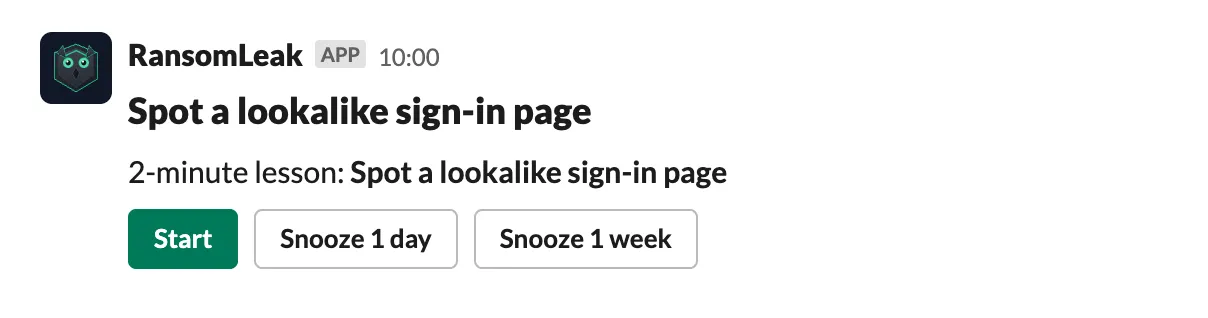
Section titled “What a lesson looks like”A lesson arrives as a card with a title and a Start button. After you press Start, the same card updates step by step:
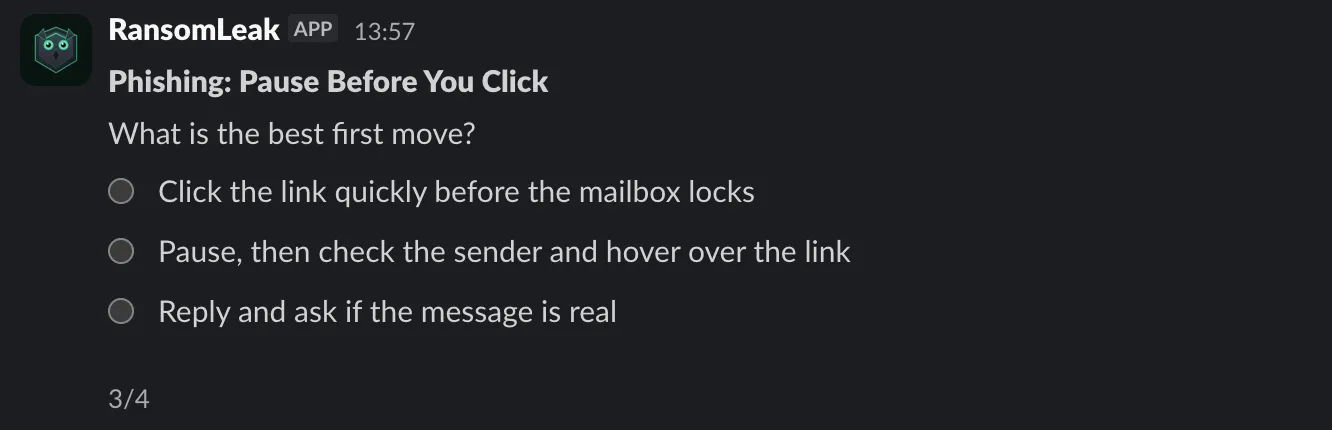
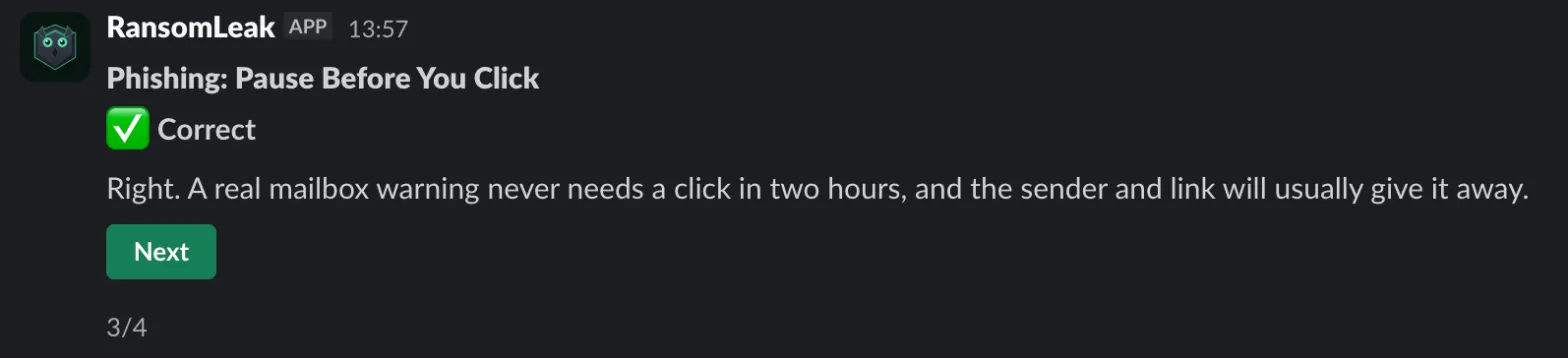
- Messages with a Next (or Got it) button, and sometimes a Why? button that explains why something matters.
- Questions you answer by pressing an option. For “select all that apply” questions, tick your choices and press Submit.
- Feedback after each answer, telling you what was right or what to look out for.
- A summary at the end with your score.
Lessons come in your language, the one set in your profile (or your organization’s default), whenever the lesson has been translated into it. Anything that hasn’t been translated is shown in English.
Suspicious links, senders and file names are shown as plain text and are never clickable, so you can look at them safely. Pressing a button twice does no harm. A new lesson from the same program replaces one you haven’t finished, and the old card says so.
The App Home tab
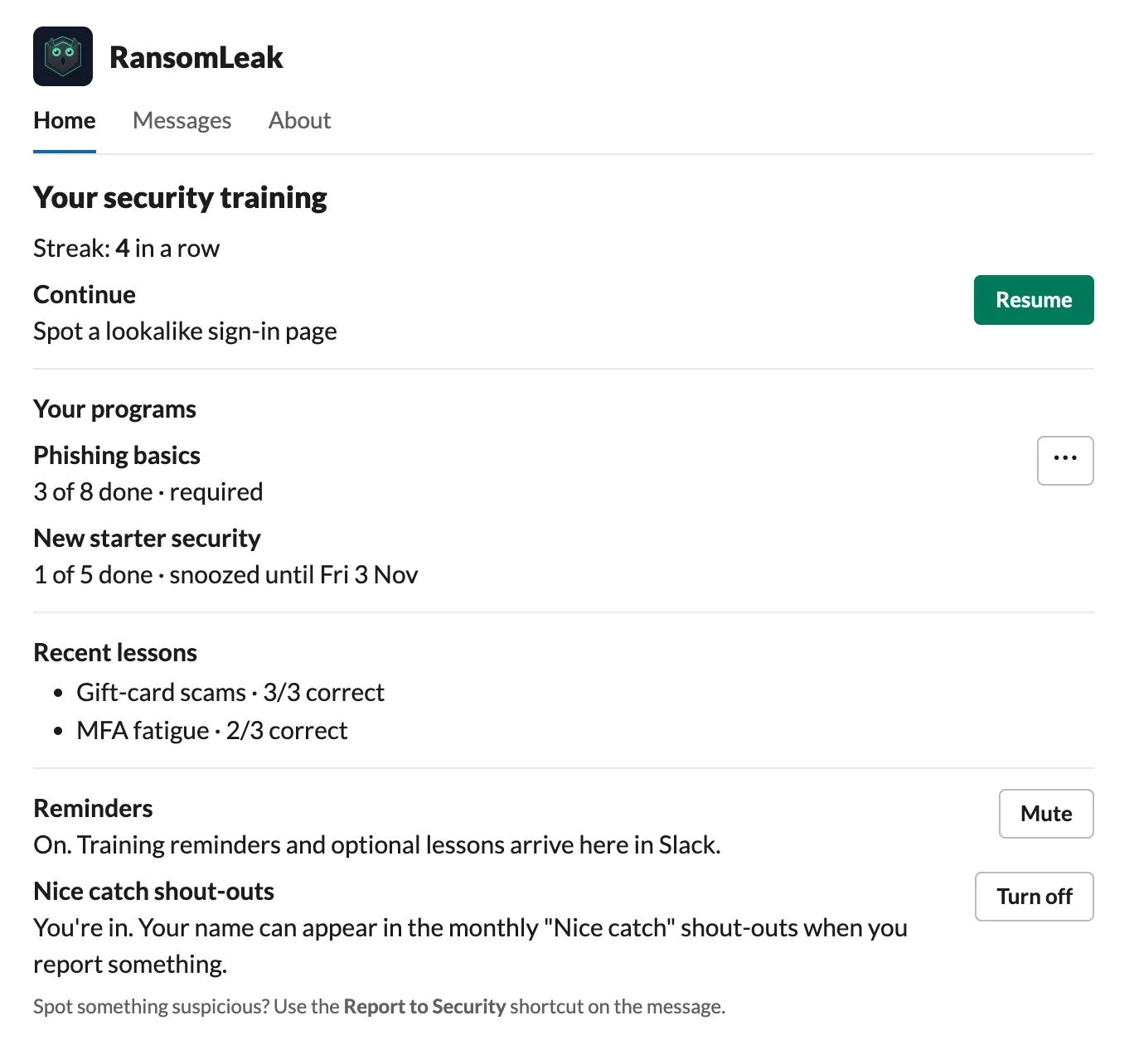
Section titled “The App Home tab”Open the RansomLeak app in Slack and choose the Home tab to see your current streak, a Resume button for a lesson you started and haven’t finished, your programs with progress, your recent lessons with scores, and a Reminders switch: press Mute or Unmute to change it.
Why did I get this lesson?
Section titled “Why did I get this lesson?”Most lessons come from a training program your organization set up. Others are sent because something happened:
- Right after you clicked a simulated phishing email, or after you reported one.
- In your first days, as a welcome.
- After your job title or department changed.
- When a scam season starts, such as tax season or Black Friday.
Welcome, new-role and seasonal lessons start with a short line that says why they were sent. You get at most one of these lessons a day. Apart from the ones after a phishing simulation, they arrive between 9:00 and 17:00 your time, on work days. Muting reminders stops them.
Snoozing
Section titled “Snoozing”Not now? On a lesson card that you haven’t started, press Snooze 1 day or Snooze 1 week, or open the ⋯ menu next to the program on the app’s Home tab. The program pauses for you until then and the card shows when it resumes; you can still start that lesson whenever you like. You can snooze each program once every 14 days. If you try again sooner, the card tells you so. Programs that are only sent as a one-off (for example, a follow-up after a phishing simulation) have no snooze.
Muting reminders
Section titled “Muting reminders”Press Mute under Reminders on the app’s Home tab (or send /ransomleak mute) to mute training reminders and optional chat lessons; press Unmute (or send /ransomleak unmute) to resume. The app’s messages tab is read-only, so commands are typed in any other channel or DM. Muting doesn’t switch off required chat-learning programs from your organization: those still arrive, and snoozing is how you pause them. The mute confirmation says so.
Checking your status
Section titled “Checking your status”Send /ransomleak status to see (only you can see the reply) the programs you are in, whether each is required, when your next lesson is due in your own timezone, whether a program is snoozed and until when, and whether reminders are muted. While you are muted, optional programs show as paused instead of a next-lesson date; required programs keep their date.
Check a link or message
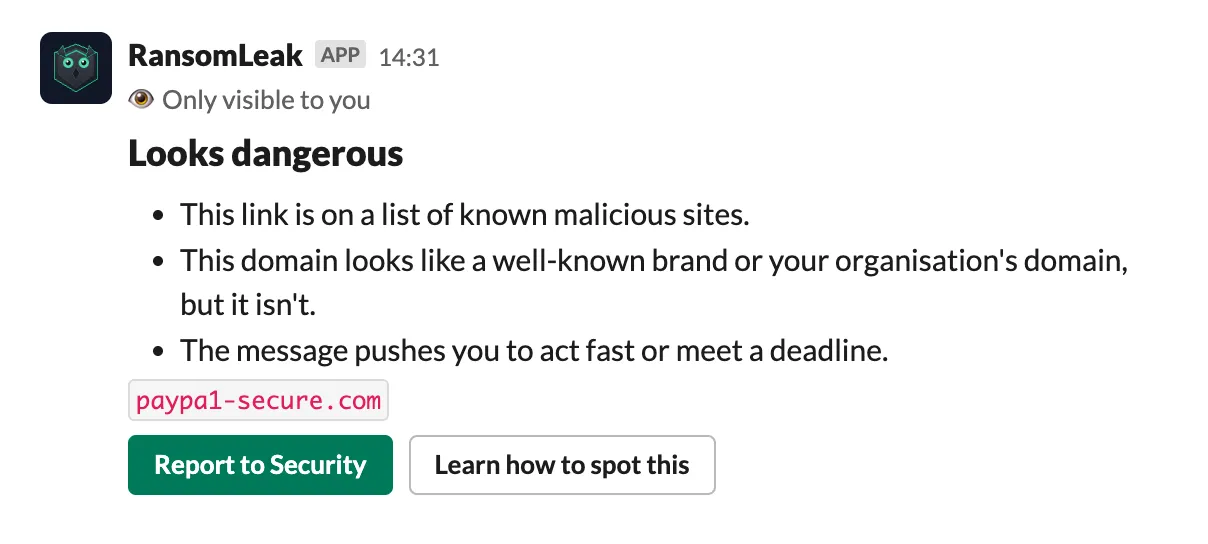
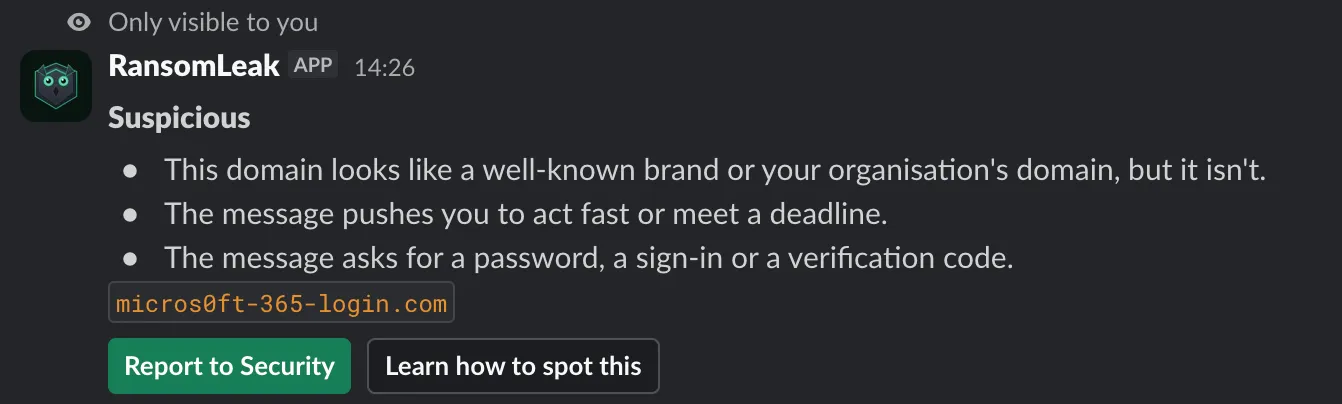
Section titled “Check a link or message”Not sure about a link or a message? Send /ransomleak check followed by the link or the message text, for example /ransomleak check https://example.com/login. Only you see the answer: Looks dangerous, Suspicious or No known red flags, with the reasons. “No known red flags” isn’t a guarantee: if something still feels off, report it.
- The check follows rules. It never opens the link, and it doesn’t read images or attachments.
- Press Report to Security on the answer to send the message to your security team, or Learn how to spot this to get a short lesson on the topic.
- The text you checked is kept for 30 minutes so you can report it, then deleted.
- You can run up to 30 checks an hour.
If the answer says checks aren’t turned on, your organization hasn’t enabled them.
Reporting a suspicious message
Section titled “Reporting a suspicious message”If a message in Slack looks suspicious, use the Report to Security shortcut on that message (open the message’s more actions menu and choose it). Your organization’s security team receives it with a link to the message. You can also add the 🎣 reaction to a message, but that only works in conversations where the RansomLeak app has been added; the shortcut works everywhere. If your organization hasn’t set up where reports go, or delivery fails, you’ll get a notice saying the report wasn’t forwarded and to contact your security team directly.
Nice catch shout-outs
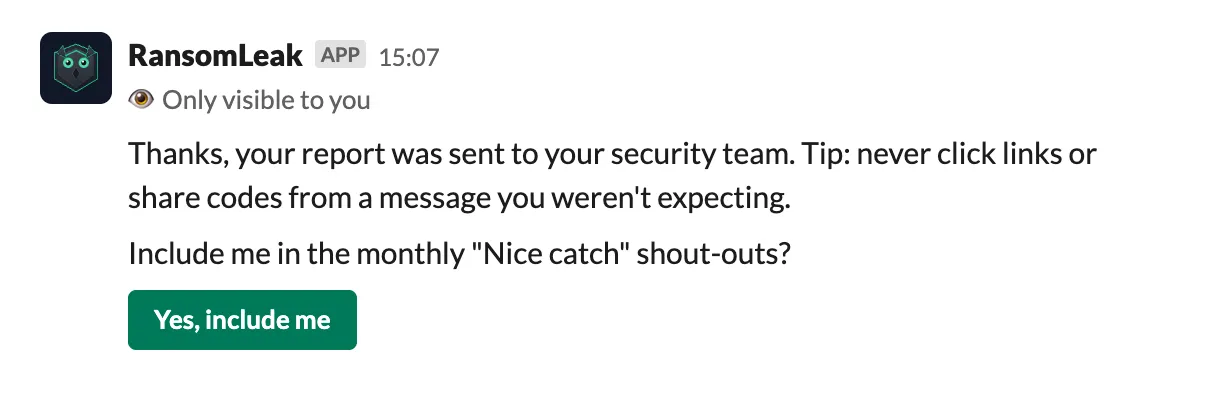
Section titled “Nice catch shout-outs”Your organization can send its security team a monthly security digest that thanks, by name, people who reported something. You are only named if you agree.
- If your organization turned shout-outs on, the thank-you after your first report of a message asks Include me in the monthly “Nice catch” shout-outs?. Press Yes, include me to agree. You’re asked once; reporting the same message again doesn’t ask.
- Change your answer any time under Nice catch shout-outs on the app’s Home tab: Turn on or Turn off. Turning it off applies from the next digest.
- The digest shows only your name, never what you reported or how many times.
- The 🎣 reaction doesn’t ask; use the Home tab instead.