
Emails and reminders
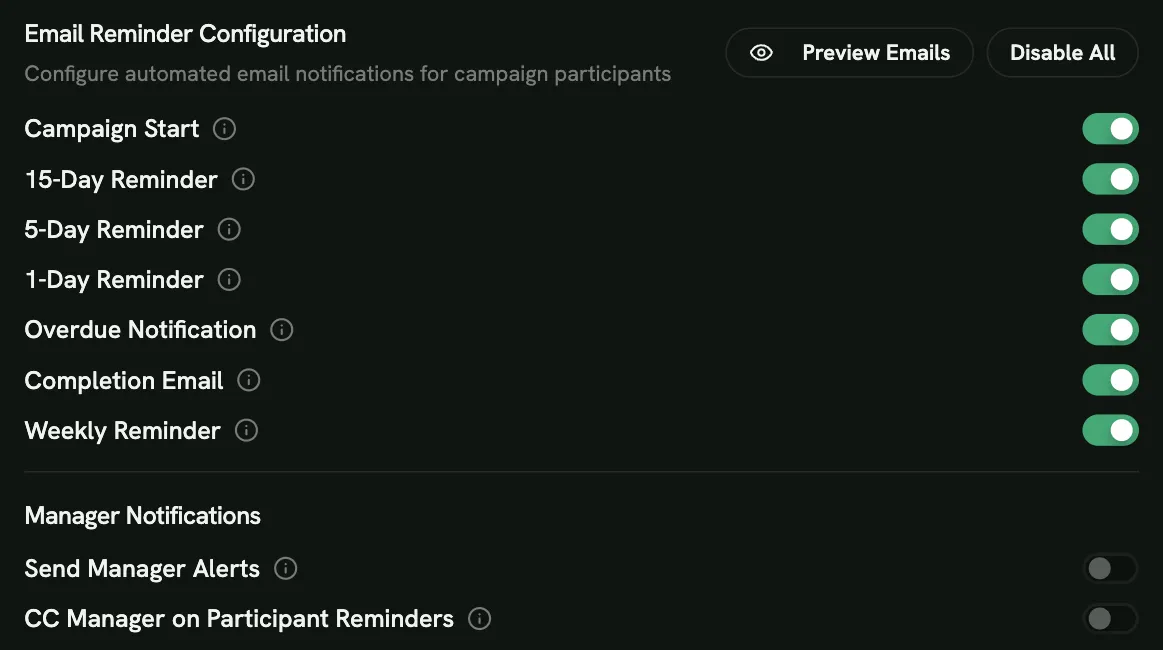
Choose which emails a campaign sends under Email Reminder Configuration when you create or edit it. All participant emails are on by default. Use Disable All or Enable All to change them all at once.
Participant emails
Section titled “Participant emails”| When it’s sent | |
|---|---|
| Campaign Start | When the campaign starts, or immediately when someone is added to a running campaign |
| 15-Day Reminder | 15 days before the deadline |
| 5-Day Reminder | 5 days before the deadline |
| 1-Day Reminder | The day before the deadline |
| Overdue Notification | The day after the deadline, if the person hasn’t finished |
| Weekly Reminder | Every Monday while the campaign runs, to people who haven’t finished |
| Completion Email | As soon as the person finishes |
- Reminders go only to people who haven’t finished yet.
- People with a personal deadline get reminders based on their own date.
- Disabled and unlicensed users never get campaign emails.
- Emails use your logo, your custom SMTP server if configured, and each person’s language.
You can’t change the wording of the emails, but you can add a short message from your organization to the end of every training email under Tenant Settings → Learning & Assessment → Message from your organization. To check what they look like, open Edit Campaign → Preview Emails, and use Send Test Email.
Manager emails
Section titled “Manager emails”Two switches involve managers (both off by default):
- Send Manager Alerts: each manager gets one summary email about their direct reports:
- 15 days before the deadline: who hasn’t finished yet;
- 5 days before: who’s at risk (below 50%);
- the day after the deadline: who missed it.
- CC Manager on Participant Reminders: managers are copied on the emails their direct reports receive.
Managers can switch off alerts in their own notification settings. Only people who have a manager set are covered. See Teams and managers.
Manual reminders
Section titled “Manual reminders”Admins and managers can send a reminder to one person at any time from View Progress → Send Reminder, or from My Subordinates. The wording adapts to how close the deadline is.
Slack, Microsoft Teams and Webex
Section titled “Slack, Microsoft Teams and Webex”If your workspace is connected under Integrations, participants also get a direct message when a campaign is assigned, before the deadline and when they complete it.