
Chat drills
A chat drill is a short, branching conversation with an attacker in a simulated chat app. The learner chooses how to reply at each step, then reviews the conversation for red flags.
Chat drills are on the Chat Drills tab under Content Management → Microlearning. You need Manage Chat Drills to create or edit them.
What learners experience
Section titled “What learners experience”- Scene: a short setup explains the situation, then they click Open the chat.
- Conversation: the attacker’s messages arrive one by one. At each decision point the learner picks a reply.
- Thread review: they mark suspicious parts of the conversation.
- Reveal: red flags found and missed, plus feedback on each reply they chose.
- Response: the right way to escalate.
- Knowledge Check: the quiz.
Create a chat drill
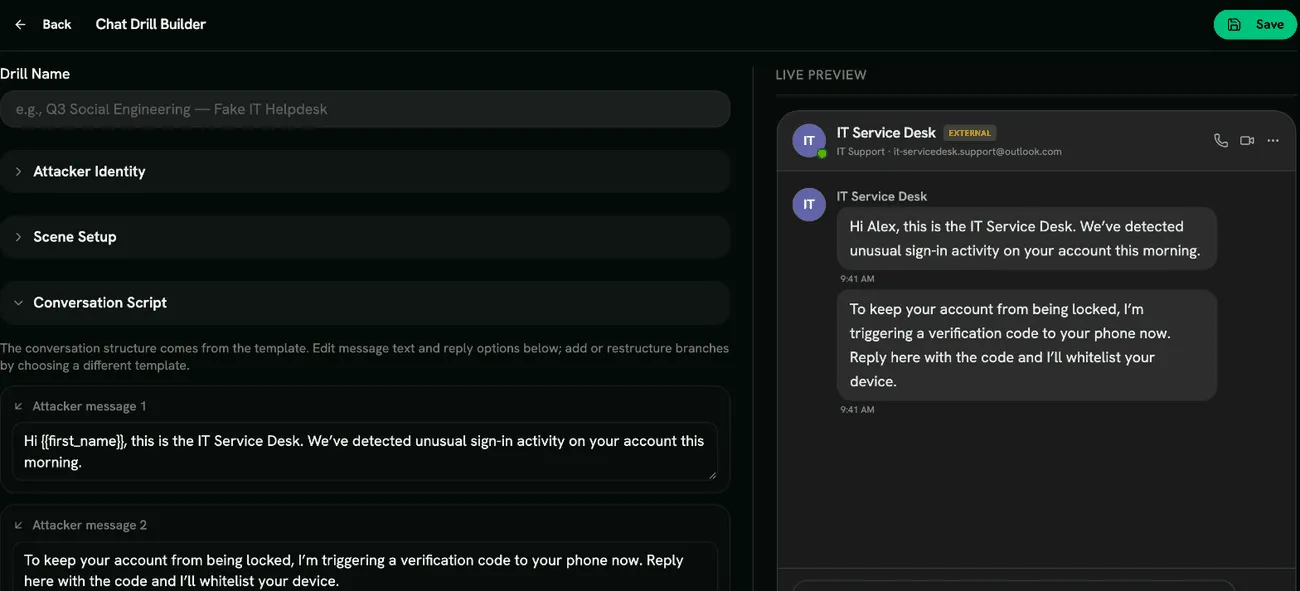
Section titled “Create a chat drill”Click Create Drill, enter a Drill Name and Choose Template: Fake IT Helpdesk, Executive Impersonation, Vendor Bank-Detail Change, Malicious App Consent, WhatsApp CEO Fraud, LinkedIn Fake Recruiter, or Custom Template (a minimal two-message conversation).
Then fill in:
- Attacker Identity: Display Name, Account Handle / Email, Title (optional) and Show External / Guest Badge.
- Scene Setup: Scene Title and Scene Description.
- Conversation Script: the text of each attacker message and each reply option. For every reply you set a rating (Correct, Risky or Wrong) and the Feedback (shown in reveal).
- Configure Red Flags from Sender, Links, Content and Attachments, for example Lookalike Handle, Brand-New Account, Demand for Secrecy and Authority Pressure.
- Chat Skin: Microsoft Teams, Slack, WhatsApp or LinkedIn.
- Quiz Questions.
Scoring
Section titled “Scoring”Each reply rated Correct earns a point. Risky and Wrong replies don’t. Red flags, the response and the quiz are scored as in other drills. See Scoring.
- Use the skin your people actually use at work, so the drill feels familiar.
- Write feedback that explains why a reply is risky, not just that it is.