
Documents and uploaded courses
Besides RansomLeak’s exercises, your organization can add its own material to your training: for example the security policy as a PDF, a video message from leadership, or an existing e-learning course. These appear as steps in a learning path, including a learning path that’s part of a campaign.
Opening an item
Section titled “Opening an item”- Open the learning path from Learning Paths → My Paths, or open the campaign from Campaigns.
- Find the step and click Start.
If the step is greyed out with a lock, finish the steps it depends on first.
The item opens full screen, with its name at the top. The back arrow in the top-left corner returns you to the learning path or campaign you came from.
Documents, videos and images
Section titled “Documents, videos and images”| Type | How it opens |
|---|---|
| Shown in the page | |
| Image | Shown in the page |
| Video, Audio | Plays in the page |
| Presentation | Can’t be previewed in the browser. Click Download and open it on your computer. |
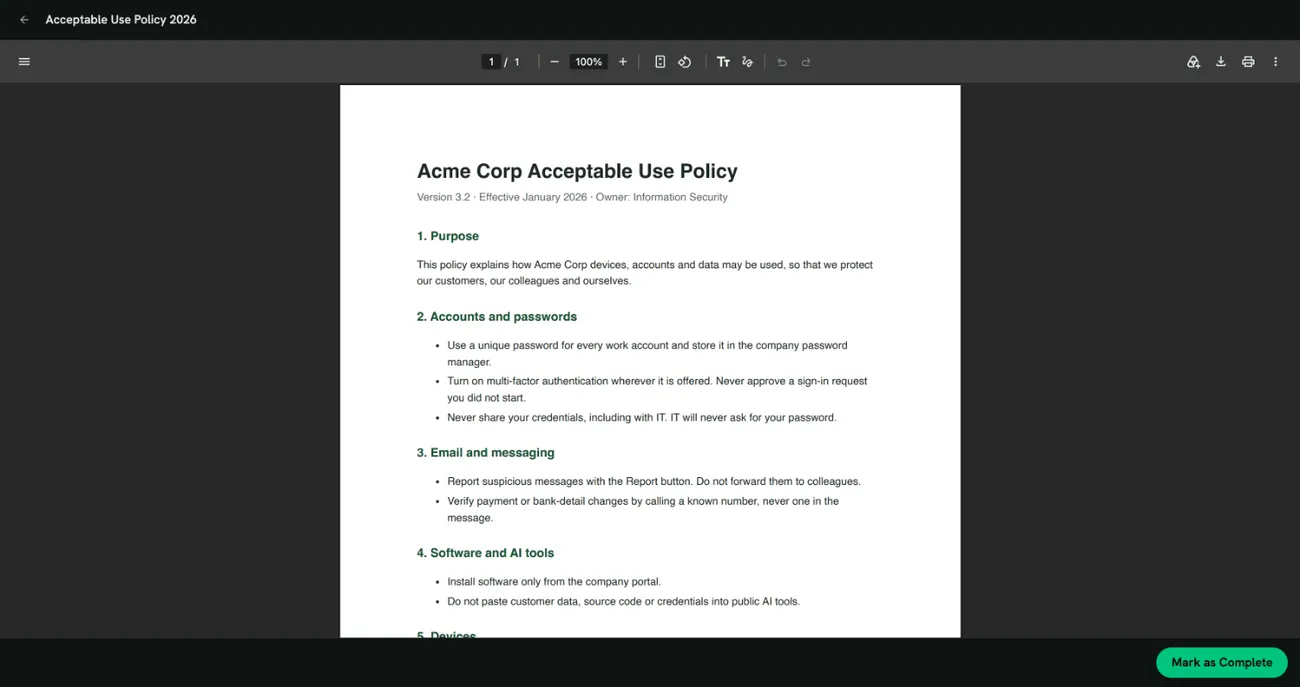
When you’ve read, watched or listened to it, click Mark as Complete at the bottom. The button becomes available after a few seconds (Review the content above before completing). You’re then taken back to the learning path or campaign, and the step shows as done.
Uploaded courses (SCORM)
Section titled “Uploaded courses (SCORM)”Some items are complete e-learning courses. They run inside the page, and the course itself decides when you’ve finished it, usually at the end or after a final test.
Your progress is saved automatically as you go. If you leave part-way, click Start again later to continue where you stopped. When you exit the course from its own finish or exit button, you’re taken back to the learning path or campaign.
Start or Review?
Section titled “Start or Review?”- Start: you haven’t completed the item yet, or it needs to be completed again.
- Review: you’ve already completed it. Opening it again doesn’t change your completion.
Sometimes an item you finished before shows Start again. That’s expected when:
- it’s part of a campaign: campaigns usually count only what you complete while the campaign is running;
- the learning path repeats every year and a new cycle has begun.
In that case Start opens a fresh attempt: a course starts from the beginning, and a document can be marked complete again. Your earlier completion stays in your history.