
Chat learning
Chat learning sends short training straight to employees in Slack: a lesson of about two minutes, or a “spot-it” quiz of about 30 seconds. Employees answer inside the chat, with no login and no course to open. You build the content under Chat Lessons and decide who gets what, and when, under Chat Learning (you need the Manage Chat Learning permission, and the Slack app must be connected under Integrations; see Slack, Microsoft Teams and Webex).
Chat lessons
Section titled “Chat lessons”Open Chat Lessons and click New chat lesson. There are two formats:
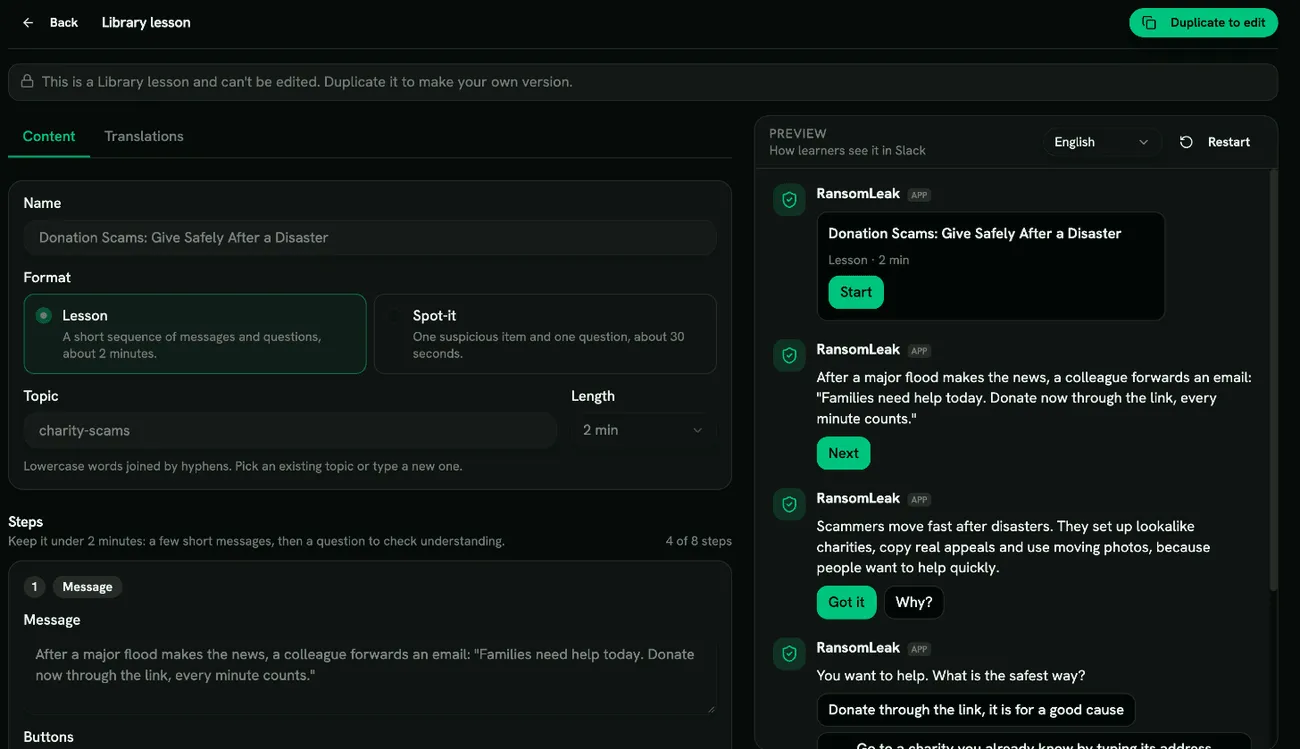
- Lesson: a short run of messages, optional Why? explanations and questions, about 2 minutes.
- Spot-it: one suspicious item (the artifact) followed by one question, about 30 seconds.
Each step is a Message, an Artifact or a Question:
- A Message always has a button to continue. It reads Next unless you tick the Got it option, which labels it Got it instead; tick Why? to add an explanation button.
- Artifact types are Link, Sender, File name, Text message and QR code. Links are always shown as plain text and are never clickable. For a Sender, write it as
Name (address), for exampleIT Support (it-support@examp1e.com); angle brackets are removed when you save. - A Question has two to several answer options, a Correct flag on each and optional Feedback shown when the option is picked. Turn on Allow several correct answers for “select all that apply”.
Use the preview next to the editor to see the lesson as it will look in Slack.
Library and custom lessons
Section titled “Library and custom lessons”The Library ships 50 ready-made bites: 30 lessons and 20 spot-its. They cover phishing in its many forms (email, text messages, QR codes, phone calls, callback scams and deepfakes), business email compromise and invoice fraud, passwords, MFA and account recovery, app consent and stolen sign-in sessions, lost and personal devices, updates, browser extensions and public Wi-Fi, data handling (labels, sharing links, shadow IT, AI tools, personal data, clean desk, screen sharing and misdirected email), physical security, reporting incidents, ransomware, travel, and seasonal scams such as tax refunds, holiday deals and fake charities. Each bite has a topic, which is what Rotation programs draw from. Library lessons are read-only, but you can click Duplicate to edit to get your own Custom copy. Deleting a custom lesson is safe: programs that use it simply skip it.
Languages
Section titled “Languages”Each learner gets a lesson in their own language: the language set in their RansomLeak profile, or your organization’s default language if they haven’t chosen one. Library lessons, including their titles, come in English, German, French, Italian, Dutch and Ukrainian. A custom lesson is written in English, and you can add translations for any of these languages in the lesson editor. Wherever a translation is missing, even for a single sentence or answer, learners see the English text for that part. Buttons and other card labels always follow the learner’s language. The Results tab always shows lesson names in English.
Programs
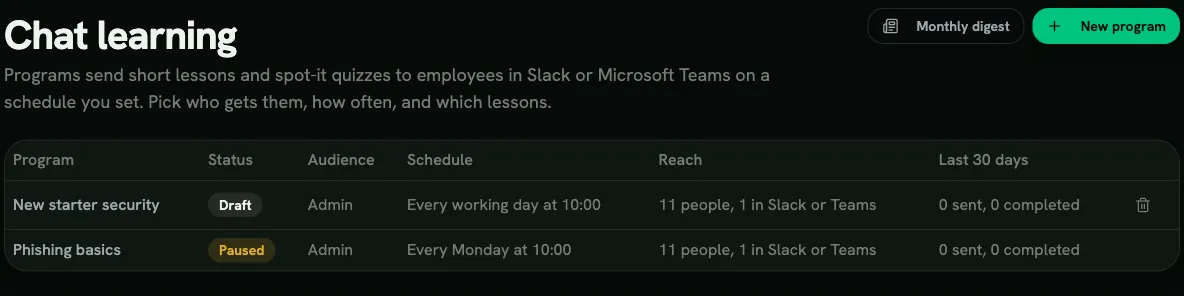
Section titled “Programs”A program sends lessons to an audience on a schedule. Open Chat Learning and click New program. A program starts as a Draft; use Activate, Pause/Resume and End program to control it. An ended program is read-only and cannot be started again. Use Send preview to me to receive the next lesson yourself before you activate (previews never count in results).
Audience
Section titled “Audience”Choose Everyone, or Specific people: any mix of Teams, User groups and Roles, plus Exclude people. New hires, joined in the last N days sends only to recent joiners; on its own it means everyone who joined in that period, and combined with teams, groups or roles it narrows them to recent joiners. The audience is re-evaluated at every send, so new joiners are picked up and leavers drop out. Only people whose Slack email matches their RansomLeak email can be reached; the editor shows how many of the audience that is.
Content
Section titled “Content”- Track: a fixed order of lessons; everyone moves through the same sequence, one per send.
- Rotation: draws from the topics you pick so each person gets a lesson they haven’t seen.
- Picked lessons: the lessons you pick, sent one per send in the order you list them (like a track).
When a person has seen everything you can Start over or Stop sending.
Cadence
Section titled “Cadence”Pick How often and Send at. Examples:
| You want | Setting |
|---|---|
| A lesson every working day | Every working day |
| Tuesday and Thursday | Specific days of the week, Tuesday and Thursday |
| Every other Monday | Every N weeks, 2 weeks, Monday |
| The first Monday of each month | Monthly, by weekday, First, Monday |
| The 1st and 15th of each month | Monthly, by date, 1 and 15 |
“Working day” follows the Work week in the Slack integration settings (Monday to Friday by default). A company on a Sunday to Thursday week simply sets those five days. For Monthly, by date, a date that falls on a non-working day moves to the next working day, and if two chosen dates land on the same working day the learner gets one lesson, not two. A date that doesn’t exist in a short month is skipped. “First Monday” style rules ignore the work week.
Times are the learner’s local time (taken from Slack; people without a timezone use your Default timezone). Use Spread over to randomise sends across a window of up to three hours so a whole team isn’t pinged at the same second. The editor’s Upcoming sends list shows the next 30 days for any learner, in their timezone, with the lesson each send would carry. It ignores snoozes and mutes.
Delivery limits (fatigue cap)
Section titled “Delivery limits (fatigue cap)”Under Integrations, Slack, Chat learning settings you set Max lessons per person per day (default 1) and Max lessons per person per week (default 5), the Work week and the Default timezone. When several programs are due on the same day, required programs go first. A send over the limit is skipped, not moved to the next day: that program’s next send carries the lesson it would have sent. Lessons after phishing simulations (see Just-in-time lessons) may exceed the daily cap by one but never the weekly cap.
Do Not Disturb: if someone is in Slack Do Not Disturb when a lesson is due, it is held and sent when Do Not Disturb ends, as long as that is the same local day. Otherwise that day’s send is skipped and the program’s next send carries the lesson.
Reminders
Section titled “Reminders”Turn on Remind people who haven’t opened it and choose Remind after (in hours) to send one gentle reminder, posted in the lesson’s thread. It is sent once, never repeated, and only while the program is active; optional programs don’t remind people who have muted the app. Nobody is reminded while they have that program snoozed; if the lesson is still unopened when the snooze ends, the reminder can follow then.
Required or optional
Section titled “Required or optional”A program marked Required training ignores a learner’s mute: only a snooze pauses it, and it wins when someone hits their daily limit. Optional programs are skipped for anyone who has muted the app. Learners can snooze a program for one day or one week from the lesson card, once every 14 days per program, and mute from the app’s Home tab or with /ransomleak mute (see the learner guide).
Results
Section titled “Results”The Results tab shows, per lesson and for a period you choose, lessons sent, completed, completion rate, correct answers, how many learners snoozed and how many in the audience have muted the app.
Reports, campaigns and compliance
Section titled “Reports, campaigns and compliance”A completed chat lesson is recorded like any other exercise: it shows in user and team reports and exports, and it counts toward the Human Risk Score. Chat lessons can only be taken in chat, so they can’t be added to a campaign or a learning path: everyone in a campaign or learning path must be able to complete it in the web app. Assign Individual Exercises in a campaign doesn’t list them.
Chat learning is supplementary training. Chat lessons and programs don’t count as annual security awareness training evidence: they are never part of a learning path, so they don’t count toward learning path completion, the framework rosters or the Vanta and Drata sync. The Compliance page shows them separately, in an Ongoing awareness section marked supplementary, so auditors can see that training continues between annual courses. Keep a learning path for your annual training evidence, and use chat learning to reinforce it in between.
Just-in-time lessons
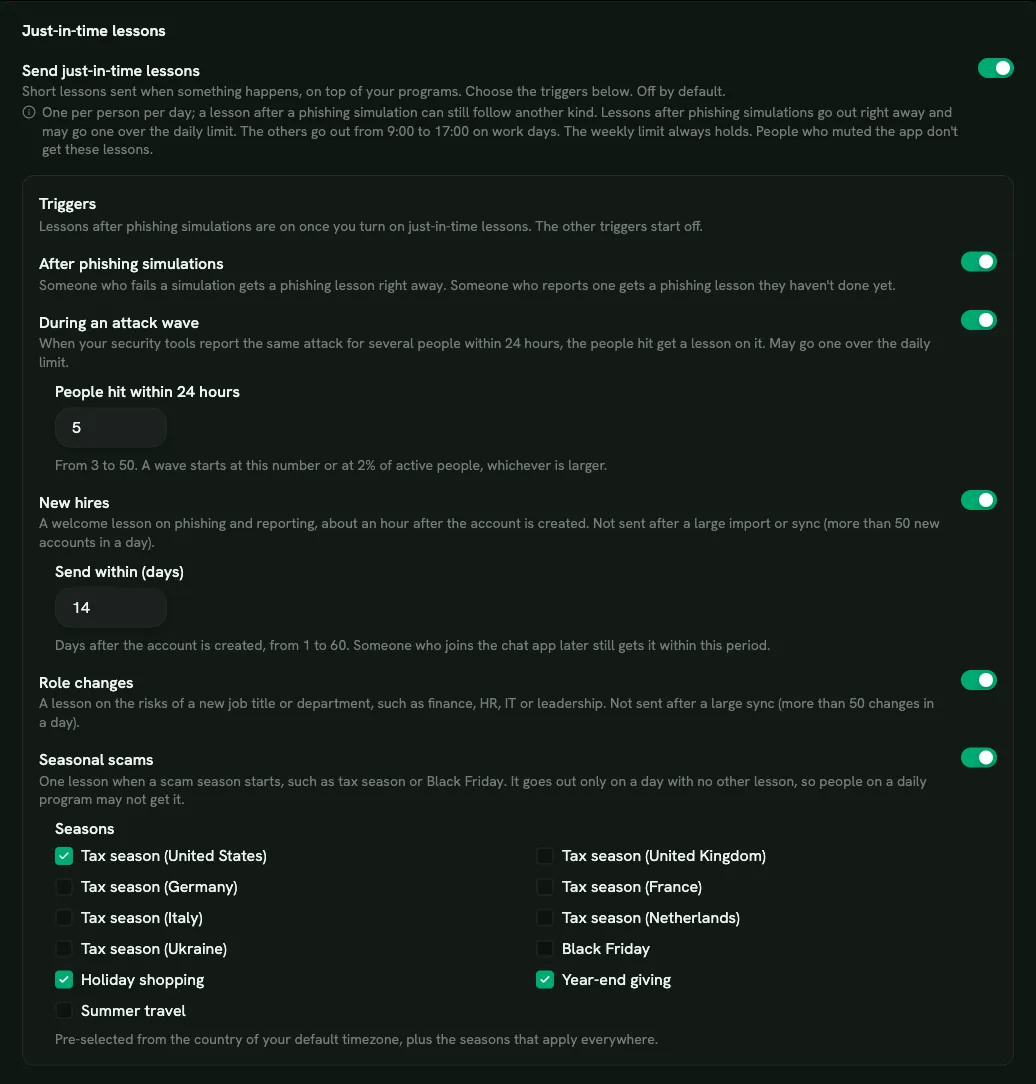
Section titled “Just-in-time lessons”Just-in-time lessons are short lessons sent when something happens, on top of your programs. Turn on Send just-in-time lessons under Integrations, Slack, Chat learning settings, Just-in-time lessons (it is off by default), then choose the triggers. After phishing simulations is on as soon as you turn on just-in-time lessons. Every other trigger stays off until you turn it on.
| Trigger | What the learner gets |
|---|---|
| After phishing simulations | Someone who fails a phishing simulation gets a short phishing lesson right away. Someone who reports one gets a phishing lesson they haven’t done yet. |
| New hires | A welcome lesson on phishing and reporting incidents, about an hour after their account is created. Send within (days) (default 14, up to 60) is how long after the account is created the lesson can still go out, so someone who joins Slack a few days later still gets it. People already in an active program for new hires don’t get it. |
| Role changes | A lesson on the risks of a new job title or department, for example invoice fraud for finance or personal data for HR. Changes come from your HR system, your identity provider or a team move. A title that matches no known role gets no lesson. |
| Seasonal scams | One lesson when a scam season starts: tax season (United States, United Kingdom, Germany, France, Italy, the Netherlands and Ukraine), Black Friday, holiday shopping, year-end giving and summer travel. Under Seasons, the seasons that apply everywhere and the tax season of the country of your Default timezone are pre-selected. Change them as you like. Seasonal lessons go only to people the app has already matched in Slack. |
The rules:
- At most one just-in-time lesson per person per local day, whatever the trigger. The one exception is a lesson after a phishing simulation: it still goes out when that day’s earlier lesson was a new-hire, role-change or seasonal lesson.
- New-hire, role-change and seasonal lessons go out between 9:00 and 17:00 in the learner’s local time, on days in your Work week. If a lesson can’t go out today, it waits for a later day.
- Lessons after phishing simulations may go one over the daily limit. All other just-in-time lessons stay within it, and the weekly limit always holds.
- Seasonal lessons go out only on a day with no other lesson. A learner on a daily program may therefore never get them.
- New-hire lessons wait about an hour before they go out.
- The first sync from your HR system or identity provider sends no new-hire or role-change lessons, because it brings in people who already work for you. For an identity provider, that covers its whole first day of syncing.
- On a day with more than 50 new accounts, or more than 50 role or team changes, no new-hire or role-change lessons are sent. Later syncs from your HR system are the exception: their new hires and role changes still get lessons.
- People who muted the app don’t get just-in-time lessons. These lessons are not part of a program.
New-hire, role-change and seasonal lessons open with a short line that says why they were sent, for example “Tax season is scam season.”
Report to Security
Section titled “Report to Security”Employees can report a suspicious Slack message with the Report to Security message shortcut, or by adding the 🎣 reaction. Set where reports go under Integrations, Slack, Chat learning settings, Report to Security:
- Security channel ID: the Slack channel ID, not its name (starts with
C, orGfor some older private channels, likeC0123456789; in Slack, open the channel details and copy the ID at the bottom). A channel name such as#securityis rejected. Invite the RansomLeak app to that channel (/invite @RansomLeak), or posts will fail. - Security email: reports are also sent to this address.
- You can set both; reports go to every destination configured.
- Report with a reaction enables the 🎣 emoji. It only works in channels where the RansomLeak app is a member; the shortcut works anywhere.
If nothing could be delivered, the reporter sees a notice telling them the report wasn’t forwarded (“not configured” when no destination is set, or a failure message) and to contact security directly, so reports are never silently lost.
If your organization uses the Human Risk Score, a report that reaches your security team counts in the reporter’s favor, like reporting a phishing simulation. Reporting the same message again doesn’t count twice, and at most one report per person counts in any 30 days, so the score can’t be lowered by reporting everything. Reports from Slack users who aren’t matched to a RansomLeak user still reach security but don’t affect any score.
Slack permissions
Section titled “Slack permissions”Chat learning needs Slack permissions that older installs of the app don’t have (for example for the 🎣 reaction and for Do Not Disturb). If your workspace needs them, an Update permissions banner appears on the Slack tab. Click Update permissions and a Slack admin approves the new scopes; your settings are kept. Until they are approved, the 🎣 reaction and Do Not Disturb handling don’t work.