
HR system (HRIS)
Connecting your HR system keeps RansomLeak in sync with who works for you. New hires get accounts and onboarding training, leavers are deactivated, and managers stay up to date.
Connect
Section titled “Connect”Under Integrations → HRIS (you need Manage Integrations), click Connect HR system and pick your HR system:
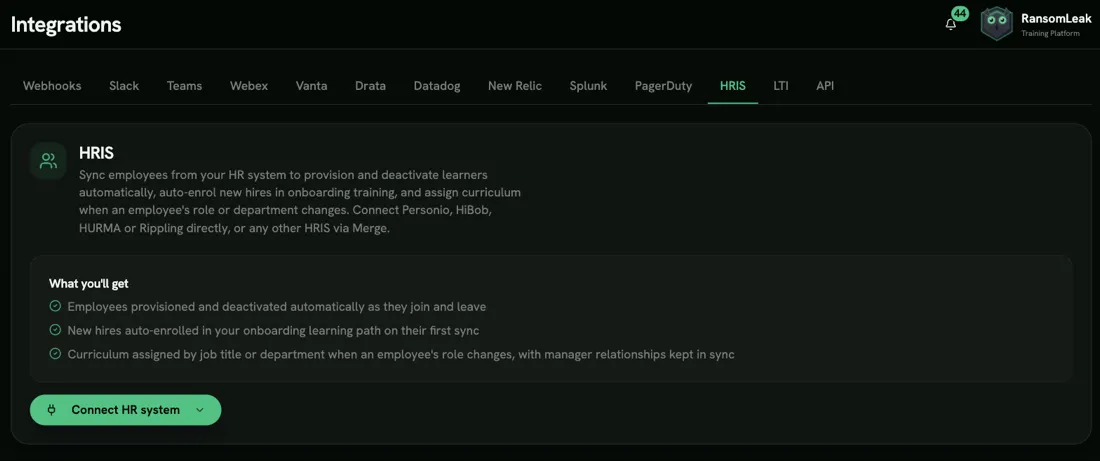
- HiBob: sign in and approve.
- Personio: paste a Client ID and Client Secret from Personio → Settings → Integrations → API credentials, with read access to employees and employments and the webhooks permission.
- HURMA: enter your HURMA address, plus the Client ID and Client Secret of an API client you create in HURMA (see below), then approve access in HURMA.
- Rippling: sign in and approve, or install RansomLeak from the Rippling App Shop.
- Another HR system: more than 50 other HR systems, through Merge.
HURMA API access requires the HRM PRO plan.
- In HURMA, open Settings → For developers → API v3 and choose Add → API Client.
- Keep Authorization type on Authorization code and paste the Redirect shown in the RansomLeak connect dialog.
- Allow Read on Employees, Teams (Structure), Roles and Dictionary: Positions. Under Sensitive API fields → Employees, add Full name, Corporate email, Position and Termination date. Without the corporate email, no one can be synced.
- Save, then paste the Client ID and Secret into RansomLeak and click Continue to HURMA.
- After connecting, copy the Webhook URL for HURMA from the HRIS tab. In HURMA, open Settings → For developers → Webhooks, add it and select the employee events so changes sync straight away. HURMA doesn’t let us add the webhook for you. HURMA switches a webhook off after a few failed deliveries; if it shows as inactive, turn it back on (changes still sync every hour meanwhile).
Only employees with a corporate email in HURMA get an account. Managers come from HURMA’s org chart: each person reports to the head of their team.
Accounts from your identity provider
Section titled “Accounts from your identity provider”If your identity provider (for example Entra ID) already creates accounts through SCIM, the HR system can be limited to assigning training. This is the right choice when your HR system holds personal email addresses that must never become accounts.
Choose Identity provider (SCIM) under Who creates users, either in the Personio connect dialog or on the HRIS tab. In this mode the HR system never creates, edits, disables or invites anyone. It only:
- matches each employee to the account your identity provider created, and
- assigns the Onboarding learning path (and role mappings) to matched people.
The HR system’s email is never stored in this mode.
Choose how employees are matched
Section titled “Choose how employees are matched”Under Employee matching, pick:
- HRIS field: the field that identifies each employee’s account. For Personio this can be any custom attribute your API credential can read, such as a work email or personnel number. Example values are shown partly hidden so you can recognise the field.
- Compare with: User email (the field holds the same work email your identity provider uses as the username) or Employee number from SCIM. For the employee number, map
employeeIdtourn:ietf:params:scim:schemas:extension:enterprise:2.0:User:employeeNumberin your Entra ID provisioning settings.
Click Check matches before saving. It shows how many current employees match an account, how many have the field empty, and any values shared by more than one person. Nothing is saved until you click Save.
For Personio, leave Email out of the integration’s readable employee attributes and add the matching field instead. Readable attributes can’t be changed after the credential is created, so create a new credential if you need to change them.
New hires
Section titled “New hires”A new hire usually appears in the HR system before their account exists. They’re listed under Waiting for an account on the HRIS tab and get the onboarding learning path as soon as your identity provider creates their account.
With chat learning, new hires can also get a welcome lesson in Slack, and people whose job title or department changes a lesson on their new role, if you turn on those just-in-time triggers. The first sync never sends them.
What gets synced
Section titled “What gets synced”| In your HR system | In RansomLeak |
|---|---|
| New hire | Account created, enrolled in the Onboarding learning path |
| Job title or department change | Role mapping applied (see below) |
| Manager | Manager updated on every sync |
| Leaver | Account disabled |
| Rehire | Account re-enabled |
Changes sync every hour, and immediately where your HR system supports it. Leavers are detected by a full sync once a day. If a sync looks incomplete, no one is disabled, as a safety measure.
Curriculum assignment
Section titled “Curriculum assignment”- Onboarding learning path: for every new hire. They get the usual “learning path assigned” email. Set Days to complete onboarding to give it a deadline.
- Role & department mapping: rules that assign a learning path by Job title or Department (exact match; the first matching rule wins), with a Default learning path when no rule matches. These apply when someone’s job title or department changes.
- Auto-invite new hires: emails new hires an invitation. Off by default, and unavailable when SSO is required (people sign in through SSO instead) or when accounts come from your identity provider.
Click Save curriculum after changes. Sync now runs a sync immediately.