
Phishing simulations
Drills train people inside the RansomLeak platform. Phishing simulations go further: they send realistic phishing emails to your employees’ real inboxes and record who opens, clicks, submits credentials, or reports them.
- People who fall for a simulation see a short teaching page on the spot.
- They can be enrolled in follow-up training automatically.
- People who report the email are recognised.
- Results feed analytics and the Human Risk Score.
Getting started
Section titled “Getting started”The Overview page shows a checklist:
- Activation: sign the Phishing Simulation Addendum.
- Sending transports: connect Microsoft 365 or Google Workspace.
- Recipient email-domain verification: prove you own the domains you’ll send to.
- First test campaign: send one to yourself or a small group.
1. Activate
Section titled “1. Activate”The first time you open Phishing Simulations, you’re asked to:
- Read the addendum and confirm you’ve understood it.
- Choose your workforce jurisdictions, the countries your employees are in. You’ll see reminders where local rules apply, such as GDPR Article 88, works-council notification in Germany, France and the Netherlands, or notice requirements in the US.
- Confirm and sign.
2. Connect a sending transport
Section titled “2. Connect a sending transport”Simulated emails are placed directly into inboxes through Microsoft 365 or Google Workspace, instead of being sent over the internet. So they aren’t blocked by spam filters, and you don’t need to allow-list any IP addresses or mail servers.
Security tools can still open the links in a simulation, for example Microsoft Defender Safe Links when someone clicks or previews a link, or a third-party gateway. RansomLeak recognises common scanners and leaves their clicks out of results and remediation. To stop them opening the links at all, add the simulation link domain to your scanner’s allow list: *.phish.ransomleak.com (EU-hosted organizations: *.phish.eu.ransomleak.com). In Microsoft Defender that’s Policies & rules → Threat policies → Safe Links → your policy → Do not rewrite the following URLs.
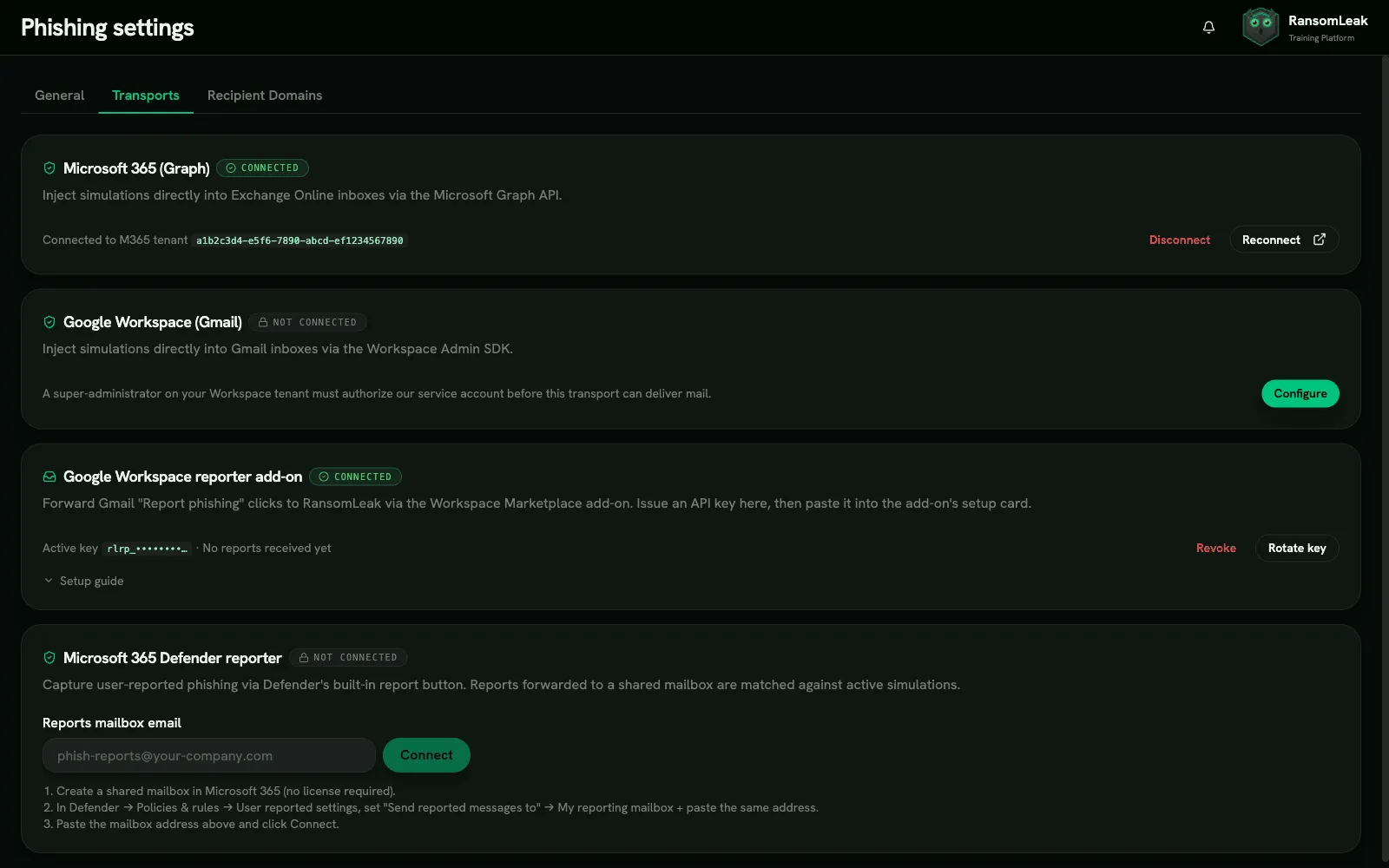
Under Settings → Transports:
- Microsoft 365 (Graph): click Connect Microsoft 365. A Microsoft 365 global administrator must approve the permissions, including permission to create messages in mailboxes, which is how simulations are placed in inboxes. A connection made before October 2026 doesn’t have this permission yet: the Microsoft 365 card shows a warning, and simulations to Microsoft 365 fail until a global administrator clicks Reconnect and approves again.
- Google Workspace (Gmail): click Configure. In the Google Admin console, go to Security → API controls → Domain-wide Delegation, add the OAuth client ID shown with the scope
https://www.googleapis.com/auth/gmail.insert, then paste your Google Workspace customer ID (from Account → Account settings → Profile).
If both are connected, Microsoft 365 is used first.
3. Verify your email domains
Section titled “3. Verify your email domains”Under Settings → Recipient Domains, click Add domain for every domain your employees’ addresses use. Then publish the TXT record shown:
| Name | Value |
|---|---|
_ransomleak-verify.yourcompany.com |
the 32-character token shown |
Click Verify now once the record is live. Emails to unverified domains aren’t sent.
Report buttons
Section titled “Report buttons”Let employees report suspicious emails, including simulations, which counts in their favour:
- Microsoft 365: uses Defender’s built-in Report button. It requires Microsoft Defender for Office 365 (Plan 1 or 2). Create a shared mailbox, set it under Defender → Policies & rules → User reported settings → Send reported messages to → My reporting mailbox, then enter that address under Settings → Transports → Microsoft 365 Defender reporter and click Connect.
- Gmail: install the RansomLeak Reporter add-on from the Google Workspace Marketplace (admin install). Click Issue API key under Settings → Transports, and share the key securely; each user pastes it once into the add-on. The add-on reads only the email’s headers and the reporter’s address. It can’t read, change or send mail.
Settings
Section titled “Settings”Manager alerts, workforce jurisdictions, transports, recipient domains and the audit log are under Settings. See Settings and audit log. To write your own templates, see Writing your own templates.
Permissions
Section titled “Permissions”The Admin role has all Phishing Simulations permissions. To delegate, create a custom role with, for example, Manage Phishing Simulation Campaigns but not Launch Phishing Campaigns, so someone can prepare campaigns that another person launches.