
Enrolling learners
Only published paths can be assigned. There are several ways to enrol people; use whichever matches how you work.
| Method | Best for | Deadline? |
|---|---|---|
| Assign users or teams | Ongoing curricula, onboarding | No |
| Assign automatically by team | Role-based training for new starters and people changing teams | Optional |
| At invitation | New starters | No |
| Through a campaign | Mandatory and compliance training | Yes |
| Self-enrollment | Optional, self-directed learning | No |
| Automatically | Phishing follow-up, HR-driven onboarding | Sometimes |
Assign users or teams directly
Section titled “Assign users or teams directly”- Open the path from Content Management → Learning Paths.
- Go to the Participants tab.
- Click Assign Users, Assign Teams or Assign Groups and pick the people, teams or groups. Someone in several selected groups is enrolled once.
You can also start from the team: in User Management → Teams, use Assign learning path on the team’s row.
What happens next:
- Each person gets an in-app notification and an email (unless Learning path emails is off in tenant settings).
- People without a licence are skipped. For AppSec paths, people always need an AppSec licence.
- Assigning a team reaches its active members only. Disabled users and people who haven’t accepted their invitation yet are skipped. The dialog’s member count shows how many people will be assigned.
- If someone already finished every required step earlier (for example on their own), the path is marked complete for them straight away.
Automatically when people join a team
Section titled “Automatically when people join a team”A team rule keeps a path assigned to everyone who joins a team, however they join: invited, added by your identity provider (SCIM) or HR system, created through the API, or moved into the team by an admin. You need Manage Users and Manage Learning Paths (plus View Learning Paths). Without them, Assign learning path doesn’t appear on the team’s row.
Groups have the same rules: use Assign learning path on a group’s row under User Management → Groups. Because a person can be in several groups, group rules let you combine paths, for example one for everyone in Pharmacists and another for everyone in the Finance team. A person covered by several rules for the same path gets it once.
Create a team rule
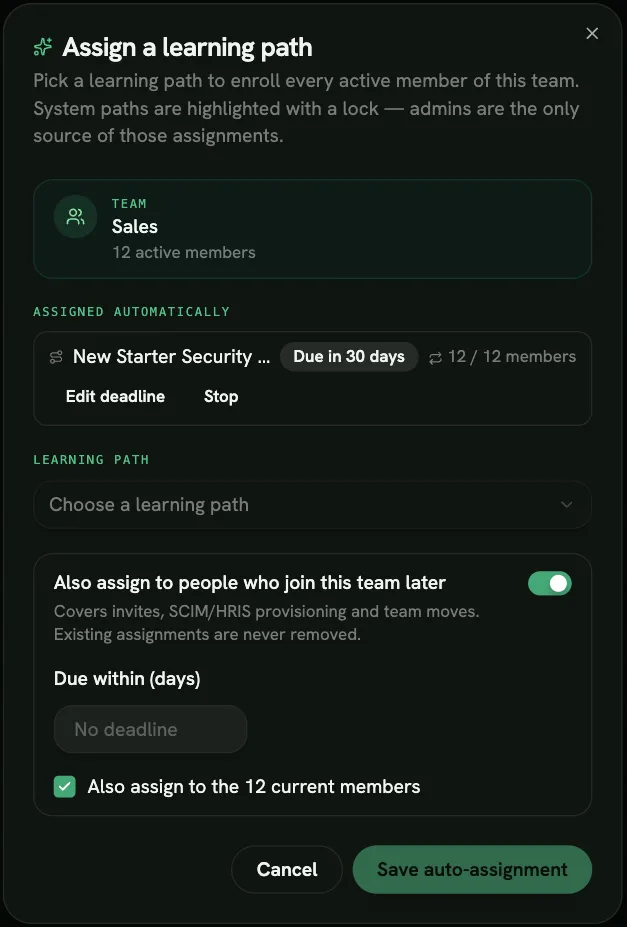
Section titled “Create a team rule”- In User Management → Teams, click Assign learning path on the team’s row.
- Pick the path and turn on Also assign to people who join this team later.
- Optionally set Due within (days), from 1 to 365. Leave it empty (No deadline) for no deadline.
- Keep Also assign to the N current members checked to enrol the people already in the team too, with the same deadline. Uncheck it to cover only people who join from now on.
- Click Save auto-assignment.
A message confirms how many current members were enrolled and how many were skipped for lack of a licence.
See, edit and stop a team’s rules
Section titled “See, edit and stop a team’s rules”The same dialog lists the team’s rules under Assigned automatically, with the deadline (for example Due in 14 days) and a coverage count such as 8 / 9 members. Hover the count for why someone is missing: usually no licence, or the path was unassigned from them by hand. Paths that already have a rule are marked Auto in the path picker.
To stop a rule, click Stop, then Confirm stop. New members no longer get the path. Everyone who already has it keeps it, with the same deadline and reminders.
To change a rule’s deadline, click Edit deadline on the rule, enter a new number of days (1 to 365) or clear the field for no deadline, then click Save. The new deadline applies only to people assigned from then on. People who already have the path keep their current due date.
If you unpublish the path, its rules show Paused: path unpublished: nobody is assigned and deadline reminders stop until you publish it again.
Who gets the path
Section titled “Who gets the path”- Anyone who joins the team: invited people, people added or moved by SCIM or your HR system, users created or updated through the API, and people moved in from Teams or the Users list. Re-enabling a disabled user who is still in the team counts as joining too.
- Invited people are enrolled when they accept the invitation, not when you invite them. The deadline counts from that moment.
- People without a licence are skipped. A daily check assigns them once they get one. For AppSec paths, people always need an AppSec licence.
- Disabled users are skipped.
- People who already have the path (in progress or completed) keep their original assignment and deadline. If they finished every required step earlier, the path is marked complete for them straight away, as with any assignment.
- Leaving the team keeps the paths and progress someone already has. Nothing is ever unassigned automatically.
- Unassigning by hand sticks. If you unassign a rule’s path from someone, it isn’t given back until they leave and re-join the team.
- Deleting the team removes its rules. The assignments it created stay.
Each new assignment sends the usual in-app notification and email. The email shows the due date when there is one.
Deadlines and reminders
Section titled “Deadlines and reminders”When a rule has a deadline, each person’s due date is fixed when they’re assigned. Until they complete the path:
- Due soon: one email reminder when 3 days or less are left. People assigned less than a day earlier don’t get it, so very short deadlines may skip it.
- Overdue: once the deadline passes, one email to the learner and one to their manager, if they have one.
Learners see Due and the date on the path’s card under My Paths. It turns amber in the last 3 days and red (Overdue since the date) once the deadline passes. They can still complete the path after the deadline.
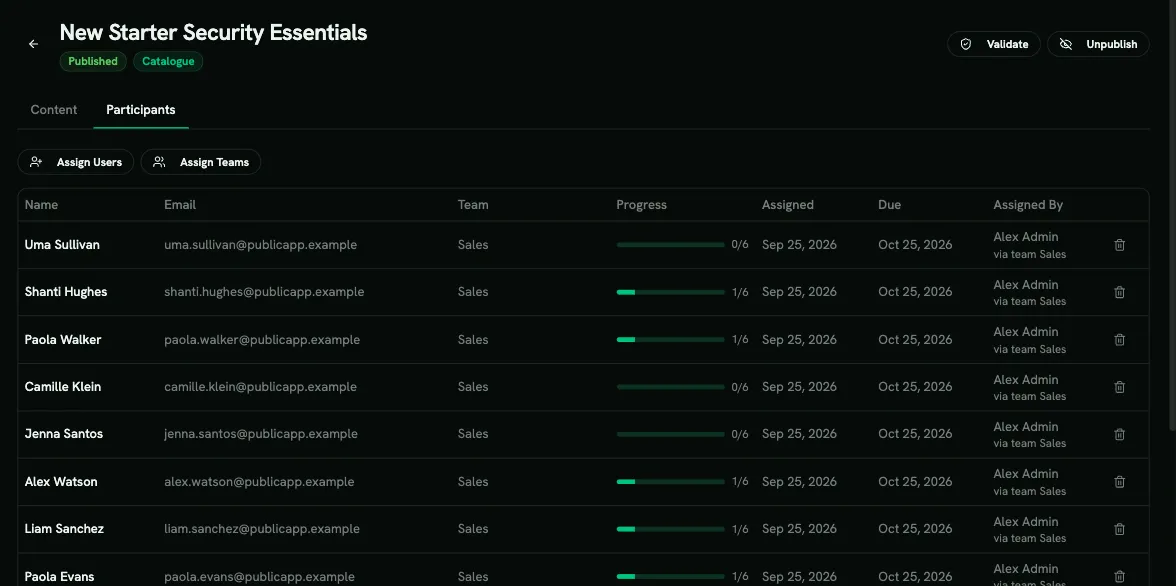
On the path’s Participants tab, a Due column shows each deadline, in red when overdue. Under Assigned By, people assigned by a rule show via team and the team’s name. Managers follow their direct reports’ deadlines under Learning Path Deadlines.
For a start date, escalating reminders and campaign reporting, use a campaign instead.
When inviting users
Section titled “When inviting users”In the Invite User dialog, choose one or more paths under Learning Paths (Optional). The new user is enrolled as soon as their account is created. Only published paths are listed.
Through a campaign (with a deadline)
Section titled “Through a campaign (with a deadline)”A campaign gives a learning path a start date, a deadline and reminders.
- Create a campaign under Content Management → Campaigns.
- On its Content tab, choose Learning Path and click Assign Learning Path.
- Add participants and activate the campaign.
Participants are enrolled when the campaign becomes active, and whenever you add someone to an active campaign.
Things to know:
- A campaign holds either one learning path or a set of individual courses and exercises, not both.
- The path must be published and must have the same content type (SAT or AppSec) as the campaign.
- The campaign freezes the path’s structure when you add it. Later edits to the path don’t affect this campaign.
- You can’t remove the path from the campaign once any participant has started.
- Only work done during the campaign counts, unless you set a completion recognition window on the campaign.
- The campaign’s Enforce completion order switch (on by default) makes participants follow the path’s order, in addition to any prerequisites.
For the full picture, see Campaigns.
Self-enrollment from the catalogue
Section titled “Self-enrollment from the catalogue”Learners can find a path under Learning Paths → Catalogue when the path is published and its Catalogue switch is on.
What happens when a learner clicks depends on Allow self-enrollment (Tenant Settings → Learning & Assessment, off by default):
- On: the learner clicks Enroll and starts right away.
- Off: the learner clicks Request access. The request goes to their manager, or to anyone who can manage learning paths. They approve or reject it under Team Management → Enrollment Requests. Approving a request uses a licence, so it fails if no licences are left.
People with the Manage Learning Paths permission can always enrol themselves directly.
Automatic enrollment
Section titled “Automatic enrollment”- Phishing simulation follow-up: with the Phishing Simulations add-on, a phishing simulation campaign can enrol everyone who fails it in a remedial path, with a deadline and grace period. Turn on Auto-enroll on failure when setting up the simulation, then choose the Training learning path.
- HR system (HRIS): if you’ve connected your HR system, new hires are enrolled in an Onboarding learning path. Paths can also be assigned by job title or department when someone’s role changes.
- Your LMS (LTI): launching RansomLeak content from your own LMS enrols the learner automatically.
Removing someone
Section titled “Removing someone”On the path’s Participants tab, click the trash icon next to the person and confirm Unassign User. Learners can’t unenrol themselves. If the path came from a team rule, it isn’t reassigned automatically unless the person leaves and re-joins the team.