
Groups
A person belongs to one team but can belong to any number of groups.
| Teams | Groups | |
|---|---|---|
| Per person | One | Any number |
| Used for | Managers, dashboards and reports | Targeting training |
| Filled by | Department (SCIM or HR system) or by hand | Your identity provider’s groups (SCIM) or by hand |
Use groups when training follows a role or audience that cuts across teams. For example, a pharmacist in the Finance department can be in the Pharmacists group and the Finance team, and receive both sets of training.
Manage groups under User Management → Groups. Creating, editing and deleting groups needs the Manage Users permission.
Create a group
Section titled “Create a group”- Click Create group.
- Enter a name (up to 100 characters, unique regardless of capitalisation) and an optional description.
- Tick the people who belong to the group, then click Create group.
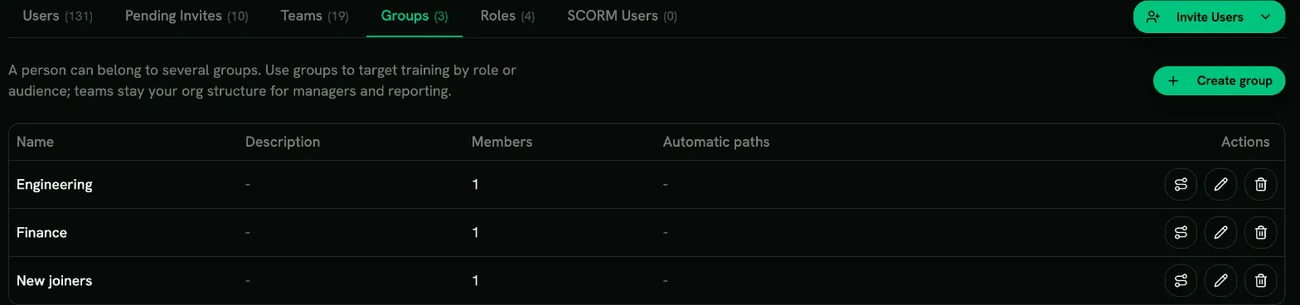
To add people later, click the pencil on the group’s row and tick more people, select people in the Users list and choose Add to group in the bulk action bar, or change one person’s groups in the Groups column of the Users or Pending Invites list. You can also pick groups when you invite someone. Adding someone who is already in the group does nothing.
Removing someone from a group never removes training they already have.
Assign training to a group
Section titled “Assign training to a group”Click the learning path icon on the group’s row (needs the Manage Learning Paths permission). The dialog works exactly like the team version:
- Assign to N members: every active member gets the path straight away.
- Also assign to people who join this group later: turn this on to create a group rule. Everyone added to the group from then on gets the path, optionally with a deadline. Invited people get it once they accept their invitation.
The group’s rules are listed under Assigned automatically, where you can Edit deadline or Stop a rule. See Automatically when people join a team.
A person covered by several rules for the same path (for example a team rule and a group rule) is assigned it once. If an admin removed someone from a path by hand, rules don’t assign it to them again.
Add a group to a campaign or learning path
Section titled “Add a group to a campaign or learning path”Wherever you can add a team, you can also add groups:
- Campaigns → Participants → Add Groups
- Learning path → Participants → Assign Groups
- Phishing simulation campaign → Recipients → Add a group
Everyone active in the selected groups is added once, even if they belong to several of them. This is a one-off: people who join the group later are not added to the campaign.
Groups from your identity provider
Section titled “Groups from your identity provider”If your identity provider syncs groups through SCIM, each synced group appears here with an Identity provider badge.
- Its name and members come from your identity provider. Change them there; they are read-only here, and synced groups can’t be deleted here.
- You can still edit its description and give it automatic learning paths, exactly like any other group. Assigning a path to a synced group keeps training in step with your directory.
- Click the pencil to choose a role its members get (needs the Assign Roles permission). Leave it on No role if the group is only an audience for training.
Roles from groups
Section titled “Roles from groups”When a synced group grants a role:
- Members get that role as soon as they join the group, and lose it when they leave (they move to the role of another group they’re in, or the default role).
- If someone is in several groups that grant a role, the lowest priority number wins.
- A role you set on a person by hand is never changed by group sync.
Groups that don’t grant a role never change anyone’s role.
Delete a group
Section titled “Delete a group”Deleting a group stops its automatic learning paths. Training already assigned to its members is kept, and nobody is removed from the platform.