
Deploy the extension
You can roll the extension out to every managed browser with a policy, or let employees install it from the browser store and connect it to their own account.
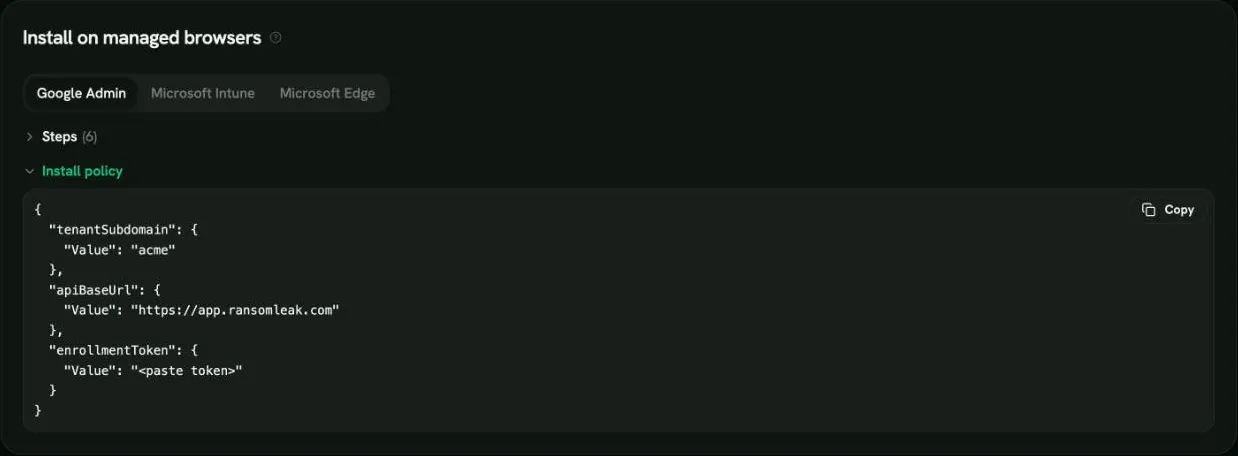
Select Human Risk → Browser extension in the sidebar. The Install on managed browsers section has the steps and a copyable install policy with your workspace values already filled in.
Before you start
Section titled “Before you start”Selecting Rotate token (or Generate token the first time) creates your Enrollment token. It lets managed browsers sign in without the employee doing anything.
- The token is shown once, in Your new enrollment token. Copy it right away.
- The install policy on the page contains the placeholder
<paste token>instead of a real token. Replace it with the token you copied. - Rotating the token stops the old one from working. Every managed install then needs the new token in its install policy.
- The token identifies your workspace, not a person. Each employee is still tied to their own account through a normal sign-in.
Google Admin
Section titled “Google Admin”- On the Browser extension page, choose Google Admin and rotate the token.
- Replace
<paste token>in the policy JSON. - In the Google Admin console open Devices > Chrome > Apps & extensions > Users & browsers and select the organizational unit.
- Add the extension by its ID and choose Force install.
- Open the extension, find Policy for extensions, and paste the JSON. It looks like this:
{ "tenantSubdomain": { "Value": "your-workspace" }, "apiBaseUrl": { "Value": "https://app.ransomleak.com" }, "enrollmentToken": { "Value": "<paste token>" }}- Save. Chrome applies the policy on its next policy refresh.
Microsoft Intune
Section titled “Microsoft Intune”- On the Browser extension page, choose Microsoft Intune and rotate the token.
- Replace
<paste token>in the policy JSON. - Add the extension entry from the policy to the Chrome policy Control which extensions are installed silently (
ExtensionInstallForcelist). - Deliver the
3rdpartyblock as managed settings, using a settings catalog or custom policy, or a managed policy file on macOS and Linux. - Assign the policy to the devices or users you want to cover. The browser applies it on its next refresh or restart.
The policy has this shape:
{ "ExtensionInstallForcelist": ["<extension-id>;<update-url>"], "3rdparty": { "extensions": { "<extension-id>": { "tenantSubdomain": "your-workspace", "apiBaseUrl": "https://app.ransomleak.com", "enrollmentToken": "<paste token>" } } }}Copy the real values from the page rather than from this example. If your workspace is hosted in the EU, apiBaseUrl points to the EU address.
Microsoft Edge
Section titled “Microsoft Edge”Choose Microsoft Edge on the same page. The steps match Intune, but the policy uses the Edge extension ID and update address, and the settings are written under the Edge policy key instead of Chrome.
Manual install
Section titled “Manual install”If you do not want to push a policy (for a pilot, or a small team), employees can install the extension from the browser store themselves:
- The employee installs the extension and selects its icon.
- They enter the name of your workspace and select Connect your work account.
- They sign in the usual way, including single sign-on and multi-factor authentication.
- A page asks “Connect the RansomLeak browser extension in this browser to your {company} account?” and they select Connect.
- The popup shows Connected to your workspace.
No enrollment token is needed. A successful sign-in is the proof. You can turn this path off with Allow employees to install it themselves on the Browser extension page, which limits you to managed installs.
If an employee’s sign-in expires, the popup shows Sign in again.
Permissions
Section titled “Permissions”The extension asks for as little as possible. These are the permissions it has from the start and what Chrome shows for each.
| Permission | What Chrome shows | Why it is needed |
|---|---|---|
webNavigation |
Read your browsing history | Lets the extension notice which site a tab is opening so it can check the address on the device. It does not send your history anywhere. Only the domain of a site that broke a rule is ever reported. This is the only broad warning and it cannot be avoided. |
Microsoft, Google and Slack consent pages (login.microsoftonline.com, accounts.google.com, slack.com/oauth, *.slack.com/oauth*) |
Read and change your data on these sites | Lets the extension show a warning on the screens where an app asks for access to an account. It only runs on those consent screens and never reads form fields. On Microsoft it runs only on the /oauth2/ authorization addresses and the sign-in steps that can show a consent screen (/reprocess, /SAS/ProcessAuth, /login, /kmsi), and acts there only when the page is a consent screen. It stays inactive on password and multi-factor steps and never reads form fields. *.slack.com/oauth* covers the same Slack app-approval screen when it opens on your own workspace address (for example yourcompany.slack.com/oauth); other pages of your Slack workspace are not touched. |
storage |
No warning | Keeps your workspace’s settings, the list of newly registered domains, and a short local log of what was reported. |
alarms |
No warning | Schedules the regular settings refresh and sending of events. |
scripting |
No warning | Adds the AI paste check to AI tool pages, but only after the person turns on extra protection (see below). |
activeTab |
No warning | Lets Report this site in the popup read the address of the tab you are on, only when you click it. |
Optional permissions
Section titled “Optional permissions”Some features need more access. The extension never asks for it at install. It asks only when a person clicks a button in the popup, and the browser then shows its own prompt that the person can accept or refuse. Refusing changes nothing else: the rest of the extension keeps working.
| Permission | What the browser shows | Asked when | Why it is needed |
|---|---|---|---|
downloads |
Manage your downloads | The person clicks Turn on extra protection in the popup. The card is shown only while the risky download or AI paste check is switched on for your workspace. | Lets the extension pause a risky file download (for example a program or a macro document) and warn before it is opened. Only the file type is reported, never the file name. |
| Site access on AI tool sites only (ChatGPT, Claude, Gemini, Copilot and the other tools on the AI tools tab) | Read and change your data on a number of websites | Asked in the same Turn on extra protection click, and only while the AI paste check is switched on for your workspace. | Lets the extension check text pasted into AI tools, on the device. Pasted text is never sent. The extension never asks for access to all websites. |
notifications |
Display notifications | The person clicks Turn on reminders in the popup. The card is shown only when you allow training reminders in the extension settings. | Shows a desktop notification when new training is assigned and one reminder when a training is due within a day. |
A person can take these permissions back at any time in the browser’s extension settings. The matching feature then stops until they turn it on again.
Without a click on one of the buttons above, the extension has no access to AI tool sites or your downloads. It never asks for access to all websites, the tabs list, other extensions, the clipboard, cookies or the browser account identity.
Adding any new required permission later would show new warnings and, for manual installs, switch the extension off until employees accept it.