
Teams and managers
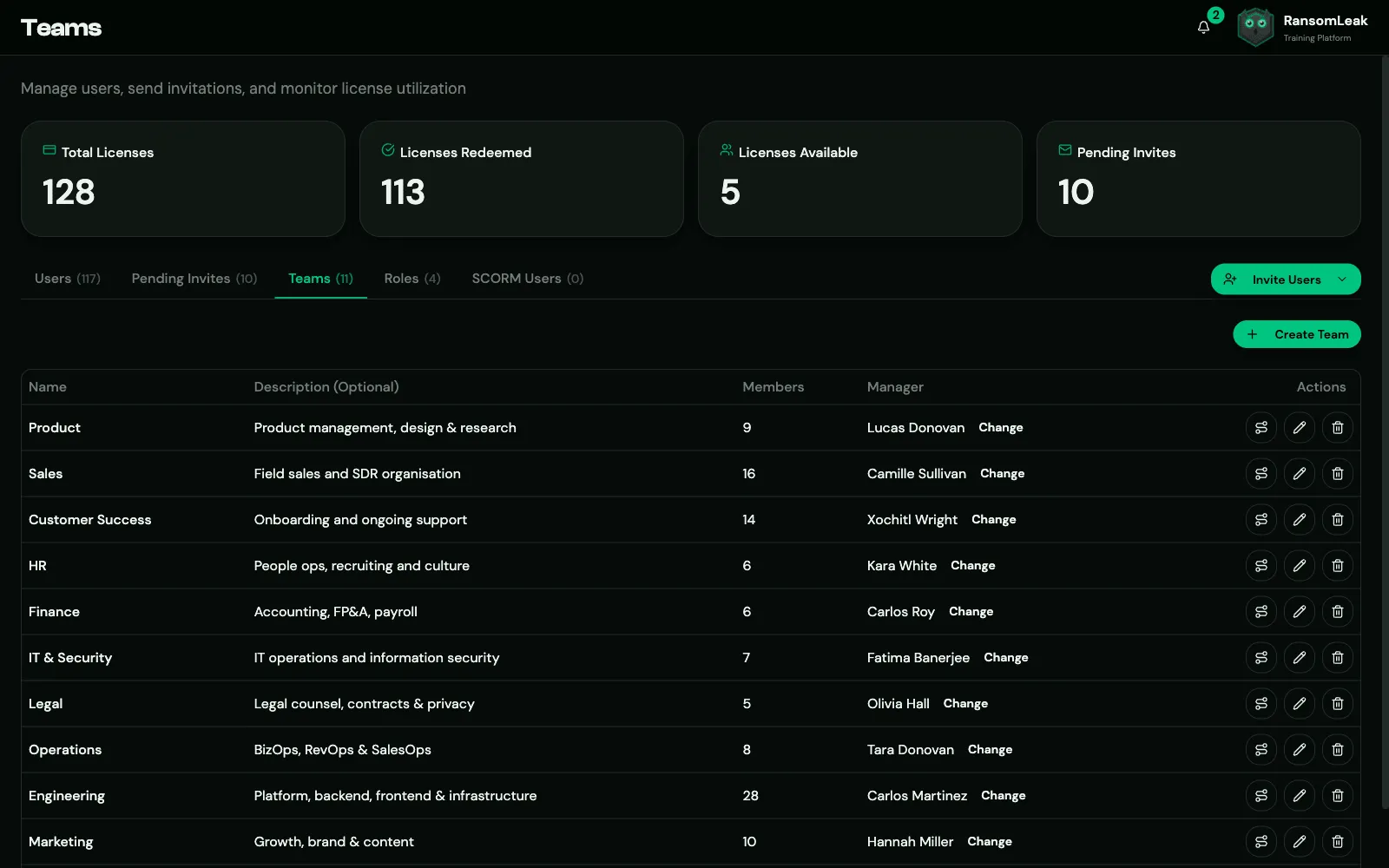
Teams group people, usually by department or office. Each person is in one team. When your identity provider (SCIM) or HR system syncs users, each person’s team is set from their Department field, and a team is created for any new department. To put people in several audiences at once, use groups.
You can use teams to:
- assign a learning path, or licences, to everyone in a team at once;
- add a whole team to a campaign;
- filter dashboards and reports by team.
Manage teams under User Management → Teams (you need Manage Users).
- Create Team: a name (up to 50 characters), an optional description, and members.
- Edit Team: change the details or add and remove members.
- Delete Team: members stay in the platform but no longer belong to a team.
Each person belongs to at most one team. To place people in several audiences at once (for example Pharmacists and Night shift), use groups.
Team row actions:
- Assign or Change manager (see below)
- Licenses: grant SAT or AppSec seats to every member
- Assign learning path: enrol every active member now, or turn on Also assign to people who join this team later to create a team rule. A rule assigns the path to everyone who joins the team (invited, provisioned by SCIM or your HR system, created through the API, or moved in), optionally with a deadline. The dialog also lists the team’s rules under Assigned automatically, with how many members have the path, and lets you Edit deadline (for people assigned from then on) or Stop a rule. The action needs the Manage Learning Paths permission; without it the button is hidden. See Automatically when people join a team.
Moving someone to another team doesn’t remove the paths they already have; the new team’s rules add its paths. Deleting a team removes its rules but keeps the assignments they made.
Managers
Section titled “Managers”Each person can have one manager. A manager sees their direct reports’ progress under Team Management. See For managers.
A person’s manager can be set in several ways:
| Where | How |
|---|---|
| Users list | The Manager column, or Assign Manager for many people at once |
| Invitation | Manager (Optional), or manager_email in a CSV upload |
| Team manager | Everyone in the team gets that manager (see below) |
| SCIM | The manager attribute from your identity provider |
| HR system (HRIS) | The manager recorded in your HR system, updated on every sync |
Team managers
Section titled “Team managers”Clicking Assign in a team’s Manager column makes that person the manager of every active member of the team, replacing their current managers. People added to the team later get the same manager automatically. Remove Manager clears the team’s manager.