
Creating a campaign
You need the Manage Campaigns permission.
1. Create it
Section titled “1. Create it”Go to Content Management → Campaigns and click Create Campaign:
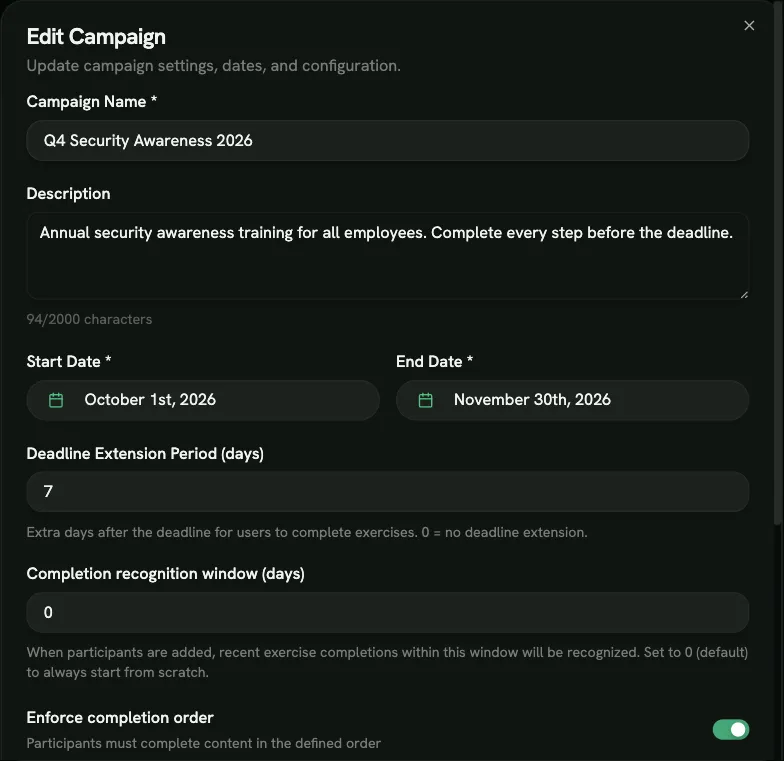
| Field | Notes |
|---|---|
| Campaign Name | Required |
| Content type | SAT or AppSec. Can’t be changed later. |
| Description | Optional, shown to participants |
| Start Date, End Date | Required. Dates are whole days in UTC; the campaign runs until the end of the end date. |
| Deadline Extension Period (days) | Extra days after the end date during which late work still counts. 0 or blank = none. |
| Completion recognition window (days) | Credit for recent work. See below. Default 0. |
| Enforce completion order | Participants must complete the content in the order you set. On by default. |
| Email Reminder Configuration | Which emails are sent. See Emails and reminders. |
New campaigns always start as a Draft. A campaign can only go live once it has content. It then starts on its start date, or as soon as you add content if the start date is today or earlier. Participants get the start email at that moment.
The campaign opens on its detail page.
2. Add content
Section titled “2. Add content”On the Content tab, choose one of:
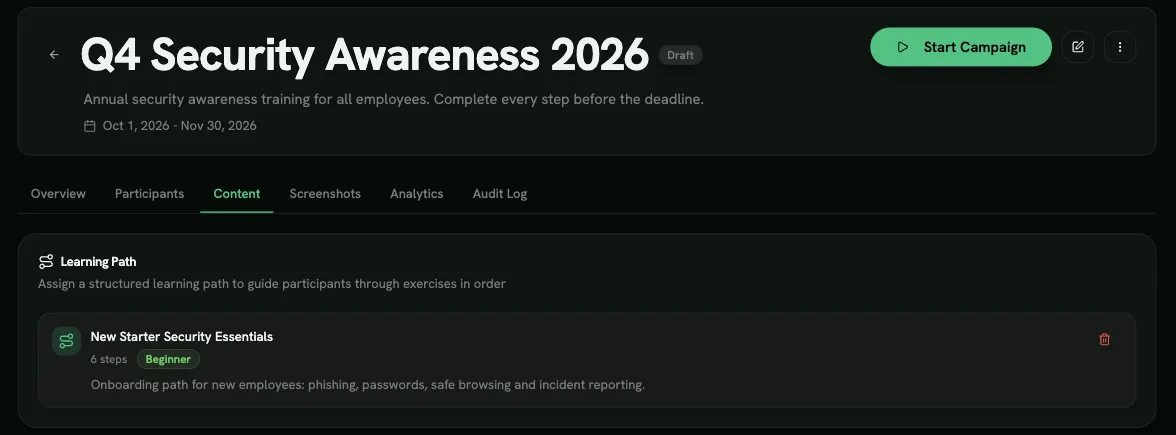
- Assign Learning Path: pick one published learning path. Recommended.
- Assign Courses and/or Assign Individual Exercises (up to 100 exercises).
About learning paths in campaigns:
- The campaign keeps a frozen copy of the path’s structure from the moment you add it. Later edits to the path don’t reach this campaign.
- To pick up changes, remove the path and assign it again. You can do this only while no participant has started.
Drag items on the Content tab to set their order. When Enforce completion order is on, participants must follow it.
3. Add participants
Section titled “3. Add participants”See Participants and deadlines.
4. Optional: screenshots
Section titled “4. Optional: screenshots”The Screenshots tab lets you add up to 10 images (PNG, JPG, GIF or WebP, 5 MB each) that participants see on the campaign page, such as a message from your CISO or instructions.
Does earlier training count?
Section titled “Does earlier training count?”By default, no. Participants start at 0%, even if they did the same exercises or custom content before, because only work done while the campaign is Active or Overdue counts. Learners simply complete those items again.
To credit recent work, set Completion recognition window (days). When someone is added to the campaign, exercises and custom content they completed (and passed) in that many previous days count toward it. Learners see N completions credited toward this campaign.
The window is applied at the moment a participant is added, not later.
Duplicating a campaign
Section titled “Duplicating a campaign”To repeat a campaign, for example every year, use Duplicate Campaign from the campaign’s menu. The copy is always a Draft. You choose whether to copy:
- Copy Participants (off by default; their progress resets to 0);
- Copy Courses & Exercises (on);
- Copy Settings (on);
- Adjust Dates Automatically, with a Date Offset (days).