
Participants and deadlines
Manage participants on the campaign’s Participants tab.
Adding people
Section titled “Adding people”| Button | What it does |
|---|---|
| Add Users | Choose people, with filters for role, team and status. Assign all N matching users adds everyone matching the filters. |
| Add Teams | Adds everyone who is in the chosen teams right now |
| Assign to Everyone | Adds every enabled, licensed user |
| Bulk Import | Upload a CSV with an email column, and optionally new_deadline (YYYY-MM-DD) for a personal deadline |
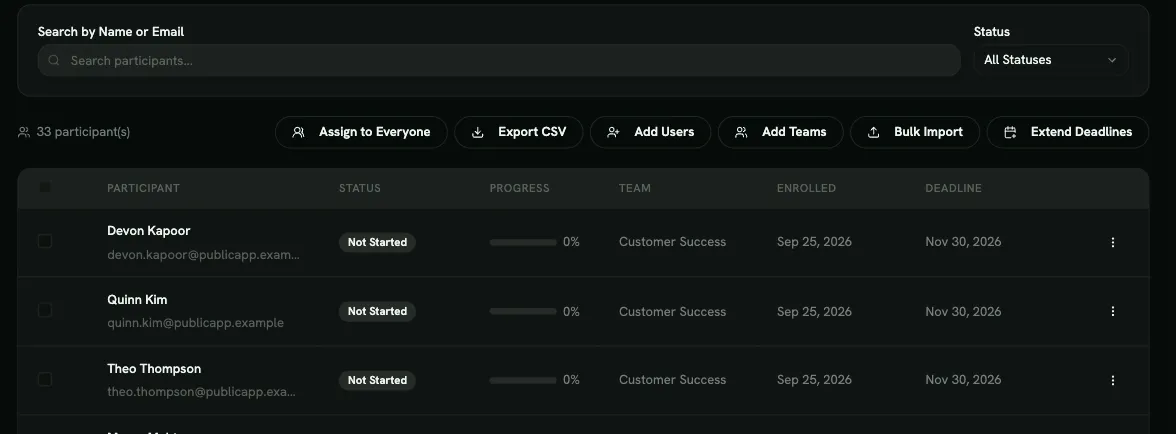
Things to know:
- New people aren’t added automatically. Adding a team or everyone takes a snapshot: people who join the team or the organization later must be added separately.
- People without a licence are skipped. AppSec campaigns need people with an AppSec licence.
- Disabled users are skipped and get no emails.
- In Bulk Import, if any row has an error, nothing is imported. Fix the file and upload it again.
- You can’t add people to a Completed or Cancelled campaign.
People added to an Active campaign get the start email right away. People added to a Draft are notified when it starts.
Participant status
Section titled “Participant status”| Status | Meaning |
|---|---|
| Not Started | Hasn’t begun |
| In Progress | Has started |
| Completed | Has finished every required item |
| Overdue | Their deadline has passed and they haven’t finished. They can still finish during the extension period. |
Within an item, Failed means the learner scored below the quiz threshold. They can retry.
Optional steps
Section titled “Optional steps”When the campaign’s learning path has optional steps, their exercises are offered to participants but don’t count toward Progress or completion. A participant who finishes every required item is at 100% and Completed, whatever they did with the optional ones. The Bonus column shows how many optional exercises each person completed. It only appears when the campaign has optional exercises.
Giving someone more time
Section titled “Giving someone more time”- One person: open the row menu → Extend Deadline and pick a date after the campaign end date. The row shows Extended. Remove Extension undoes it.
- Many people: Extend Deadlines accepts a CSV with
email,extension_days: days are counted from the campaign end date. It replaces existing extensions and is all-or-nothing.
Reminders follow each person’s own deadline. Extending someone on a Completed campaign reopens it (as Overdue) until their new deadline.
Removing people
Section titled “Removing people”Select people and click Remove (or Remove Selected). Their campaign progress is deleted. The exercises they completed stay in their training history and analytics.
Seeing one person’s progress
Section titled “Seeing one person’s progress”Click View Progress on a row for Exercise Progress, an Activity Timeline and a Summary. From there you can Send Reminder by email.