Dashboard and self-paced learning
You don’t have to wait for a campaign to learn. The rest of the navigation gives you self-paced options.
Personal dashboard
Section titled “Personal dashboard”Your dashboard is the landing page after sign-in. Its widgets give you an at-a-glance summary of your activity.
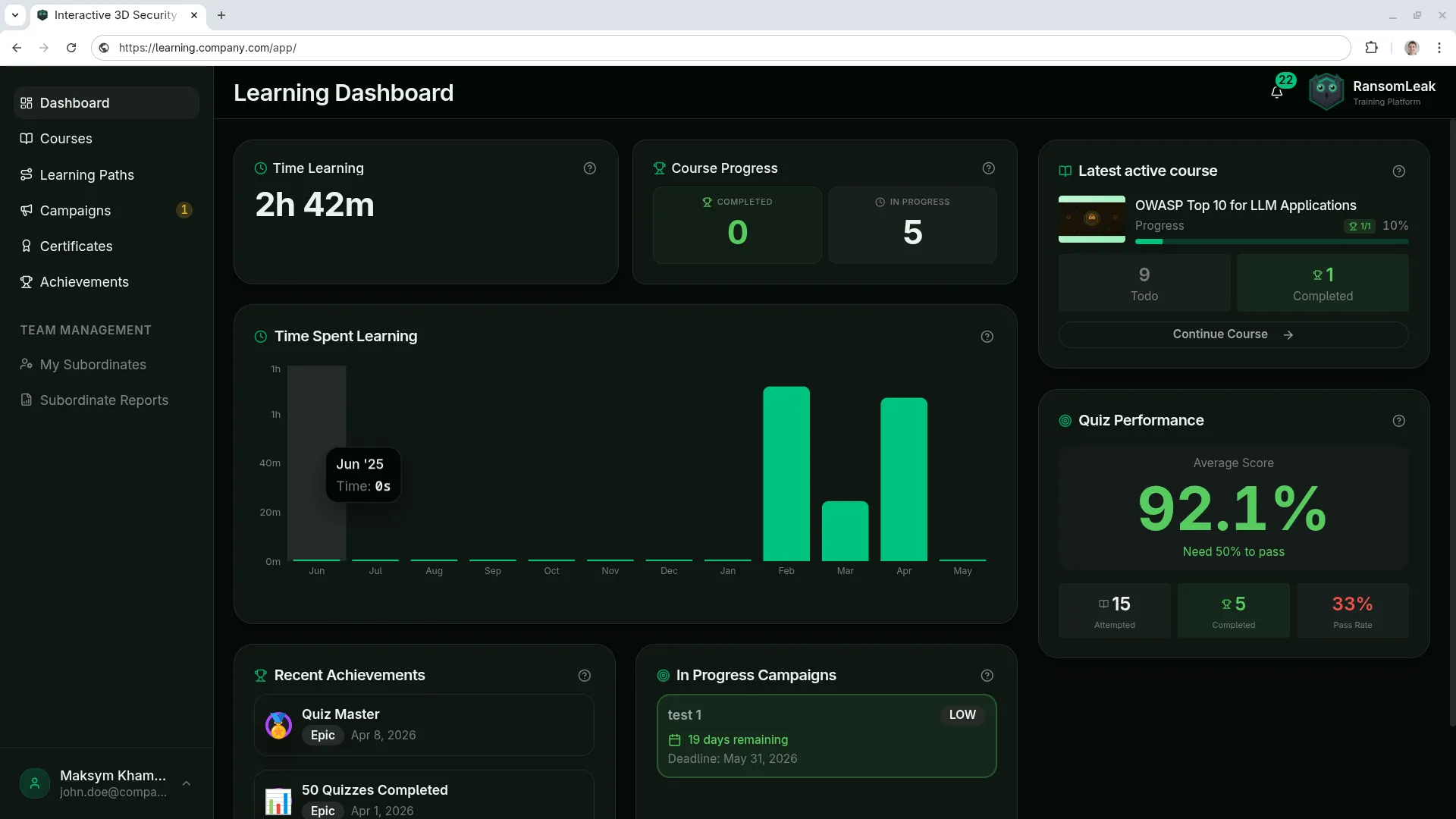
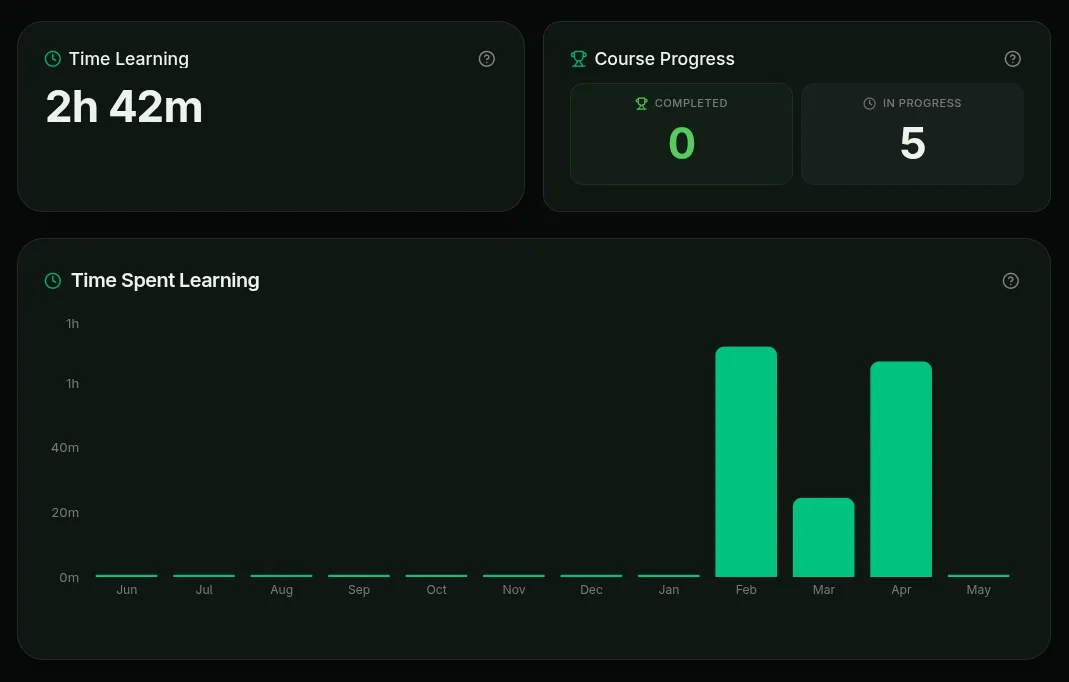
Time spent on the platform:
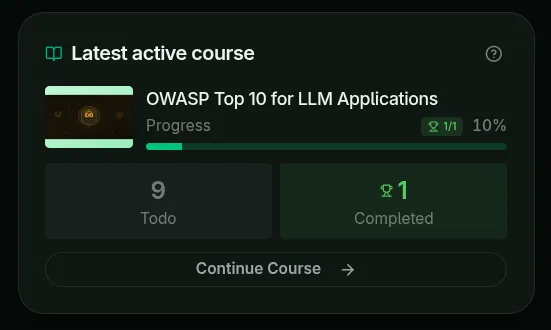
Latest course you’ve taken:
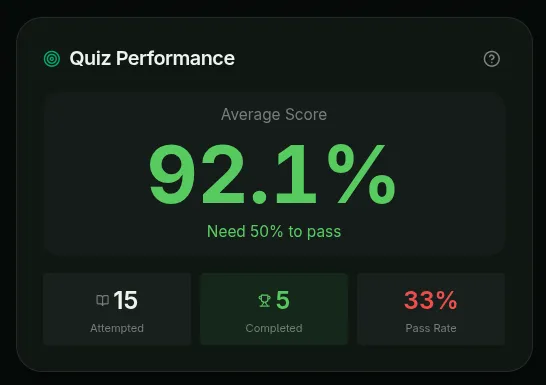
Success rate on quizzes:
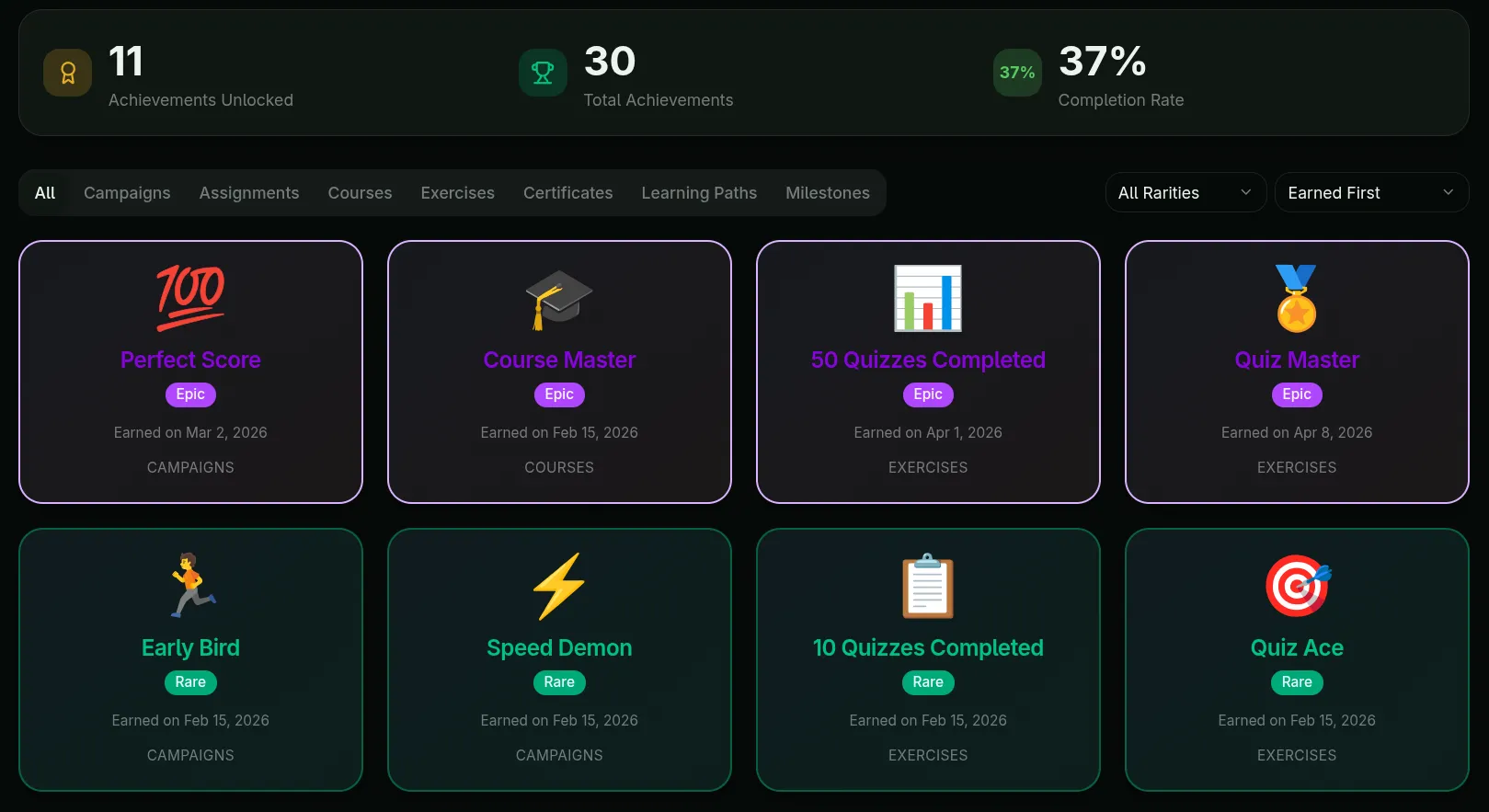
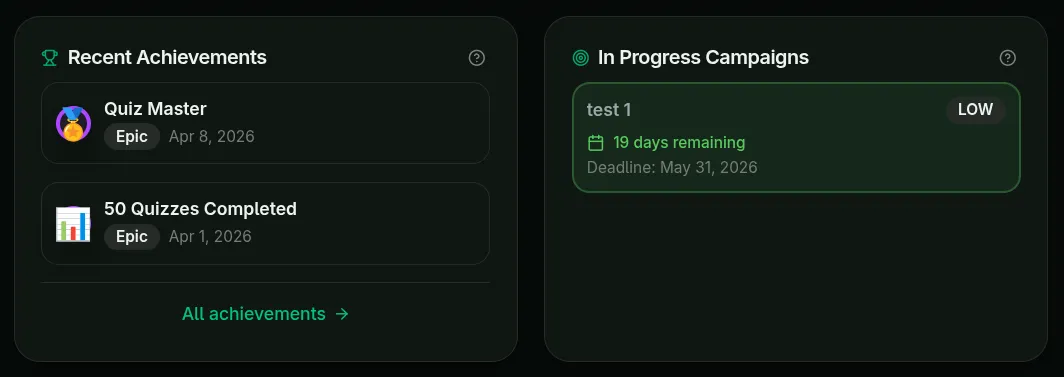
Achievements earned:
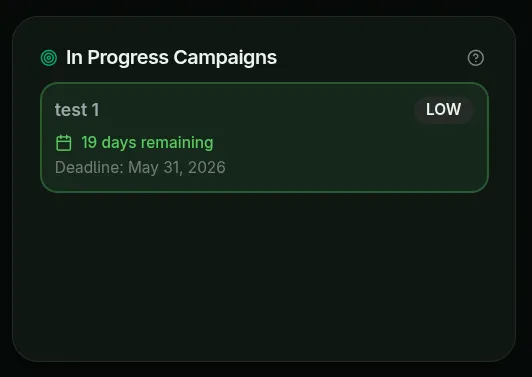
And campaign progress:
Courses
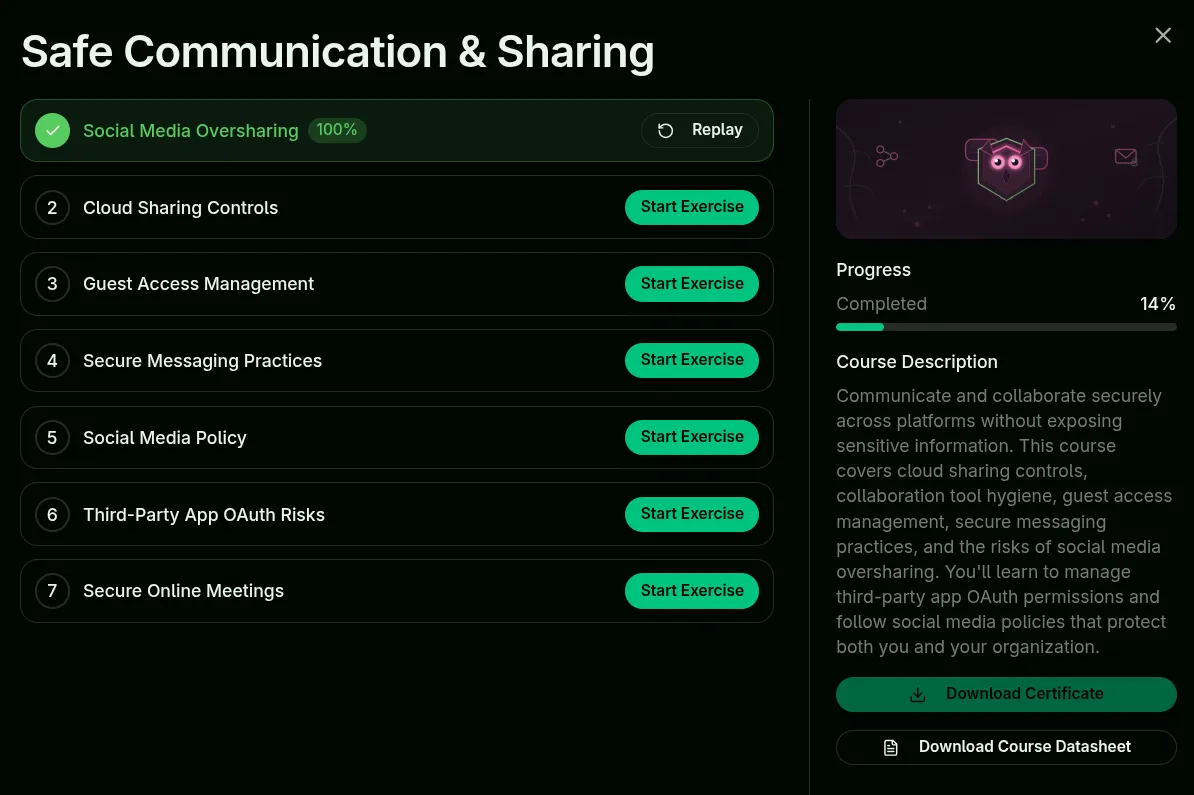
Section titled “Courses”The Courses tab lists every course available to you for self-learning.
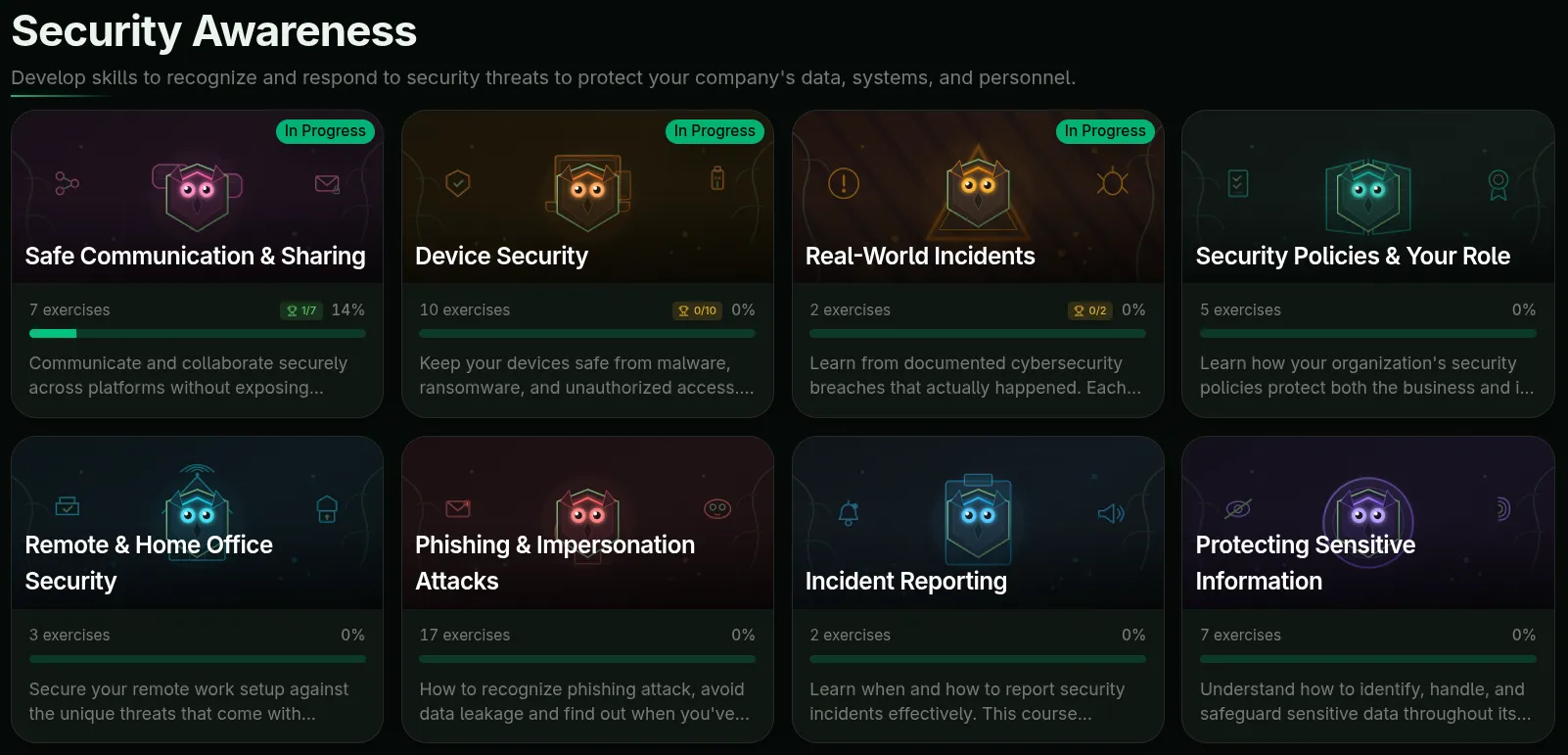
Open any course to see the exercises it contains.
Microlearning
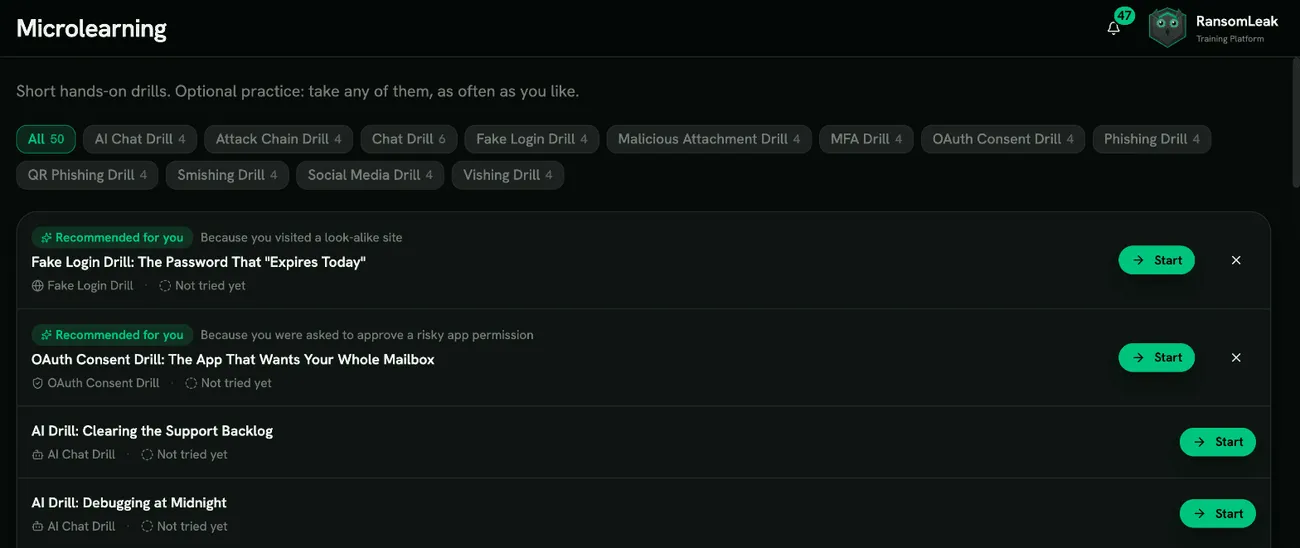
Section titled “Microlearning”The Microlearning tab lists drills your organization offers for practice: phishing emails, text messages, chats, phone calls and more. They’re optional practice. Open any of them as often as you like, with no deadline.
Use the format buttons at the top to show one kind of drill. Each drill shows when you last finished it and whether you passed; Start opens a drill you haven’t tried and Practice again reopens one you have. Your results count in your organization’s training reports like any other exercise.
If the RansomLeak browser extension noticed something risky (such as a look-alike website), a drill that fits appears at the top marked Recommended for you, with a one-line reason; select the X to hide it.
You won’t see this tab if your administrator has turned it off or hidden the course catalog.
Learning paths
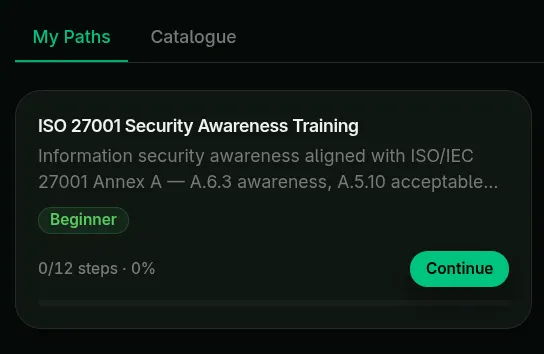
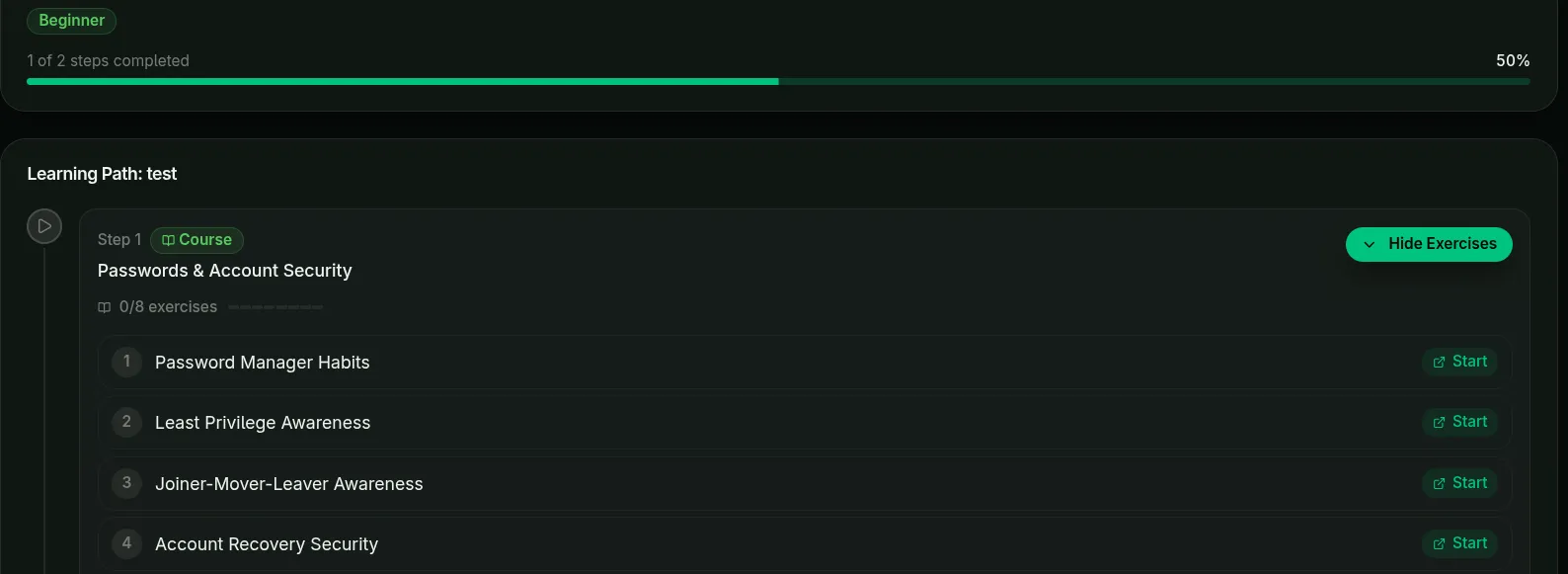
Section titled “Learning paths”Learning paths are themed sets of exercises, usually with no time limit — typically used for onboarding or for getting up to speed on a specific topic (e.g. ISO 27001 Security Awareness Training). They combine different courses and exercises into a single set, usually united by a common theme.
Paths assigned to you live in the My Paths tab. If your organisation set a deadline, the card shows Due with the date. It turns amber in the last three days and red once the path is overdue, and you’ll get an email reminder before the deadline:
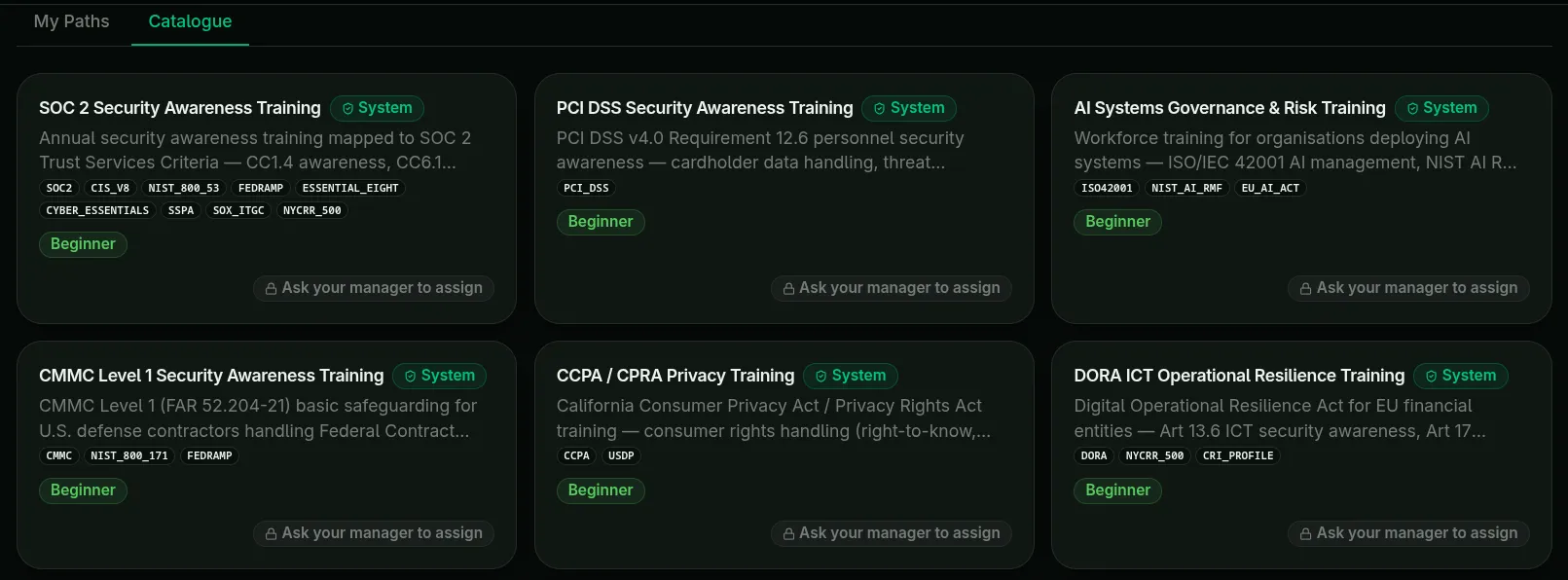
The rest of the available paths can be found under the Catalogue tab. Some are self-enrolment; others must be assigned by your administrator.
Open a path to see its content at the bottom of the page. Expand the sections and click Start to begin an exercise. Some paths require sequential order — you’ll need to finish each exercise before the next unlocks.
Certificates
Section titled “Certificates”When you complete every exercise in a course, you can download a PDF certificate. All your certificates live on the Certificates page.
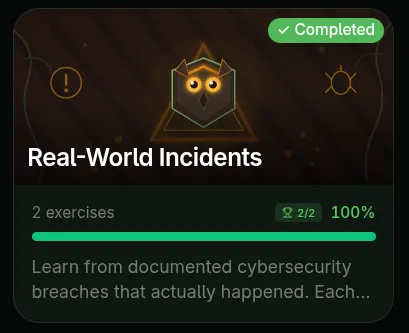
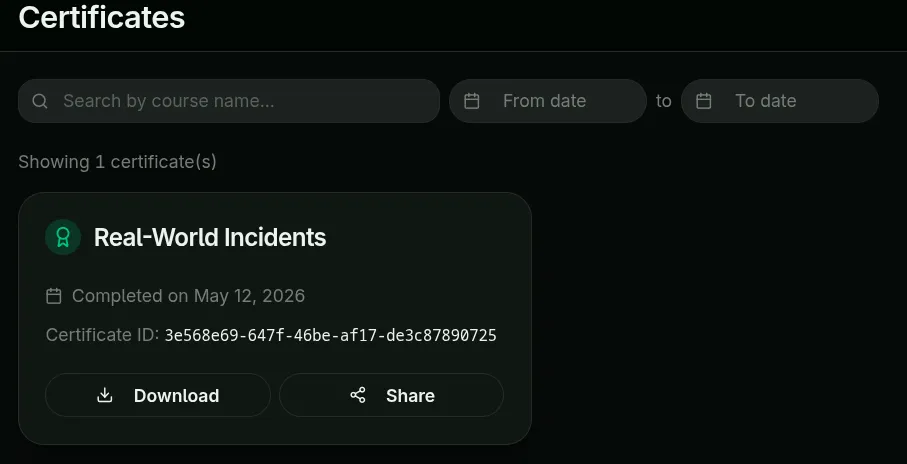
Campaigns and learning paths give you certificates too. See Certificates for when they’re issued, sharing on LinkedIn and verification.
Achievements
Section titled “Achievements”As you learn, you’ll unlock achievements for things like streaks, perfect scores, and finishing your first course. Browse the Achievements page to see what’s possible and how to unlock each one.