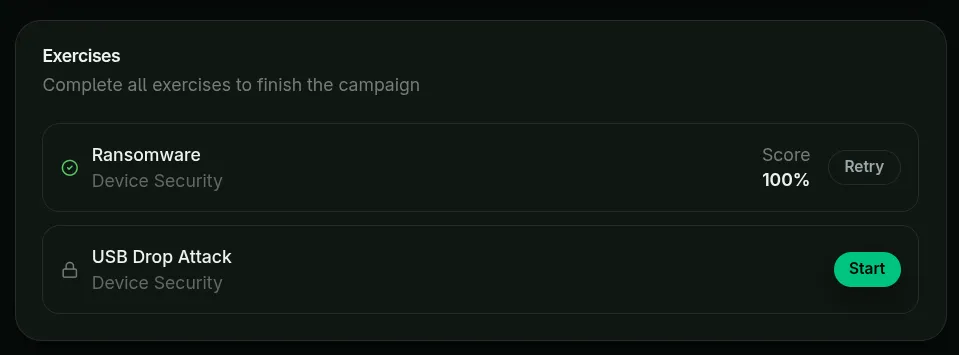
Taking an exercise
1. Configure audio
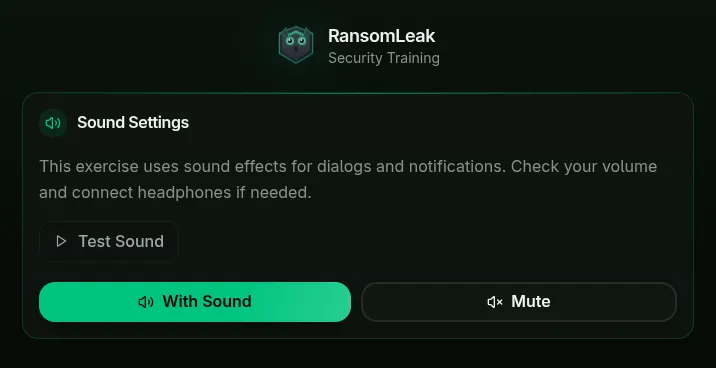
Section titled “1. Configure audio”When the exercise loads, you’ll be asked to set your audio preferences. Some exercises use voice recordings.
- Keep sound on and adjust your volume for the best experience.
- If you’re in a shared space or can’t listen, choose Mute — the content will remain accessible without audio.
2. Take the tour (first time only)
Section titled “2. Take the tour (first time only)”The first time you launch an exercise, you’ll be offered a short interactive tour. We strongly recommend taking it.
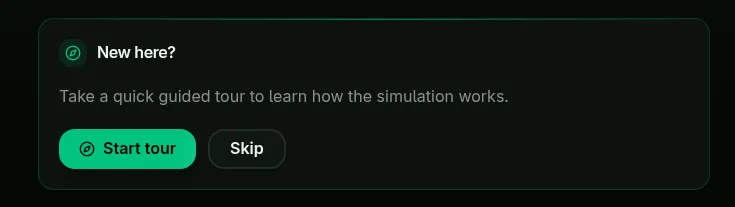
The tour shows you where to find the data you’ll need to fill in forms and where to read in-game instructions:
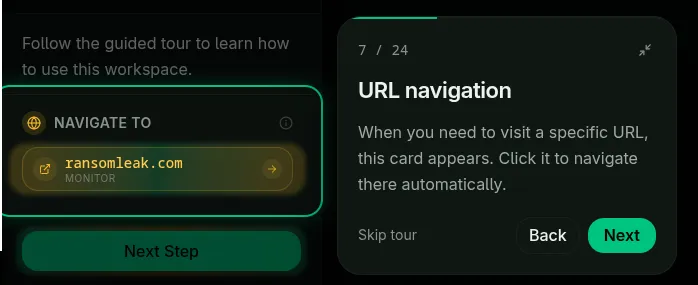
…and how to interact with the objects and characters in the scene:
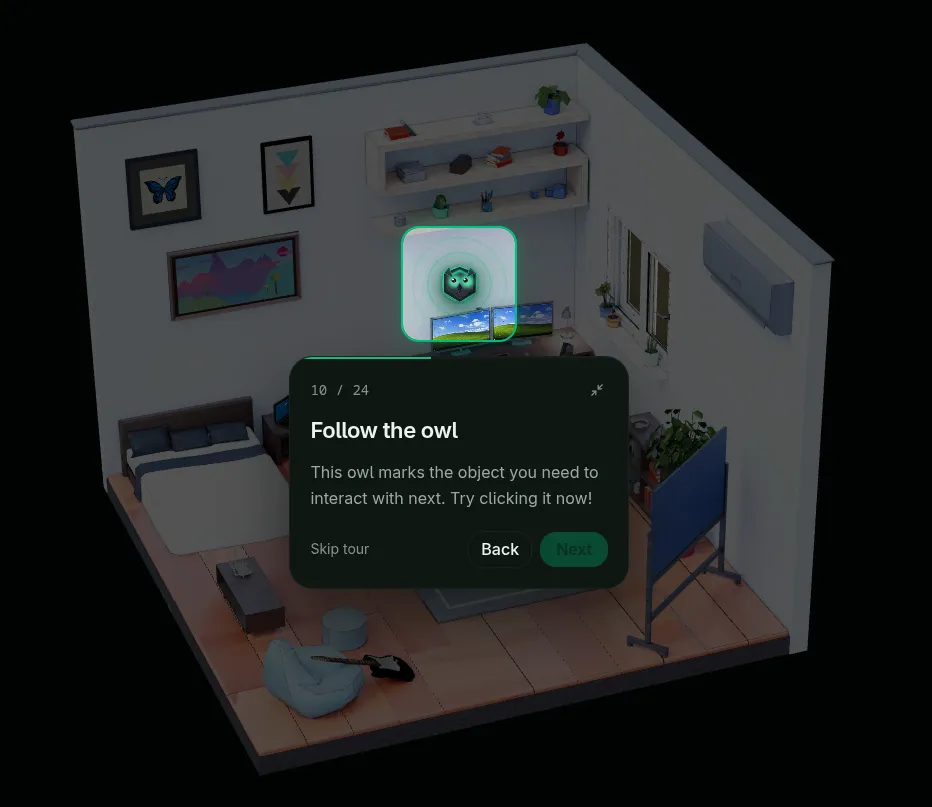
When the tour finishes, click Begin exercise to start.
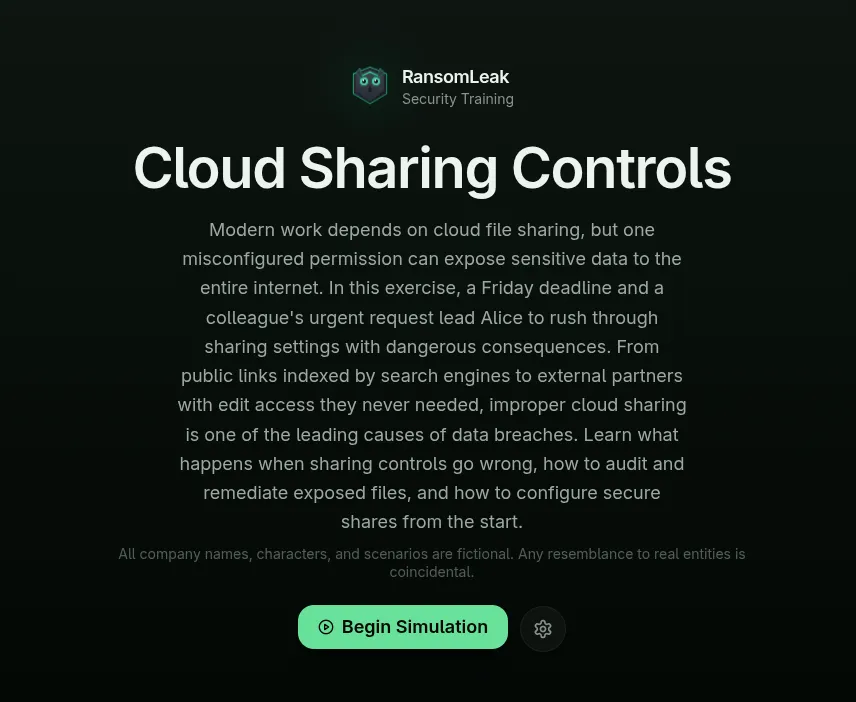
3. Follow the instructions
Section titled “3. Follow the instructions”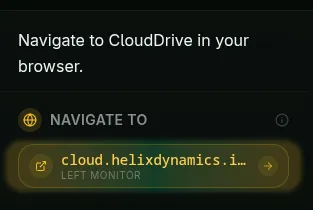
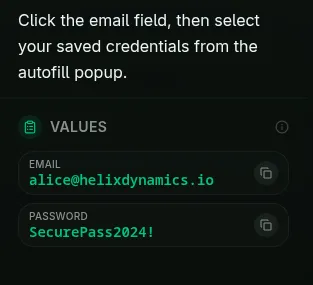
Move from step to step by following those instructions. Click on objects, read messages, and make decisions just as you would in real life.
4. Pass the quiz
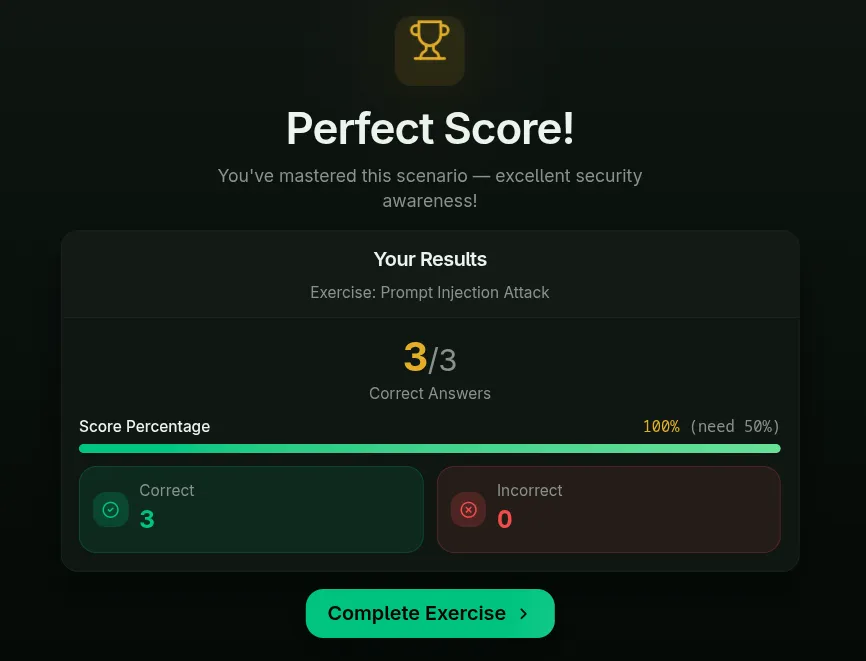
Section titled “4. Pass the quiz”Every exercise ends with a short quiz. To complete the exercise you need a score above your organization’s pass threshold (set by your administrator). If you don’t pass, you can retry the quiz.
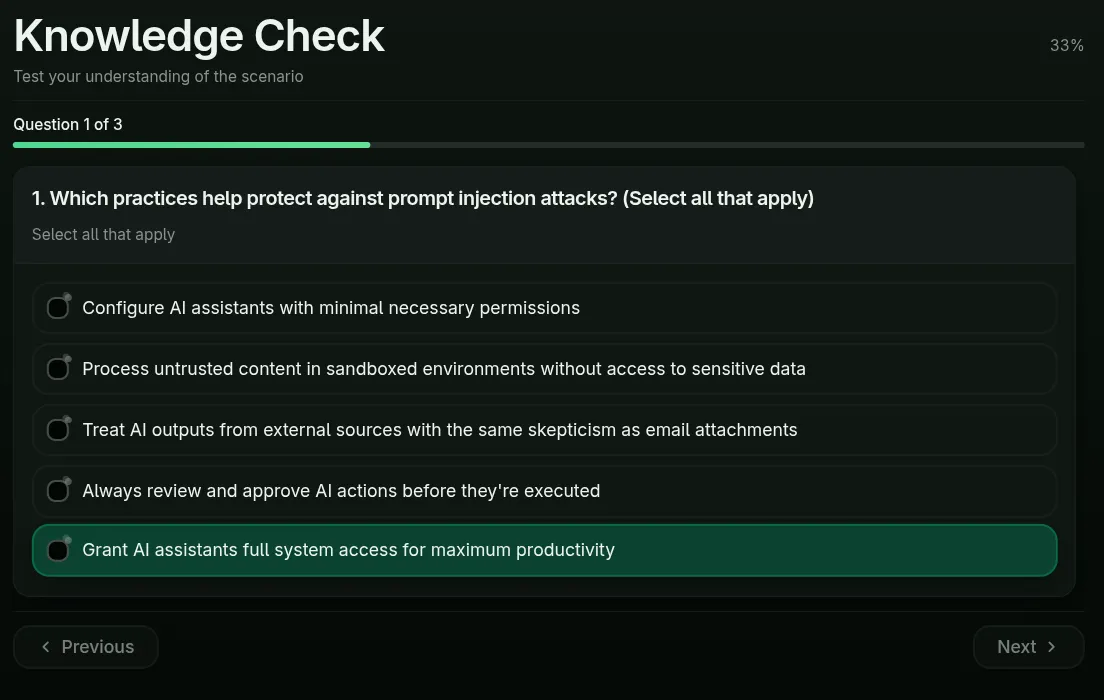
After you pass, you’ll see a confirmation screen with your score.
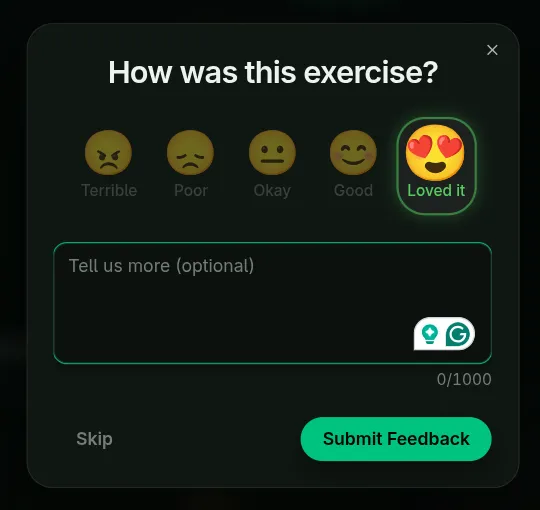
5. Leave feedback
Section titled “5. Leave feedback”After the quiz you’ll be prompted to share a short note about your experience. Please do — your feedback directly shapes future content.
6. Confirm completion
Section titled “6. Confirm completion”Back on the campaign page, the exercise should now show a green checkmark and your score. That’s your signal it’s been recorded.