
Tenant settings
Administration → Tenant Settings holds the settings that apply to your whole organization. The tabs you see depend on your permissions.
Branding
Section titled “Branding”- Organization logo: shown in the platform, in emails and on certificates.
- Support email or URL: shown to your users on the sign-in and error pages, so they know whom to contact. If you leave it blank, RansomLeak support is shown.
Security
Section titled “Security”- Enforce MFA for all users: everyone must set up multi-factor authentication. Off by default.
- IP Allowlisting: only allow access from specific IP addresses or ranges (CIDR), up to 50 entries. My IP adds the address you’re using now.
See Sign-in and security for more.
SAML SSO
Section titled “SAML SSO”Let people sign in with your identity provider (Okta, Microsoft Entra ID, Google and others). See Single sign-on (SAML).
Create and remove users automatically from your identity provider. See SCIM user provisioning.
Language & Region
Section titled “Language & Region”Default Language for everyone in your organization. Each user can choose their own language in their profile settings.
Learning & Assessment
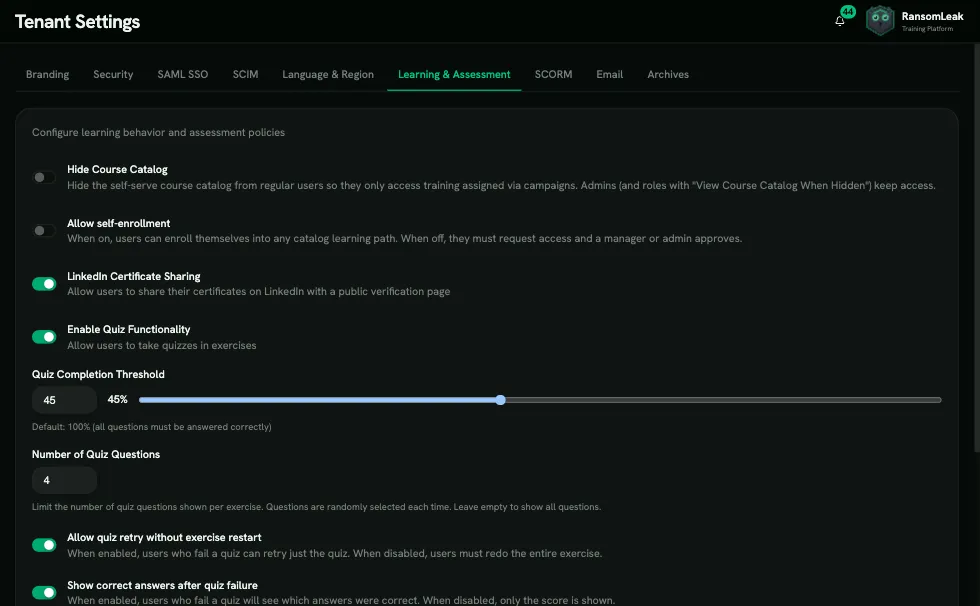
Section titled “Learning & Assessment”Changes save as soon as you make them: switches and choices immediately, the threshold slider when you let go of it, and number fields when you leave the field or press Enter.
| Setting | What it does | Default |
|---|---|---|
| Hide Course Catalog | Regular users can’t browse courses and only see training assigned to them. Admins keep access. | Off |
| Allow self-enrollment | Learners can join catalogue learning paths themselves. When off, they request access and a manager or admin approves. | Off |
| Show Microlearning to learners | Learners get a Microlearning tab with drills as optional practice. Choose drills picks which ones: Library drills are shown by default, drills your organization created are hidden until you turn them on (they are often built for an upcoming campaign). Results count in reports like any other training. Hidden while the course catalog is hidden. | On |
| Learning path emails | Email people when a learning path is assigned or completed, and when its deadline is close or missed. When off, people still get in-app notifications, and managers’ Remind button is hidden. | On |
| Message from your organization | Plain text (up to 1,000 characters) added to the end of training emails: assignments, reminders and completions. Never added to sign-in or security emails. Sent as written, whatever language the rest of the email is in. | Empty |
| LinkedIn Certificate Sharing | Learners can share certificates on LinkedIn, with a public verification page. Turning it off hides Share and makes every existing verification link show Certificate Not Found until it’s turned back on. See Certificates | On |
| Enable Quiz Functionality | Exercises end with a quiz | On |
| Quiz Completion Threshold | Score needed to pass a quiz and complete the exercise | 100% |
| Number of Quiz Questions | How many questions each quiz asks (blank = all) | All |
| Allow quiz retry without exercise restart | A learner who fails can retake just the quiz | On |
| Show correct answers after quiz failure | Learners see the right answers after failing | On |
| Default room | The setting of 3D exercises: Home office or Office | Home office |
| Default programming language | For AppSec (secure coding) content | TypeScript |
Default SCORM Version for SCORM packages you generate to run RansomLeak training in your own LMS (Content Management → SCORM Packages): SCORM 2004 (default) or SCORM 1.2. Choose the version your LMS supports best. Your choice saves immediately.
By default, RansomLeak sends email through its own mail service. Turn on Enable Custom SMTP to send from your own mail server instead, so emails come from your domain and pass your mail filters.
- Pick a preset (Office 365 HVE, Office 365, Gmail) or Custom.
- Fill in Host, Port, Username, Password, From Email and From Name.
- Click Test Connection, then save.
Archives
Section titled “Archives”Tenant Settings → Archives closes a compliance period, for example at the end of a training year. You need the Manage Archives permission.
Archive & Reset saves a read-only snapshot of the period, then clears the live training data so the new period starts fresh.
- Click Archive & Reset and read what stays and what gets archived.
- Optionally enter an Archive label (optional), for example “Year 1 - 2025”.
- Enter your password and confirm.
Past archives are listed under Data Archives with their period, label, who archived them, users, campaigns and completion rate. Open one to see an Overview (completion rate, exercise sessions, time spent, average quiz score, certificates), plus Campaigns and Users tabs.
Each archive has a report, generated in the background (Generating…). Download saves three CSV files: summary.csv, campaigns.csv and user-completion-matrix.csv. If generation fails, click Failed - Retry.

Settings managed by RansomLeak
Section titled “Settings managed by RansomLeak”A custom domain is set up together with RansomLeak support. See Custom domain.