
Sign-in and security
Passwords
Section titled “Passwords”The password rules are fixed and apply to everyone:
- At least 8 characters. Long passphrases are encouraged.
- No breached passwords: passwords found in known data breaches are rejected.
- No reuse of any of the last 12 passwords.
- Lockout: after 5 failed attempts, the account is locked for 15 minutes. The sign-in page shows the same Incorrect email or password message for a wrong password, an unknown email and a locked account, so it never reveals which accounts exist.
Users reset their own password with Forgot password on the sign-in page.
Multi-factor authentication (MFA)
Section titled “Multi-factor authentication (MFA)”Users can turn on MFA for themselves in their profile settings. To require it for everyone, go to Tenant Settings → Security and turn on Enforce MFA for all users:
- People with an authenticator app keep using it.
- Everyone else receives a verification code by email when they sign in.
- While MFA is enforced, users can’t turn it off.
IP allowlisting
Section titled “IP allowlisting”Tenant Settings → Security → IP Allowlisting limits access to the networks you list: single IPv4 or IPv6 addresses or CIDR ranges, up to 50 entries, each with a label.
Attempts from other addresses are refused and recorded in Security Events.
Single sign-on (SAML)
Section titled “Single sign-on (SAML)”Let people sign in with Okta, Microsoft Entra ID, Google Workspace or any other SAML 2.0 identity provider. You need the Manage Security permission.
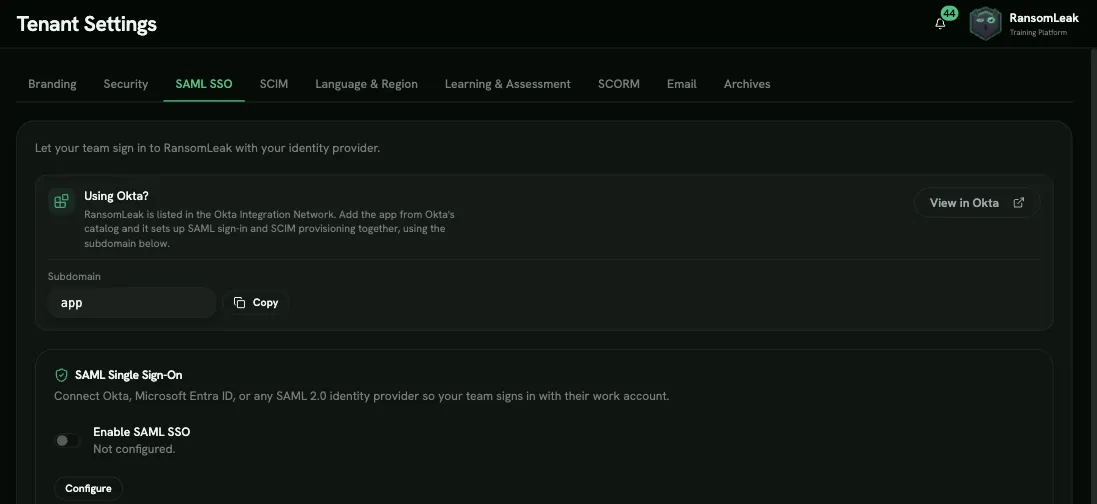
- Open Tenant Settings → SAML SSO.
- Under Service Provider details, copy the Entity ID / Audience, ACS URL (Reply URL) and Metadata URL into a new SAML application in your identity provider.
- From your identity provider, copy into Configure SAML SSO:
- Identity Provider Entity ID
- Identity Provider SSO URL (must be HTTPS)
- Signing certificate (X.509) in PEM format. Assertions must be signed with SHA-256.
- Single Logout URL (optional)
- Turn on Enable SAML SSO and save.
Require SSO (turn off password sign-in) makes SSO the only way to sign in. Break-glass admins can still use their password in case your identity provider has an outage. The admin who turns SSO on is added automatically.
Custom domain. Activating a custom domain doesn’t change the Service Provider details of SSO that’s already set up, so your identity provider keeps working. To move SSO to the custom domain, open Tenant Settings → SAML SSO: the Use your-domain for SSO panel shows the new Entity ID and ACS URL.
- Add the new values to your identity provider, alongside the current ones (Microsoft Entra ID and Okta accept more than one).
- Click Switch SSO to your-domain. Sign-in uses the new values immediately, so if your identity provider doesn’t have them yet, SSO sign-in fails until you add them.
- Test sign-in on the custom domain, then remove the old values from your identity provider.
After the switch, people stay on the custom domain throughout sign-in.
What happens at sign-in:
- Someone signing in through SSO for the first time gets an account with the default role.
- Disabled users can’t sign in, even through SSO.
To create and deactivate accounts ahead of sign-in, add SCIM provisioning.