
SCIM user provisioning
Introduction
Section titled “Introduction”This guide helps you configure automatic user provisioning from your Identity Provider (IdP) to the RansomLeak platform using SCIM 2.0 (System for Cross-domain Identity Management).
With SCIM enabled, your organization can:
- Automatically create users when they’re assigned to the application in your IdP
- Automatically update user attributes when they change in your IdP
- Automatically deactivate users when they’re unassigned from the application
- Sync groups to target training and, optionally, grant roles
With chat learning, users your IdP creates can also get a welcome lesson in Slack, and users whose job title or department changes a lesson on their new role, if you turn on those just-in-time triggers. The first sync of a user never sends a role-change lesson.
Prerequisites
Section titled “Prerequisites”Before you begin, ensure you have:
- Administrator access to your Identity Provider (Microsoft Entra ID, Okta, etc.)
- SCIM credentials from RansomLeak support (see Step 1)
Step 1: Obtain SCIM Credentials
Section titled “Step 1: Obtain SCIM Credentials”Important: SCIM provisioning is managed by RansomLeak support. You must request SCIM credentials from them before proceeding.
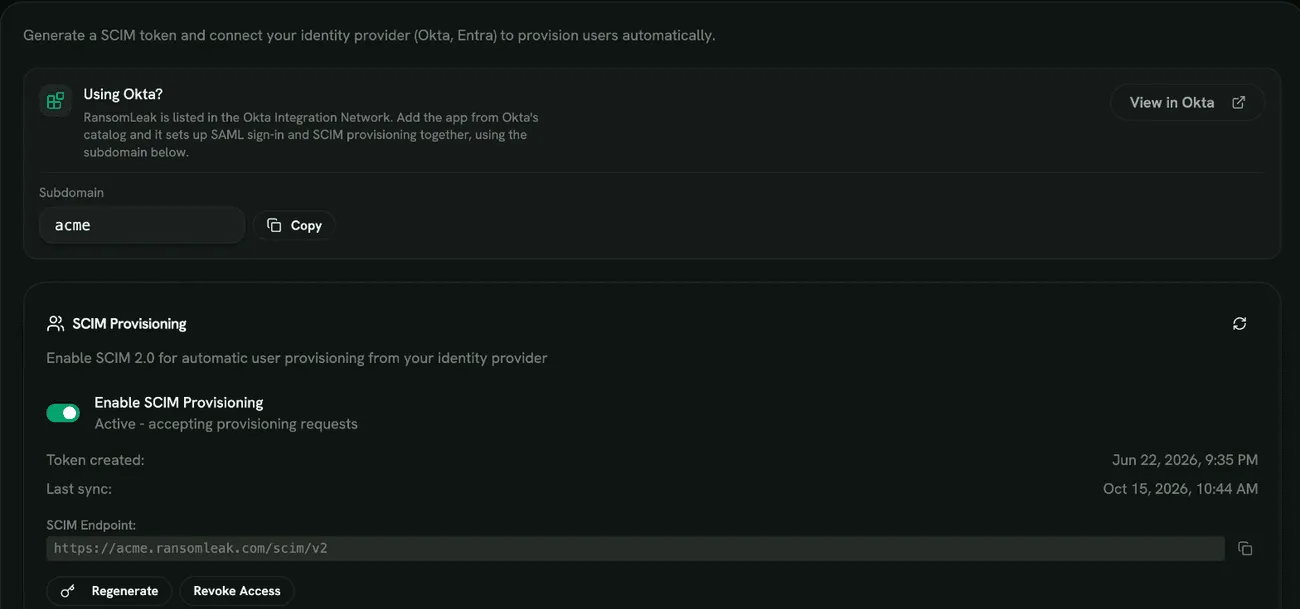
Contact RansomLeak support to enable SCIM for your organization. They will provide you with:
| Credential | Description | Example |
|---|---|---|
| SCIM Endpoint URL | Where your IdP sends provisioning requests | https://yourcompany.ransomleak.com/scim/v2 |
| Bearer Token | Secret authentication token (48 characters) | a1b2c3d4e5f6789... |
Important Notes
Section titled “Important Notes”- The bearer token is shown only once when generated by RansomLeak support
- Store the token securely - treat it like a password
- If you lose the token, contact RansomLeak support to generate a new one
Step 2: Configure Your Identity Provider
Section titled “Step 2: Configure Your Identity Provider”Microsoft Entra ID (Azure AD)
Section titled “Microsoft Entra ID (Azure AD)”2.1 Create Enterprise Application
Section titled “2.1 Create Enterprise Application”- Go to the Microsoft Entra admin center
- Navigate to Identity → Applications → Enterprise Applications
- Click + New Application
- Click + Create your own application
- Enter a name (e.g., “RansomLeak - SCIM”)
- Select Integrate any other application you don’t find in the gallery
- Click Create
2.2 Configure Provisioning
Section titled “2.2 Configure Provisioning”- In your new application, go to Provisioning
- Click Get started
- Set Provisioning Mode to Automatic
- Under Admin Credentials:
- Tenant URL: Enter the SCIM Endpoint URL provided by your administrator
- Secret Token: Enter the Bearer Token provided by your administrator
- Click Test Connection to verify
- Click Save
2.3 Configure Attribute Mappings
Section titled “2.3 Configure Attribute Mappings”- Expand Mappings
- Click Provision Microsoft Entra ID Users
- Configure the following mappings:
| Microsoft Entra ID Attribute | SCIM Attribute | Notes |
|---|---|---|
| objectId | externalId | Required - unique identifier |
| userPrincipalName | userName | Required - email address |
| givenName | name.givenName | First name |
| surname | name.familyName | Last name |
| jobTitle | title | Optional - synced to user profile |
| Switch([IsSoftDeleted],…) | active | Account status |
| department | urn:ietf:params:scim:schemas:extension:enterprise:2.0:User:department | Creates teams automatically |
| manager | urn:ietf:params:scim:schemas:extension:enterprise:2.0:User:manager | Links to manager |
- Click Save
2.4 Configure Group Provisioning (Optional)
Section titled “2.4 Configure Group Provisioning (Optional)”If you want to sync groups (as training audiences, and optionally to grant roles):
- Click Provision Microsoft Entra ID Groups
- Ensure displayName maps to displayName
- Ensure members maps to members
- Click Save
2.5 Assign Users and Groups
Section titled “2.5 Assign Users and Groups”- Go to Users and groups
- Click + Add user/group
- Select the users or groups to provision
- Click Assign
2.6 Start Provisioning
Section titled “2.6 Start Provisioning”- Go back to Provisioning
- Click Start provisioning
Initial sync may take 20-40 minutes. Subsequent syncs occur every 40 minutes.
RansomLeak is published in the Okta Integration Network. Use the catalog app: it covers SAML sign-on and SCIM provisioning in a single application and builds the SCIM endpoint for you, so there is nothing to paste except your subdomain and token. Only build a custom SCIM app if your Okta org blocks catalog integrations.
2.1 Add the RansomLeak app
Section titled “2.1 Add the RansomLeak app”- In the Okta Admin Console, go to Applications → Applications
- Click Browse App Catalog
- Search for RansomLeak and click Add Integration
- Under Subdomain, enter your RansomLeak subdomain (the
yourcompanyinhttps://yourcompany.ransomleak.com). It is shown with a copy button on the SCIM and SAML SSO tabs of RansomLeak’s tenant settings. - Click Done
2.2 Enable provisioning
Section titled “2.2 Enable provisioning”- Go to the Provisioning tab and click Configure API Integration
- Tick Enable API integration
- Paste the SCIM bearer token into the API Token field. Enter the token on its own, with no
Bearerprefix: the catalog app adds the scheme itself. - Click Test API Credentials, then Save
- Under Provisioning → To App, click Edit and enable:
- Create Users
- Update User Attributes
- Deactivate Users
2.3 Configure attribute mappings
Section titled “2.3 Configure attribute mappings”- Stay on Provisioning → To App
- Confirm userName maps to the user’s primary email; the catalog app ships the rest of the defaults
- Adjust the remaining attributes to match the Entra ID table above if your directory uses different source fields
2.4 Assign users
Section titled “2.4 Assign users”- Go to the Assignments tab
- Click Assign → Assign to People or Assign to Groups
- Select users/groups and click Assign
Alternative: custom SCIM app
Section titled “Alternative: custom SCIM app”If you cannot use the catalog app, create the integration by hand instead:
- Applications → Create App Integration → SCIM 2.0
- Set SCIM connector base URL to your SCIM Endpoint URL (
https://yourcompany.ransomleak.com/scim/v2) - Set Unique identifier field to:
userName - Under Supported provisioning actions, select:
- Push New Users
- Push Profile Updates
- Push Groups (if using group sync)
- Set Authentication Mode to: HTTP Header
- In the Authorization field, enter:
Bearer YOUR_SCIM_TOKEN. TheBearerprefix is required here, unlike the catalog app. - Click Test Connector Configuration, then Save
- Configure attribute mappings and assignments as described in 2.3 and 2.4 above
OneLogin
Section titled “OneLogin”2.1 Add SCIM Application
Section titled “2.1 Add SCIM Application”- Go to Applications → Add App
- Search for “SCIM Provisioner with SAML (SCIM v2 Core)”
- Click Save
2.2 Configure SCIM
Section titled “2.2 Configure SCIM”- Go to Configuration
- Set SCIM Base URL to the SCIM Endpoint URL from your administrator
- Set SCIM Bearer Token to the token from your administrator
- Set SCIM JSON Template (use default or customize)
- Click Save
Step 3: Understanding Groups and Roles
Section titled “Step 3: Understanding Groups and Roles”How Group Sync Works
Section titled “How Group Sync Works”Every group your identity provider syncs becomes a group in RansomLeak (User Management → Groups), with the same members. Use synced groups to target training: give a group automatic learning paths, or add it to campaigns.
A synced group changes people’s roles only if you tell it to:
- Open User Management → Groups and click the pencil on the synced group.
- Under Members get role, choose the role and a priority.
Groups without a role are training audiences only and never change anyone’s role. See Roles from groups.
Groups Linked Before This Change
Section titled “Groups Linked Before This Change”If your identity provider already synced groups to roles, nothing changes for your users: each of those groups became a synced group that grants the same role with the same priority.
Role Priority
Section titled “Role Priority”If a user belongs to several groups that grant a role, they get the role with the lowest priority number. Roles set on a person by hand are never changed by group sync. A user removed from every role-granting group gets the default role.
Step 4: Verify Provisioning
Section titled “Step 4: Verify Provisioning”Check Users Were Created
Section titled “Check Users Were Created”- Log in to your admin portal
- Navigate to Users
- Verify that provisioned users appear in the list
- SCIM-provisioned users will show their job title as synced from the identity provider
Common Verification Steps
Section titled “Common Verification Steps”| Check | Expected Result |
|---|---|
| User appears in user list | ✓ |
| First/Last name correct | ✓ |
| Email matches IdP | ✓ |
| Synced groups appear under User Management → Groups | ✓ |
| Team matches department | ✓ |
| Job title synced from IdP | ✓ |
Troubleshooting
Section titled “Troubleshooting”Users Not Syncing
Section titled “Users Not Syncing”- Check Test Connection: In your IdP, re-run the SCIM test connection
- Verify Token: Ensure the token was copied correctly with no extra spaces
- Check Assignment: Confirm users are assigned to the application in your IdP
- Wait for Sync Cycle: Initial sync can take up to 40 minutes
Error: 401 Unauthorized
Section titled “Error: 401 Unauthorized”- Token may be incorrect or expired
- Contact RansomLeak support to verify SCIM is enabled
- Request a new token if needed
Error: SCIM Not Enabled
Section titled “Error: SCIM Not Enabled”- Contact RansomLeak support to enable SCIM for your tenant
Users Have Wrong Role
Section titled “Users Have Wrong Role”- Check which groups the user belongs to in your IdP
- Check which role each of those groups grants (User Management → Groups)
- Remember: the lowest priority number wins, and roles set by hand are never changed
Manager Not Linked
Section titled “Manager Not Linked”- The manager must be provisioned before the employee
- Trigger a manual sync or wait for the next sync cycle
Token Expired or Invalid
Section titled “Token Expired or Invalid”- Contact RansomLeak support to generate a new token
- Update the new token in your IdP’s SCIM configuration
Security Best Practices
Section titled “Security Best Practices”-
Token Security
- Store the SCIM token securely (treat it like a password)
- Only share tokens through secure channels
- If you suspect token compromise, contact RansomLeak support immediately
-
Access Control
- Only assign users who need access to RansomLeak
- Use groups to manage role assignments
-
Monitoring
- Review provisioning logs in your IdP regularly
- Report any unexpected user creations to RansomLeak support
Getting Help
Section titled “Getting Help”If you encounter issues not covered in this guide:
- Check IdP Logs: Your Identity Provider’s provisioning logs show detailed error messages
- Contact RansomLeak Support: They manage SCIM configuration and can:
- Verify SCIM is enabled for your tenant
- Generate new tokens if needed
- Check SCIM sync status
- Include Details: When reporting issues, include:
- Your tenant URL
- The IdP you’re using
- Error messages from IdP provisioning logs
- Timestamps of when the issue occurred
Appendix: SCIM Endpoint Reference
Section titled “Appendix: SCIM Endpoint Reference”For technical administrators, here are the SCIM endpoints:
| Endpoint | Method | Description |
|---|---|---|
/scim/v2/ServiceProviderConfig |
GET | SCIM capabilities |
/scim/v2/Schemas |
GET | Supported schemas |
/scim/v2/Users |
GET, POST | List/create users |
/scim/v2/Users/{id} |
GET, PUT, PATCH, DELETE | User operations |
/scim/v2/Groups |
GET, POST | List/create groups |
/scim/v2/Groups/{id} |
GET, PUT, PATCH, DELETE | Group operations |
Document Version: 2.0