
Inviting users
You need the Invite Users permission. Click Invite Users on the User Management page and choose Single Invite or Bulk Upload (CSV).
Invite one person
Section titled “Invite one person”Fill in:
- Email Address (required)
- Role (Optional): if empty, the person gets your default role.
- Team (Optional): if the team has a manager and you don’t pick one, the team’s manager is used.
- Manager (Optional)
- Groups (Optional, needs Manage Users): the person joins these groups. Learning paths the groups assign automatically reach them when they accept the invitation. Groups synced from your identity provider can’t be picked.
- Learning Paths (Optional): the person is enrolled as soon as they sign up.
- Also grant an Application Security (AppSec) license: shown only if you have AppSec licences.
Click Send Invite. The person gets an email, You’ve been invited to …, with an Accept Invitation button.
Each invitation needs a free licence. The invitation is refused if the person already has an account or an open invitation.
Invite many people from a CSV file
Section titled “Invite many people from a CSV file”-
In Bulk Invite Users, click Download Template and choose Full (all fields).
-
Fill in one row per person. Columns:
Column Required Notes emailYes roleNo Must match an existing role name (any capitalization) teamNo Teams that don’t exist yet are created automatically manager_emailNo Must be an existing, enabled user phone_numberNo International format, e.g. +14155550123groupsNo Existing group names separated by ;, e.g.Pharmacists;Night shift(any capitalization). Groups aren’t created automatically. A row fails if a group doesn’t exist or is synced from your identity provider. Uploading a file with groups needs Manage Users; groups that grant a role also need Assign Roles -
Upload the file: up to 500 rows and 1 MB.
The results show how many invitations were Sent, Failed and Skipped (people who already have an account or invitation). Use Download Errors to fix and re-upload failed rows.
Pending invitations
Section titled “Pending invitations”The Pending Invites tab lists invitations that haven’t been accepted. You can change an invitation’s role, team, manager and groups in the row, and:
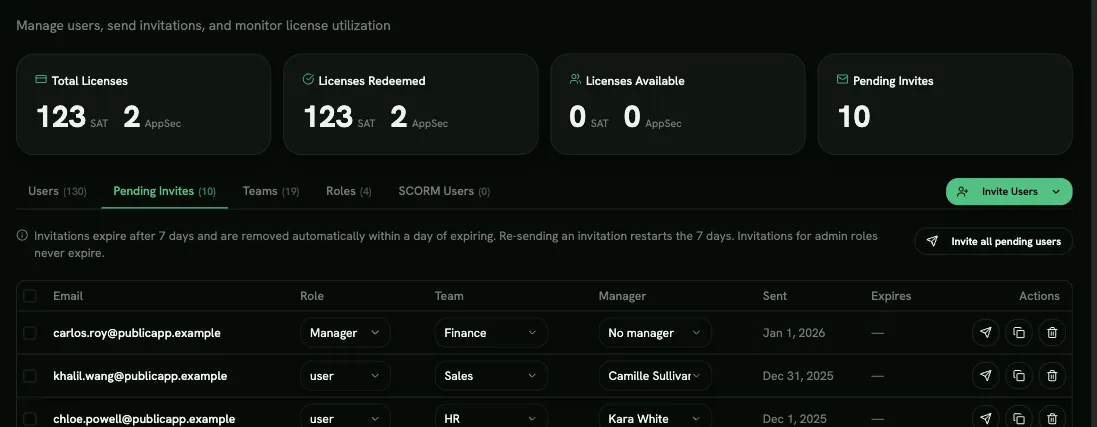
- Re-send the email, at most once every 24 hours per person. This also restarts the 7-day expiry.
- Copy the invite link to send it yourself.
- Delete the invitation. The link stops working and its licence is freed.
Invite all pending users re-sends every open invitation (except those emailed in the last 24 hours), up to 250 per click.
When SSO is required
Section titled “When SSO is required”If Require SSO is on, inviting someone (one at a time or from a CSV file) adds them without sending an email, because an invitation email leads to a password sign-up. Their role, team, manager and learning paths are ready, and they get access the first time they sign in through your identity provider. These invitations don’t expire. Re-send and Invite all pending users aren’t available, since there’s no email to send.
People who sign in through SSO without being added first still get an account automatically, with the default role.
Expiry
Section titled “Expiry”- Invitations expire 7 days after they’re sent or re-sent.
- Expired invitations are deleted automatically within a day of expiring, which frees their licences. Invite the person again if needed.
- Invitations with the Admin role never expire.