
Security and compliance tools
All of these are under Integrations, one tab each (you need Manage Integrations). For Vanta, see Vanta.
| Tool | Direction | What RansomLeak sends or does |
|---|---|---|
| Drata | RansomLeak → Drata | Per-learner training-completion records, hourly |
| Datadog | RansomLeak → Datadog | Training events as logs and hourly metrics |
| New Relic | RansomLeak → New Relic | Training and phishing events, and an hourly risk metric per team |
| Splunk | RansomLeak → Splunk | Training and phishing events, and an hourly training snapshot |
| PagerDuty | PagerDuty → RansomLeak | Assigns training to incident responders |
| Freshservice | Freshservice → RansomLeak | Assigns training from tickets |
| GitLab | GitLab → RansomLeak | Assigns secure-coding lessons from security findings on merge requests |
RansomLeak pushes training evidence into Drata as records on a Custom Connection. Each learner’s status in your system learning paths is sent, with its framework tags (SOC 2, ISO 27001, HIPAA, PCI DSS, NIS2 and so on), so you can build a Drata Custom Test and map it to controls.
- In Drata, create a Custom Connection and an API key with the Custom Connections Data scope.
- On the Drata tab, enter the Connection ID, Resource ID and API key, then click Save & connect.
Records are synced every hour. Sync now sends them straight away. The tab shows Last sync and Records in last sync, and the error if the last sync failed. Disconnect deletes the stored key and stops syncing; records already in Drata stay there.
Datadog
Section titled “Datadog”You can start from either side:
- From Datadog: open Integrations, find RansomLeak and click Connect Accounts. Enter your RansomLeak subdomain, sign in, then approve access in Datadog.
- From RansomLeak: choose your Datadog site and click Connect with Datadog, then approve access in Datadog.
RansomLeak creates one API key in your Datadog org and uses it to send training events as logs (source:ransomleak), plus hourly metrics under ransomleak.* (enrollments by status, completion rate, overdue users, and the Human Risk Score per team). In Datadog, open the RansomLeak Overview dashboard to see them.
If connecting fails because your org already has a RansomLeak API key, go to Organization Settings → API Keys in Datadog, revoke the RansomLeak key, and connect again.
Disconnect revokes RansomLeak’s access and stops sending data. Datadog doesn’t let integrations delete their own API key, so afterwards revoke the RansomLeak key under Organization Settings → API Keys. Do this before connecting again, too. Uninstalling the integration in Datadog also revokes access, and RansomLeak stops sending data within the hour; revoke the key after uninstalling as well.
Prefer not to use OAuth? Click Use an API key instead, choose your site and paste a Datadog API key.
New Relic
Section titled “New Relic”RansomLeak sends custom events to your New Relic account: RansomLeakTraining for training completions and RansomLeakPhishing for phishing and smishing outcomes. Every hour it also sends a gauge metric, ransomleak.human_risk_score, per team. Install the RansomLeak quickstart in New Relic for a ready-made Human Risk dashboard and alerts.
On the New Relic tab:
- Choose your Data center (region): US or EU. EU data stays in New Relic’s EU collector. To change region later, disconnect and connect again.
- Enter your numeric Account ID (under Administration → Access management in New Relic, or in your New Relic URL).
- Paste an Ingest (license) key and click Save & connect.
Send test event checks the connection. The tab shows the Last emission and its error, if any. Disconnect forgets the key and stops sending; data already in New Relic stays there.
Splunk
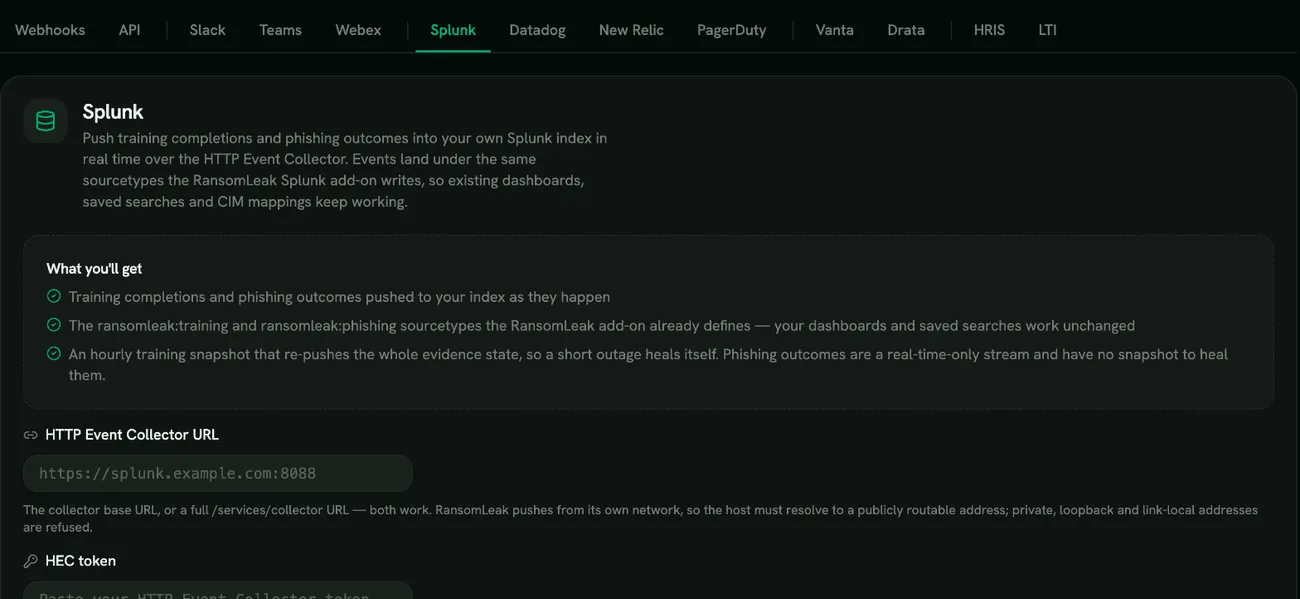
Section titled “Splunk”RansomLeak pushes events to your Splunk over the HTTP Event Collector (HEC) as they happen, under the ransomleak:training and ransomleak:phishing sourcetypes. These are the same sourcetypes the RansomLeak Splunk add-on uses, so existing dashboards and saved searches keep working. Every hour it also re-sends a full training snapshot, so a short outage fixes itself. Phishing outcomes are only sent in real time and have no snapshot.
On the Splunk tab:
- HTTP Event Collector URL: the collector base URL (for example
https://splunk.example.com:8088) or a full/services/collectorURL. It must be reachable from the internet; private and internal addresses are refused. - HEC token: create it in Splunk under Settings → Data inputs → HTTP Event Collector.
- Index (optional): leave empty to use the token’s default index. If you name one, it must be on the token’s allowed list.
- Source prefix: added to each event’s source (
ransomleak:hec:trainingby default). Change it if two RansomLeak organizations send to the same Splunk. - Verify TLS certificate: keep it on unless your collector uses a self-signed or internal certificate.
Click Save & connect, then Test connection. Disconnect forgets the token and stops sending; revoke the token in Splunk as well.
PagerDuty
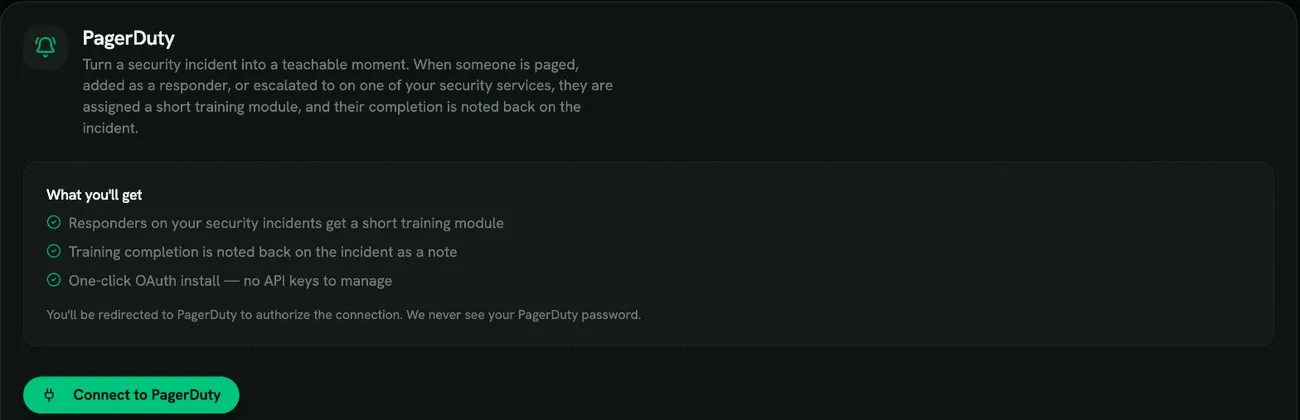
Section titled “PagerDuty”PagerDuty works the other way round: an incident assigns training. RansomLeak is listed in the PagerDuty integrations directory.
- On the PagerDuty tab, click Connect to PagerDuty and approve access in PagerDuty. No API keys are needed.
- Under Module assigned on incident, choose a Training module and click Save.
- Under Security services, keep All services or choose Only these services and pick the services your security team is paged from.
When someone is paged, added as a responder, or escalated to on one of those services, they are assigned the module, and a note is added to the incident when they complete it. If the module has a quiz, the note includes the result. Someone who completed the module in the last 30 days isn’t assigned it again.
The tab shows the region, whether the Webhook is Active, and the Last event. Disconnect stops assigning training and removes the webhook from PagerDuty.
GitLab
Section titled “GitLab”The RansomLeak GitLab component turns a security finding into secure-coding training for the developer who introduced it. It runs inside your own GitLab, in the merge request pipeline after your scanners.
- Add the RansomLeak component to your
.gitlab-ci.ymlfrom the GitLab CI/CD Catalog (oneincludeline). - Set the three masked CI/CD variables from your RansomLeak install.
- Open a merge request. The component runs on the next pipeline.
It reads findings from SAST, Secret Detection, Dependency Scanning and Container Scanning, matches each one by its CWE and OWASP identifiers to a short secure-coding lesson, works out the developer from the commit author, and posts the lesson as a note on the merge request. Finishing the lesson records completion back on the same merge request.
The findings never leave your GitLab, and RansomLeak stores no per-developer data for it. The component doesn’t block merges. Full setup: GitLab guide.
Freshservice
Section titled “Freshservice”Install the RansomLeak app from the Freshworks Marketplace. It needs a RansomLeak API token with the Integration API scope: create one under Integrations → API (see API tokens).
On the app’s installation page, enter:
- RansomLeak API key: the token you created.
- RansomLeak API host: the address you sign in to RansomLeak at, without
https://(for exampleacme.ransomleak.com). - Freshservice domain (for example
acme.freshservice.com) and a Freshservice API key. If your plan disables agent API keys, use the key of an integration user instead.
Click Load my categories & modules, then map ticket categories (or types) to training modules. The app can’t be saved until RansomLeak accepts the token.
When a ticket in a mapped category is created or updated, its requester is assigned the module and a note is added to the ticket. A second note is added when they complete it. The requester must already have a RansomLeak account: the app doesn’t create users, and the note on the ticket says when someone has no account. Each ticket assigns training only once.