
Browser extension overview
The RansomLeak browser extension for Chrome and Edge watches for a few specific risky moments while people browse: a look-alike website, a very new domain, or a screen asking for broad access to a work account. When it spots one, it warns the person on the spot and offers a short drill that fits what just happened.
It is free for every workspace. It does not read what people type, and it does not collect browsing history. See What the extension collects for the full picture.
What employees see
Section titled “What employees see”The warning page
Section titled “The warning page”If someone opens a site that looks like a trusted brand or one of your company’s own domains, the extension shows a warning page instead of the site. The page:
- explains in plain language why the site looks suspicious
- shows the address with the suspicious part highlighted
- offers Go back as the main choice and Continue anyway as the secondary one
- offers Learn why (60 s), a short lesson that opens right on the warning page (see Learn why in 60 seconds)
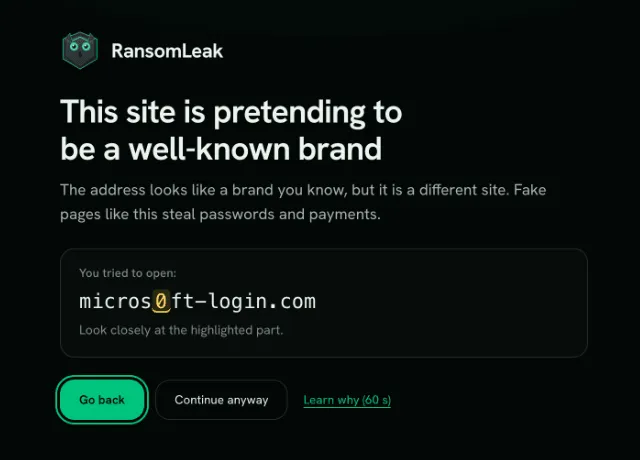
The same warning appears at most once per site, per person, every 24 hours, so it does not become noise.
If your administrator has set a detector to block, Continue anyway is replaced by Request access. The request goes to your administrators, who can approve or reject it.
Learn why in 60 seconds
Section titled “Learn why in 60 seconds”Learn why (60 s) is on every warning page: look-alike sites, newly registered domains, reported dangerous sites and risky downloads. It is there in block mode too. It is optional. Continue anyway works as before, and a lesson never unblocks a blocked site.
Selecting it turns the warning into four short steps in the same tab:
- Your own case. What just happened, with the trick highlighted. When the extension knows the genuine site, it shows that too.
- One or two habits that would have caught it.
- One quick question. If you answer wrong, it explains why and you can try again.
- Done. Select Back to safety to leave the page. If your security team picked a training for this, Open the course appears as well.
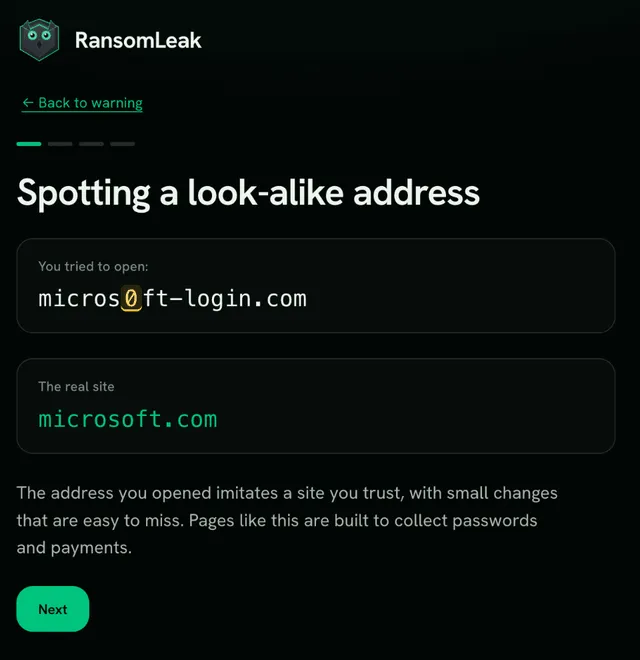
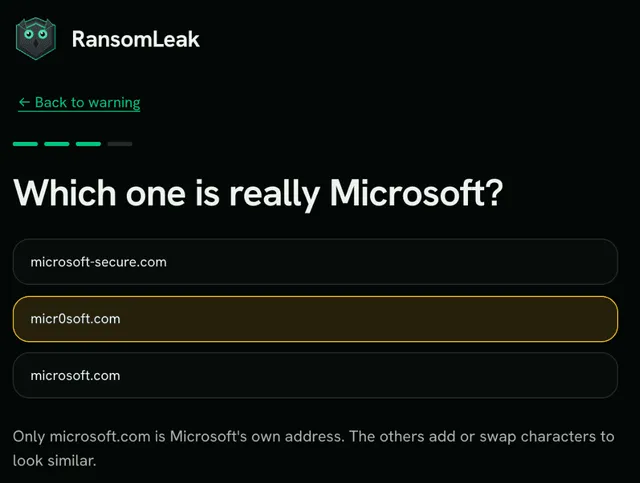
The warnings for risky app permissions and for AI pastes have a Learn why link. It opens the same lesson in a new tab, so the warning stays where it is.
Doing a lesson does not change your risk score. See What the extension collects for what is recorded. Lessons need extension version 1.2.0 or later.
Risky app permission screens
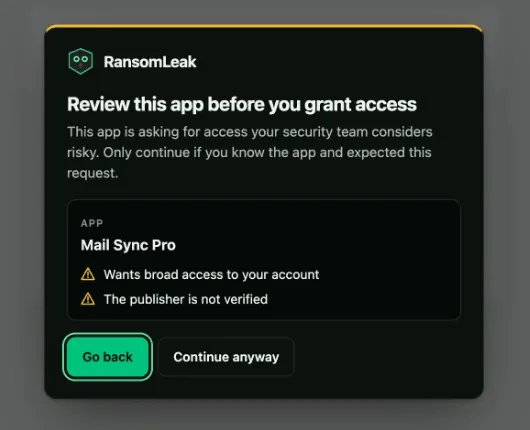
Section titled “Risky app permission screens”On the Microsoft, Google and Slack screens where you grant an app access to your account, the extension can show a warning over the page when the app asks for broad permissions and its publisher is not verified. The consent screen stays covered until you choose Go back or Continue anyway. On Microsoft, the warning covers the consent screen whether you were already signed in or just typed your password and approved multi-factor sign-in. The extension stays inactive on Microsoft’s password and multi-factor steps themselves.
Sensitive pastes into AI tools
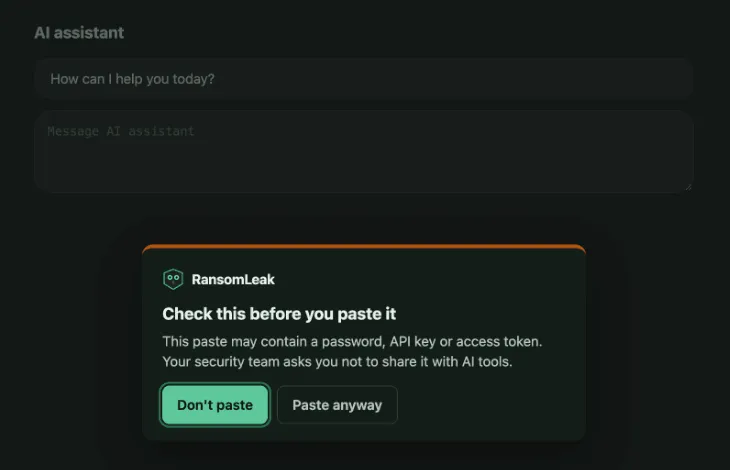
Section titled “Sensitive pastes into AI tools”If your administrator turns it on and you have turned on extra protection, the extension checks what you paste into an AI tool such as ChatGPT, Claude or Gemini. When the text looks like a password or API key, a payment card number, a list of email addresses, or a very large block of text, the paste is held back and a message explains why. You can choose Don’t paste or, if your administrator allows it, Paste anyway. The check happens in your browser: what you paste is never stored or sent, only the AI tool and the kind of data.
The popup
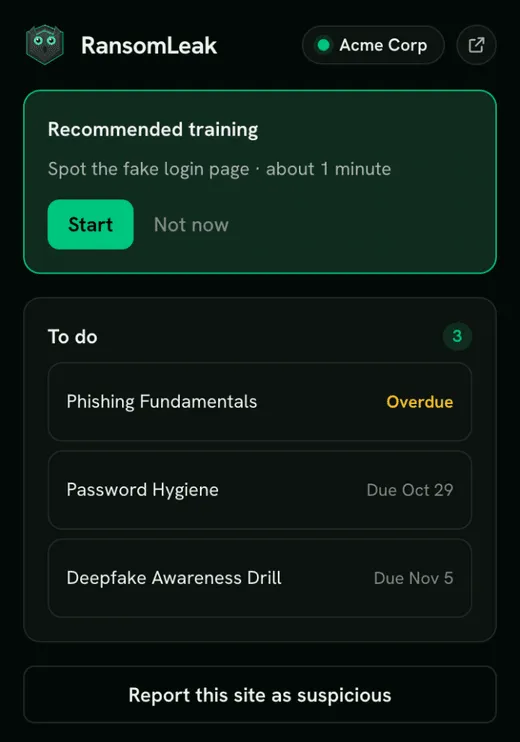
Section titled “The popup”Selecting the extension icon opens a popup with:
- whether the browser is connected to your workspace, or a button to sign in again, and a small Open RansomLeak button that opens your workspace in a new tab
- Recommended training, when the extension suggests a short drill after something it caught: Start opens the drill, Not now hides every open recommendation
- To do: the training assigned to you that you have not finished yet, from campaigns and learning paths. Overdue items come first and are marked Overdue; the others show their due date. Select one to open it in RansomLeak. When there are more than five, +N more opens your campaigns page
- Training reminders, if your administrator allows them: select Turn on reminders and your browser asks whether the extension may show notifications. With reminders on, you get a desktop notification when new training is assigned to you and once more when a training is due within a day. Selecting a notification opens the training
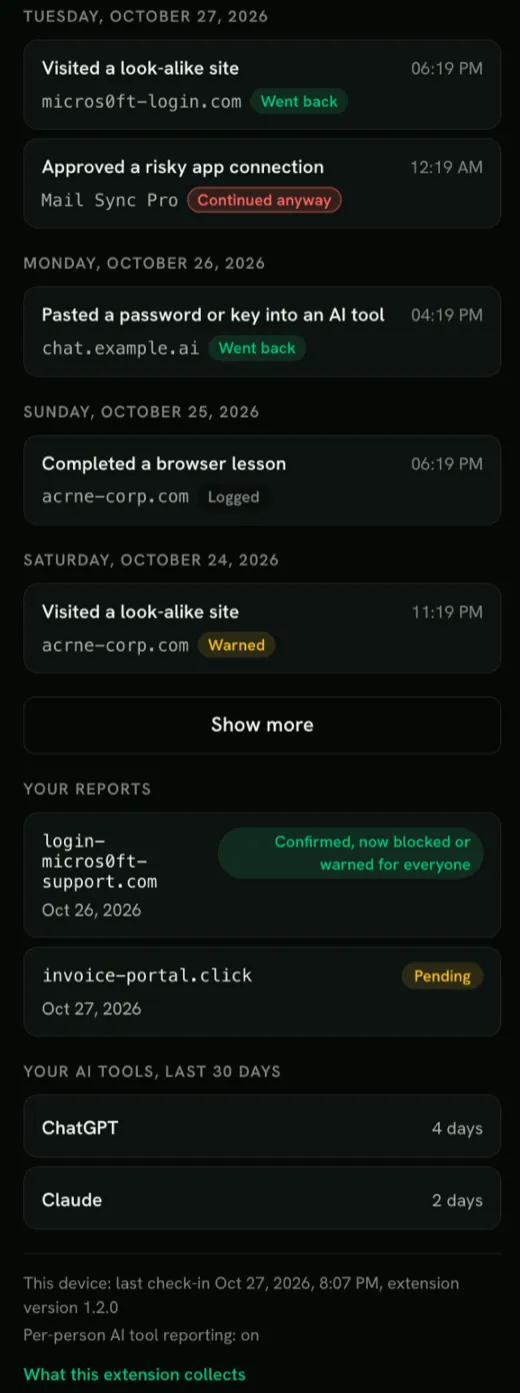
- What we know about you: every browser and identity signal recorded about you, from the extension and from connected identity tools, exactly as your admins see them. It defaults to the last 7 days, with filters for 30 days, 90 days and all. The section starts collapsed, showing how many events were recorded this week; select it to expand, and the popup remembers whether you left it open. It lists the newest 5 events first; Show more adds 20 more at a time.
- the status of any access requests you have made
- Your reports: the sites you reported in the last 90 days and what happened to each: Pending, Confirmed (now blocked or warned for everyone) or Reviewed, no action
- a link to “What this extension collects”
The extension icon also shows a small number: how many trainings you still have to do. It turns amber when one of them is overdue, and it is empty when you have nothing open or the browser is not connected.
The popup has no settings for employees to change, apart from turning on reminders.
What administrators get
Section titled “What administrators get”- A one-page install flow for Google Admin, Intune and Edge (Deploy the extension).
- Control over what each detector does: warn, block, log only, or off.
- Allowed domains and approved apps, so trusted sites stop triggering warnings.
- Recommended training: the extension suggests a drill that fits the moment, which appears in the employee’s Microlearning tab. In the extension menu it appears above To do for a day after the event that triggered it, then below.
- Coverage: how many active employees have the extension, which browsers have gone quiet, and who still needs it.
- Block requests from employees, which you can approve or reject.
- Assigned training in the extension: employees see their open campaigns and learning paths in the popup and as a count on the extension icon, and you can let them turn on desktop reminders.
- Lesson completions on the Activity tab, next to the other browser events, so you can see who took the short lesson after a warning. They do not affect the risk score.
- Browser events in each person’s risk timeline. They count toward the Human Risk Score only where your workspace already uses it.

See Administer the extension for details.
What it checks
Section titled “What it checks”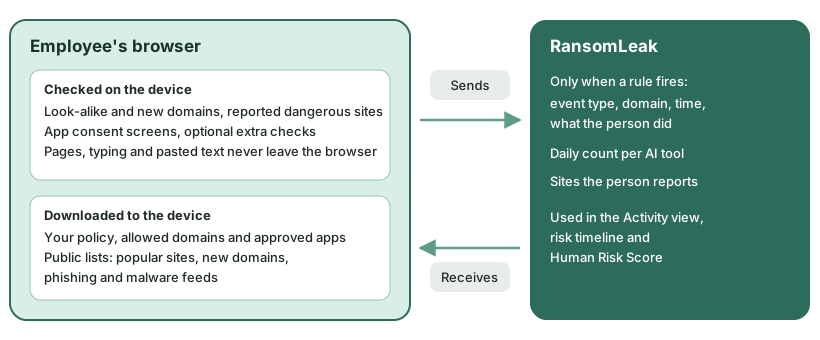
| Detector | What it catches |
|---|---|
| Reported dangerous sites | Sites that security researchers have reported for phishing or malware, from public research lists that receive no customer data. These warn even on well-known domains, unless you add the site to your allowed domains |
| Look-alike sites | Addresses that imitate a well-known brand or your own domains, such as paypa1.com |
| Newly registered domains | Domains registered in the last 30 days that also look like an imitation, or are known to be unsafe |
| Risky app permissions | Consent screens on Microsoft, Google and Slack asking for broad access from an unverified publisher |
| Sensitive data pasted into AI tools | Off unless you turn it on, and only with extra protection. Passwords and keys, card numbers, email lists or very large pastes into AI tools. The pasted text never leaves the device |
All checks run on the employee’s device. Only the domain of a site that broke a rule is reported. For shared hosting platforms (like *.pages.dev) the full site address without the path is sent, because the platform domain alone would be meaningless.