
Writing your own templates
Most organizations run campaigns with the ready-made Library templates (see Simulation campaigns). When you need something specific to your company, write your own under Phishing Simulations → Templates → My Templates.
You need Author Phishing Templates. The Admin role has it. People with only Manage Phishing Simulation Campaigns see the Library and can use approved templates, but can’t write their own.
The building blocks
Section titled “The building blocks”A template is put together from parts that RansomLeak curates and checks:
- Sender persona: who the email appears to come from.
- Brand: an optional brand look, such as a well-known service. Only approved brands are listed.
- Landing page: the page a recipient sees after clicking.
- Attachment: an optional file. You pick from attachments RansomLeak provides; you can’t upload your own files.
You can’t add or change these parts yourself. If you need one that isn’t available, contact RansomLeak.
Create a template
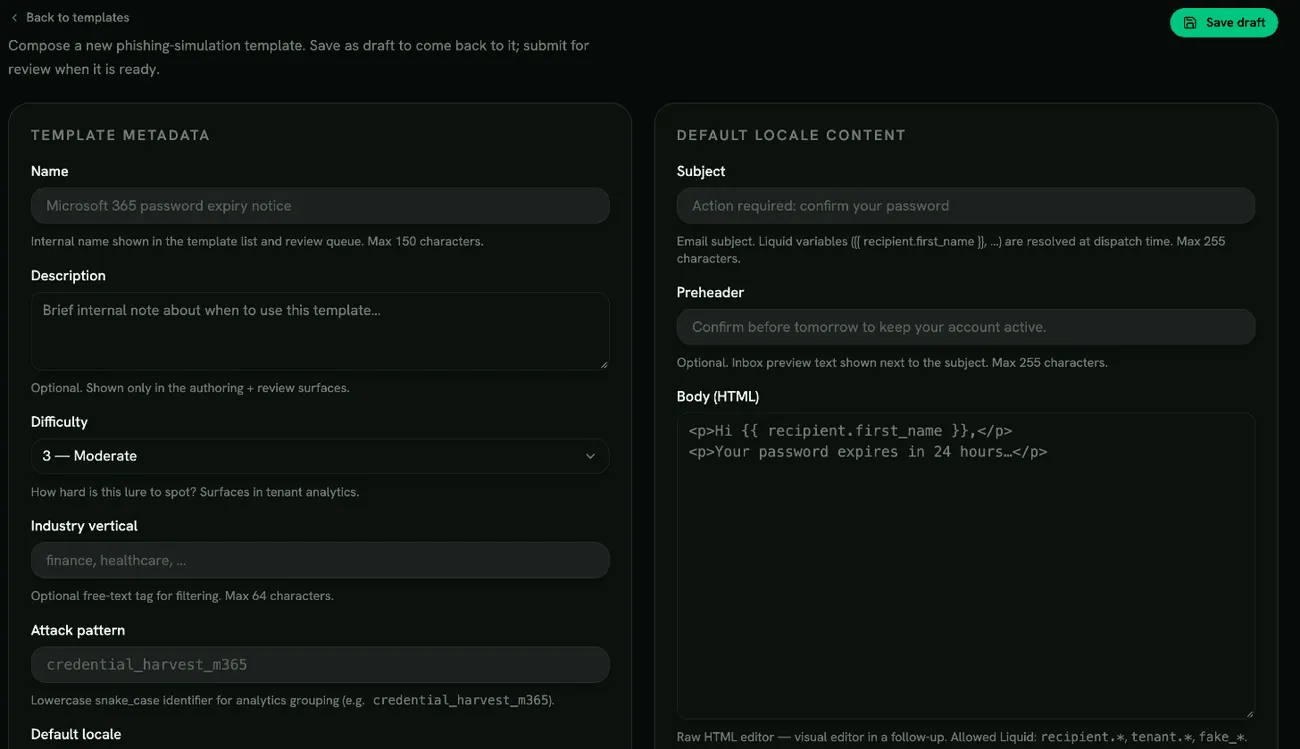
Section titled “Create a template”Click New template, or clone a Library template to start from a copy. Under Template metadata:
| Field | Notes |
|---|---|
| Name | Required. Shown to admins only. |
| Description | Optional internal note, shown only while authoring and reviewing. |
| Difficulty | From 1 — Trivial to 5 — Expert. |
| Industry vertical | Optional free-text tag, for example finance. |
| Attack pattern | A short label for the kind of attack, for example credential_harvest_m365. |
| Default locale | The main language, for example en-US. |
| Sender persona | Required. |
| Brand | Optional. |
| CTA link target | Where the email’s main link leads: Tracking redirect (default), Tenant verified domain or Library landing page. |
| Landing page | Shown when you choose Library landing page. |
| Attachment | Optional. |
Then write the email for each language under Locales: Subject, Preheader and Body HTML. Add more languages with the locale controls. To switch the main language of a draft or rejected template, click Make default on another language.
Personalise the email
Section titled “Personalise the email”Insert these placeholders in the subject or body, for example {{ recipient.first_name }}:
recipient.first_name,recipient.last_name,recipient.email,recipient.team_name,recipient.manager_name,recipient.departmenttenant.brand_name,tenant.real_domainfake_invoice_number,fake_order_id,fake_meeting_time,fake_tracking_number(realistic made-up values)
The editor marks any placeholder it doesn’t recognise. A template with an unknown placeholder can’t be submitted.
Subject variants
Section titled “Subject variants”Under Subject variants, click Add variant to try different subject lines for the same language, up to 5 per language. Each recipient gets one of them, picked at random according to the weights you set.
Review and approval
Section titled “Review and approval”Your own templates must be approved by RansomLeak before they can be used in a campaign.
- Click Save draft. The template is a Draft: you can keep editing it, or Delete it.
- Under Lifecycle, click Submit for review. The status becomes In review, and body edits are paused until the review is finished.
- RansomLeak approves or rejects it:
- Approved: the template can be chosen when creating a campaign, by everyone who creates campaigns in your organization. Changes to the name, description, difficulty, subject, preheader and subject variants save straight away. Changing the body HTML, adding or removing a language, or changing the sender, brand, link target, landing page or attachment sends it back for review; you’re asked to confirm first.
- Rejected: the reviewer’s comment, if they left one, is shown in the Rejected banner in the editor. Update the template and click Resubmit for review.
- To retire an approved or rejected template, click Archive. Archived templates are read-only and can’t be used in new campaigns, but stay for your records.
