
Vanta
Introduction
Section titled “Introduction”This guide explains how to connect your Vanta workspace to RansomLeak so security training evidence flows automatically into your compliance program — no CSV exports, no manual evidence collection.
Once connected, RansomLeak streams two kinds of evidence into Vanta:
- Workforce roster — every active user in your RansomLeak tenant, with their role, account status, MFA configuration, and authentication method.
- Training completion — for each user × compliance framework, whether they have completed the corresponding RansomLeak system learning path, and when.
This satisfies the security awareness training control on every framework Vanta supports out of the box (SOC 2, ISO 27001, HIPAA, PCI DSS, GDPR, CCPA), plus a wider catalog of newer frameworks where applicable.
Where to Start
Section titled “Where to Start”You can start the install from either side — RansomLeak or Vanta:
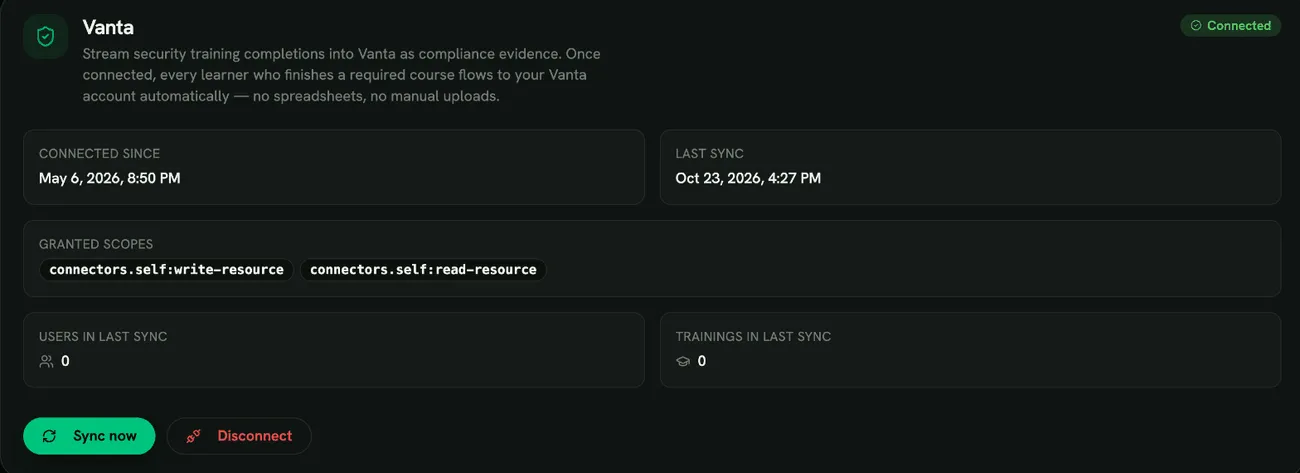
- From RansomLeak (recommended): Sign in to your RansomLeak tenant and open Admin → Integrations → Vanta. Skip to Step 2: Connect to Vanta.
- From Vanta: Open the RansomLeak connector inside Vanta and click Install. Vanta will redirect you to a RansomLeak landing page that asks for your tenant subdomain, then drops you into the same Admin → Integrations → Vanta screen above. Skip to Installing from Vanta.
Either path ends at the same place: the Connect to Vanta button in your RansomLeak tenant, which kicks off the OAuth consent screen and then completes the connection.
Prerequisites
Section titled “Prerequisites”Before you begin, ensure you have:
- An active Vanta workspace for your organization.
- Administrator access to that Vanta workspace (you must be able to install applications).
- A RansomLeak admin role with the Manage Integrations permission.
- At least one user in your RansomLeak tenant who has completed (or will complete) a system learning path. Without this, the integration connects successfully but Vanta will show zero training records until your first completion.
What Gets Synced
Section titled “What Gets Synced”Workforce roster (UserAccount resource)
Section titled “Workforce roster (UserAccount resource)”For each user in your RansomLeak tenant, Vanta receives:
| Field | Description |
|---|---|
| Display name | First name + last name |
| Primary email address | |
| Status | Active or Deactivated (mirrors disabled status in RansomLeak) |
| Permission level | Admin / Editor / Base (mapped from your RansomLeak role) |
| Authentication method | SSO (for SAML/SCIM-managed users) or Password |
| MFA enabled | true / false |
| MFA methods | TOTP, Email, SMS, or Biometric |
| Account creation date | When the user was first added to RansomLeak |
| External ID | Your IdP user ID (when SAML or SCIM is configured) |
Training completion (UserSecurityTrainingStatus resource)
Section titled “Training completion (UserSecurityTrainingStatus resource)”For each user × system learning path combination, Vanta receives:
| Field | Description |
|---|---|
| User reference | Links to the workforce row above |
| Training name | The learning path title (e.g., “SOC 2 Security Awareness”) |
| Status | Complete or Incomplete |
| Frameworks fulfilled | Which compliance frameworks this completion satisfies |
| Training due timestamp | When the next completion is due (defaults to 365 days after enrollment) |
Step 1: Open the Integration Page in RansomLeak
Section titled “Step 1: Open the Integration Page in RansomLeak”If you are starting from inside Vanta, see Installing from Vanta below — that flow lands you on the same page described here.
- Sign in to RansomLeak as an administrator (e.g.
https://your-tenant.ransomleak.com). - Navigate to Admin → Integrations → Vanta.
You will see a panel describing what the integration does. If you do not have permission to manage integrations, the panel is hidden — contact your RansomLeak administrator to grant the Manage Integrations permission to your role.
Installing from Vanta
Section titled “Installing from Vanta”If a teammate has shared a Vanta install link or you opened the RansomLeak connector inside Vanta:
- Click Install on Vanta’s connector page.
- Vanta redirects you to a RansomLeak landing page that asks for your tenant subdomain (the part before
.ransomleak.comyou use to sign in — e.g.acmeforhttps://acme.ransomleak.com). - Submit the subdomain. RansomLeak signs you in (or shows the login page first if your session expired) and drops you on Admin → Integrations → Vanta.
- Continue with Step 2: Connect to Vanta.
Tip: The Vanta-side install URL is
https://app.ransomleak.com/admin/integrations/vanta/install. You can bookmark it or share it with admin teammates so they don’t have to dig through Vanta to find the connector.
Step 2: Connect to Vanta
Section titled “Step 2: Connect to Vanta”- Click the Connect to Vanta button.
- Your browser will redirect to Vanta’s consent screen.
- Sign in to Vanta if prompted, then review the requested permissions:
- Read resource data — needed so Vanta can confirm what we have synced.
- Write resource data — needed so we can push your workforce and training evidence.
- Click Authorize.
- Vanta redirects you back to RansomLeak. The integration page now shows Connected, with the timestamp of the connection and the user who initiated it.
Note: The first sync runs automatically within 60 seconds of connecting. You do not need to click Sync Now the first time.
Step 3: Enable Trainings in Vanta
Section titled “Step 3: Enable Trainings in Vanta”Vanta hides training records on the People view by default, even after they are synced. You only need to do this once per workspace.
- In Vanta, open People → Groups.
- Click your workforce group (typically Default Group, or whichever group covers the users RansomLeak just synced).
- Find the category toggles on the group page and turn Trainings on.
- Save / close the group.
Without this step, the People view will appear blank under Trainings even though RansomLeak has already pushed the evidence. The data is in Vanta — the toggle just controls whether it is rendered on that screen.
Note: This is a Vanta-side configuration; it does not affect what RansomLeak sends. If your auditor uses Tests or framework reports rather than the People view, the evidence is already visible there without changing this toggle.
Step 4: Verify in Vanta
Section titled “Step 4: Verify in Vanta”After the first sync completes, log in to your Vanta workspace and confirm:
People view
Section titled “People view”Open People in Vanta. Each user we synced should appear in your workforce list. If you have other connected systems (Google Workspace, Okta, etc.), Vanta deduplicates by email — our data merges into the existing person record rather than creating duplicates.
Tests view
Section titled “Tests view”Open Tests and filter for “training” or “security awareness”. Tests that previously failed for lack of evidence should now show:
- Passing for users who have completed the relevant learning path.
- Failing for users still pending — with their Training due timestamp visible so you know who to nag.
Audit reports
Section titled “Audit reports”When you export a SOC 2, ISO 27001, or other framework report from Vanta, training evidence is now included automatically with RansomLeak as the source. Auditors no longer need a CSV from your team.
Sync Timing
Section titled “Sync Timing”Once connected, RansomLeak keeps Vanta in sync through three mechanisms:
| Trigger | When it fires | Typical latency |
|---|---|---|
| Real-time | A user completes a learning path or course | Within 60 seconds |
| Hourly safety-net | Every hour, on the hour | Up to 60 minutes for full state-of-world refresh |
| Manual | Click Sync Now in the integration page | Immediate (returns when done) |
The integration page shows the last sync time, status, and counts of users and training records pushed.
Frameworks Supported
Section titled “Frameworks Supported”The integration reports training completions for these compliance frameworks (empirically verified accepted by Vanta’s Connectors API):
SOC 2, ISO 27001, HIPAA, GDPR, PCI DSS, CCPA / CPRA
RansomLeak’s broader framework catalogue (HITRUST, NIS2, DORA, CMMC, NIST CSF, etc.) is used internally to group training content but is not yet sent to Vanta. We will promote each as Vanta confirms its API accepts the code. If you need a specific framework supported, contact RansomLeak support.
Troubleshooting
Section titled “Troubleshooting”“Sync failed” with an error message
Section titled ““Sync failed” with an error message”Open the integration page and read the Last sync error. Common causes:
- Vanta service unavailable — temporary; the next hourly cron will retry, or click Sync Now.
- Framework not recognized — one of the framework codes was rejected by Vanta. Contact RansomLeak support with the error message and we will demote that code.
- Rate limited — Vanta returned 429. Wait a few minutes; the next cron will retry.
The connection was lost
Section titled “The connection was lost”If Vanta stops accepting RansomLeak’s access (for example after a long period without syncing, or after the app is uninstalled in Vanta), RansomLeak disconnects the integration automatically and the Vanta tab shows it as not connected. Click Connect to Vanta and approve access again. The new connection starts a fresh sync and re-uploads your current state.
A user is missing from Vanta
Section titled “A user is missing from Vanta”Vanta only receives users who:
- Are real workforce members (system / SCORM users are excluded by design).
- Are not deleted from your RansomLeak tenant.
If a user should appear but does not, click Sync Now to force a refresh, then check whether they are flagged as disabled or have an unusual status in your RansomLeak workforce list.
Training shows “Incomplete” for a user who finished the course
Section titled “Training shows “Incomplete” for a user who finished the course”Verify that the user completed the system learning path corresponding to that framework — not just an individual exercise. Vanta evidence is keyed off learning path completion, which requires every step in the path to be done. Once they finish, the next sync (within 60 seconds) will mark Vanta as complete.
Privacy and Security
Section titled “Privacy and Security”We treat the Vanta integration the same way we treat the rest of your data:
- Tokens are encrypted at rest. Both your Vanta access and refresh tokens are encrypted with AES-256-GCM before being written to our database. They are never logged.
- Minimum scope. We request only
connectors.self:read-resourceandconnectors.self:write-resource— the smallest scope set that lets us push workforce and training evidence. We cannot read your other Vanta data, modify tests, or manage your auditors. - Per-tenant isolation. Each customer’s Vanta connection is scoped to their tenant. There is no cross-tenant access path.
- Webhook verification. When we receive notifications from Vanta, they are verified using Svix’s signed-webhook scheme before any action is taken. (Vanta does not currently emit OAuth lifecycle events, so this endpoint is dormant in practice — see “Disconnecting” below for how we detect Vanta-side uninstalls.)
- No PII in logs. We log user IDs and tenant subdomains for debugging. We do not log emails, names, or training content in our error logs.
Disconnecting
Section titled “Disconnecting”To stop sending evidence to Vanta:
- Open Admin → Integrations → Vanta.
- Click Disconnect.
- Confirm.
When you disconnect:
- We refresh your access token (so it’s live), then call Vanta’s
oauth/token/suspendendpoint, which disconnects the integration on Vanta’s side and revokes the token. - The local
vanta_connectionrecord is deleted. - No further syncs run for your tenant.
If you disconnect from inside Vanta instead (Settings → Integrations → Uninstall), Vanta doesn’t notify us directly. We detect it the next time we try to refresh your access token — typically within an hour, when the hourly sync runs. At that point your tenant’s status flips to “Disconnected” automatically and the admin will need to reconnect to resume evidence sync.
Important: Disconnecting does not remove the workforce or training data already in your Vanta workspace. If you also want to remove that data, do so from within Vanta after disconnecting.
You can reconnect anytime by repeating Step 2 above. A fresh connection starts a new sync cycle and re-uploads your current state.
Support
Section titled “Support”For help with the integration:
- Email: support@ransomleak.com
- Include: Your tenant subdomain, the timestamp of the failed sync, and the error message from the integration page (if any).
For questions about how Vanta interprets the evidence we send, please contact Vanta support directly — we cannot speak to their internal test logic.
RansomLeak Security Training Platform — Vanta Integration Guide