
Publishing builder exercises
Once a draft from the exercise builder is ready, you publish it into one of your builder courses. This page covers everything after that: making it available, editing and versioning it, refreshers, and the Courses, Page library and Activity tabs.
Publish and make it available
Section titled “Publish and make it available”Publish asks which course the exercise goes in: Your exercises (the default; Refreshers for a refresher), another course the builder made for you, or New course… with a name of your choice (up to 120 characters; it has to differ from your other courses’ names and from the names of RansomLeak’s catalog courses, which are kept free for catalog updates). Generated exercises only ever go in these builder courses, never in RansomLeak’s catalog courses. Each builder course gets its own cover: the RansomLeak owl in a colour and pattern picked from the course name.
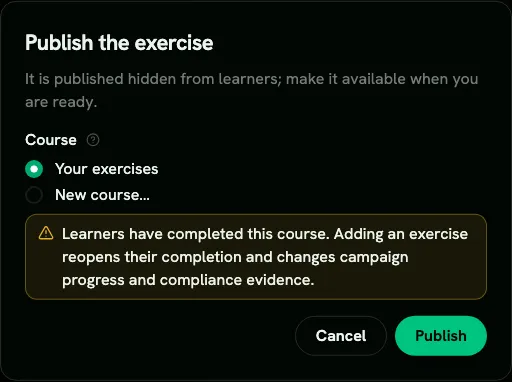
When a learning path or an active campaign includes the course as a whole, the new exercise is published hidden instead, because adding it would change what learners must complete. The message names the path or campaign; make the exercise available when that path or campaign should include it.
If learners have already completed an exercise in the course you pick, Publish warns you: adding an exercise to that course reopens their completion, and changes campaign progress and compliance evidence that count the course.
The exercise is published switched on: learners can see it in its course and it can be assigned right away. Click Preview to play it; to hide it again, turn off Published for learners.
Results
Section titled “Results”A published run shows how learners did: how many started and completed it, the average quiz score, the share of quiz attempts that passed, and the learners’ rating. Results from SCORM packages played in your own LMS aren’t included. Course analytics opens the analytics of the exercise’s course (it needs the analytics permission).
Refreshers
Section titled “Refreshers”Create refresher on a published exercise starts a short 2D exercise (3 to 4 steps and a 3-question quiz) that teaches the same lesson in a new situation, with a different story. It follows the same policy facts as the original. It goes through the usual steps: you review its outline, approving it uses 1 credit, then you check the draft and publish it. Its outline can’t grow past 4 steps, also when you edit it. A refresher publishes to its own Refreshers course by default, so the original course and its learners’ completions stay as they are (publishing there shows no warning about completed learners). The original exercise lists its refreshers, and each refresher links back to it.
Refreshers work best assigned 2 to 4 weeks after the main exercise, as a later step in a learning path or a follow-up campaign. Only exercises made with the builder can get a refresher; RansomLeak’s catalog exercises can’t.
Rename or move a published exercise
Section titled “Rename or move a published exercise”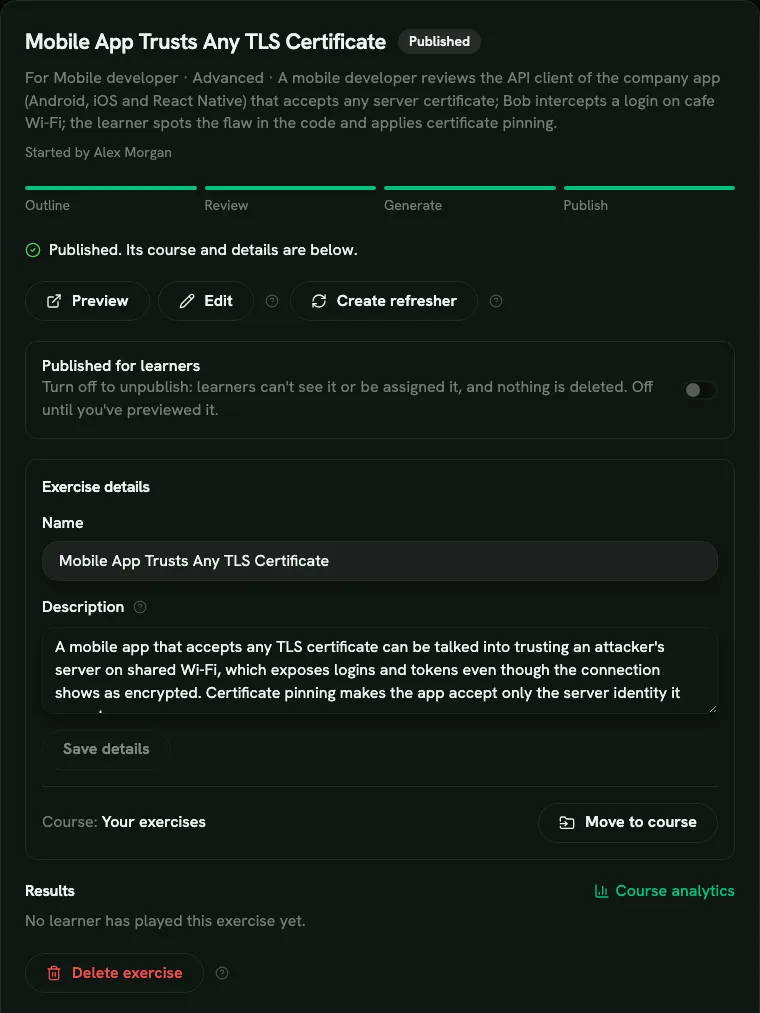
Under Exercise details on a published run you can change the exercise’s name and description; learners see them at once. Campaigns that already include the exercise keep the name it had when they were created.
Move to course moves the exercise to another of your builder courses. A move is refused, with the name of what is in the way, while a learning path includes the exercise’s whole course or an active campaign includes the exercise, and also when a live exercise would move into a course that a learning path or an active campaign includes as a whole, because moving it would change what learners must complete (unpublish it first to move it there). Move it after the campaign ends, or change the learning path first.
Edit a published exercise
Section titled “Edit a published exercise”Edit on a published run reopens it as a draft of what learners play now. You can edit its text, ask for changes (up to 10 per version) and play the draft, as with a new exercise. The draft view says which version you are editing. Learners keep playing the published version until you click Publish changes, which updates the same exercise: its learning paths, campaigns, assignments and results stay attached. Discard changes drops the draft and leaves the published version as it is.
When you publish changes, a learner who is in the middle of the exercise starts it over the next time they open it, so nobody lands on a step that no longer exists. Results already completed stay. This also applies to SCORM packages played in your own LMS.
Versions
Section titled “Versions”Each Publish changes creates a new version. Versions lists them, with the one learners play marked Live. Restore publishes an earlier version’s content again as the newest version (learners in the middle of it start over). With Brand Mode on, its calls and voicemails are re-voiced with your organization’s names where needed.
Unpublish, delete or archive
Section titled “Unpublish, delete or archive”- Unpublish: turn off Published for learners. Learners can’t see the exercise or be assigned it, and nothing is deleted; turn it on again at any time.
- Delete exercise removes the exercise and its versions when nothing uses it, and the run goes back to a draft you can publish again. If a campaign, a learning path (the exercise or its whole course), an assignment, a SCORM package or any learner session uses it, it is archived instead: it disappears from the catalog, from its course’s page and from every picker, but campaigns, learning paths and assignments that already include it by name keep working, learners can still open and finish it from there, and its results stay in analytics and reports. An archived exercise no longer counts toward finishing its course: learning path progress, course completion, certificates and badges count only the course’s other exercises. It can’t be edited, moved, renamed or restored to an earlier version. To restore an archived exercise, contact RansomLeak support.
- Builder exercises are deleted only here, in the exercise builder. A builder course that still holds builder exercises (archived ones included) can’t be deleted: delete its exercises here first, or move them to another course.
- An empty builder course you created (no exercises, archived ones included) can be deleted from the course list in Publish: click the bin next to it. Your exercises stays.
- To delete a builder course together with its exercises, use the Courses tab.
- Deleting a run whose exercise is published asks what to do with the exercise: Keep the published exercise (the default) or delete it too (with the same archive rule).
Export to your LMS (SCORM)
Section titled “Export to your LMS (SCORM)”Generated exercises can go in your own SCORM packages, like any other exercise: pick them when you create a package, or export a builder course. In your LMS they play with their voiced calls and code files, served from RansomLeak for your organization. When you publish changes, learners part-way through the exercise in your LMS start it over; completed results stay.
Exercises are written about a fictional company. If Brand Mode is on for your organization, the fictional company, its domains and its lookalike domains are replaced with your organization’s when learners play.
Activity
Section titled “Activity”Every builder action is kept on record with who did it and when: starting a run, editing or approving the outline, asking for a change, editing the text, publishing, publishing changes, restoring a version, unpublishing, renaming, moving, deleting or archiving, deleting a course, uploading, editing, confirming or deleting policy documents and facts, cancelling, retrying, duplicating, creating a refresher, and starting a credit purchase.
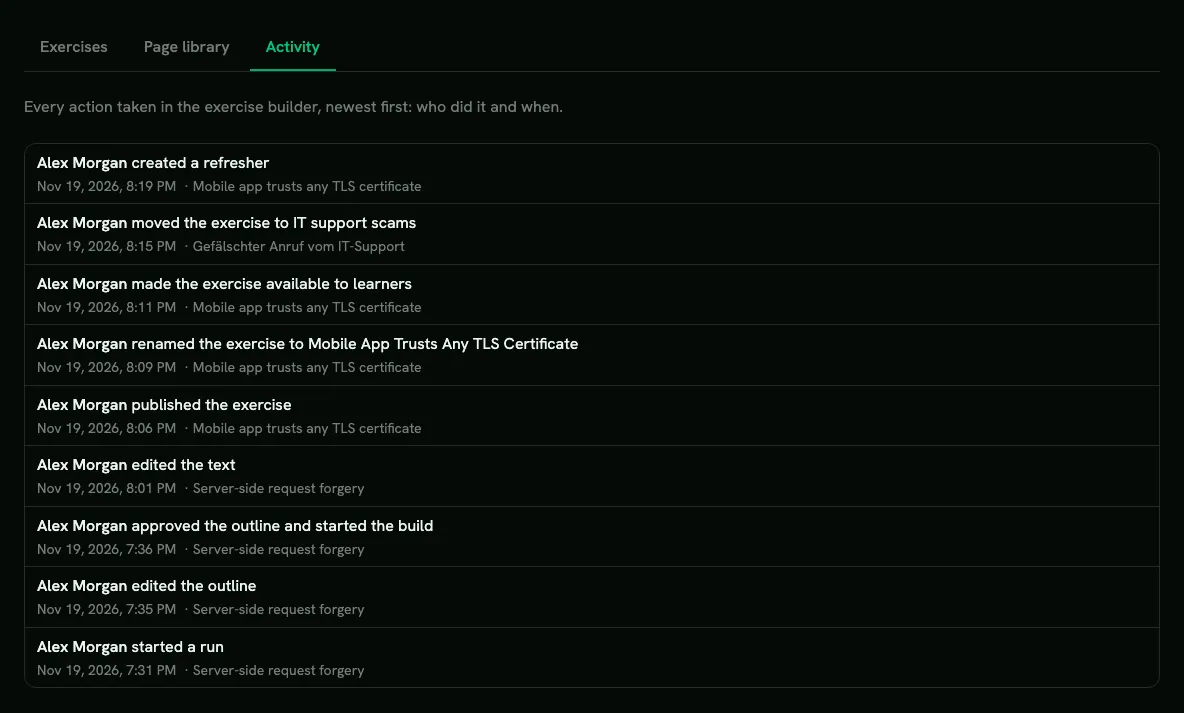
- Activity at the bottom of each run lists that run’s actions, newest first. The run also shows who started it, and each change in Revisions shows who made it.
- The Activity tab of the builder lists every action in your organization, with the run’s topic. Actions by someone whose account was later deleted show as Former user.
The record holds the topic of a run, never the text of your brief, outline or change requests.
Courses
Section titled “Courses”The Courses tab lists the courses the builder made for your organization (they sit in the Custom category of your catalog) with how many exercises each holds. They belong to your organization only: RansomLeak’s catalog updates never add them to other organizations, and never change or remove them.
Click the bin next to a course to delete it with its exercises, archived ones included. Each exercise follows the Delete exercise rule above: deleted when nothing uses it, archived (or kept archived) when a campaign, learning path, assignment, SCORM package or learner session does. If any exercise is kept, the course stays (its archived exercises still play from wherever they’re used) and a message tells you how many; delete the course again once nothing uses them. A course that a learning path, campaign or certificate names as a whole also stays, with its exercises deleted. Otherwise the course is deleted, and when the last builder course goes, the Custom category goes with it. Your exercises can’t be deleted here (publishing would create it again); delete its exercises instead. You can’t delete a course while one of its exercises is being generated or changed.
Page library
Section titled “Page library”Fake sites of your own company (an intranet, a sign-in page, an HR portal, a composed page’s top bar and colours) are saved to the Page library when you publish, so later exercises reuse the same site name and navigation. Single-purpose pages, such as a lookup, payment or request form, aren’t saved: each exercise names them for its own story. Each update creates a new version:
- new exercises use the latest version;
- an existing exercise moves to a newer version only when you choose Update on the page, and only if it still works;
- Archive stops new exercises from reusing a page; exercises that already use it keep it. Restore makes an archived page reusable again.
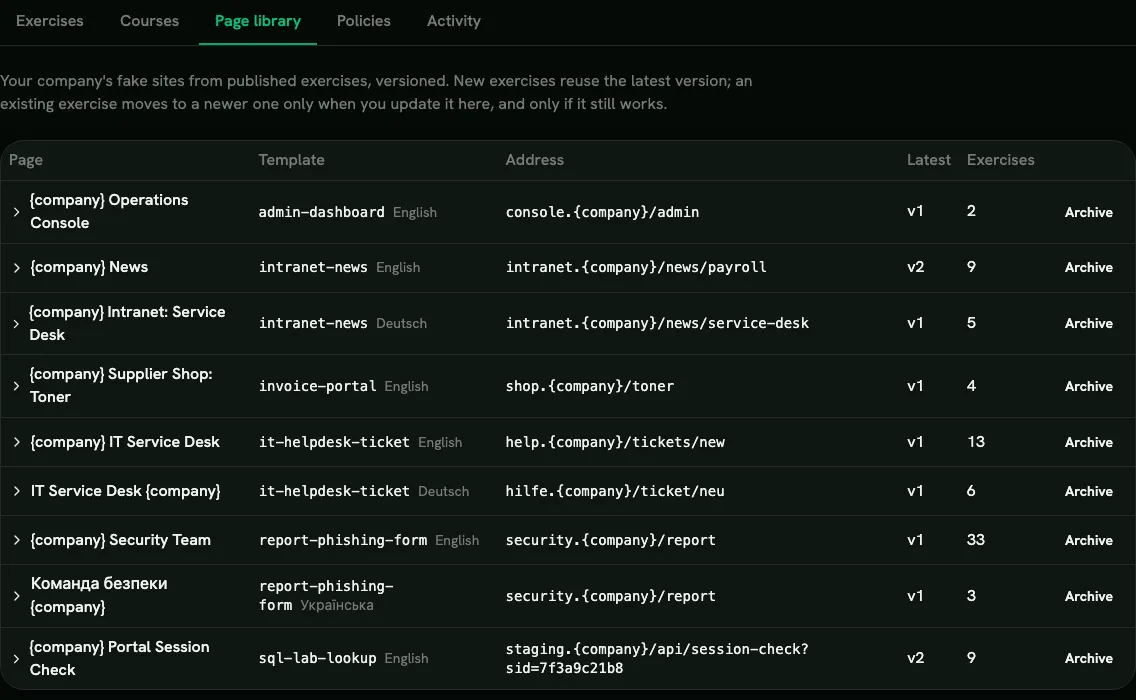
The Page library tab lists each page with its template, its address, its latest version and how many exercises use it. Open a page to see its Versions and the Exercises using it; Update to v… moves one exercise to the latest version. If the exercise has translations in a language the library page doesn’t have yet, those translations keep their earlier version and the message names the languages.
In an outline, a page that comes from the library is marked Page library: it reuses the same site title and navigation as your earlier exercises.