
Microsoft Viva Learning
Introduction
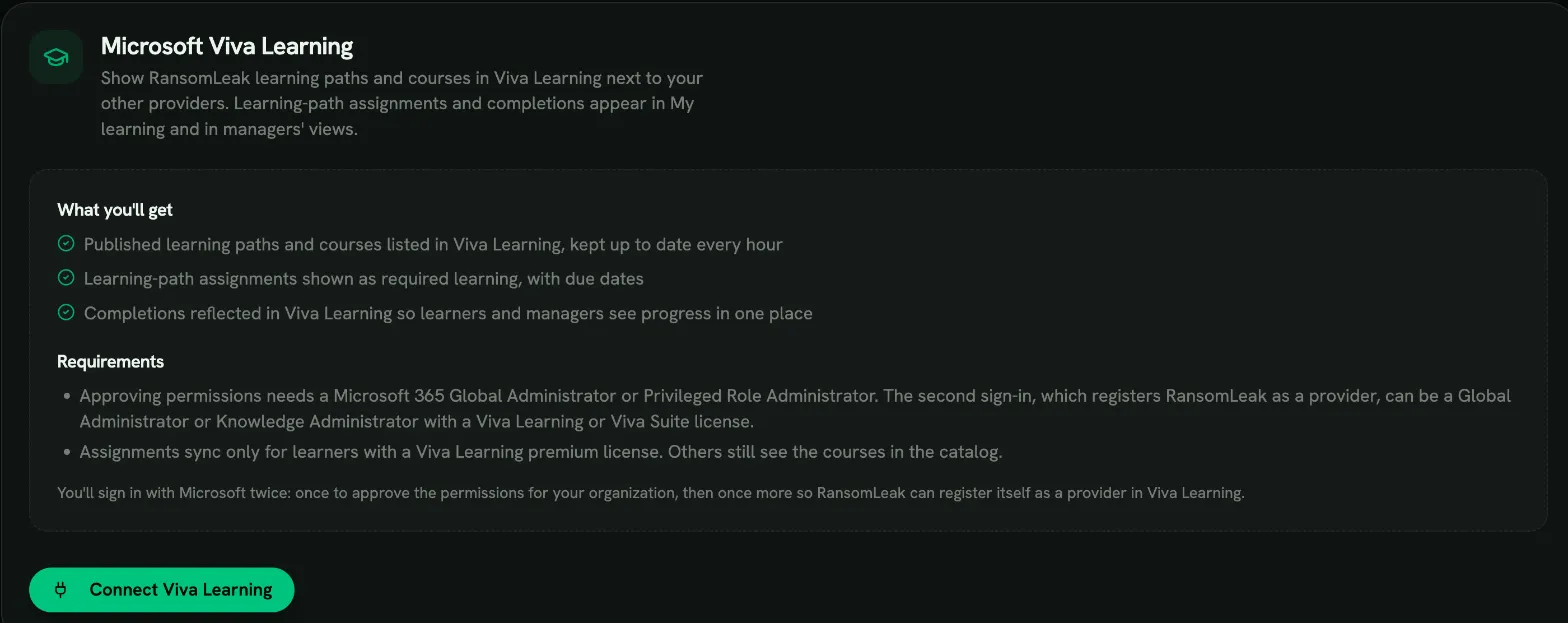
Section titled “Introduction”Connect RansomLeak to Microsoft Viva Learning so your security training appears next to your other learning providers in Viva Learning (in Microsoft Teams and on the web). Once connected:
- Catalog: your published learning paths and enabled courses are listed in Viva Learning under the RansomLeak provider. Opening one takes the learner to RansomLeak.
- Assignments: learning-path assignments appear as required learning in the learner’s My learning, with the due date.
- Completions: when a learner finishes a learning path, Viva Learning shows it as completed, so learners and managers see progress in one place.
Learners still take the training in RansomLeak. Viva Learning is where they find it and track it.
Note: If you don’t see a Viva Learning tab under Admin → Integrations, the integration isn’t enabled for your account yet. Contact RansomLeak support.
Requirements
Section titled “Requirements”Before you connect, make sure that:
- The right Microsoft 365 admins are available. Connecting has two Microsoft sign-ins. The first approves RansomLeak’s permissions for your organization and needs a Global Administrator or Privileged Role Administrator. The second registers RansomLeak as a provider in Viva Learning and needs a Global Administrator or Knowledge Administrator. One Global Administrator can do both; otherwise pick the other account when Microsoft asks you to choose an account on the second sign-in.
- The admin on the second sign-in has a Viva Learning or Viva Suite license. Microsoft requires it for the account that registers a provider.
- Learners have a Viva Learning premium license if you want assignments and completions to sync. Learners without one still see RansomLeak courses in the Viva Learning catalog, but no assignment is created for them (see Learners skipped).
- You have a RansomLeak admin role with the Manage Integrations permission.
Each Microsoft 365 organization can be connected to one RansomLeak account.
Connect Viva Learning
Section titled “Connect Viva Learning”- Sign in to RansomLeak from your RansomLeak address (for example
https://your-company.ransomleak.com), not a custom domain. - Open Admin → Integrations → Viva Learning and click Connect Viva Learning.
- Sign in with Microsoft as a Global Administrator or Privileged Role Administrator and approve the permissions for your organization. RansomLeak asks to:
- manage learning content for its provider (
LearningContent.ReadWrite.All), - manage the assignments it creates (
LearningAssignedCourse.ReadWrite.All), - look up learners by email to match them to their Microsoft account (
User.Read.All).
- manage learning content for its provider (
- Microsoft asks you to sign in once more, this time as a Global Administrator or Knowledge Administrator (you can pick a different account). This second step lets RansomLeak register itself as a learning provider in Viva Learning on your behalf. That one-time permission is used during connect only and is never stored.
- You return to RansomLeak and the tab shows Connected. The first sync starts right away.
What syncs
Section titled “What syncs”| RansomLeak | Viva Learning |
|---|---|
| Published learning paths (catalog, system and assigned paths) | Learning content (format Course) with title, description, duration, difficulty and a link to the path |
| Enabled courses | Learning content with title, description and a link to the course |
| Unpublished, disabled or deleted paths and courses | Hidden in Viva Learning |
| Learning-path assignments | Required assignments with assigned date, due date and status (not started, in progress, completed) |
| Learning-path completion | Assignment marked completed with the completion date |
Titles and descriptions use your account’s default language, including any translations you have added.
Course completions outside a learning path are not sent as assignments. Campaign assignments are not sent either; assign a learning path if you want the training to show up in My learning.
Sync assignments
Section titled “Sync assignments”The Sync assignments switch on the tab controls whether assignments and completions are sent. Turn it off to share only the catalog: on the next sync, the assignments RansomLeak created in Viva Learning are removed.
When it syncs
Section titled “When it syncs”- About a minute after a learning path is assigned or completed, or a course is completed.
- Every hour, as a safety net.
- When you click Sync now on the tab.
Learners skipped
Section titled “Learners skipped”The tab shows how many learners were skipped and why:
- No Viva Learning license: Microsoft refused the assignment because the learner has no Viva Learning premium license. Assign a license in the Microsoft 365 admin center.
- Not found in Microsoft Entra: no Microsoft account matches the learner’s RansomLeak email address (by user principal name or primary email). Make sure the email in RansomLeak is the learner’s work address in Microsoft 365.
Skipped learners are retried once a day, so a fix on the Microsoft side is picked up automatically.
Troubleshooting
Section titled “Troubleshooting”“Only a Microsoft 365 Global Administrator or Knowledge Administrator can connect Viva Learning”
Section titled ““Only a Microsoft 365 Global Administrator or Knowledge Administrator can connect Viva Learning””The account you used on the second Microsoft sign-in doesn’t hold either role. Connect again and pick a Global Administrator or Knowledge Administrator account on that step, or ask a Global Administrator to assign you Knowledge Administrator.
“The permissions were not approved”
Section titled ““The permissions were not approved””The first sign-in didn’t approve the permissions. Approving them for your organization needs a Global Administrator or Privileged Role Administrator; other roles can only request approval.
“Microsoft refused the provider registration because a license is missing”
Section titled ““Microsoft refused the provider registration because a license is missing””Microsoft rejected the registration with an access error, which means a license is missing. Your Microsoft tenant, or the admin who signs in during Connect, needs a Microsoft Viva Learning or Viva Suite license that includes third-party learning providers (the free Viva Learning seeded experience is not enough). Assign the license in the Microsoft 365 admin center, wait for it to take effect, then select Connect again.
The Viva Learning tab keeps showing the last failed attempt, with its date and reason, until a connection succeeds.
“Microsoft refused to register RansomLeak as a learning provider”
Section titled ““Microsoft refused to register RansomLeak as a learning provider””Microsoft rejected the provider registration for a reason other than a missing license, often a temporary problem on Microsoft’s side. Select Connect again. If it keeps failing, contact support.
“The approved permissions are incomplete”
Section titled ““The approved permissions are incomplete””Some of the requested permissions weren’t granted. Connect again and approve all of them. If your organization requires admin consent workflows, ask a Global Administrator to approve the request.
“Microsoft asked us to slow down”
Section titled ““Microsoft asked us to slow down””Microsoft limits how fast providers can send data. RansomLeak pauses and continues automatically after the time Microsoft asks for. Nothing to do on your side.
Courses don’t appear in Viva Learning yet
Section titled “Courses don’t appear in Viva Learning yet”Viva Learning can take some time to show new provider content. Check that the tab shows items in Viva Learning, then look again later. In Viva Learning, an admin can also check Admin → Manage providers to confirm RansomLeak is listed and turned on.
Disconnecting
Section titled “Disconnecting”- Open Admin → Integrations → Viva Learning.
- Click Disconnect and confirm.
RansomLeak stops syncing and hides its content in Viva Learning. Learner progress in RansomLeak isn’t affected. The RansomLeak provider entry stays in Viva Learning (Microsoft doesn’t let providers delete themselves); if you connect again later, the same provider is reused.
Privacy and security
Section titled “Privacy and security”- RansomLeak stores no Microsoft passwords or refresh tokens. Syncs use short-lived app tokens issued for your organization.
- The one-time permission used to register the provider is used once during connect and is never stored.
- Learner emails are used only to look up the matching Microsoft account; the Microsoft account id is kept to avoid repeating the lookup. Emails are never written to logs.