
Brand Mode
Цей контент ще не доступний вашою мовою.
RansomLeak’s exercises tell their stories about a fictional company. Brand Mode makes that company yours. Learners see your company name, your website and email domains, your colour and your logo, so the exercise looks like a normal working day at your organization. Optionally, Brand Mode also rewrites story text to follow your own procedures, such as where to report a suspicious email.
Brand Mode changes the exercises only. Your platform logo and colours under Branding are separate and stay as they are.
Setting up Brand Mode needs the Manage Settings permission.
Set it up
Section titled “Set it up”Go to Administration → Tenant Settings → Branding and scroll to Brand Mode.
-
Fill in your company:
Field What to enter Company name Your company’s full name, for example Acme Corporation. Short name Used where a story calls the company by a shorter name, like Acme. Leave it empty to use the full name. Website domains Your main domain first, separated by commas. Lookalike attacker domains in the stories are built from it, for example acme-support.com. Email domain The domain in your employees’ email addresses. Brand colour Used on the story company’s pages and documents. A colour too light to read on white is shown in a darker shade, and the form tells you so. -
Turn on Use our brand in exercises. It applies to every catalog exercise that has an employer in its story.
-
Click Save.
-
Under Logo on story pages, click Upload logo (PNG, JPG, WebP or SVG). It replaces the story company’s logo on its sign-in pages, portals and documents. Save the profile before you upload the logo.
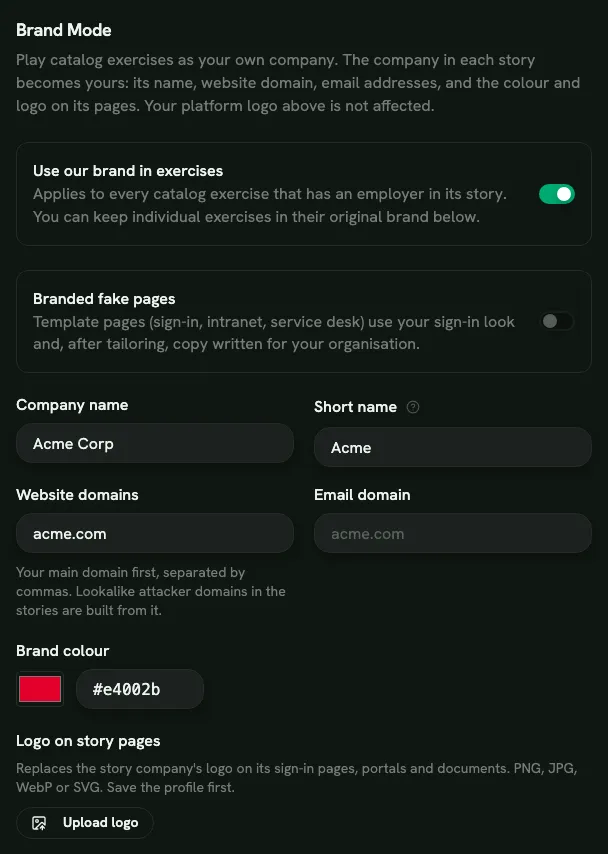
When one of your website domains is your own email domain, or your verified custom domain, the section shows Verified domain.
Branded fake pages
Section titled “Branded fake pages”Turn on Branded fake pages (it needs Use our brand in exercises) to make the template pages in exercises, such as sign-in pages, the intranet and the service desk, look like your own:
- Sign-in look sets the layout and type of sign-in pages: Generic, Microsoft style, Google style or Okta style. No other company’s logos are used.
- After you tailor exercises, page copy is written for your organization too. With no procedures filled in, pages get your look and brand only.
Voiced calls and meetings
Section titled “Voiced calls and meetings”Calls, voicemails and meetings in exercises are re-voiced with your company’s names, in the same voices as the original, so the caller says Acme where the original says the fictional company. This happens on its own after you save Brand Mode. It can take a while for every exercise; until a recording is ready, learners hear the original one. Changing only the colour or logo doesn’t re-voice anything.
Exercises you publish from the exercise builder are re-voiced with your names when you publish them, and again when you publish changes or restore a version.
Our policies
Section titled “Our policies”Our policies holds the procedures your exercises can follow. All fields are optional:
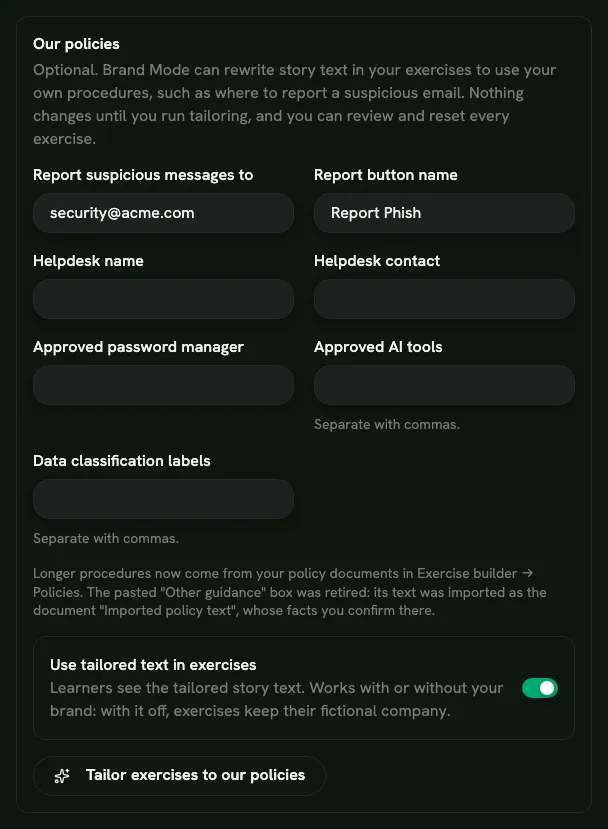
| Field | Example |
|---|---|
| Report suspicious messages to | Where employees report phishing. |
| Report button name | The name of the report button in your email client. |
| Helpdesk name | What your IT helpdesk is called. |
| Helpdesk contact | How to reach it. |
| Approved password manager | The password manager employees should use. |
| Approved AI tools | Separate with commas. |
| Data classification labels | Separate with commas, for example Public, Internal, Confidential. |
These fields are the only place contact details (email addresses, phone numbers, links) and the names of tools come from. Longer procedures come from your policy documents: upload your security policies and confirm the short facts Brand Mode may use. Facts that aren’t confirmed are never used.
Nothing in the exercises changes until you run tailoring.
Tailor exercises to your procedures
Section titled “Tailor exercises to your procedures”- Fill in Our policies, confirm facts in your policy documents, or both, and click Save.
- Click Tailor exercises to our policies. Tailoring runs for every exercise that uses your brand and takes a few minutes. The button is unavailable while you have unsaved changes or while a run is still going.
- Turn on Use tailored text in exercises. Learners then see the tailored story text. This works with or without your brand: with Use our brand in exercises off, exercises keep their fictional company and only the text follows your procedures.
Each exercise in the Exercises list below shows its tailoring status: Tailoring…, Tailored with the number of changed texts, or Tailoring failed. Click the status to review it:
- Review shows each story text as it is in the catalog next to the tailored version. Every tailored text is checked before it is used: a text that adds a link, address or domain your policies don’t have, loses part of the story, or wanders off it keeps the catalog text, with the reason shown.
- Reset to catalog text drops that exercise’s tailored text.
Tailoring never runs on its own. When you change your policy fields or confirmed facts, the status shows policy changed, run again: the earlier tailored text keeps showing until you click Tailor exercises to our policies again. If RansomLeak updates an exercise’s text since it was tailored, learners see the new catalog text for that part.
Exercises you made with the builder are tailored only with the facts their run used, never with facts added later.
Keep an exercise in its original brand
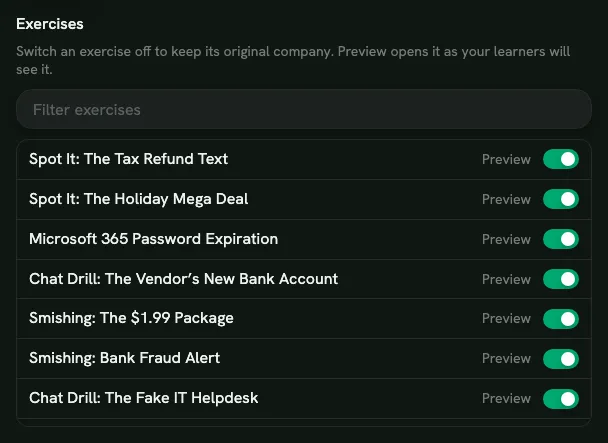
Section titled “Keep an exercise in its original brand”Once Brand Mode is saved, the Exercises list shows every catalog exercise. Switch an exercise off to keep its original fictional company. Use Filter exercises to find one, and Preview to open it as your learners will see it.
What learners see
Section titled “What learners see”- Exercises name your company, use your domains and email addresses, and show your logo and colour on the story company’s pages and documents.
- Attacker domains are lookalikes of your own domain, the way a real attack on your company would look.
- Calls and voicemails say your company’s name.
- With tailored text on, instructions and story text follow your procedures, for example telling learners to use your report button.
- Learners don’t see your policy fields or documents themselves, only story text written from them.
Brand Mode applies wherever learners play the exercise from RansomLeak, including SCORM packages played in your own LMS.