This is the abridged developer documentation for RansomLeak
# RansomLeak Help Center
> Everything you need to run security awareness training on RansomLeak, from your first exercise to automated compliance evidence.
For learners Take an exercise, find your campaigns, and track your progress and certificates. [Taking an exercise](/learners/taking-an-exercise/) For administrators Invite people, build learning paths and drills, run campaigns, and report on compliance. [Finding your way around](/getting-started/admin-navigation/) [Campaigns](/admins/campaigns/overview/) Integrations Provision users from your identity provider, use your own domain, and send evidence to Vanta. [SCIM provisioning](/integrations/scim/) Need a hand? Start with your organization’s administrator. They can reset attempts, reassign training, or contact RansomLeak support. [Tips and getting help](/learners/tips-and-help/)
# Creating a campaign
> Create a campaign, choose its content, and configure deadlines, completion order and emails.
You need the **Manage Campaigns** permission. ## 1. Create it [Section titled “1. Create it”](#1-create-it) Go to **Content Management → Campaigns** and click **Create Campaign**: 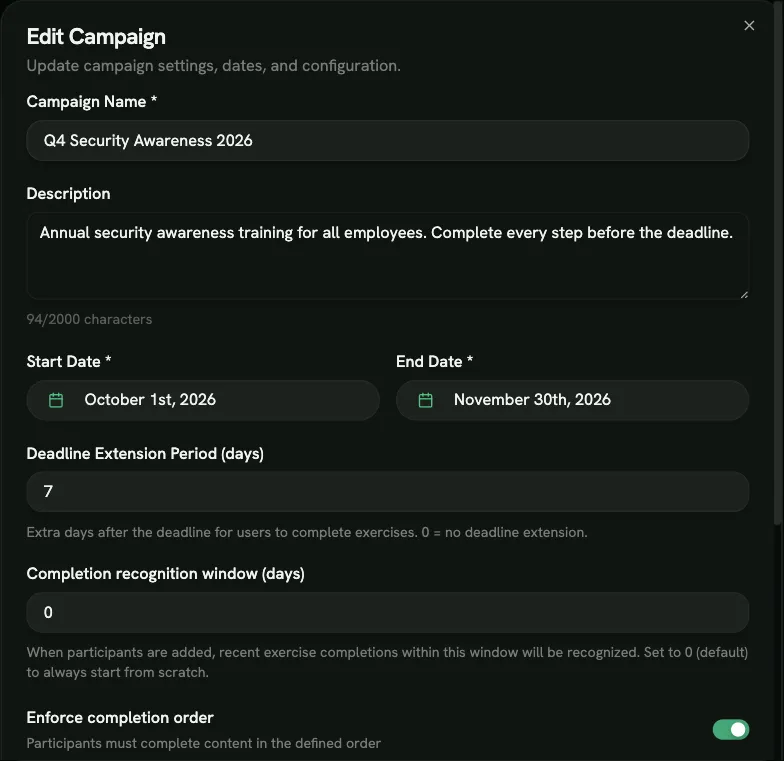 | Field | Notes | | ---------------------------------------- | ------------------------------------------------------------------------------------------- | | **Campaign Name** | Required | | **Content type** | **SAT** or **AppSec**. Can’t be changed later. | | **Description** | Optional, shown to participants | | **Start Date**, **End Date** | Required. Dates are whole days in UTC; the campaign runs until the end of the end date. | | **Deadline Extension Period (days)** | Extra days after the end date during which late work still counts. 0 or blank = none. | | **Completion recognition window (days)** | Credit for recent work. See below. Default 0. | | **Enforce completion order** | Participants must complete the content in the order you set. On by default. | | **Email Reminder Configuration** | Which emails are sent. See [Emails and reminders](/admins/campaigns/emails-and-reminders/). | New campaigns always start as a **Draft**. A campaign can only go live once it has content. It then starts on its start date, or **as soon as you add content** if the start date is today or earlier. Participants get the start email at that moment. The campaign opens on its detail page. ## 2. Add content [Section titled “2. Add content”](#2-add-content) On the **Content** tab, choose one of: 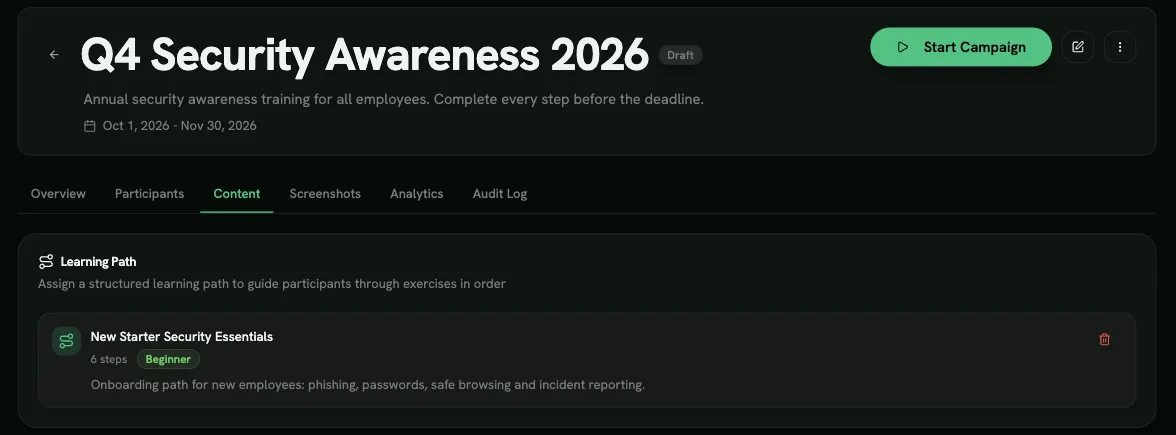 * **Assign Learning Path:** pick one published learning path. Recommended. * **Assign Courses** and/or **Assign Individual Exercises** (up to 100 exercises). About learning paths in campaigns: * The campaign keeps a **frozen copy** of the path’s structure from the moment you add it. Later edits to the path don’t reach this campaign. * To pick up changes, remove the path and assign it again. You can do this only while no participant has started. Drag items on the **Content** tab to set their order. When **Enforce completion order** is on, participants must follow it. ## 3. Add participants [Section titled “3. Add participants”](#3-add-participants) See [Participants and deadlines](/admins/campaigns/participants/). ## 4. Optional: screenshots [Section titled “4. Optional: screenshots”](#4-optional-screenshots) The **Screenshots** tab lets you add up to 10 images (PNG, JPG, GIF or WebP, 5 MB each) that participants see on the campaign page, such as a message from your CISO or instructions. ## Does earlier training count? [Section titled “Does earlier training count?”](#does-earlier-training-count) By default, **no**. Participants start at 0%, even if they did the same exercises or custom content before, because only work done while the campaign is **Active** or **Overdue** counts. Learners simply complete those items again. To credit recent work, set **Completion recognition window (days)**. When someone is added to the campaign, exercises and custom content they completed (and passed) in that many previous days count toward it. Learners see *N completions credited toward this campaign*. The window is applied at the moment a participant is added, not later. ## Duplicating a campaign [Section titled “Duplicating a campaign”](#duplicating-a-campaign) To repeat a campaign, for example every year, use **Duplicate Campaign** from the campaign’s menu. The copy is always a **Draft**. You choose whether to copy: * **Copy Participants** (off by default; their progress resets to 0); * **Copy Courses & Exercises** (on); * **Copy Settings** (on); * **Adjust Dates Automatically**, with a **Date Offset (days)**. Caution A learning path isn’t carried over to the copy. Assign it again on the new campaign’s **Content** tab.
# Emails and reminders
> Which emails a campaign sends and when, manager alerts, and chat notifications.
Choose which emails a campaign sends under **Email Reminder Configuration** when you create or edit it. **All participant emails are on by default.** Use **Disable All** or **Enable All** to change them all at once. ## Participant emails [Section titled “Participant emails”](#participant-emails) | Email | When it’s sent | | ------------------------ | ------------------------------------------------------------------------------------ | | **Campaign Start** | When the campaign starts, or immediately when someone is added to a running campaign | | **15-Day Reminder** | 15 days before the deadline | | **5-Day Reminder** | 5 days before the deadline | | **1-Day Reminder** | The day before the deadline | | **Overdue Notification** | The day after the deadline, if the person hasn’t finished | | **Weekly Reminder** | Every Monday while the campaign runs, to people who haven’t finished | | **Completion Email** | As soon as the person finishes | 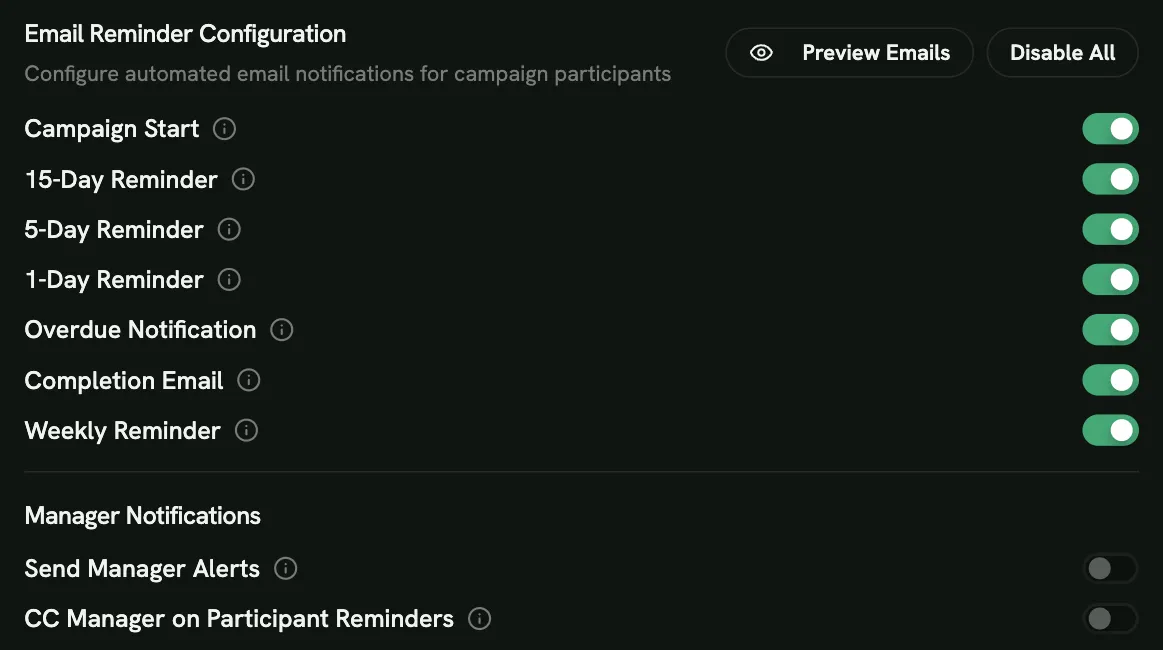 * Reminders go only to people who haven’t finished yet. * People with a personal deadline get reminders based on their own date. * Disabled and unlicensed users never get campaign emails. * Emails use your logo, your [custom SMTP server](/admins/settings/tenant-settings/#email) if configured, and each person’s language. You can’t change the wording of the emails, but you can add a short message from your organization to the end of every training email under **Tenant Settings → Learning & Assessment → Message from your organization**. To check what they look like, open **Edit Campaign** → **Preview Emails**, and use **Send Test Email**. ## Manager emails [Section titled “Manager emails”](#manager-emails) Two switches involve managers (both off by default): * **Send Manager Alerts:** each manager gets one summary email about their direct reports: * 15 days before the deadline: who hasn’t finished yet; * 5 days before: who’s at risk (below 50%); * the day after the deadline: who missed it. * **CC Manager on Participant Reminders:** managers are copied on the emails their direct reports receive. Managers can switch off alerts in their own notification settings. Only people who have a manager set are covered. See [Teams and managers](/admins/users/teams-and-managers/#managers). ## Manual reminders [Section titled “Manual reminders”](#manual-reminders) Admins and managers can send a reminder to one person at any time from **View Progress → Send Reminder**, or from **My Subordinates**. The wording adapts to how close the deadline is. ## Slack, Microsoft Teams and Webex [Section titled “Slack, Microsoft Teams and Webex”](#slack-microsoft-teams-and-webex) If your workspace is connected under **Integrations**, participants also get a direct message when a campaign is assigned, before the deadline and when they complete it.
# What is a campaign?
> Campaigns assign training to a group of people with a start date, a deadline, reminders and progress tracking.
A **campaign** is a training assignment with a deadline. You choose the content, set a start date and an end date, add participants, and RansomLeak handles the rest: invitations, reminders, progress tracking and reports. Use campaigns for mandatory training, such as annual security awareness training, onboarding with a due date, or a response to a phishing incident. ## What a campaign contains [Section titled “What a campaign contains”](#what-a-campaign-contains) Either: 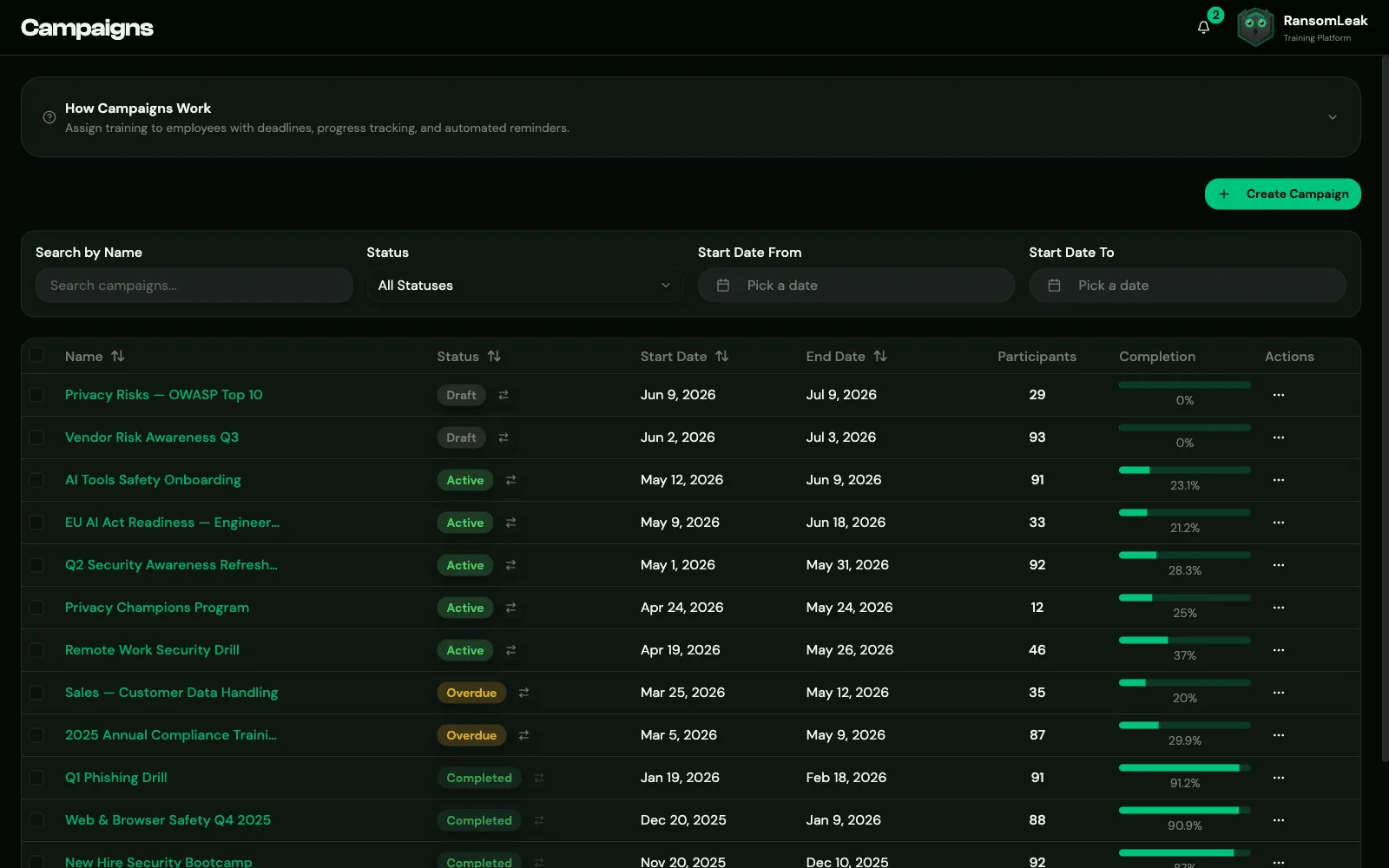 * **one learning path** (recommended), or * **courses and individual exercises**. A campaign can’t mix the two. Like learning paths, each campaign is either **SAT** or **AppSec**. Its content and participants must match the type, and the type can’t be changed after creation. ## How a campaign runs [Section titled “How a campaign runs”](#how-a-campaign-runs) 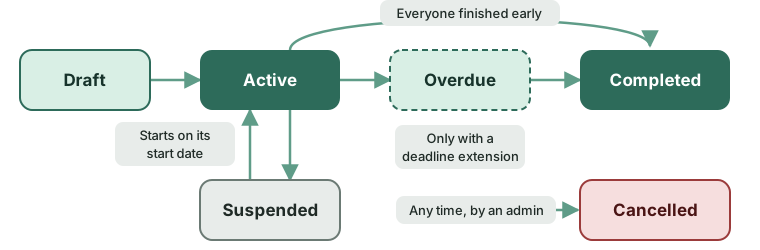 | Status | Meaning | Learners see it? | Progress recorded? | | ------------- | -------------------------------------------------------------------------- | ------------------- | ------------------ | | **Draft** | Being prepared | No | No | | **Active** | Between the start and end dates | Yes | Yes | | **Overdue** | The end date has passed but the deadline extension period is still running | Yes, with a warning | Yes | | **Completed** | Finished | Yes, read-only | No | | **Suspended** | Paused by an admin | No | No | | **Cancelled** | Stopped by an admin | No | No | Status changes happen automatically every hour: * **Draft → Active** on the start date, once the campaign has content. Participants get the start email. A draft whose end date has already passed isn’t started; extend it first. * **Active → Overdue** after the end date, if there’s a deadline extension period or personal deadline extensions. * **→ Completed** when the extension period has also passed, or as soon as every participant has finished. You can also change the status by hand. See [Running a campaign](/admins/campaigns/running-a-campaign/). ## What learners see [Section titled “What learners see”](#what-learners-see) Learners find their campaigns under **Campaigns**, with the deadline and their progress. During the extension period they see a warning that the deadline has passed but they can still finish. Once the campaign is completed, unfinished work is locked. See the [learner guide to campaigns](/learners/campaigns/).
# Participants and deadlines
> Add people to a campaign, give individuals more time, and remove participants.
Manage participants on the campaign’s **Participants** tab. ## Adding people [Section titled “Adding people”](#adding-people) | Button | What it does | | ---------------------- | ---------------------------------------------------------------------------------------------------------------------------- | | **Add Users** | Choose people, with filters for role, team and status. **Assign all *N* matching users** adds everyone matching the filters. | | **Add Teams** | Adds everyone who is in the chosen teams **right now** | | **Assign to Everyone** | Adds every enabled, licensed user | | **Bulk Import** | Upload a CSV with an `email` column, and optionally `new_deadline` (YYYY-MM-DD) for a personal deadline | 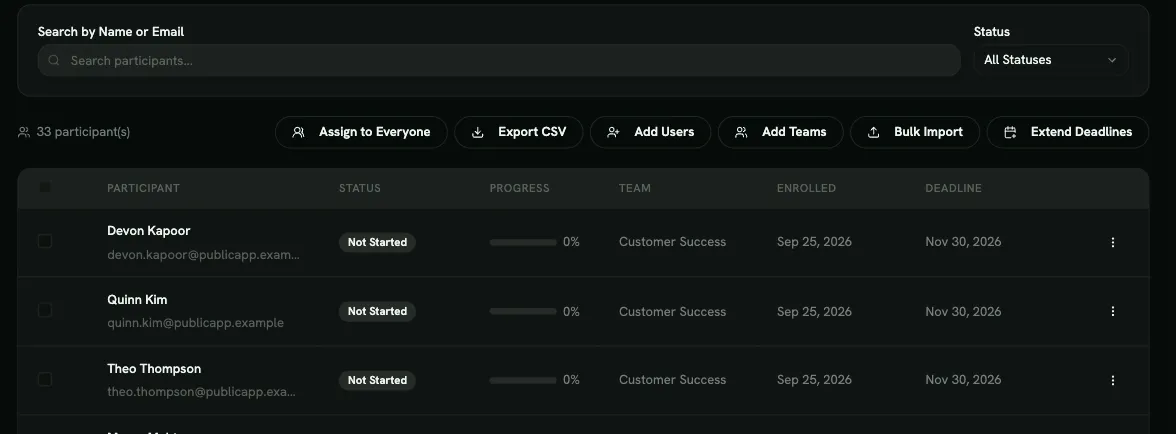 Things to know: * **New people aren’t added automatically.** Adding a team or everyone takes a snapshot: people who join the team or the organization later must be added separately. * **People without a licence are skipped.** AppSec campaigns need people with an AppSec licence. * **Disabled users** are skipped and get no emails. * In **Bulk Import**, if any row has an error, **nothing is imported**. Fix the file and upload it again. * You can’t add people to a **Completed** or **Cancelled** campaign. People added to an **Active** campaign get the start email right away. People added to a **Draft** are notified when it starts. ## Participant status [Section titled “Participant status”](#participant-status) | Status | Meaning | | --------------- | ------------------------------------------------------------------------------------------------------- | | **Not Started** | Hasn’t begun | | **In Progress** | Has started | | **Completed** | Has finished every required item | | **Overdue** | Their deadline has passed and they haven’t finished. They can still finish during the extension period. | Within an item, **Failed** means the learner scored below the quiz threshold. They can retry. ## Optional steps [Section titled “Optional steps”](#optional-steps) When the campaign’s learning path has **optional** steps, their exercises are offered to participants but don’t count toward **Progress** or completion. A participant who finishes every required item is at 100% and **Completed**, whatever they did with the optional ones. The **Bonus** column shows how many optional exercises each person completed. It only appears when the campaign has optional exercises. ## Giving someone more time [Section titled “Giving someone more time”](#giving-someone-more-time) * **One person:** open the row menu → **Extend Deadline** and pick a date after the campaign end date. The row shows **Extended**. **Remove Extension** undoes it. * **Many people:** **Extend Deadlines** accepts a CSV with `email,extension_days`: days are counted from the campaign end date. It replaces existing extensions and is all-or-nothing. Reminders follow each person’s own deadline. Extending someone on a **Completed** campaign reopens it (as **Overdue**) until their new deadline. ## Removing people [Section titled “Removing people”](#removing-people) Select people and click **Remove** (or **Remove Selected**). Their campaign progress is deleted. The exercises they completed stay in their training history and analytics. ## Seeing one person’s progress [Section titled “Seeing one person’s progress”](#seeing-one-persons-progress) Click **View Progress** on a row for **Exercise Progress**, an **Activity Timeline** and a **Summary**. From there you can **Send Reminder** by email.
# Running and tracking a campaign
> Follow progress, export results, change dates or status, and close, cancel or delete a campaign.
## Tracking progress [Section titled “Tracking progress”](#tracking-progress) Each campaign has these tabs: 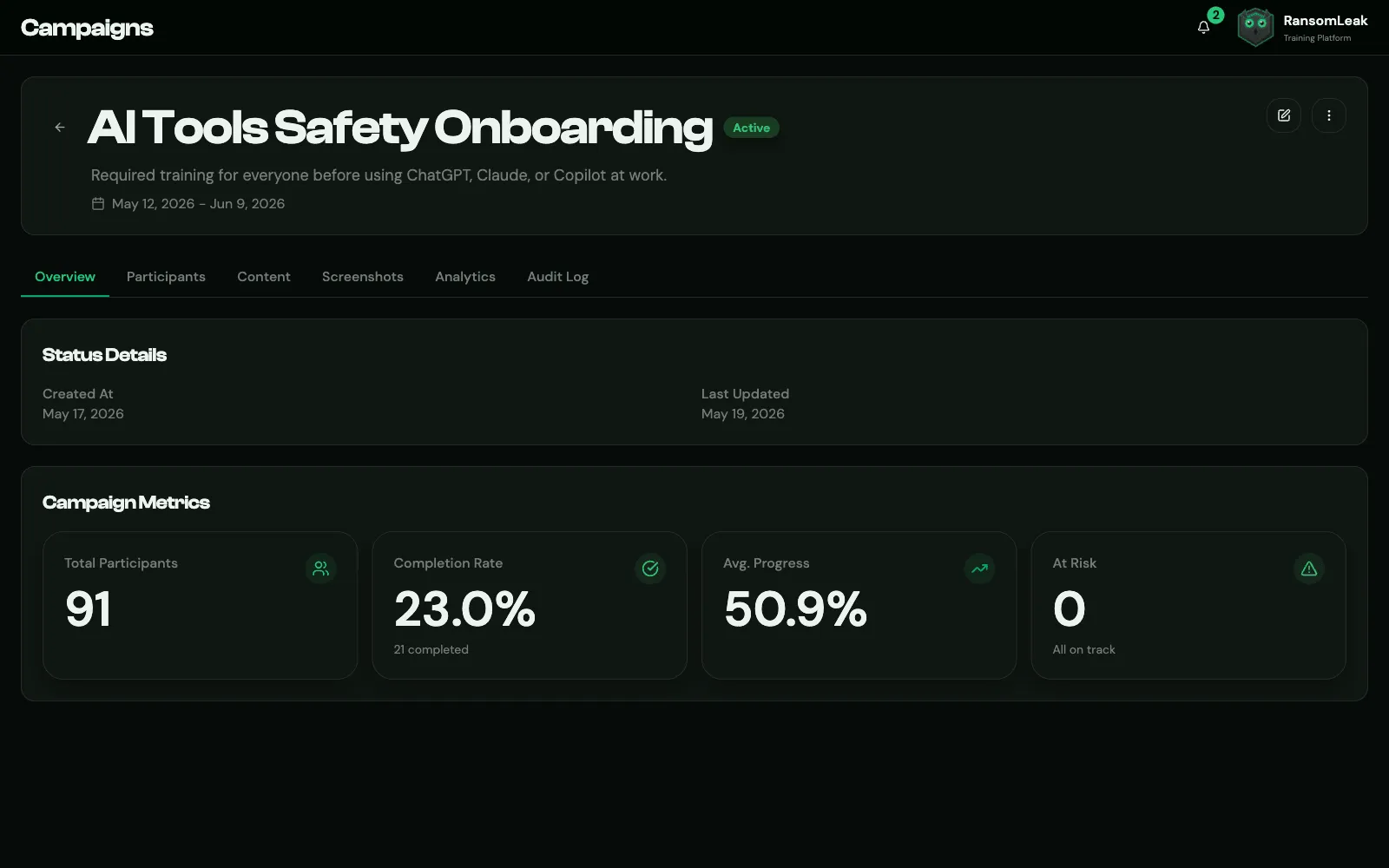 * **Overview:** **Total Participants**, **Completion Rate**, **Avg. Progress**, **At Risk** (fewer than 5 days left), and compliance frameworks for learning-path campaigns. * **Participants:** per-person status, progress, team, enrollment date and deadline, with search and a status filter. * **Analytics:** **Completion Trend**, **Status Distribution** and **At-Risk Participants**. **Export** creates a PDF or CSV report. * **Audit Log:** every change made to the campaign and by whom, exportable as CSV. **Export CSV** on the Participants tab downloads everyone matching the current search and status filter. For a full report with charts, use **Analytics → Export** or a **Campaign** report under [Reports](/admins/reports/reports/). ## Changing dates [Section titled “Changing dates”](#changing-dates) **Edit Campaign** changes the name, description, dates and email settings. * The **start date** can’t be changed once the campaign has started. * The **end date** can move earlier or later, but not into the past. Moving it earlier can make people Overdue. * Extending the end date of a **Completed** campaign reopens it. Overdue participants go back to In Progress, and reminders may be sent again. ## Changing status [Section titled “Changing status”](#changing-status) Use **Start Campaign** on a draft, or the status menu (**Change Campaign Status**): | From | You can | | ------------- | ------------------------------------------ | | **Draft** | Activate, cancel | | **Active** | Suspend, mark as completed, cancel | | **Overdue** | Mark as completed, cancel | | **Suspended** | Resume, cancel | | **Completed** | Reactivate (if the end date hasn’t passed) | | **Cancelled** | Set back to draft, activate | A campaign can’t be activated, resumed or reopened without content. **Start Campaign** is greyed out until you add some. Starting a draft notifies participants immediately and sets the start date to today. When you change the status of several campaigns at once, campaigns where that change isn’t allowed are skipped, and you’re told how many were updated. **Suspending** hides the campaign from learners and pauses progress tracking. **Cancelling** stops it for good, unless you reactivate it. The **Overview** tab shows when a campaign was suspended or cancelled. ## Deleting [Section titled “Deleting”](#deleting) **Delete Campaign** permanently removes the campaign and all its progress records. Active and Overdue campaigns can’t be deleted (the menu item is greyed out). Suspend or cancel them first. Consider keeping completed campaigns rather than deleting them: they’re your training records for audits.
# Chat learning
> Deliver two-minute lessons and spot-it quizzes to employees in Slack on a schedule: chat lessons, programs, cadence, limits, results, just-in-time lessons and Report to Security.
Chat learning sends short training straight to employees in Slack: a lesson of about two minutes, or a “spot-it” quiz of about 30 seconds. Employees answer inside the chat, with no login and no course to open. You build the content under **Chat Lessons** and decide who gets what, and when, under **Chat Learning** (you need the **Manage Chat Learning** permission, and the Slack app must be connected under **Integrations**; see [Slack, Microsoft Teams and Webex](/integrations/chat-apps/)). ## Chat lessons [Section titled “Chat lessons”](#chat-lessons) Open **Chat Lessons** and click **New chat lesson**. There are two formats: 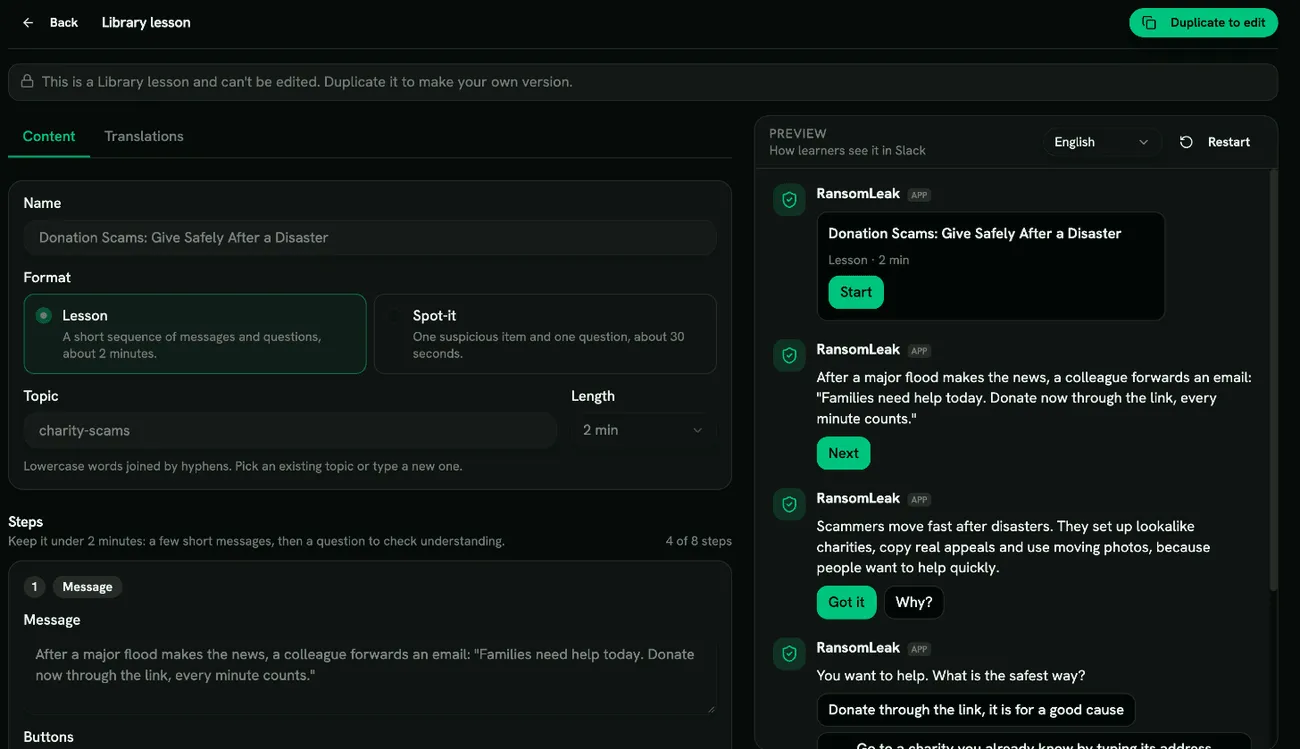 * **Lesson**: a short run of messages, optional **Why?** explanations and questions, about 2 minutes. * **Spot-it**: one suspicious item (the artifact) followed by one question, about 30 seconds. Each step is a **Message**, an **Artifact** or a **Question**: * A **Message** always has a button to continue. It reads **Next** unless you tick the **Got it** option, which labels it **Got it** instead; tick **Why?** to add an explanation button. * **Artifact** types are **Link**, **Sender**, **File name**, **Text message** and **QR code**. Links are always shown as plain text and are never clickable. For a **Sender**, write it as `Name (address)`, for example `IT Support (it-support@examp1e.com)`; angle brackets are removed when you save. * A **Question** has two to several answer options, a **Correct** flag on each and optional **Feedback** shown when the option is picked. Turn on **Allow several correct answers** for “select all that apply”. Use the preview next to the editor to see the lesson as it will look in Slack. ### Library and custom lessons [Section titled “Library and custom lessons”](#library-and-custom-lessons) The **Library** ships 50 ready-made bites: 30 lessons and 20 spot-its. They cover phishing in its many forms (email, text messages, QR codes, phone calls, callback scams and deepfakes), business email compromise and invoice fraud, passwords, MFA and account recovery, app consent and stolen sign-in sessions, lost and personal devices, updates, browser extensions and public Wi-Fi, data handling (labels, sharing links, shadow IT, AI tools, personal data, clean desk, screen sharing and misdirected email), physical security, reporting incidents, ransomware, travel, and seasonal scams such as tax refunds, holiday deals and fake charities. Each bite has a topic, which is what **Rotation** programs draw from. Library lessons are read-only, but you can click **Duplicate to edit** to get your own **Custom** copy. Deleting a custom lesson is safe: programs that use it simply skip it. ### Languages [Section titled “Languages”](#languages) Each learner gets a lesson in their own language: the language set in their RansomLeak profile, or your organization’s default language if they haven’t chosen one. Library lessons, including their titles, come in English, German, French, Italian, Dutch and Ukrainian. A custom lesson is written in English, and you can add translations for any of these languages in the lesson editor. Wherever a translation is missing, even for a single sentence or answer, learners see the English text for that part. Buttons and other card labels always follow the learner’s language. The **Results** tab always shows lesson names in English. ## Programs [Section titled “Programs”](#programs) A program sends lessons to an audience on a schedule. Open **Chat Learning** and click **New program**. A program starts as a **Draft**; use **Activate**, **Pause**/**Resume** and **End program** to control it. An ended program is read-only and cannot be started again. Use **Send preview to me** to receive the next lesson yourself before you activate (previews never count in results). 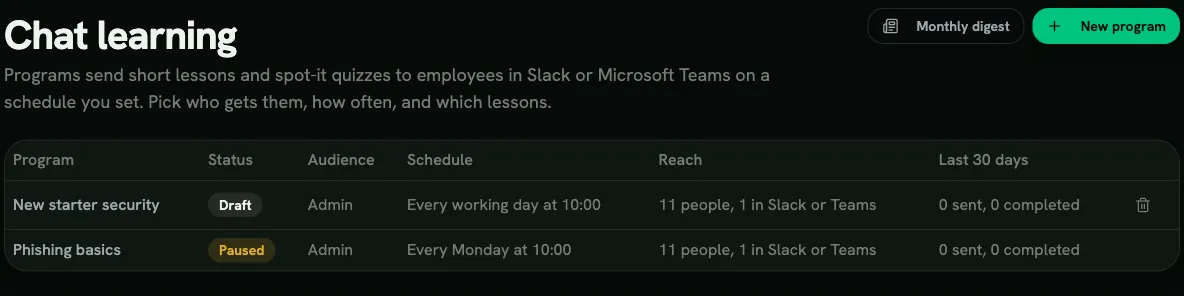 ### Audience [Section titled “Audience”](#audience) Choose **Everyone**, or **Specific people**: any mix of **Teams**, **User groups** and **Roles**, plus **Exclude people**. **New hires, joined in the last** N days sends only to recent joiners; on its own it means everyone who joined in that period, and combined with teams, groups or roles it narrows them to recent joiners. The audience is re-evaluated at every send, so new joiners are picked up and leavers drop out. Only people whose Slack email matches their RansomLeak email can be reached; the editor shows how many of the audience that is. ### Content [Section titled “Content”](#content) * **Track**: a fixed order of lessons; everyone moves through the same sequence, one per send. * **Rotation**: draws from the topics you pick so each person gets a lesson they haven’t seen. * **Picked lessons**: the lessons you pick, sent one per send in the order you list them (like a track). **When a person has seen everything** you can **Start over** or **Stop sending**. ### Cadence [Section titled “Cadence”](#cadence) Pick **How often** and **Send at**. Examples: | You want | Setting | | ------------------------------ | --------------------------------------------------- | | A lesson every working day | **Every working day** | | Tuesday and Thursday | **Specific days of the week**, Tuesday and Thursday | | Every other Monday | **Every N weeks**, 2 weeks, Monday | | The first Monday of each month | **Monthly, by weekday**, First, Monday | | The 1st and 15th of each month | **Monthly, by date**, 1 and 15 | “Working day” follows the **Work week** in the Slack integration settings (Monday to Friday by default). A company on a Sunday to Thursday week simply sets those five days. For **Monthly, by date**, a date that falls on a non-working day moves to the next working day, and if two chosen dates land on the same working day the learner gets one lesson, not two. A date that doesn’t exist in a short month is skipped. “First Monday” style rules ignore the work week. Times are the **learner’s local time** (taken from Slack; people without a timezone use your **Default timezone**). Use **Spread over** to randomise sends across a window of up to three hours so a whole team isn’t pinged at the same second. The editor’s **Upcoming sends** list shows the next 30 days for any learner, in their timezone, with the lesson each send would carry. It ignores snoozes and mutes. ### Delivery limits (fatigue cap) [Section titled “Delivery limits (fatigue cap)”](#delivery-limits-fatigue-cap) Under **Integrations**, **Slack**, **Chat learning settings** you set **Max lessons per person per day** (default 1) and **Max lessons per person per week** (default 5), the **Work week** and the **Default timezone**. When several programs are due on the same day, required programs go first. A send over the limit is skipped, not moved to the next day: that program’s next send carries the lesson it would have sent. Lessons after phishing simulations (see [Just-in-time lessons](#just-in-time-lessons)) may exceed the daily cap by one but never the weekly cap. **Do Not Disturb:** if someone is in Slack Do Not Disturb when a lesson is due, it is held and sent when Do Not Disturb ends, as long as that is the same local day. Otherwise that day’s send is skipped and the program’s next send carries the lesson. ### Reminders [Section titled “Reminders”](#reminders) Turn on **Remind people who haven’t opened it** and choose **Remind after** (in hours) to send one gentle reminder, posted in the lesson’s thread. It is sent once, never repeated, and only while the program is active; optional programs don’t remind people who have muted the app. Nobody is reminded while they have that program snoozed; if the lesson is still unopened when the snooze ends, the reminder can follow then. ### Required or optional [Section titled “Required or optional”](#required-or-optional) A program marked **Required training** ignores a learner’s mute: only a snooze pauses it, and it wins when someone hits their daily limit. Optional programs are skipped for anyone who has muted the app. Learners can snooze a program for one day or one week from the lesson card, once every 14 days per program, and mute from the app’s **Home** tab or with `/ransomleak mute` (see the [learner guide](/learners/slack-app/)). ### Results [Section titled “Results”](#results) The **Results** tab shows, per lesson and for a period you choose, lessons sent, completed, completion rate, correct answers, how many learners snoozed and how many in the audience have muted the app. ### Reports, campaigns and compliance [Section titled “Reports, campaigns and compliance”](#reports-campaigns-and-compliance) A completed chat lesson is recorded like any other exercise: it shows in user and team reports and exports, and it counts toward the [Human Risk Score](/admins/reports/risk-score/). Chat lessons can only be taken in chat, so they can’t be added to a campaign or a learning path: everyone in a campaign or learning path must be able to complete it in the web app. **Assign Individual Exercises** in a campaign doesn’t list them. Chat learning is supplementary training. Chat lessons and programs **don’t count as annual security awareness training evidence**: they are never part of a learning path, so they don’t count toward learning path completion, the framework rosters or the Vanta and Drata sync. The [Compliance page](/admins/reports/compliance/#ongoing-awareness) shows them separately, in an **Ongoing awareness** section marked supplementary, so auditors can see that training continues between annual courses. Keep a learning path for your annual training evidence, and use chat learning to reinforce it in between. ## Just-in-time lessons [Section titled “Just-in-time lessons”](#just-in-time-lessons) Just-in-time lessons are short lessons sent when something happens, on top of your programs. Turn on **Send just-in-time lessons** under **Integrations**, **Slack**, **Chat learning settings**, **Just-in-time lessons** (it is off by default), then choose the triggers. **After phishing simulations** is on as soon as you turn on just-in-time lessons. Every other trigger stays off until you turn it on. | Trigger | What the learner gets | | ------------------------------ | ------------------------------------------------------------------------------------------------------------------------------------------------------------------------------------------------------------------------------------------------------------------------------------------------------------------------------------------------------------------------------------------------------------------------------------------------- | | **After phishing simulations** | Someone who fails a phishing simulation gets a short phishing lesson right away. Someone who reports one gets a phishing lesson they haven’t done yet. | | **New hires** | A welcome lesson on phishing and reporting incidents, about an hour after their account is created. **Send within (days)** (default 14, up to 60) is how long after the account is created the lesson can still go out, so someone who joins Slack a few days later still gets it. People already in an active program for new hires don’t get it. | | **Role changes** | A lesson on the risks of a new job title or department, for example invoice fraud for finance or personal data for HR. Changes come from your [HR system](/integrations/hris/), your [identity provider](/integrations/scim/) or a team move. A title that matches no known role gets no lesson. | | **Seasonal scams** | One lesson when a scam season starts: tax season (United States, United Kingdom, Germany, France, Italy, the Netherlands and Ukraine), Black Friday, holiday shopping, year-end giving and summer travel. Under **Seasons**, the seasons that apply everywhere and the tax season of the country of your **Default timezone** are pre-selected. Change them as you like. Seasonal lessons go only to people the app has already matched in Slack. | The rules: * At most **one just-in-time lesson per person per local day**, whatever the trigger. The one exception is a lesson after a phishing simulation: it still goes out when that day’s earlier lesson was a new-hire, role-change or seasonal lesson. * New-hire, role-change and seasonal lessons go out between **9:00 and 17:00** in the learner’s local time, on days in your **Work week**. If a lesson can’t go out today, it waits for a later day. * Lessons after phishing simulations may go one over the daily limit. All other just-in-time lessons stay within it, and the weekly limit always holds. * **Seasonal lessons** go out only on a day with no other lesson. A learner on a daily program may therefore never get them. * **New-hire lessons** wait about an hour before they go out. * The first sync from your HR system or identity provider sends no new-hire or role-change lessons, because it brings in people who already work for you. For an identity provider, that covers its whole first day of syncing. * On a day with more than 50 new accounts, or more than 50 role or team changes, no new-hire or role-change lessons are sent. Later syncs from your HR system are the exception: their new hires and role changes still get lessons. * People who muted the app don’t get just-in-time lessons. These lessons are not part of a program. New-hire, role-change and seasonal lessons open with a short line that says why they were sent, for example “Tax season is scam season.” 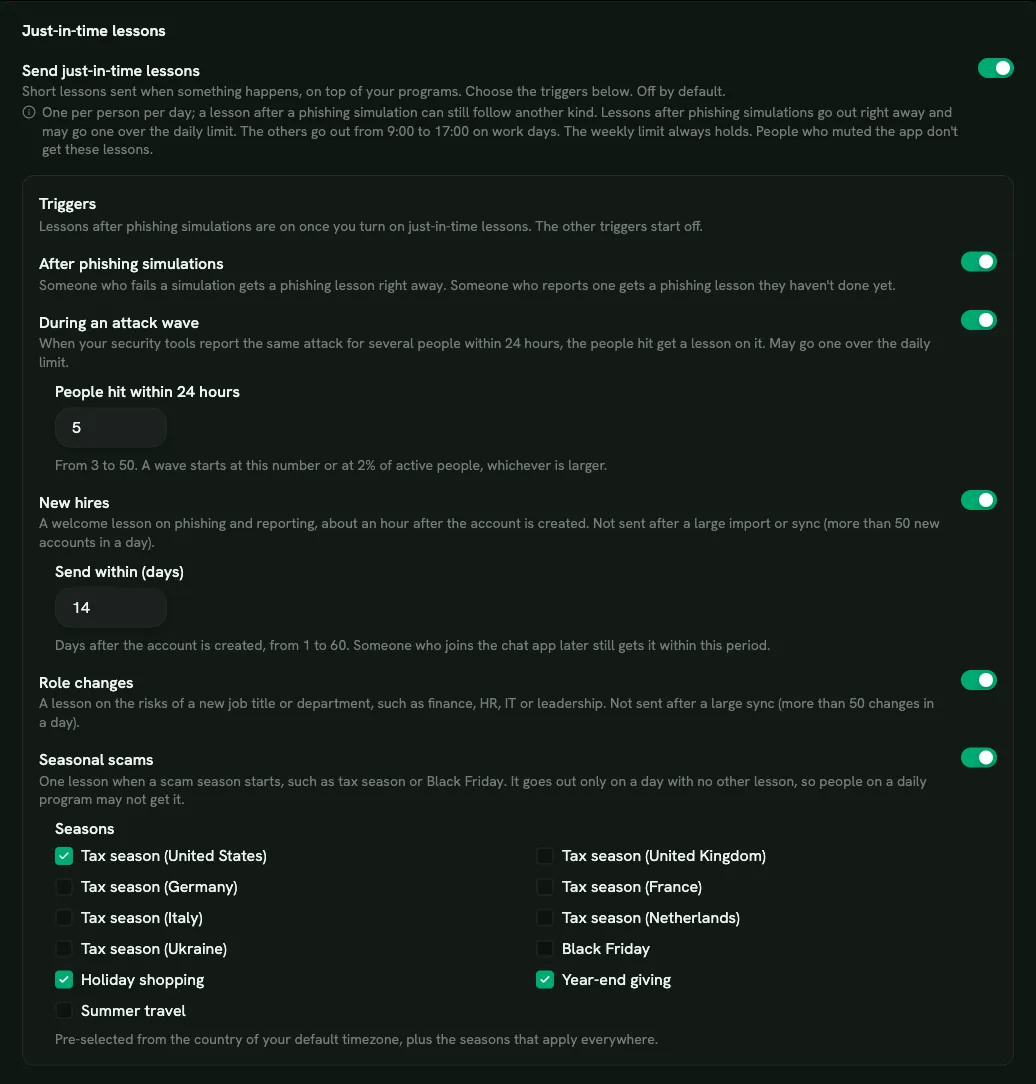 ## Report to Security [Section titled “Report to Security”](#report-to-security) Employees can report a suspicious Slack message with the **Report to Security** message shortcut, or by adding the 🎣 reaction. Set where reports go under **Integrations**, **Slack**, **Chat learning settings**, **Report to Security**: * **Security channel ID**: the Slack channel ID, not its name (starts with `C`, or `G` for some older private channels, like `C0123456789`; in Slack, open the channel details and copy the ID at the bottom). A channel name such as `#security` is rejected. **Invite the RansomLeak app to that channel** (`/invite @RansomLeak`), or posts will fail. * **Security email**: reports are also sent to this address. * You can set both; reports go to every destination configured. * **Report with a reaction** enables the 🎣 emoji. It only works in channels where the RansomLeak app is a member; the shortcut works anywhere. If nothing could be delivered, the reporter sees a notice telling them the report wasn’t forwarded (“not configured” when no destination is set, or a failure message) and to contact security directly, so reports are never silently lost. If your organization uses the [Human Risk Score](/admins/reports/risk-score/), a report that reaches your security team counts in the reporter’s favor, like reporting a phishing simulation. Reporting the same message again doesn’t count twice, and at most one report per person counts in any 30 days, so the score can’t be lowered by reporting everything. Reports from Slack users who aren’t matched to a RansomLeak user still reach security but don’t affect any score. ## Slack permissions [Section titled “Slack permissions”](#slack-permissions) Chat learning needs Slack permissions that older installs of the app don’t have (for example for the 🎣 reaction and for Do Not Disturb). If your workspace needs them, an **Update permissions** banner appears on the Slack tab. Click **Update permissions** and a Slack admin approves the new scopes; your settings are kept. Until they are approved, the 🎣 reaction and Do Not Disturb handling don’t work.
# Courses and exercises
> The RansomLeak content library: what admins can control, the course catalogue, and course certificates.
RansomLeak’s courses and exercises are created and maintained by RansomLeak, and new content is added regularly. Admins can’t create or edit courses and exercises, but they decide how learners get to them. ## Ways to deliver content [Section titled “Ways to deliver content”](#ways-to-deliver-content) | Method | Use it for | | ----------------------------------------------------------------- | ---------------------------------------------------------------------------- | | **Course catalogue** | Self-paced learning. Learners browse **Courses** themselves. | | **[Learning paths](/admins/learning-paths/overview/)** | Structured curricula made of exercises, courses, drills and your own content | | **[Campaigns](/admins/campaigns/overview/)** | Assigned training with a deadline | | **[SCORM packages](/admins/content/scorm-packages/)** and **LTI** | Running RansomLeak content inside your own LMS | 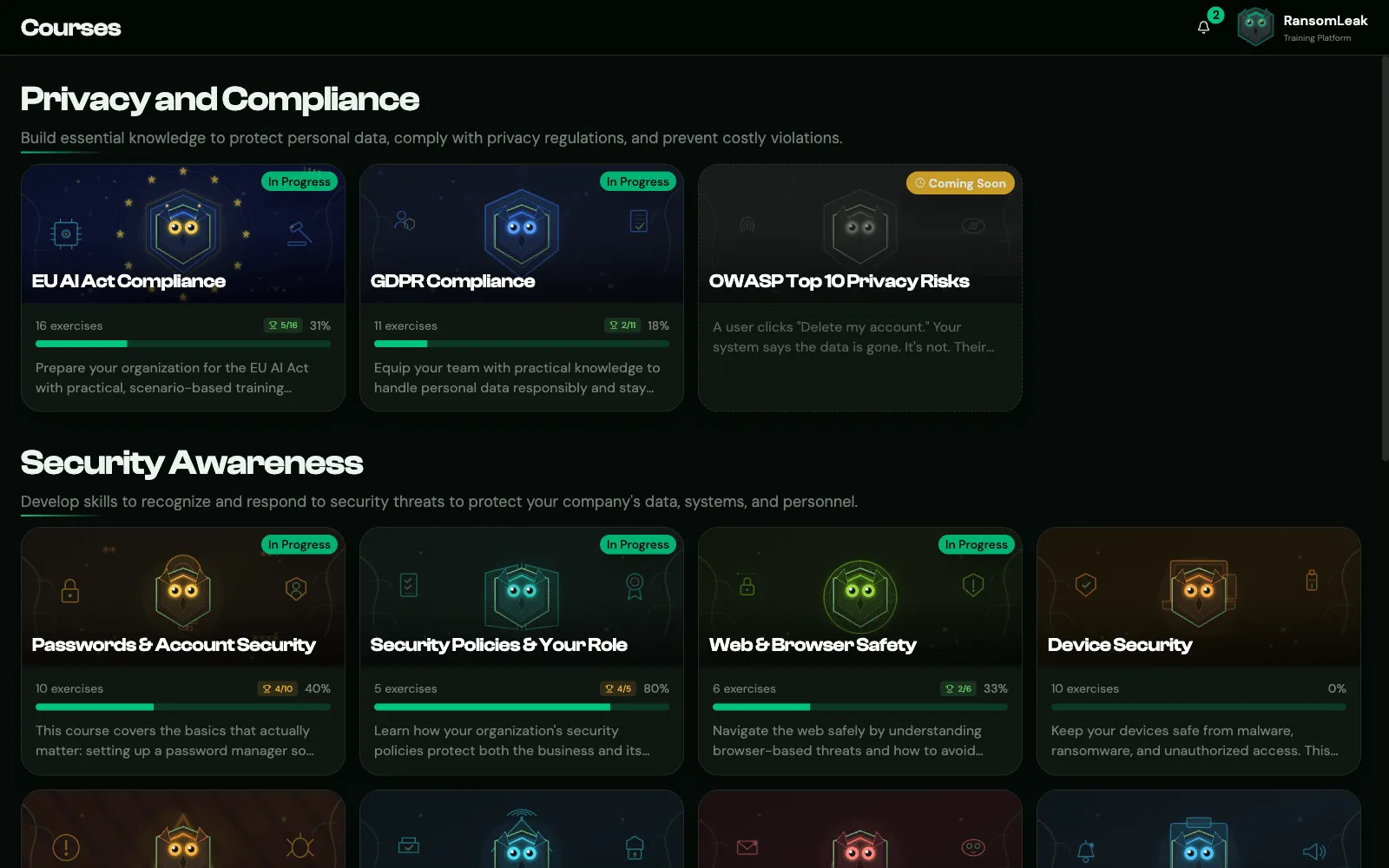 ## Hiding the course catalogue [Section titled “Hiding the course catalogue”](#hiding-the-course-catalogue) To make sure people only see the training you assign, turn on **Hide Course Catalog** under **Tenant Settings → Learning & Assessment**. The **Courses** menu item disappears for regular users. Admins, and roles with **View Course Catalog When Hidden**, keep access. Learning paths stay visible either way. ## Room and language [Section titled “Room and language”](#room-and-language) * **Default room:** 3D exercises start in a **Home office** or an **Office**. Set it under **Tenant Settings → Learning & Assessment**. Some exercises need a specific room, and learners can switch rooms in the exercise. * **Language:** exercises use each learner’s language when a translation exists, otherwise English. The same goes for exercise and course names in learning paths, campaigns, campaign analytics and progress reports (reports use the organization default). Set the organization default under **Tenant Settings → Language & Region**. ## Course certificates [Section titled “Course certificates”](#course-certificates) A learner receives a certificate automatically when they complete every exercise in a course. If quizzes are on, every quiz must be passed at the **Quiz Completion Threshold**. Certificates are listed under **Certificates** and can be shared on LinkedIn if **LinkedIn Certificate Sharing** is on. ## Course analytics [Section titled “Course analytics”](#course-analytics) See how a course is doing under **Analytics → Course Analytics**. See [Analytics dashboards](/admins/reports/analytics/#course-analytics).
# Custom content
> Upload your own SCORM packages, PDFs, presentations, videos and audio and use them as learning path steps.
**Custom content** lets you add your own material alongside RansomLeak’s, for example your security policy as a PDF, a video message from leadership, or an existing SCORM course. You need the **Manage Custom Content** permission. Custom content is delivered as a **step in a learning path**. It doesn’t appear in the course catalogue. ## Supported files [Section titled “Supported files”](#supported-files) | Type | Files | Maximum size | | ------------- | ------------------------------- | ------------ | | SCORM package | `.zip` (SCORM 1.2 or 2004) | 250 MB | | Presentation | `.pptx`, `.ppt`, `.odp` | 100 MB | | PDF | `.pdf` | 50 MB | | Video | `.mp4`, `.webm` | 30 MB | | Audio | `.mp3`, `.ogg`, `.wav` | 15 MB | | Image | `.png`, `.jpg`, `.gif`, `.webp` | 10 MB | ## Upload [Section titled “Upload”](#upload) 1. Go to **Content Management → Custom Content** and click **Upload Content**. 2. Drop a file (one at a time), give it a **Name** and an optional description, and click **Upload**. 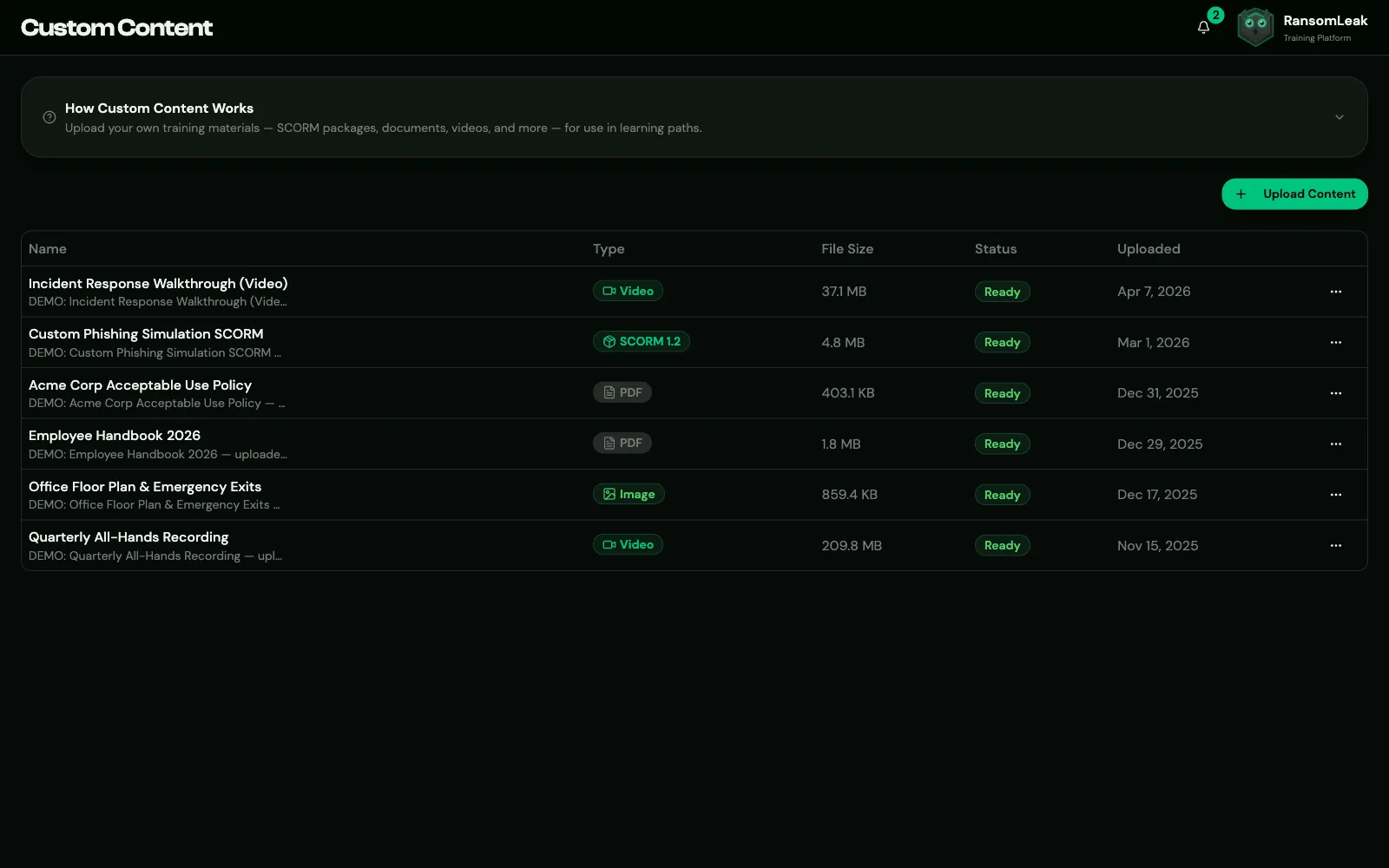 Documents are **Ready** immediately. SCORM packages are **Processing** for a moment while RansomLeak reads the package, then become **Ready**, or **Failed** with the reason. Failed uploads are removed automatically after 7 days. ## Add it to a learning path [Section titled “Add it to a learning path”](#add-it-to-a-learning-path) In the learning path builder, click **Add Step**, choose **Custom Content** and pick the item. Only **Ready** items are listed. Custom content counts as **SAT** content, so it can be added to SAT learning paths but not to AppSec ones. ## How completion works [Section titled “How completion works”](#how-completion-works) | Content | Complete when | | ----------------------------------- | -------------------------------------------------------------------------------------------------------------- | | **SCORM 2004** | The package reports it’s *completed* | | **SCORM 1.2** | The package reports *completed* or *passed*. A finished attempt reported as *failed* also counts as completed. | | **Documents, video, audio, images** | The learner clicks **Mark as Complete** (available after a few seconds) | SCORM progress is saved automatically, so learners can leave and resume. Presentations can’t be previewed in the browser; learners download them, then mark them complete. ### Completing an item again [Section titled “Completing an item again”](#completing-an-item-again) Custom content counts toward campaigns and learning paths like exercises do: * **Campaigns** count a completion made while the learner is in the campaign. An earlier completion counts only if it falls within the campaign’s **Completion recognition window**. * **Yearly learning paths** count only completions made in the current cycle. * **Directly assigned learning paths** accept any past completion. When a completion is needed again, for example for this year’s policy campaign, the learner’s **Start** button opens a fresh attempt: a SCORM package starts from the beginning, and a document can be marked complete again. **Review** reopens the completion that already counts. ## Delete [Section titled “Delete”](#delete) Use **⋯ → Delete**. The item is deleted immediately, without a confirmation. It can’t be deleted while a learning path uses it; remove the step first. To change a file, upload the new version and swap the step.
# Using RansomLeak in your LMS
> Run RansomLeak exercises inside Moodle, Cornerstone, Canvas or any other LMS with SCORM packages or LTI 1.3.
If your organization already uses a learning management system (LMS), you can run RansomLeak exercises inside it. Results flow back to your LMS. There are two ways: | | SCORM packages | LTI 1.3 | | ---------------- | -------------------------------- | ------------------------------------------------------------------------------ | | Works with | Almost any LMS | Canvas, Moodle, Blackboard, D2L Brightspace, Sakai and other LTI 1.3 platforms | | Setup | Upload a zip file per package | Connect once; instructors add content from a picker | | Learner accounts | Anonymous, identified by the LMS | Linked to the learner’s LMS identity | | Content | Exercises and courses | Exercises, courses and learning paths | Drills can’t be delivered through either method; they run only on the RansomLeak platform. ## SCORM packages [Section titled “SCORM packages”](#scorm-packages) You need the **Manage SCORM Packages** permission. Go to **Content Management → SCORM Packages**. ### Create a package [Section titled “Create a package”](#create-a-package) * **Generate from Course:** all exercises in a course. Choose **One package** (one zip for the whole course) or **One per exercise** (a download containing one zip per exercise). * **Generate from Exercise:** a single exercise. * **Create Custom Package:** pick any exercises and give the package a name. 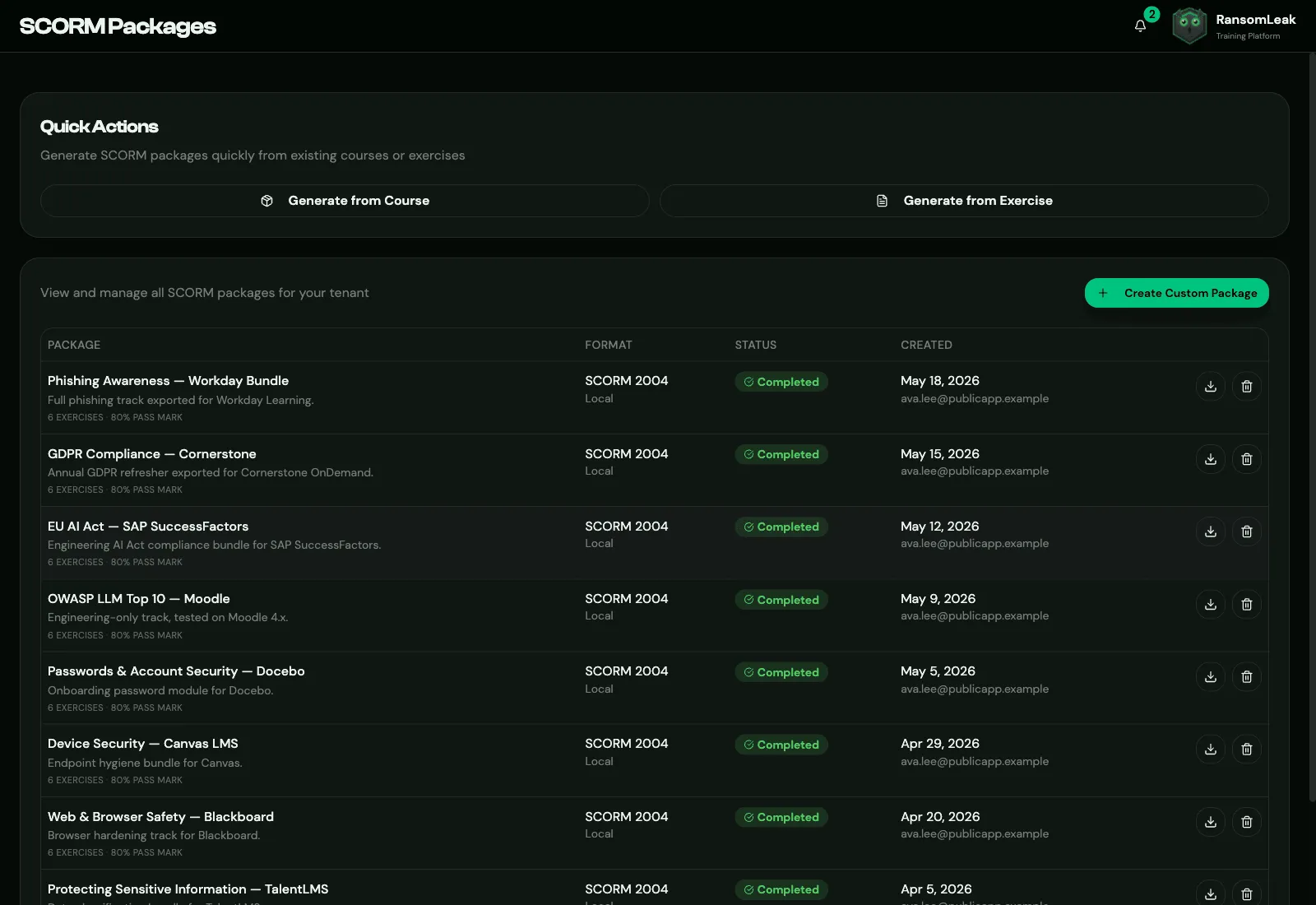 For each, choose: * **SCORM Version:** **SCORM 2004** (default) or **SCORM 1.2**. Use what your LMS supports best. * **Quiz Score Threshold (%):** the score needed to pass. It defaults to your organization’s Quiz Completion Threshold. When the status is **Completed**, click **Download** and upload the zip to your LMS as a SCORM course. One per exercise The “one per exercise” download is a bundle. Unzip it and upload the individual packages inside. Uploading the outer zip to your LMS shows *Package Not Launchable*. ### How it works [Section titled “How it works”](#how-it-works) The package is a lightweight launcher: the exercise is streamed from RansomLeak each time a learner opens it. Improvements to the exercises reach your LMS automatically, and there’s nothing to allow-list on your side. The list of exercises in a package is fixed; to change it, create a new package. Results reported to your LMS: | Result | SCORM 2004 | SCORM 1.2 | | ------ | ------------------ | --------- | | Passed | completed + passed | passed | | Failed | completed + failed | failed | The score is reported too. ### Licences and learner accounts [Section titled “Licences and learner accounts”](#licences-and-learner-accounts) The first time someone launches a package from your LMS, RansomLeak creates an anonymous account for them, identified by their LMS learner ID, and assigns it a **licence**. These accounts can’t sign in to RansomLeak directly. They’re listed under **User Management → SCORM Users**. Caution Every distinct LMS learner uses a licence. Make sure you have enough seats for your LMS audience. ### Messages learners might see [Section titled “Messages learners might see”](#messages-learners-might-see) | Message | What to do | | -------------------------- | ---------------------------------------------------------------------------------------- | | **License Required** | You’ve run out of licences. Add seats or disable unused accounts. | | **Account Inactive** | This learner’s account was disabled. Re-enable it under SCORM Users. | | **Package Not Found** | The package was deleted in RansomLeak. Upload a new one. | | **Invalid Launch Link** | Your LMS didn’t send learner details. Launch the course from the LMS, not a direct link. | | **Package Not Launchable** | You uploaded a “one per exercise” bundle. Upload the inner packages instead. | | **Could Not Start** | A network problem. Try again. | ## LTI 1.3 [Section titled “LTI 1.3”](#lti-13) Go to **Integrations → LTI** (you need **Manage Integrations**). **Quick setup (dynamic registration)**, for Canvas, D2L Brightspace, Moodle and Sakai: 1. Click **Generate registration URL**. 2. Paste it into your LMS’s *dynamic registration* field. The link works once and expires. **Moodle plugin**: install the free [RansomLeak plugin from the Moodle Marketplace](https://marketplace.moodle.com/plugins/local_ransomleak), then enter your RansomLeak address under *Site administration → Plugins → Local plugins → RansomLeak security awareness (LTI)*. It creates the tool in Moodle for you. Then click **Add platform** here and enter the values from the tool’s *View configuration details* in Moodle. **Manual setup**, for other LMSs including Blackboard: 1. Copy the values under **Tool configuration** (OIDC Login URL, LTI Launch URL, JWK Set URL, Key ID, Public JWK) into your LMS. 2. Click **Add platform** and enter your LMS’s **Issuer**, **Client ID**, **Deployment IDs**, **Platform auth login URL**, **Platform token URL** and **Platform JWK Set URL**. Instructors then use **Add training to your course** in the LMS to pick exercises, courses or learning paths. **Learners:** the first launch creates a RansomLeak account linked to the learner’s LMS identity, with your default role and a licence. If someone with the same email already has a RansomLeak account, the launch is linked to it only if that account has never set a password, isn’t disabled and has the default role. Otherwise the launch is refused, to protect existing accounts. **Grades:** exercise and course scores are sent to the LMS gradebook. A completed learning path is reported as 100.
# AI Chat drills
> Train people to use public AI assistants without pasting confidential data into them.
An AI Chat drill recreates a common mistake: someone under deadline opens a public AI chatbot, and the quickest way to get help is to paste in confidential data. The learner chats with a scripted assistant and decides at each step what to share. No real AI service is involved. AI Chat drills are on the **AI Chat Drills** tab under **Content Management → Microlearning**. You need **Manage AI Chat Drills**. ## What learners experience [Section titled “What learners experience”](#what-learners-experience) 1. **Scene:** a short setup gives them a task and a deadline. 2. **Conversation:** the assistant offers help, and at each decision point they choose what to send: a risky shortcut, a partly masked version, or a safe version with placeholders. Risky choices lead to bigger requests. 3. **Thread review:** they look back at the conversation and tap what was suspicious. 4. **Reveal:** red flags found and missed, plus how each of their choices was rated (**Safe**, **Risky** or **Leaked**). 5. **Response:** a paste can’t be unsent, so the right move is to report it. 6. **Quiz.** ## Building an AI Chat drill [Section titled “Building an AI Chat drill”](#building-an-ai-chat-drill) Click **Create Drill** and pick a template: **Quarterly Numbers Crunch**, **Debugging With Live Keys**, **The Sensitive HR Email**, **The Support Ticket Backlog** or **Custom Template**. Then fill in: * **The Assistant:** **Assistant name** and a **Tier / retention note** (for example, that the free tier may use conversations for training). * **Scene Setup:** **Drill Name**, **Scene Title** and **Scene Description**. * **Conversation:** edit each **Assistant message** and, at each **Decision point**, the text of each option (**What the employee sends**), its rating (**Correct**, **Risky** or **Wrong**) and the **Feedback (shown in reveal)**. The branching structure comes from the template. You can reword the messages and options but not add or remove branches. 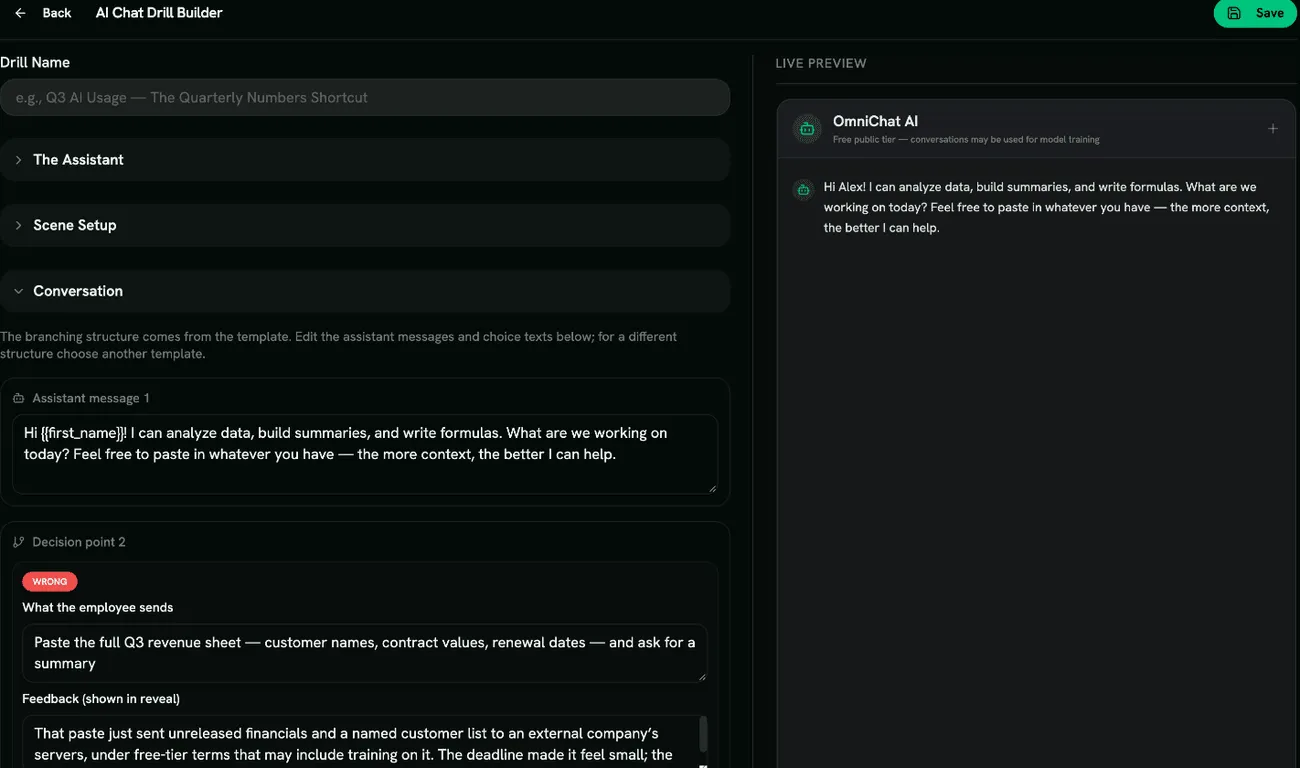 ## Red flags [Section titled “Red flags”](#red-flags) Under **Configure Red Flags**, choose from **Unvetted Public Tool**, **Trains On Your Data**, **Asks For Identities**, **Asks For Secrets**, **Asks For Confidential Numbers**, **Asks For Health Details**, **“Paste Everything” Framing** and **Escalating Requests**. If a conversation ends early, flags in messages the learner never saw aren’t counted. ## Scoring [Section titled “Scoring”](#scoring) Each choice rated **Correct**, each red flag found, the correct response and each correct quiz answer earns a point. **Risky** and **Wrong** choices earn nothing, and marking something harmless counts against the score. The drill is passed when the score reaches your **Quiz Completion Threshold**. ## Tips [Section titled “Tips”](#tips) * Name the assistant something generic rather than a real product. * Pair this drill with your organization’s AI usage policy, so learners know which tools are approved.
# Attachment drills
> Train people to spot a malicious attachment and never click "Enable Content".
An Attachment drill (shown in the app as **Malicious Attachment Drills**) shows a routine-looking email with a dangerous file: a program disguised as a document (`Invoice.pdf.exe`), a macro-enabled document (`.docm`, `.xlsm`), or a fake “secured document” that asks the learner to click **Enable Content**. They inspect the email and the opened file. Nothing runs: it’s a simulation. Attachment drills are on the **Attachment Drills** tab under **Content Management → Microlearning**. You need **Manage Malicious Attachment Drills**. ## What learners experience [Section titled “What learners experience”](#what-learners-experience) 1. **Scene:** a short setup explains how the attachment arrived. 2. **Inspection:** they see the email and, after opening the attachment, the document viewer. They tap anything suspicious: the sender, the file name, the yellow **Enable Content** banner, the document itself. 3. **Reveal:** red flags found and missed, with explanations. 4. **Response:** don’t enable it, report it, and why “scan it, then enable” is still a trap. 5. **Quiz.** ## Building an Attachment drill [Section titled “Building an Attachment drill”](#building-an-attachment-drill) Click **Create Drill** and pick a template: **Unpaid Invoice (.pdf.exe)**, **Payroll Update (.docm macro)**, **Résumé to HR (.docm macro)**, **Shared “Scanned Document”** or **Custom Template**. Then fill in: * **Scene Setup:** **Drill Name**, **Scene Title** and **Scene Description**. * **The Carrier Email:** **Sender display name**, **Sender email address**, **Subject line** and **Email body (HTML)**. `